
To test RAM for errors, begin with the hardware diagnostic built into your operating system. If crashes continue or the first test finds a problem, move on to a bootable memory tester. Run several complete passes, since intermittent errors may not appear right away. When errors do show up, disable memory overclocking and test each RAM module separately to isolate the faulty module, slot, or configuration.
Even one reproducible error matters. It means the memory subsystem is unstable, though the RAM module itself isn’t always at fault. Incorrect firmware settings, an unstable XMP or EXPO profile, the processor’s memory controller, or a damaged motherboard slot can all produce similar results.
Common signs of a RAM problem
- Random blue screens, kernel panics, freezes, or unexpected restarts
- Applications closing with different error messages
- Files or archives repeatedly becoming corrupted
- Installation failures that occur at inconsistent points
- Crashes during gaming, rendering, compilation, or other heavy workloads
- The computer failing to start after a memory upgrade
Storage problems, drivers, overheating, or an unstable CPU can cause these symptoms too. A memory test helps narrow down the source, but it doesn’t automatically prove that a DIMM is defective.
Before you test your RAM
- Back up important files if the computer is crashing or corrupting data.
- Install pending stable firmware updates only when the computer manufacturer recommends them for memory compatibility.
- Write down the current XMP, EXPO, memory frequency, voltage, and timing settings before making changes.
- Prepare an empty USB drive if you plan to run a bootable test. Creating the test drive normally erases it.
- Set aside enough time. Testing high-capacity memory can take several hours.
Test RAM with Windows Memory Diagnostic
Windows 11 and Windows 10 include Windows Memory Diagnostic. It’s a convenient first check, and you don’t need a USB drive to use it.
- Save your work and close any open applications.
- Press Windows key + R.
- Enter
mdsched.exe, then press Enter. - Select Restart now and check for problems.
- Wait while Windows restarts and checks the memory.
While the test is running, press F1 to select the Extended test or change the number of passes. Extended testing takes much longer, but it may catch problems that a quick test misses.
Find the Windows Memory Diagnostic results
Windows should show the result after you sign in. If no notification appears, open PowerShell and run:
Get-WinEvent -FilterHashtable @{LogName='System'; ProviderName='Microsoft-Windows-MemoryDiagnostics-Results'} | Select-Object -First 1 -ExpandProperty MessageYou can also open Event Viewer, choose the System log, and search for the MemoryDiagnostics-Results source.
A clean result doesn’t completely rule out intermittent instability. If unexplained crashes continue, use a bootable test.
Run a bootable RAM test
A dedicated bootable utility such as MemTest86 or Memtest86+ runs outside the installed operating system. That lets it check more memory while removing most driver and application variables.
- Download the utility from its official website.
- Create a bootable USB drive with the included imaging tool or the process described in the utility’s documentation.
- Restart the computer and open its one-time boot menu. The key depends on the manufacturer and may be F12, F11, Esc, or another key.
- Select the UEFI USB device.
- Start the default memory test and let it complete at least four passes. For intermittent crashes, an overnight test is preferable.
- Before exiting, photograph or write down any reported error addresses, test numbers, and CPU details.
If Secure Boot stops the utility from loading, check the instructions from both the utility developer and the computer manufacturer. Don’t permanently weaken firmware security settings just to run a test.
Test RAM on Linux with memtester
On a running Linux system, memtester checks a specified amount of memory that’s currently available. On Debian or Ubuntu, install it with:
sudo apt update
sudo apt install memtester
To test 4 GB of memory through four loops, run:
sudo memtester 4G 4Don’t allocate all installed RAM. The operating system and active services still need enough memory to run. For instance, a computer with 8 GB should usually test substantially less than 8 GB while Linux is running.
Because memtester can’t check memory reserved by the kernel or other processes, a bootable test is more thorough. Use memtester for a quick check or when rebooting isn’t convenient.
Test memory on a Mac
Apple Diagnostics can check Mac hardware, including faults associated with memory. Before starting, disconnect any unnecessary external devices.
Apple silicon Mac
- Shut down the Mac.
- Press and hold the power button until the startup options appear.
- Release the button, then press Command-D.
- Follow the diagnostic prompts and record any reference code.
Intel-based Mac
- Turn on the Mac and immediately hold the D key.
- Release the key when the progress indicator or language selection appears.
- Complete the diagnostic and record the result.
Many recent Macs have memory integrated into the processor package rather than replaceable RAM modules. If Apple Diagnostics reports a memory-related reference code, contact a qualified service provider and give them that code.
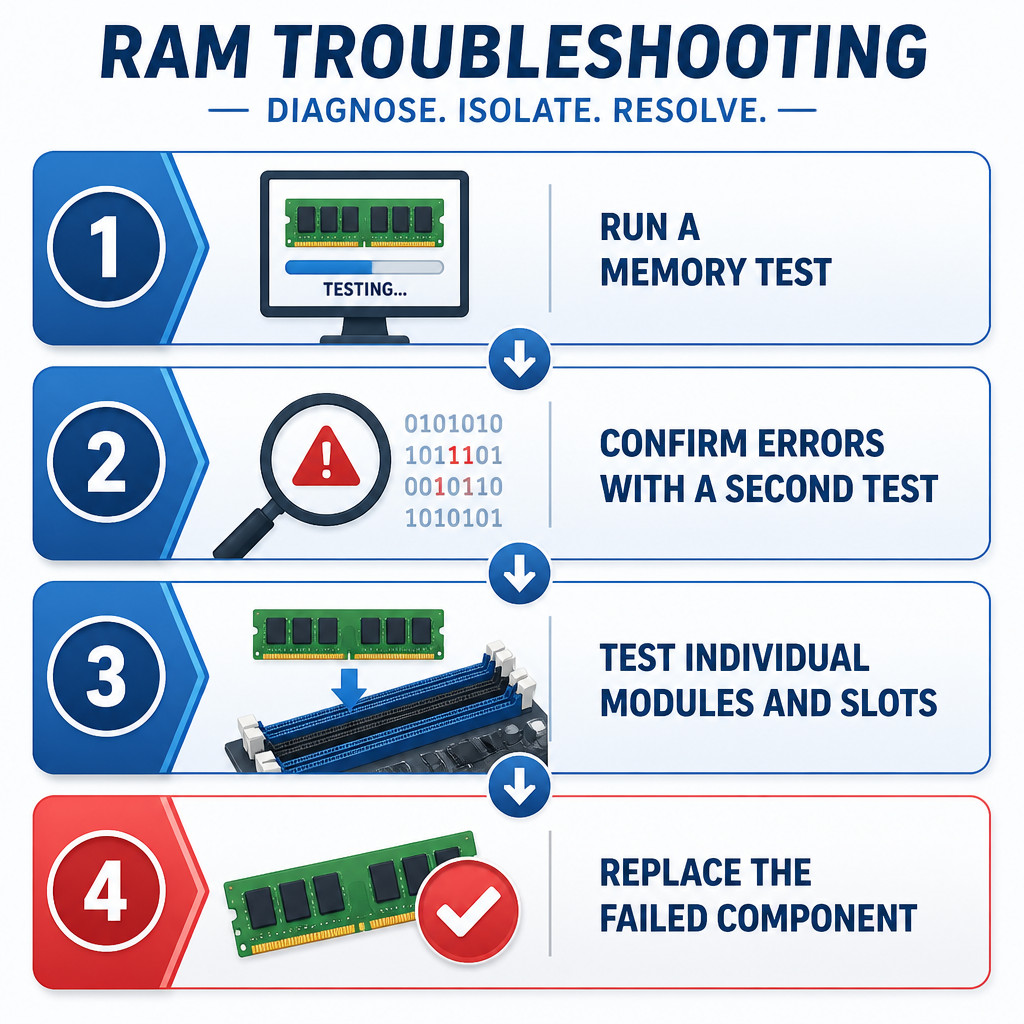
What to do when a RAM test finds errors
- Return the memory settings to default. Disable XMP, EXPO, manual overclocking, and custom memory timings, then run the test again.
- Reseat removable RAM. Shut down the computer, disconnect power, follow electrostatic-discharge precautions, and reinstall the modules. Don’t open a device with soldered memory.
- Test one module at a time. Put each module in the motherboard’s recommended slot and repeat the same test.
- Check the slots. If a module fails only in one particular slot, the problem may involve the motherboard, CPU socket, or memory channel.
- Verify compatibility. Check the memory generation, capacity, rank configuration, speed, voltage, and motherboard support.
- Replace or warranty the failed part. Include your saved test results when contacting the memory or computer manufacturer.
If several modules fail individually at default settings, don’t assume they all became defective at the same time. Look into firmware compatibility, bent CPU socket pins, overheating, power instability, or a failing memory controller.
Common RAM testing mistakes
- Stopping after one quick pass even though the crashes are intermittent
- Testing only with XMP or EXPO enabled, then immediately blaming the module
- Replacing RAM without checking the modules and motherboard slots separately
- Running Linux memtester against nearly all available memory
- Mixing unmatched kits and expecting them to remain stable at their advertised overclocked speed
- Overlooking heat or power problems that appear only under load
Frequently asked questions
How long should I test RAM for errors?
Complete at least four passes with a bootable memory tester. For intermittent crashes or newly installed RAM, allow the test to run overnight. Higher memory capacities take longer to test.
Does one memory test error mean the RAM is bad?
One reproducible error shows that the memory subsystem is unstable, but the error alone doesn’t identify the responsible component. Retest with default settings, then check each module and slot separately.
Can RAM pass a test and still be faulty?
Yes. Temperature, workload, memory profile settings, and intermittent electrical faults can change the result. Test again for longer, and compare the behavior with XMP or EXPO disabled.
Will a RAM test erase my files?
The test itself doesn’t erase internal storage. Creating a bootable USB test drive usually erases that USB drive, however, so confirm that you’ve selected the right device before writing the image.
