
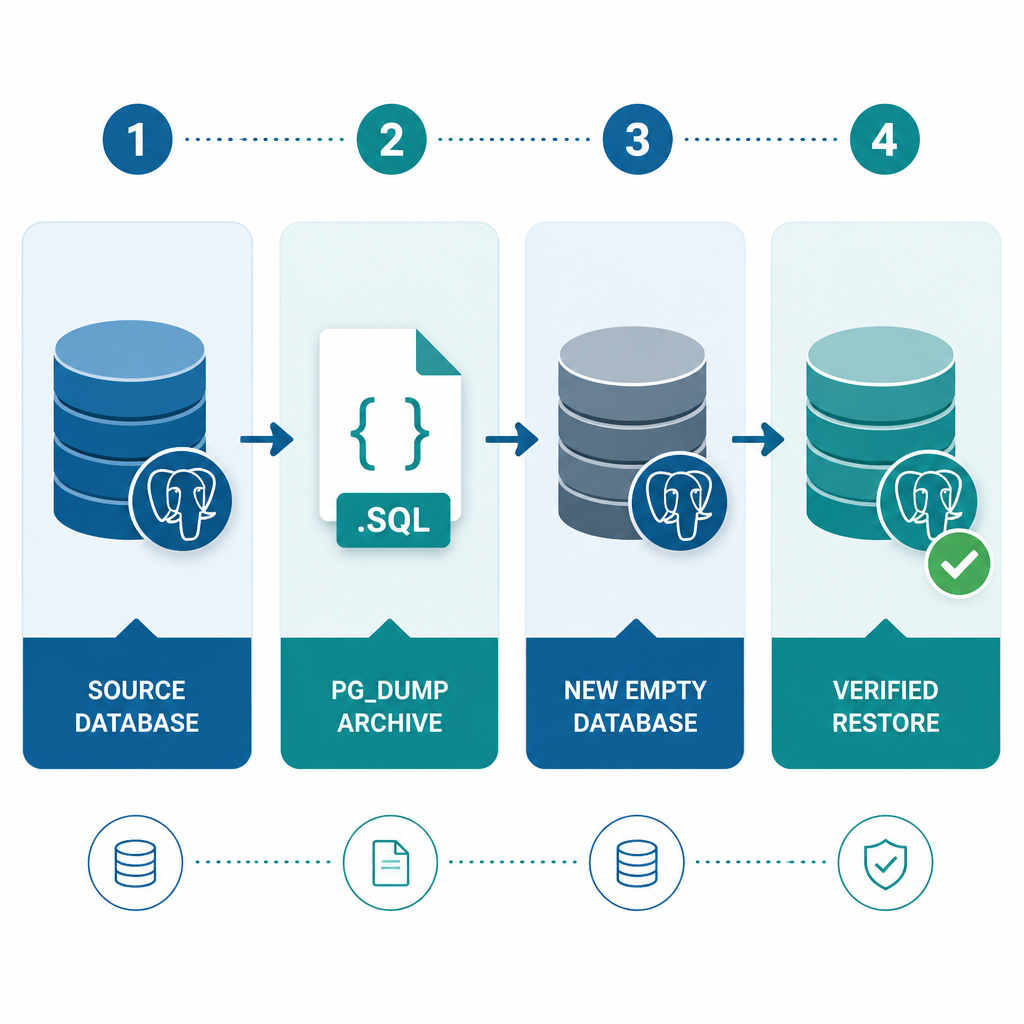
Quick answer: Use pg_dump to back up a single PostgreSQL database in custom archive format, then load that archive into a new database with pg_restore. The basic commands are:
pg_dump -Fc -d appdb -f appdb.dump
createdb -T template0 appdb_restore
pg_restore --no-owner -d appdb_restore appdb.dump
Custom format is usually the best option. It’s compressed, allows selective restores, and supports parallel restoration. Before you depend on any backup, test that you can restore it.
Prerequisites
- PostgreSQL client tools installed, including
pg_dump,pg_restore,psql, and optionallycreatedb. - A PostgreSQL account with permission to read every object included in the backup.
- Enough free storage space for both the backup file and a restore test.
- Network access to the PostgreSQL server if it’s running remotely.
When possible, use a pg_dump client from the same PostgreSQL major version as the server. A newer client can generally dump an older server, but pg_dump won’t dump a server that’s newer than the client’s supported major version.
Create a PostgreSQL backup in custom format
Run this command in a terminal:
pg_dump -h localhost -p 5432 -U postgres -Fc -d appdb -f appdb.dumpHere’s what each option does:
-hspecifies the PostgreSQL server hostname.-psets the server port.-Uidentifies the database user.-Fcselects custom archive format.-dnames the source database.-fsets the output file.
pg_dump creates a transactionally consistent snapshot while the database remains in use. Regular reads and writes normally continue, though the tool takes locks that prevent certain schema changes while objects are being dumped.
Back up a remote database
pg_dump -h db.example.com -U backup_user -Fc -d appdb -f appdb-2025-01-15.dumpYou may be asked for a password. For scheduled jobs, configure a PostgreSQL password file rather than placing the password directly in the command. On Linux and macOS, the file is normally ~/.pgpass. Windows uses %APPDATA%\postgresql\pgpass.conf. Because the file contains credentials, restrict access to it.
Restore a custom-format backup
Restoring into a new, empty database is the safest approach. It keeps restored objects from being mixed with data that’s already there.
Create the destination database from
template0:createdb -h localhost -U postgres -T template0 appdb_restoreRestore the archive:
pg_restore -h localhost -U postgres --no-owner -d appdb_restore appdb.dumpWhile troubleshooting, stop at the first SQL error:
pg_restore -h localhost -U postgres --exit-on-error --no-owner -d appdb_restore appdb.dump
With --no-owner, the connected user owns the restored objects instead of pg_restore trying to recreate their original ownership. This helps when you’re restoring under a different account. Leave the option out if ownership must be preserved and the required roles already exist.
Replace an existing test database
dropdb -h localhost -U postgres appdb_restore
createdb -h localhost -U postgres -T template0 appdb_restore
pg_restore -h localhost -U postgres --exit-on-error --no-owner -d appdb_restore appdb.dump
Check the database name carefully before running dropdb. The command permanently deletes that database.
Use parallel restore for large databases
Custom-format archives can be restored in parallel. This example runs four worker jobs:
pg_restore -U postgres -j 4 --no-owner -d appdb_restore appdb.dumpParallel jobs may cut restore time significantly when the system has enough CPU capacity, storage throughput, and available database connections. More workers aren’t always faster, so test different values to find one that suits the server.
Create and restore a plain SQL backup
A plain backup is a readable SQL script. It’s handy for inspection and straightforward migrations, but it can’t be used with pg_restore and doesn’t support selective parallel restoration.
pg_dump -h localhost -U postgres --no-owner -d appdb -f appdb.sqlRestore a plain SQL file with psql, not pg_restore:
createdb -U postgres -T template0 appdb_restore
psql -X -U postgres --set ON_ERROR_STOP=on -d appdb_restore -f appdb.sql
The ON_ERROR_STOP setting tells psql to stop after an error rather than continuing through the rest of the script. Using -X prevents local psql startup configuration from affecting restore behavior.
Back up roles and other cluster-wide objects
pg_dump backs up one database at a time. Cluster-wide roles and tablespace definitions aren’t included, so export them separately with pg_dumpall:
pg_dumpall -h localhost -U postgres --globals-only -f postgres-globals.sqlRestore those globals while connected through an account with sufficient privileges:
psql -X -h localhost -U postgres -d postgres -f postgres-globals.sqlReview the file before restoring it in another environment. It may contain role definitions and password verifiers, so treat it as sensitive data.
Restore only selected tables
To restore a specific table from a custom archive, use -t:
pg_restore -U postgres -d appdb_restore -t public.customers appdb.dumpFor finer control, create an archive contents list, edit that file, and restore from the edited version:
pg_restore --list appdb.dump > restore-list.txt
pg_restore -U postgres -d appdb_restore --use-list restore-list.txt appdb.dump
A selective table restore may leave out dependencies such as referenced tables, sequences, extensions, or functions. Read the restore output closely.
Verify the PostgreSQL backup
A successful pg_dump command shows that an archive was written. Only a test restore confirms that the backup is usable.
Inspect the archive contents:
pg_restore --list appdb.dumpRestore the archive into an isolated database.
Connect to that database and check important tables:
psql -U postgres -d appdb_restore -c "SELECT count(*) FROM public.customers;"Run application-level checks, including representative queries and migrations.
Record the backup time, file size, command exit status, and restore-test result.
Common mistakes to avoid
- Using pg_restore for an SQL file: Restore plain SQL files with
psql. - Ignoring roles and ownership: Back up globals or use
--no-ownerduring restoration when appropriate. - Restoring over populated databases: Start with a fresh database unless you fully understand
--cleanand object dependencies. - Keeping backups only on the database server: Copy encrypted backups to separate storage.
- Never testing recovery: Schedule regular restore drills and verify application data.
- Treating pg_dump as physical disaster recovery: Use PostgreSQL physical backups and WAL archiving if point-in-time recovery is required.
PostgreSQL backup FAQ
Does pg_dump lock the PostgreSQL database?
pg_dump takes a consistent snapshot while allowing normal reads and writes to continue. It does acquire shared locks, and those can conflict with some schema-changing operations, such as dropping tables during the backup.
Which pg_dump format should I use?
For most backups, use custom format with -Fc. Choose plain SQL when you specifically need a readable script or intend to edit the generated statements.
Does pg_dump include users and roles?
No. Roles are cluster-wide objects, so export them separately with pg_dumpall --globals-only.
Can pg_dump provide point-in-time recovery?
No. A logical dump captures one database snapshot. Point-in-time recovery requires a physical base backup along with continuous write-ahead log archiving.
How often should PostgreSQL backups be tested?
Run restore tests regularly and after major changes to the database, infrastructure, or backup scripts. The right frequency depends on how much data loss and downtime the organization can tolerate.
