
Quick answer: To check SSD health, examine its SMART or NVMe diagnostic data instead of judging the drive only by whether it still works. Look for a healthy overall status, low wear or percentage-used readings, normal temperatures, enough available spare capacity, and no rising media or uncorrectable errors. If the drive reports a critical warning, back up important files immediately.
Windows offers a basic health check through PowerShell. macOS can display the SMART status of supported drives in Disk Utility or Terminal. On Windows, macOS, and Linux, smartctl from the smartmontools package can provide more detailed information when the SSD and its connection make that diagnostic data available.
Which SSD health data should you check?
An SSD estimates its health using internal counters maintained by the drive firmware. Attribute names and raw values differ between manufacturers, so pay closest attention to the interpreted health status and these main indicators:
- Critical warning or overall health: A failed or critical status needs immediate attention.
- Percentage used or wear level: NVMe drives commonly report how much of their rated endurance has been consumed. A reading of 100 percent used means the drive has reached its rated endurance, though failure may not be immediate.
- Available spare: This shows how much reserve NAND capacity remains. The drive will trigger a warning if the value drops below the manufacturer’s threshold.
- Media or uncorrectable errors: Investigate nonzero readings, particularly if they keep increasing.
- Temperature: Persistently high temperatures may reduce performance and shorten the drive’s life. Check the SSD specification for its supported operating range.
- Data written: When the information is available, compare total writes against the manufacturer’s terabytes-written rating.
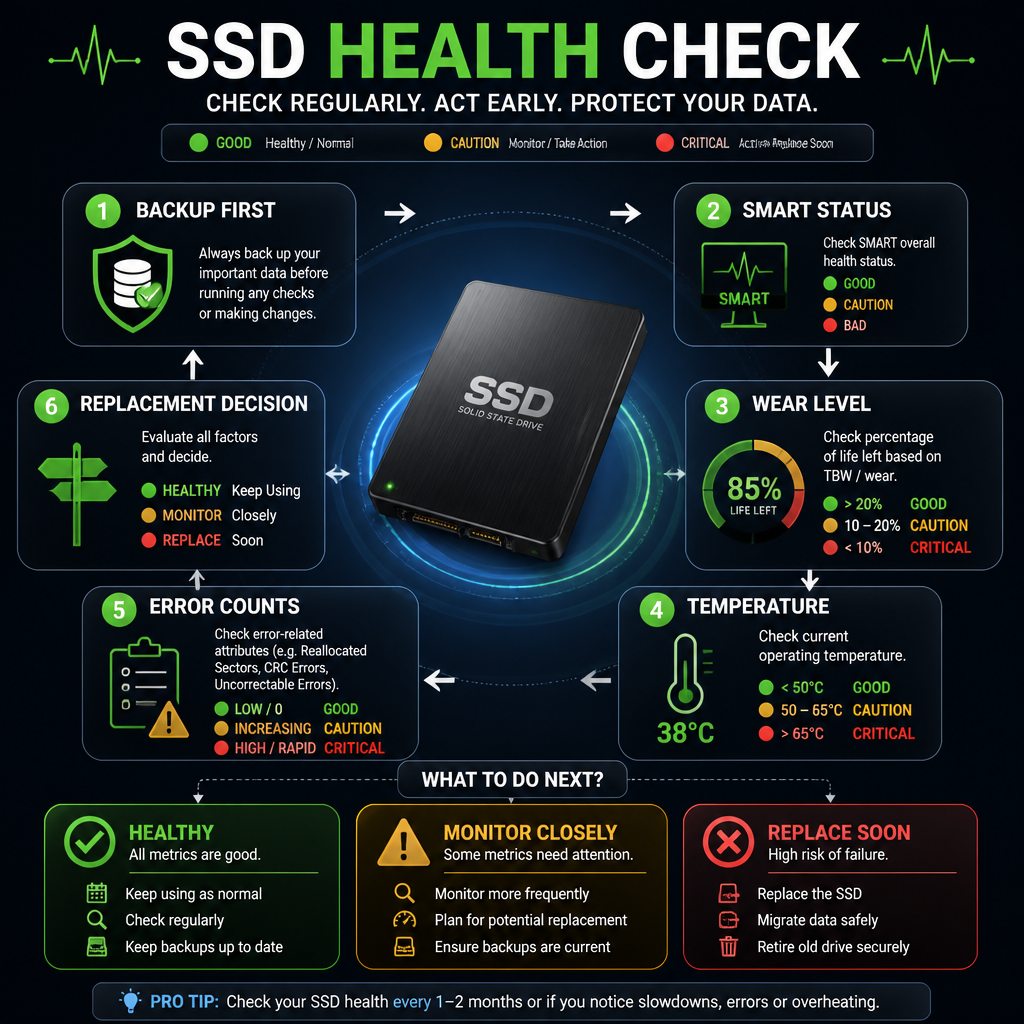
Checking SSD health on Windows
Run a quick PowerShell status check
Open PowerShell as an administrator, then run:
Get-PhysicalDisk | Select-Object FriendlyName, MediaType, HealthStatus, OperationalStatus, SizeA properly functioning drive will normally show Healthy and OK. Information may be limited when a drive is connected through certain USB adapters, RAID controllers, or vendor-specific storage drivers.
To ask Windows for the supported reliability counters, run:
Get-PhysicalDisk | Get-StorageReliabilityCounter | Select-Object DeviceId, Wear, Temperature, ReadErrorsTotal, WriteErrorsTotal, PowerOnHoursBlank fields don’t automatically indicate a defective SSD. More often, they mean the drive, controller, or driver doesn’t expose that particular counter through Windows Storage Management.
View detailed SMART data with smartctl
Install smartmontools using its official project package. Next, open an administrator terminal and scan for available devices:
smartctl --scanRun the following command with the device path returned by the scan:
smartctl -a /dev/nvme0A SATA SSD may appear under a different device name. Check the output for the overall health result, critical warnings, percentage used, available spare, temperature, media errors, and entries in the error log.
Checking SSD health on macOS
Review SMART status in Disk Utility
- Open Disk Utility from the Utilities folder.
- Choose View, then Show All Devices.
- Select the physical SSD, not an individual volume.
- Check the information panel for the drive’s SMART status.
A Verified status means the SSD isn’t currently reporting a SMART failure. It doesn’t guarantee that the drive has no other problems.
Check the SSD in Terminal
Start by identifying the physical disk:
diskutil listThen inspect it with the command below, replacing disk0 if needed:
diskutil info disk0Find the SMART Status field in the output. If you want detailed attributes, install smartmontools through Homebrew and run:
brew install smartmontools
sudo smartctl -a /dev/disk0
Some external enclosures don’t pass SMART commands through their USB connection. If that happens, try a compatible enclosure or connect the SSD directly when the hardware allows it.
Checking SSD health on Linux
Install smartmontools with your distribution’s package manager:
sudo apt install smartmontoolsFor Fedora, RHEL, or a compatible distribution, use:
sudo dnf install smartmontoolsFind the SSD’s device name by running:
lsblk -d -o NAME,MODEL,TRAN,SIZEFor an NVMe SSD, use:
sudo smartctl -a /dev/nvme0With a SATA SSD, the command may look like this:
sudo smartctl -a /dev/sdaYou can also start a short self-test on drives that support it:
sudo smartctl -t short /dev/sdaWait for the amount of time reported by smartctl, then check the result:
sudo smartctl -a /dev/sdaA self-test may uncover read or internal errors, but it can’t take the place of a backup.
When should an SSD be replaced?
Back up the SSD right away and prepare to replace it if you see a failed health assessment, an NVMe critical warning, spare capacity below its threshold, rapidly rising media errors, or repeated read-only behavior. Other warning signs include unexplained file corruption, storage that disappears, frequent freezes during disk access, and operating-system logs that repeatedly show storage resets or I/O errors.
Reaching the manufacturer’s rated endurance is a good reason to watch the drive closely and plan a replacement, especially if it handles important workloads. The SSD won’t necessarily stop working at that exact point.
Common SSD health-check mistakes
- Using a filesystem scan as a hardware test: CHKDSK and fsck can repair filesystem structures, but they can’t restore worn NAND cells.
- Trusting one green status forever: Track changes in wear and error counters, and keep your backups current.
- Running unnecessary write benchmarks: Repeated benchmarks add writes to the SSD and aren’t dependable health tests.
- Overlooking the connection: Faulty cables, USB bridges, slots, or power delivery can produce symptoms that resemble SSD failure.
- Reading vendor-specific raw values too literally: Attribute formats vary. Prefer normalized status, thresholds, and the manufacturer’s documentation.
Frequently asked questions
Can an SSD pass SMART and still fail?
Yes. SMART can detect many developing faults, but sudden failures involving the controller, firmware, power, or electronics may happen without warning. Keep important data in more than one location.
Is 100 percent SSD health always accurate?
No. Health percentages are firmware estimates based mainly on endurance and spare capacity. A 100 percent reading doesn’t prove that every component or stored file is free of errors.
Why is SMART unavailable for my external SSD?
The USB enclosure or adapter may not pass diagnostic commands to the operating system. SMART data may become available if you use a compatible bridge, switch to another connection type, or connect the SSD directly inside the computer.
What temperature is safe for an SSD?
Safe temperature limits vary by model. Many consumer SSDs are built to work across a broad range, but sustained operation near the model’s upper limit may cause throttling and add stress. Treat the manufacturer’s specification as the authoritative limit.
