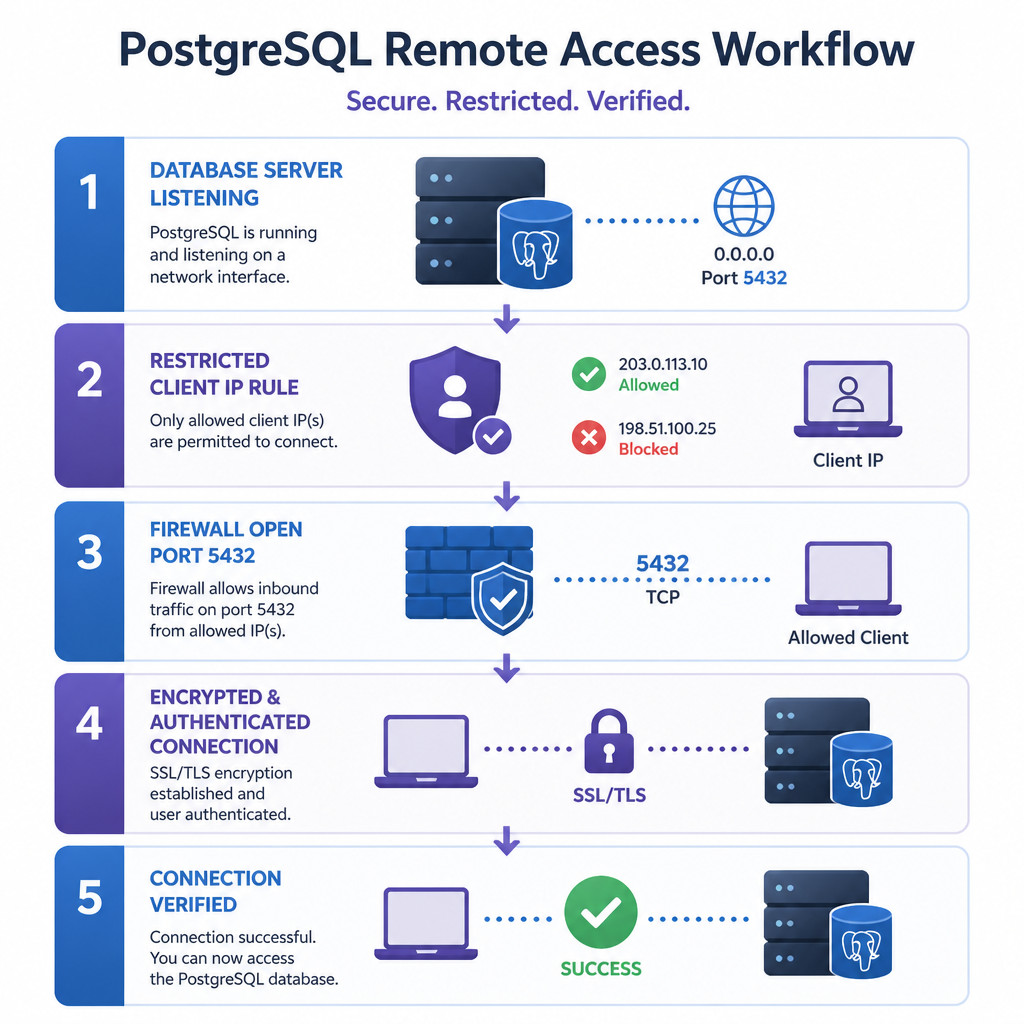
To allow remote connections to PostgreSQL, set the server to listen on a network interface, add a tightly scoped client rule to pg_hba.conf, allow TCP port 5432 through the firewall, and restart PostgreSQL. If the connection travels across an untrusted network, use SCRAM authentication and TLS.
listen_addresses = 'localhost,192.0.2.10'

hostssl  appdb  appuser  203.0.113.42/32  scram-sha-256
Replace the example server and client addresses with the addresses you actually use. Don’t allow 0.0.0.0/0 unless unrestricted internet access is truly necessary and backed by other network controls.
Prerequisites
- Administrative access to the PostgreSQL server
- The server’s private or public IP address
- The remote client’s fixed IP address or trusted network range
- A PostgreSQL login role and database
- Access to the operating-system or cloud firewall
1. Locate the PostgreSQL configuration files
Configuration file locations differ by operating system, package, and PostgreSQL version. Rather than guessing, ask the running server:
sudo -u postgres psqlSHOW config_file;
SHOW hba_file;
SHOW listen_addresses;
SHOW port;
SHOW ssl;On Windows, open psql as a PostgreSQL administrator and run those same SQL statements. PostgreSQL normally uses port 5432 by default.
2. Set PostgreSQL to listen for remote connections
Open the file shown by SHOW config_file, then find the listen_addresses setting. Assign the server interface that remote clients will connect to:
listen_addresses = 'localhost,192.0.2.10'
port = 5432
Choosing a specific server address limits unnecessary exposure. If PostgreSQL needs to listen on every available IPv4 and IPv6 interface, use this setting instead:
listen_addresses = '*'Changes to listen_addresses require a full PostgreSQL restart. A configuration reload isn’t enough.
3. Create the login role and database
Connect locally with an administrator account and create a dedicated role for the application. Applications shouldn’t connect through the postgres superuser.
SET password_encryption = 'scram-sha-256';
CREATE ROLE appuser LOGIN;
\password appuser
CREATE DATABASE appdb OWNER appuser;
Using the interactive \password command keeps the password out of a copied SQL statement. If the database already exists, grant the role only the database, schema, table, and sequence privileges it needs.
4. Add the pg_hba.conf rule
Open the file reported by SHOW hba_file. Add a rule that identifies the intended database, role, and client address:
hostssl appdb appuser 203.0.113.42/32 scram-sha-256This entry allows appuser to connect to appdb from a single IPv4 address, using TLS and SCRAM authentication. For a trusted private subnet, the rule could look like this:
hostssl appdb appuser 10.20.30.0/24 scram-sha-256Use /32 to specify one IPv4 address and /128 for one IPv6 address. PostgreSQL reads pg_hba.conf from top to bottom and applies the first matching rule. If authentication fails, it won’t continue to later rules.
A hostssl rule matches TLS connections only, so verify that SHOW ssl returns on. If TLS hasn’t been configured, use a private VPN or SSH tunnel instead of exposing an unencrypted database connection over the internet. A plain host rule may be suitable on a protected private network, but SCRAM by itself doesn’t encrypt all session traffic.
5. Allow trusted clients through the firewall
On Ubuntu or Debian systems using UFW, permit access only from the required source address:
sudo ufw allow from 203.0.113.42 to any port 5432 proto tcpFor firewalld, add a restricted rich rule:
sudo firewall-cmd --permanent --add-rich-rule='rule family="ipv4" source address="203.0.113.42/32" port protocol="tcp" port="5432" accept'
sudo firewall-cmd --reload
If the server is hosted in AWS, Azure, Google Cloud, or another platform, update the relevant security group or network firewall too. Allowing the port through the operating-system firewall doesn’t automatically change the cloud firewall rules.
6. Restart PostgreSQL and check the listener
Restart the service so PostgreSQL begins listening on the new address:
sudo systemctl restart postgresql
sudo systemctl status postgresql
Some distributions use a version-specific service name, such as postgresql-16. Confirm that PostgreSQL is listening on port 5432:
sudo ss -ltnp | grep 5432If you edited only pg_hba.conf, reloading the service is enough:
sudo systemctl reload postgresql7. Test the connection remotely
Run psql from the authorized client to test the connection:
psql "host=192.0.2.10 port=5432 dbname=appdb user=appuser sslmode=require"For stronger verification of the server’s identity, install the trusted certificate authority on the client and set sslmode=verify-full. In that case, the hostname must match the server certificate.
Once connected, verify both the session details and encryption:
SELECT current_database(), current_user;
\conninfo
Common connection problems
Connection refused
PostgreSQL may not be listening on the requested interface or port. The service could also be stopped, or a firewall might be rejecting the connection. Review listen_addresses, check the service status, and run ss -ltnp.
Connection timed out
This usually means a network firewall, cloud security rule, router, or incorrect address is dropping the traffic. Confirm the routing and test whether the client can reach the port.
No pg_hba.conf entry for host
The client’s real source address doesn’t match an authorization rule, or the rule contains the wrong database, role, or connection type. Check the PostgreSQL logs, keeping NAT, VPNs, and IPv6 in mind.
Password authentication failed
Verify the username and reset its password if needed. Older stored password records may have to be replaced before they can authenticate with scram-sha-256.
Security best practices
- Limit access to exact client addresses or trusted private subnets.
- Use a VPN, private network, or SSH tunnel rather than publishing port 5432 widely.
- Require TLS and prefer
sslmode=verify-fullon client systems. - Keep application and administrator roles separate.
- Choose SCRAM instead of legacy MD5 authentication.
- Check the PostgreSQL logs after changing authentication rules.
- Never expose the
postgressuperuser for normal application access.
Frequently asked questions
Which file controls PostgreSQL remote access?
postgresql.conf determines which network interfaces PostgreSQL listens on. The pg_hba.conf file controls the clients, databases, roles, and authentication methods that are permitted.
Do I need to restart PostgreSQL after editing pg_hba.conf?
No. Reloading PostgreSQL applies changes made to pg_hba.conf. You need a restart after changing listen_addresses.
Is it safe to open PostgreSQL port 5432 to the internet?
Direct public exposure isn’t recommended. A private network, VPN, SSH tunnel, or managed database proxy is safer. If public exposure can’t be avoided, restrict the allowed source addresses, require TLS, use strong SCRAM passwords, and keep the firewall and server software updated.