
To convert SVG to PNG, open the SVG in a program that can render vector graphics, select PNG as the export format, and choose the output size before saving. The main setting to watch is export resolution. SVG files can scale indefinitely, while PNG files have fixed pixel dimensions.
For a quick, one-time conversion, a web browser or online converter may be enough. If you need dependable high-resolution output, transparent backgrounds, or batch conversion, Inkscape or ImageMagick is a better choice.
How SVG and PNG differ
SVG is a vector format. It stores shapes, paths, colors, and text as instructions, which means you can enlarge it without making it blurry. PNG is a raster format built from a fixed grid of pixels. It supports transparency and works with most websites, apps, presentations, and image editors.
| Format | Best for | Scaling | Transparency |
|---|---|---|---|
| SVG | Icons, logos, diagrams, web graphics | Unlimited without quality loss | Yes |
| PNG | Sharing, uploads, image editors, fixed-size graphics | Can become blurry when enlarged | Yes |
Converting an SVG to PNG doesn’t improve the image’s quality. It produces a pixel-based copy at the dimensions you choose, so make sure the output is large enough for its intended use.
Convert SVG to PNG in a web browser
Modern browsers can display SVG files, but they don’t always include a direct PNG export option. For jobs where exact dimensions and maximum quality aren’t required, a browser provides a simple workaround.
- Open the SVG file in Chrome, Edge, Firefox, or Safari.
- Zoom the browser to the desired size if needed.
- Take a screenshot of the graphic.
- Crop the screenshot, then save it as PNG with your operating system’s screenshot tool or an image editor.
This approach is convenient, but it isn’t a good fit for logos, print assets, or images that need exact dimensions. Screenshots can introduce extra margins and may produce lower-resolution output.
Convert SVG to PNG with Inkscape
Inkscape is a free, open-source vector editor for Windows, macOS, and Linux. It’s one of the most dependable tools for exporting an SVG as a high-quality PNG.
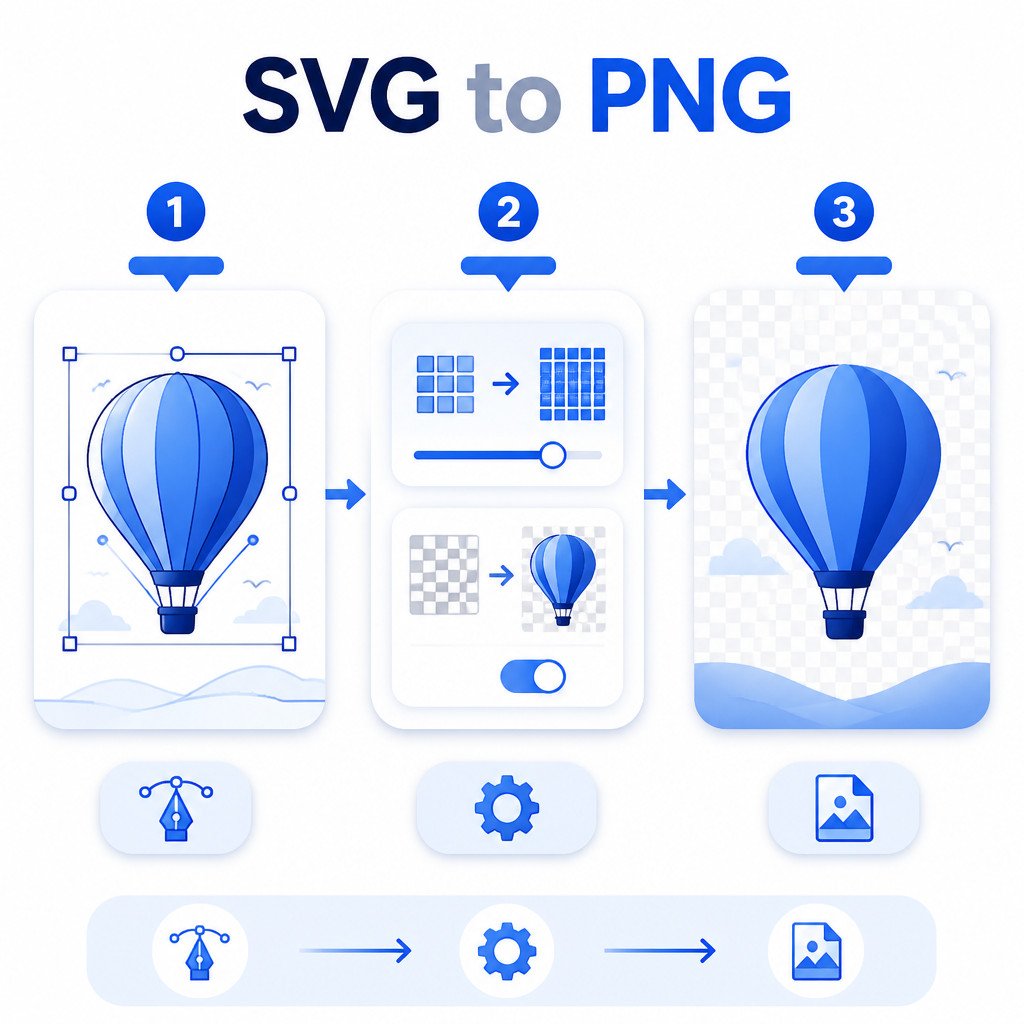
- Open the SVG file in Inkscape.
- Select File, then choose Export.
- Choose an export area: Page, Drawing, or Selection.
- Enter the required width and height in pixels, or change the DPI setting.
- Choose the export filename and folder.
- Click Export.
Choose Page if the SVG document already has the correct canvas size. Pick Drawing to export only the visible artwork and leave out unused space around it. If you need a single object from a larger design, use Selection.
Suggested PNG export sizes
| Use case | Suggested output |
|---|---|
| Small website icon | 256 × 256 pixels |
| High-density website icon | 512 × 512 pixels |
| Social media graphic | Use the platform’s recommended pixel dimensions |
| Presentation graphic | At least 1920 pixels wide where practical |
| Print-ready image | Calculate dimensions from the intended print size and 300 DPI |
Convert SVG to PNG with Inkscape commands
Inkscape can export SVG files through the command line as well. This method is useful for scripts, build processes, and converting many files with consistent settings.
inkscape input.svg --export-type=png --export-filename=output.pngTo specify a width, add the --export-width option:
inkscape input.svg --export-filename=output.png --export-width=2000To export the visible drawing rather than the entire page, use:
inkscape input.svg --export-area-drawing --export-filename=output.pngFor batch conversion on macOS or Linux, run this command inside the folder that contains your SVG files:
for file in *.svg; do inkscape "$file" --export-filename="${file%.svg}.png"; doneTry the command on copies of your files first, particularly if any filenames contain unusual characters.
Convert SVG to PNG with ImageMagick
ImageMagick is a command-line image processing suite that can convert SVG files to PNG. Rendering quality may vary depending on which SVG libraries are installed on your system.
magick -background none input.svg output.pngFor a larger result, raise the density before rendering:
magick -background none -density 300 input.svg output.pngThe -background none option keeps the background transparent. To use a white background instead, replace it with:
magick -background white -alpha remove input.svg output.pngFor complex SVG files with filters, embedded fonts, masks, or advanced effects, Inkscape is generally the safer option.
Preserve quality during SVG to PNG conversion
- Choose the output size before exporting. If you enlarge a small PNG later, it will lose sharpness.
- Keep transparency when you need it. Don’t flatten icons or logos onto white unless a white background is intentional.
- Work from the original SVG. Avoid using a previously exported low-resolution PNG as the source for another PNG.
- Check how fonts are rendered. If the SVG depends on a font that isn’t installed on your computer, the exported image may look different.
- Review the PNG at 100% size. Check for clipped edges, unwanted margins, and blurry details.
Common SVG to PNG conversion issues
The PNG includes extra blank space
The SVG canvas may extend beyond the artwork. In Inkscape, export the Drawing area instead of the Page area. Another option is to resize the SVG document page to fit its content before exporting.
The PNG background appears black or white
Your converter may not be preserving alpha transparency. In Inkscape, check that the document background’s alpha channel is transparent. If you’re using ImageMagick, include -background none.
The text changes after conversion
The SVG may refer to a font that isn’t available on the computer performing the conversion. Install the required font, or convert the text to paths in a copy of the SVG before exporting. Turning text into paths prevents font substitution, but the text will no longer be editable as text.
The converted image looks blurry
The PNG was probably exported with too few pixels for its final use. Go back to the original SVG and export it again at a larger width or higher DPI. Enlarging the existing PNG won’t solve the problem.
Should you use an online SVG to PNG converter?
Online converters are handy for quick jobs and files that aren’t sensitive. Before uploading anything, keep in mind that SVG files may contain brand assets, private diagrams, or embedded metadata. For confidential or client files, use a local program such as Inkscape.
Check the downloaded image before publishing it, too. Some free conversion websites set size limits, alter backgrounds, compress the output, or add unwanted padding.
FAQ
Can I convert SVG to PNG without losing quality?
You can produce a sharp PNG by exporting the SVG at the correct pixel dimensions. Still, PNG remains a fixed-size raster image and can’t preserve the unlimited scalability of SVG.
Can PNG files have transparent backgrounds?
Yes. PNG supports alpha transparency. Use a transparent background if you plan to place the image over different colors or designs.
What resolution should I use for SVG to PNG conversion?
Base the resolution on the final display or print size. For web use, exporting at twice the displayed dimensions helps the image stay crisp on high-density screens. For print, calculate the required pixel dimensions using the intended print size at 300 DPI.
Why does my SVG to PNG conversion look different?
Changes usually result from missing fonts, unsupported SVG effects, embedded external assets, or differences between rendering engines. For complex SVG files, exporting with Inkscape often gives more consistent results.
