
An Azure Network Security Group (NSG) acts as a stateful traffic filter for Azure virtual networks. Its rules allow or deny inbound and outbound traffic to a subnet or network interface. For instance, you might allow HTTPS traffic to reach a web server while restricting SSH or RDP access to one administrator IP address.
To create a secure Azure NSG rule, create or choose an NSG, then add a rule with the appropriate direction, source, destination, protocol, port, and priority. After that, associate the NSG with a subnet or VM network interface. Keep source and port settings as restrictive as possible.
How Azure Network Security Group Rules Work
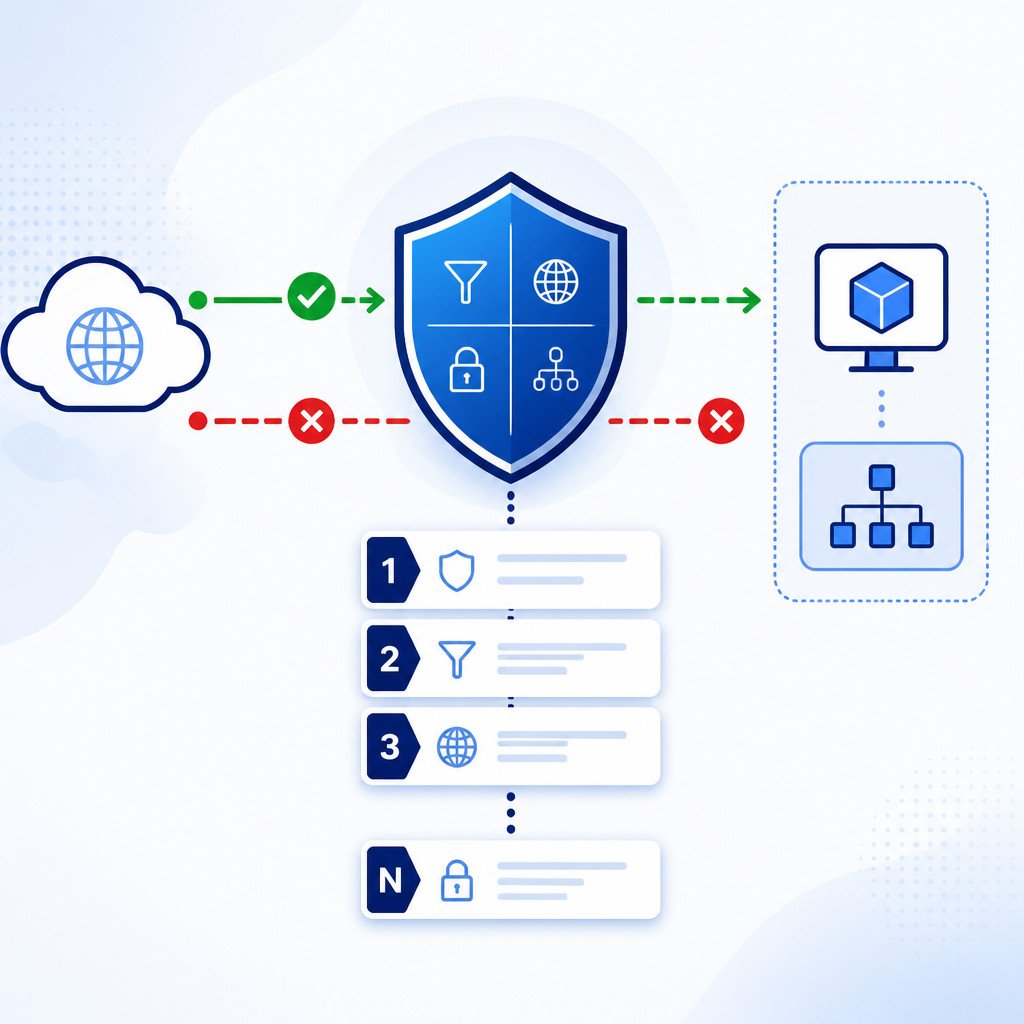
Each NSG contains inbound and outbound security rules. Azure evaluates them by priority, beginning with the lowest number. Priorities run from 100 to 4096, and every priority must be unique within the same direction.
| Rule setting | What it controls |
|---|---|
| Direction | Whether traffic is entering the resource (inbound) or leaving it (outbound). |
| Source | The originating IP address, CIDR range, service tag, or application security group. |
| Destination | The target IP address, subnet, service tag, or application security group. |
| Protocol | TCP, UDP, ICMP, ESP, AH, or Any. |
| Port range | The destination port or ports affected by the rule. |
| Priority | The evaluation order. Lower numbers are processed first. |
| Action | Allow or Deny. |
NSGs are stateful. Once an inbound connection is allowed, return traffic for that connection is permitted automatically. You don’t need to create a separate outbound rule just to allow responses to an approved inbound request.
Create an Azure NSG Rule in the Azure Portal
This example allows HTTPS traffic on port 443 from the internet to a web server subnet.
- Sign in to the Azure portal and search for Network security groups.
- Choose an existing NSG, or select Create to make a new one in the same region as your virtual network.
- Open the NSG and select Inbound security rules.
- Select Create.
- Set Source to Any for public web traffic. For restricted access, choose IP Addresses and enter a trusted IP or CIDR range.
- Set Source port ranges to *.
- Set Destination to Any, a specific IP address, subnet, or application security group, depending on your requirements.
- Choose TCP as the protocol and enter 443 for the destination port range.
- Set Action to Allow.
- Enter an unused priority, such as 200, and give the rule a clear name, such as Allow-HTTPS-Inbound.
- Select Add.
The rule won’t protect any resources until the NSG is associated with a subnet or a VM network interface.
Associate the NSG with a Subnet or Virtual Machine
You can apply an NSG to a subnet, a network interface, or both.
- Subnet NSG: A good choice when every resource in a subnet should follow the same traffic policy.
- Network interface NSG: Better when one VM needs different rules from other resources in the subnet.
- Both: Azure evaluates the combined effect of all applicable rules. Both layers must allow the traffic.
To associate an NSG with a subnet, open the NSG, select Subnets, and choose Associate. Then select the virtual network and subnet. To associate it with a VM, open the VM’s network interface resource, select Network security group, choose the NSG, and save the change.
Create Azure Network Security Group Rules with Azure CLI
The commands below create an NSG and add a rule that permits HTTPS traffic. Replace the placeholder values before you run them.
az network nsg create \
  --resource-group myResourceGroup \
  --name myWebNsg \
  --location eastus

az network nsg rule create \
  --resource-group myResourceGroup \
  --nsg-name myWebNsg \
  --name Allow-HTTPS-Inbound \
  --priority 200 \
  --direction Inbound \
  --access Allow \
  --protocol Tcp \
  --source-address-prefixes '*' \
  --source-port-ranges '*' \
  --destination-address-prefixes '*' \
  --destination-port-ranges 443
For administrative access, don’t expose RDP or SSH to every internet address unless there’s a specific temporary need. Restrict the source to your public IP address instead.
az network nsg rule create \
  --resource-group myResourceGroup \
  --nsg-name myWebNsg \
  --name Allow-SSH-From-Admin-IP \
  --priority 110 \
  --direction Inbound \
  --access Allow \
  --protocol Tcp \
  --source-address-prefixes 203.0.113.10 \
  --destination-port-ranges 22
Use this command to associate the NSG with an existing network interface:
az network nic update \
  --resource-group myResourceGroup \
  --name myVmNic \
  --network-security-group myWebNsg
Understand Default NSG Rules Before Adding Deny Rules
Every NSG comes with default rules that can’t be deleted. In particular, Azure allows traffic within the virtual network and permits outbound internet access by default. A final default rule denies other inbound traffic.
Your custom rules take precedence only if their priority is lower than the priority of the relevant default rule. A custom deny rule at priority 300, for example, can block traffic that a later default allow rule would otherwise permit.
Common Azure NSG Rule Mistakes
- Using a broad source: Allowing port 22 or 3389 from Any needlessly exposes management services to internet scans.
- Choosing the wrong direction: An outbound allow rule doesn’t let users connect to a VM from the internet.
- Ignoring priority: A lower-numbered deny rule can override an allow rule, regardless of where either rule appears in the portal list.
- Associating the NSG with the wrong resource: Check that the NSG is attached to the intended subnet or network interface.
- Forgetting other controls: NSGs don’t replace guest operating system firewalls, load balancer rules, route tables, Azure Firewall policies, or application-level authentication.
How to Verify an NSG Rule Is Working
Start by confirming that the target VM has a public IP address or can be reached through an approved private network path. Then test the required port from an authorized client. In Windows PowerShell, for example, run:
Test-NetConnection your-server-name-or-ip -Port 443On macOS or Linux, test a TCP connection with:
nc -vz your-server-name-or-ip 443If traffic is unexpectedly blocked, inspect the effective security rules on the VM network interface in the Azure portal. Check any subnet-level NSGs as well, along with user-defined routes, firewall policies, and the operating system firewall.
Best Practices for Azure NSG Rules
- Choose specific source IP ranges instead of Any whenever possible.
- Allow only the protocols and ports that the workload requires.
- Give rules descriptive names that identify the application, direction, and purpose.
- Reserve priority ranges, such as 100-199 for management traffic and 200-299 for application traffic.
- Review older temporary rules regularly, and remove access that’s no longer needed.
- Use service tags such as AzureLoadBalancer or VirtualNetwork when they match the intended traffic scope.
- For production administration, consider Azure Bastion, just-in-time VM access, VPN access, or private connectivity instead of exposing SSH and RDP publicly.
Frequently Asked Questions
What Is the Difference Between an Azure NSG and Azure Firewall?
An NSG handles basic Layer 3 and Layer 4 traffic filtering for subnets and network interfaces. Azure Firewall is a managed, centralized firewall service with more advanced features, including application and network rules, threat intelligence, and logging options.
Can One Azure NSG Be Assigned to Multiple Subnets?
Yes. A single NSG can be associated with multiple subnets and network interfaces, provided they’re in the same Azure region and subscription context supported by your deployment.
Which Azure NSG Rule Wins When Rules Conflict?
Azure evaluates the rule with the lowest priority number first. For example, a deny rule with priority 100 is processed before an allow rule with priority 200.
Do Azure Network Security Group Rules Affect Existing Connections?
NSGs are stateful. Existing flows may continue based on their established state, while new connections are checked against the current applicable rules. Test changes carefully in production environments.
