To make a password-protected encrypted archive with 7-Zip, add your files to a new 7z archive, enter a strong password, choose AES-256 encryption, and turn on Encrypt file names. Compared with a standard password-protected ZIP, a 7z archive offers better privacy because it can hide both the contents and the names of the files inside.
This approach works well for storing sensitive documents on your computer, sending private files through a cloud service, or keeping an encrypted copy on an external drive. Encryption protects the archive only while it stays locked, though. How you handle the password and backups matters just as much as the settings you select.
What You Need Before Encrypting Files
- 7-Zip installed from its official website.
- The files or folders you want to protect.
- A strong, unique password that you can store safely.
- Enough free disk space for the new archive.
Don’t use a password that you already use for email, banking, work, or another important account. If you lose the archive password, 7-Zip can’t recover the encrypted files for you.
How to Create an Encrypted Archive With 7-Zip
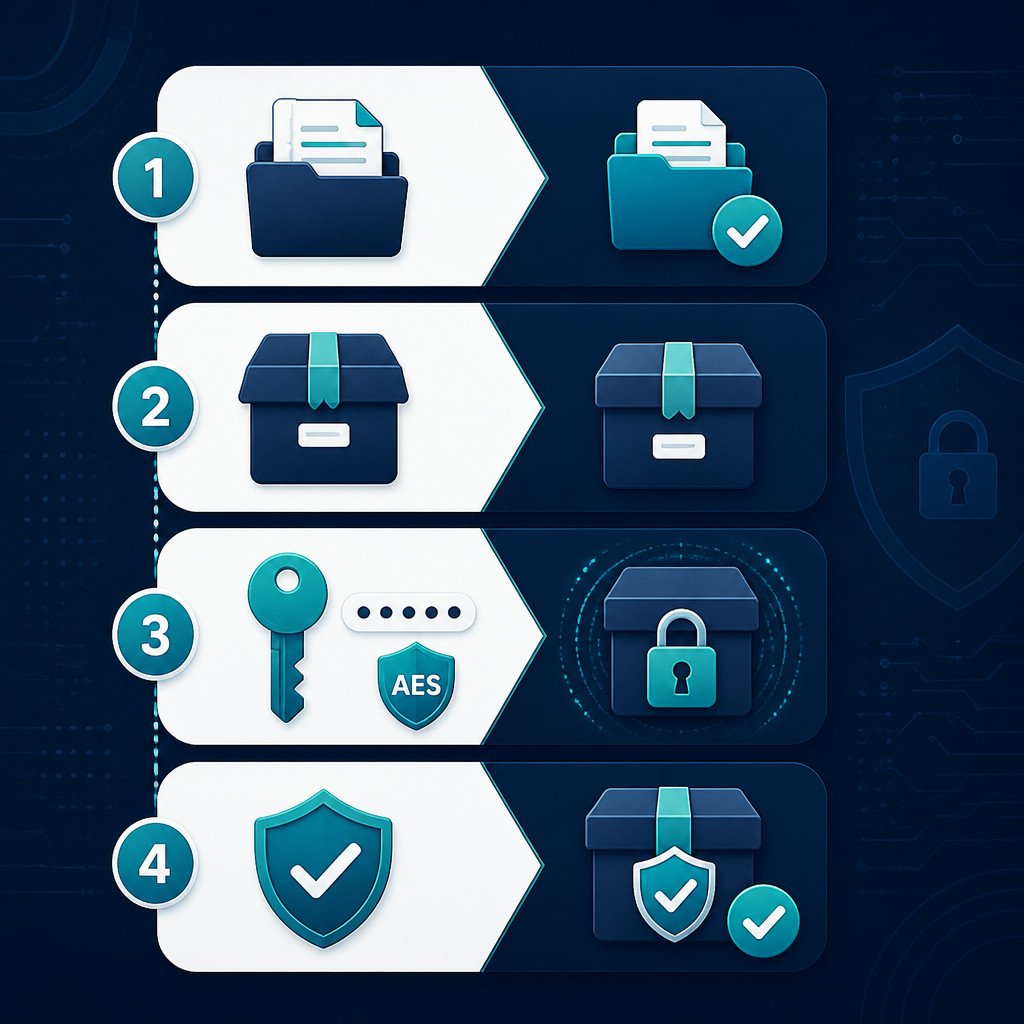
- Select the files or folder. Open File Explorer and select one or more items that you want to encrypt.
- Open the Add to Archive window. Right-click your selection. On Windows 11, choose Show more options if necessary, then select 7-Zip and Add to archive….
- Name the archive. Type a name in the Archive field, then choose where the new file should be saved.
- Set the archive format to 7z. Under Archive format, select 7z. This format supports strong encryption as well as encrypted file names.
- Enter a strong password. In the Encryption section, type the password twice. A long passphrase is better than a short word. You can also use a password manager to generate and store one securely.
- Choose AES-256. Select AES-256 from the Encryption method list. It’s the appropriate option for modern file encryption.
- Turn on Encrypt file names. Check Encrypt file names. If you leave this option off, someone may still be able to view the file names and folder structure, even though they can’t open the files.
- Create the archive. Click OK. 7-Zip will create the encrypted archive in the location you selected.
Once the process is complete, the new file will usually have a .7z extension. When you open it, you should be asked for the password before you can view the archive’s contents.
Why Choose 7z Instead of a Password-Protected ZIP?
ZIP files have broad compatibility, but support for encryption differs across apps and operating systems. Older ZIP encryption methods are weak. AES-encrypted ZIP files are safer, but they may not open properly in every built-in archive tool.
If privacy is your main concern, the 7z format is generally the better option. It supports AES-256 encryption and can hide file names. Use ZIP only if the recipient needs wider compatibility and has confirmed that their extraction software supports AES-encrypted ZIP archives.
How to Pick a Strong Archive Password
A good archive password is long, unique, and hard to guess. Length matters more than replacing letters with symbols in a predictable way.
- Use a randomly generated password with at least 16 characters, or create a passphrase from several unrelated words.
- Leave out your name, company name, birthday, address, and the subject of the files.
- Never reuse a password from another account or encrypted archive.
- Save the password in a reputable password manager, not in a text file stored beside the archive.
- Send the archive and its password through separate channels. For example, upload the archive to cloud storage, then share the password by phone or through an end-to-end encrypted messaging app.
Check That the Encrypted Archive Works
Test every encrypted archive before deleting or moving the original files. A quick check confirms that you entered the password correctly and that the archive isn’t damaged.
- Create a temporary test folder in a different location.
- Right-click the archive, choose 7-Zip, and then select Extract to….
- Enter the password when prompted.
- Open several of the extracted files and make sure they are complete.
- Try to open the archive without providing the password. If encrypted file names are enabled, the list of files inside should stay hidden.
Delete the original unencrypted files only after you’ve tested the archive. If the data matters, confirm that you also have a separate backup.
Common Mistakes to Avoid
Leaving File Names Visible
Encrypting the files without protecting their names can reveal sensitive details, including client names, financial document titles, and project names. Whenever you use the 7z format, enable Encrypt file names.
Sending the Password With the Archive
If you send the archive and password in the same email, chat, or cloud folder, you undermine much of the protection encryption provides. Share the password through a separate communication channel.
Deleting the Originals Too Soon
An encrypted archive doesn’t automatically count as a backup. Test it before removing the original files, and keep another copy in a secure place if the data is valuable.
Assuming Cloud Storage Uses End-to-End Encryption
Most cloud services encrypt files while they’re being transferred and while they’re stored, but the provider may still control the encryption keys. By encrypting files locally with 7-Zip, you ensure that the cloud provider receives only the encrypted archive rather than readable documents.
Good Practices for Storing Encrypted Archives
- Keep at least one backup of each important encrypted archive on a separate drive or in another trusted storage location.
- Name archives in a way that doesn’t reveal sensitive information.
- Keep archive passwords in a password manager.
- Test older archives from time to time, particularly before depending on them for long-term backups.
- Update 7-Zip regularly so you receive security fixes and compatibility improvements.
FAQ
Can 7-Zip Encrypt a Folder?
Yes. Right-click the folder, choose 7-Zip, and select Add to archive…. Then enter a password, choose AES-256, and enable Encrypt file names.
Is 7-Zip AES-256 Encryption Secure?
Yes. AES-256 is a strong, modern encryption standard. The archive’s practical security also depends on choosing a long, unique password and keeping it private.
Can I Recover a Forgotten 7-Zip Password?
No. 7-Zip doesn’t offer password recovery for encrypted archives. If you forget the password and haven’t saved it elsewhere, the data may be unrecoverable.
Can Windows Open a Password-Protected 7z File Without 7-Zip?
Windows may not support every 7z feature through File Explorer. For reliable access, install 7-Zip or another trusted archive program that supports the 7z format and AES-256 encryption.
Should I Use ZIP or 7z for Encrypted Files?
Choose 7z when security and privacy come first. Use an AES-encrypted ZIP only when the recipient requires compatibility with specific software and has confirmed that the software supports it.