If your Mac’s camera isn’t working, quit every app that could be using it, then check the macOS camera permissions for the affected app. A black preview, “No available camera” message, or camera unavailable alert usually points to an app conflict, blocked privacy access, Screen Time restrictions, or a connection problem with an external webcam.
Most cameras built into a MacBook, iMac, or Studio Display don’t require a separate driver. Follow the steps below in order, and test the camera after each one.
Quick fixes for a camera not working on Mac
- Quit FaceTime, Zoom, Teams, browsers, and any other app that uses video.
- Restart your Mac.
- Allow camera access under System Settings > Privacy & Security > Camera.
- Disconnect an external webcam, then reconnect it directly to the Mac.
- Update macOS and the app in which the camera isn’t working.
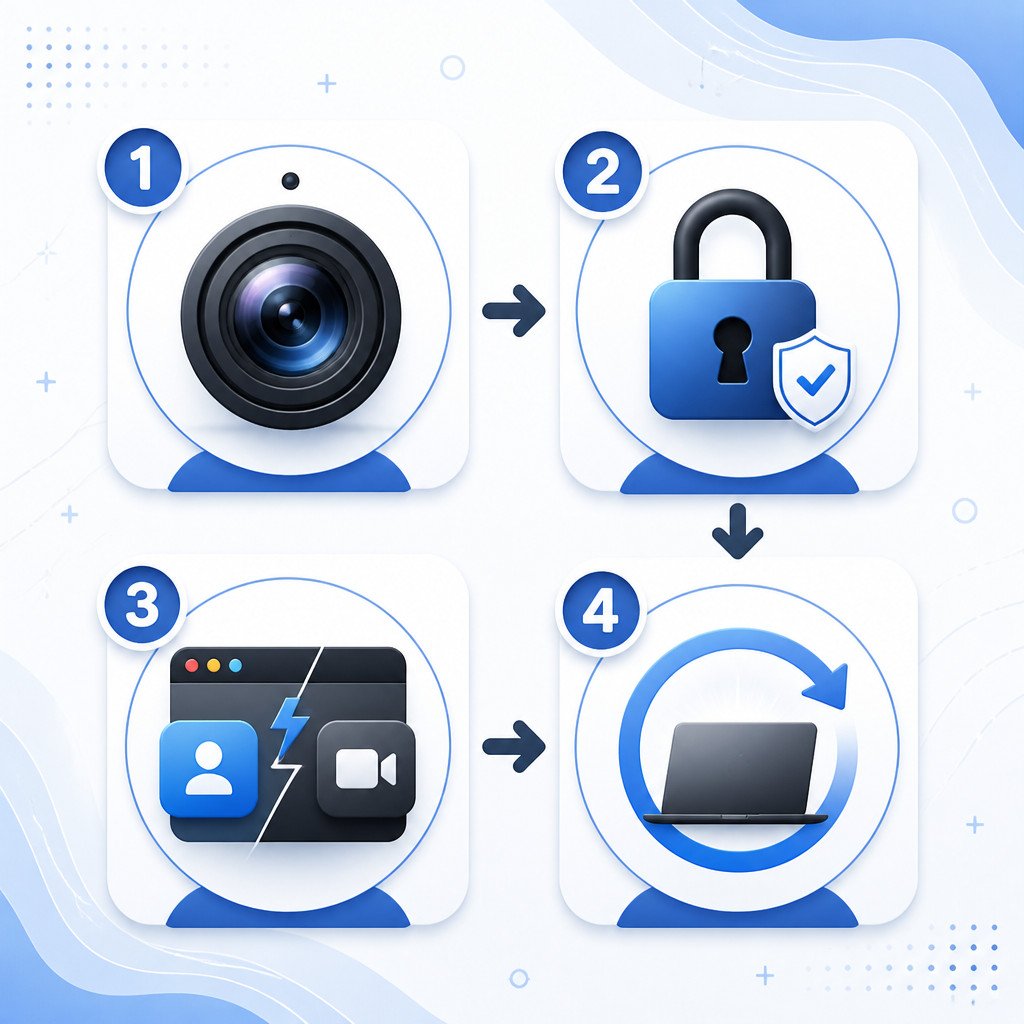
For a quick test of the built-in camera, open FaceTime or Photo Booth. If the camera works there but fails in another app, the problem is likely tied to that app, its permissions, or the video source it has selected.
1. Close apps that might be using the camera
In many situations, macOS allows only one app to access a camera at a time. A meeting app left running in the background may block FaceTime, Photo Booth, or a browser from using it.
- Quit the app where the camera stopped working.
- Press Option + Command + Esc.
- Select Zoom, Microsoft Teams, Google Chrome, Safari, FaceTime, or any other app that may be accessing video.
- Choose Force Quit if the app won’t close normally.
- Open only the app you want to use, then test the camera preview again.
Don’t forget to check open browser tabs. A site with camera access in another tab or browser profile can keep an external webcam occupied.
2. Review camera permissions in macOS
Apps can’t use the camera until you give them permission. This often explains camera problems after installing a new app, moving to a new Mac, or updating macOS.
- Open the Apple menu and choose System Settings.
- Select Privacy & Security.
- Choose Camera.
- Turn on the switch next to the app that needs camera access.
- Quit and reopen the app if macOS asks you to do so.
On older versions of macOS, open System Preferences > Security & Privacy > Privacy > Camera.
If the app doesn’t appear in the list, open it and start a video call or another feature that uses the camera. macOS should show a permission request. Select Allow.
3. Select the right camera in the app
Video apps sometimes choose the wrong camera, particularly after you connect a USB webcam, iPhone Continuity Camera, capture card, or monitor with a built-in camera.
| App | Where to select the camera |
|---|---|
| FaceTime | Open Video in the menu bar, then select the available camera |
| Zoom | Go to Settings > Video, then choose a camera |
| Microsoft Teams | Open Settings > Devices, then select a camera |
| Google Meet | Open the meeting settings, then choose Video |
| Safari | Use the website settings or the camera menu shown in the address bar |
If you see a black preview, select another listed camera and then switch back. Doing this can refresh the app’s connection to the device.
4. Check camera permissions in your browser
If the camera works in FaceTime or Photo Booth but not during a web meeting, access must be allowed in both macOS and the browser.
Safari
- Open the meeting website in Safari.
- From the menu bar, choose Safari > Settings for This Website.
- Set Camera to Allow.
- Reload the page and join the meeting again.
Chrome or Edge
- Open the website where the camera fails.
- Select the icon to the left of the web address.
- Find Camera and set it to Allow.
- Reload the page.
Make sure the browser itself, such as Chrome, Edge, or Firefox, is also enabled under System Settings > Privacy & Security > Camera.
5. Reconnect and check an external webcam
If you’re using a USB webcam, dock, or monitor camera, a connection problem is more likely than a fault with the macOS camera service.
- Unplug the webcam, wait 10 seconds, and plug it back in.
- Connect the webcam directly to the Mac rather than through a hub or docking station.
- Test another USB port and a different compatible cable.
- Temporarily disconnect other high-power USB devices.
- Visit the webcam manufacturer’s support page to check for firmware updates or macOS compatibility details.
Open Apple menu > About This Mac > More Info > System Report, then look in the USB section. If the webcam isn’t listed, macOS isn’t detecting the hardware connection.
6. Disable Screen Time camera restrictions
Screen Time may restrict camera access on family, school, work, or otherwise managed Macs.
- Open System Settings.
- Select Screen Time.
- Open Content & Privacy.
- Check the app and privacy restrictions, and confirm that camera use is allowed.
On a Mac managed by an organization, camera access may be controlled through a device-management profile. Contact the organization’s IT administrator instead of trying to remove management profiles yourself.
7. Restart your Mac and install updates
Restarting stops stuck background processes that may be holding the camera service or leaving an app with a failed video connection.
- Save any open work.
- Choose Apple menu > Restart.
- Once you’ve signed back in, test the camera in Photo Booth before opening other video apps.
- Open System Settings > General > Software Update and install any available macOS updates.
Update the affected conferencing app too. An older app version may stop working correctly after a major macOS update.
8. Test the camera in Safe Mode
If the problem continues, Safe Mode can help show whether login items, extensions, virtual-camera software, or background utilities are interfering with the camera.
On an Apple silicon Mac, shut down the computer and hold the power button until the startup options appear. Select your startup disk, hold Shift, then choose Continue in Safe Mode. On an Intel Mac, restart and immediately hold Shift until you see the login window.
While in Safe Mode, test the camera using Photo Booth. If it works, restart normally and check recently installed webcam utilities, recording software, VPN security tools, and login items.
When your Mac camera may need service
If the built-in camera fails in every app, still doesn’t work in Safe Mode, and remains unavailable after macOS updates, the cause may be hardware-related. That’s more likely if the Mac has been dropped, exposed to liquid, or has damage to the display.
Back up your important data and run Apple Diagnostics before arranging a repair. Shut down the Mac, then start Apple Diagnostics by following Apple’s instructions for your Mac model. Write down any reference code that appears and give it to Apple Support or an authorized service provider.
FAQ
Why is my Mac camera showing a black screen?
A black screen usually means another app is using the camera, the wrong camera has been selected, or the video app lost access after a permission or connection change. Quit any competing apps, confirm the permissions, and reopen the video app.
How do I turn on the camera on a MacBook?
Most MacBooks don’t have a separate camera switch. The camera turns on automatically when an approved app, such as FaceTime, Photo Booth, Zoom, or a website in your browser, requests access. While it’s active, a green indicator light normally appears beside the camera.
Why does Zoom say no camera is available on my Mac?
Check that Zoom is enabled under System Settings > Privacy & Security > Camera. Then open Settings > Video in Zoom and choose the correct camera. Before testing again, quit any other apps that may be using it.
Can I reset camera permissions on Mac?
You can turn off the app’s Camera switch under Privacy & Security, quit the app, and then enable the switch again. Reopening the app may bring up a new permission request. If permission problems continue, updating or reinstalling the affected app is usually safer than changing system files.