
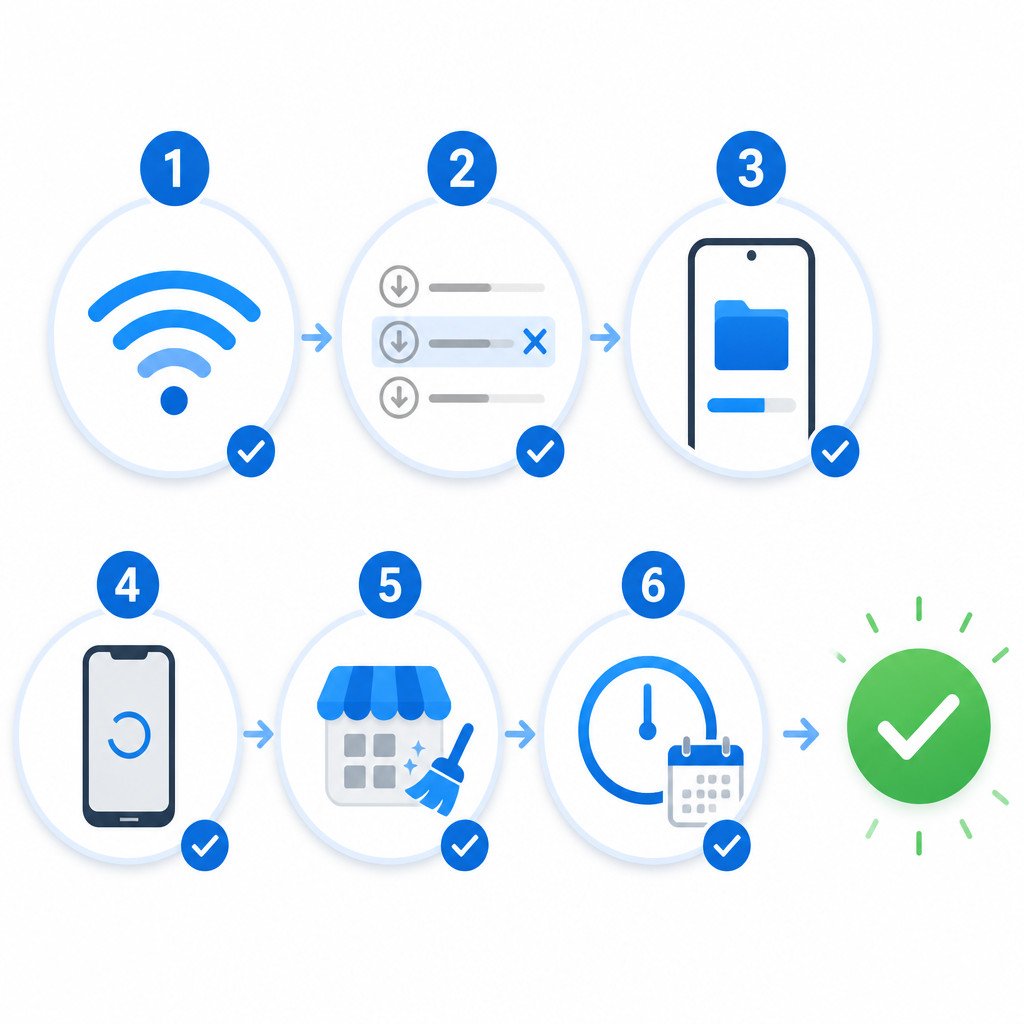
If Google Play Store is stuck on Pending or Waiting for download, start by canceling other queued updates. Then confirm that your phone has a working internet connection and enough free storage before restarting it. If the download still won’t begin, clear the Play Store cache and data. These steps fix most stalled downloads without removing installed apps.
Quick fixes to try first
- Test your connection: Open a website or stream a short video. If the connection seems unstable, switch between Wi-Fi and mobile data.
- Cancel other downloads: Open Google Play Store, tap your profile picture, and choose Manage apps and device. Go to the updates section, then cancel or finish any downloads already in progress.
- Check free storage: Open Settings, followed by Storage. If space is running low, remove unused files or apps.
- Restart the phone: A simple restart can release a stalled download process or network connection.
Menu names can differ slightly across Samsung Galaxy, Google Pixel, Motorola, OnePlus, and other Android phones. If an option isn’t where you expect it to be, use the search box in Settings.
Why Google Play Store gets stuck on Pending
A pending status usually means Play Store is waiting for another task to finish or can’t begin the download under the current conditions. Common causes include:
- Another app or system update is ahead of it in the download queue.
- Wi-Fi or mobile data appears connected but doesn’t provide reliable internet access.
- The phone doesn’t have enough working storage for the download and installation.
- Play Store cache or local configuration data has become corrupted.
- Download Manager is disabled or stalled.
- The device’s date and time are incorrect.
- A VPN, private DNS service, firewall, or restricted network is blocking Google services.
How to fix Google Play Store stuck on Pending
1. Clear the Play Store download queue
Google Play may be updating several apps automatically, which can leave a new installation waiting behind them. Open Play Store and go to profile picture, Manage apps and device, and then the pending downloads or updates list. Cancel the current updates and try downloading only the app you need.
If the app starts downloading, you can update the others afterward. Try not to begin a large batch of updates while using a slow or restricted connection.
2. Check the app download preference
In Play Store, open profile picture, Settings, Network preferences, and App download preference. For testing, choose Over any network. You can also connect to Wi-Fi if your current setting requires it.
Keep in mind that downloads over mobile data may count against your plan. Restore your preferred setting after the test.
3. Temporarily disable network filters
Disconnect any active VPN and temporarily change Private DNS to automatic. You’ll commonly find Private DNS under Settings, Network and internet, and Private DNS. If you’re using a managed work or school device, network policies may stop you from changing these options.
It’s also useful to test another Wi-Fi network. Public Wi-Fi sometimes requires you to open a browser and accept its terms before downloads will work.
4. Set the date and time automatically
Incorrect time settings can disrupt secure connections to Google services. Search Settings for Date and time, then turn on automatic date and time as well as automatic time zone. Restart Play Store and try the download again.
5. Clear Google Play Store cache and data
Clearing this information resets Play Store’s local settings and temporary files, but it won’t uninstall your apps.
- Open Settings and select Apps.
- Choose Google Play Store. You may need to tap See all apps first.
- Open Storage and cache.
- Tap Clear cache.
- If the problem continues, tap Clear storage or Clear data, then confirm.
- Reopen Play Store, accept any prompts, and retry the download.
6. Check Android’s Download Manager
Google Play depends on a system component usually called Download Manager. Open Apps in Settings and turn on the option to show system apps. Find Download Manager or Downloads, make sure it’s enabled, and then clear its cache from the storage settings.
Clearing Download Manager storage may erase its download history or cancel active downloads. Files that have already finished downloading aren’t normally removed.
7. Uninstall Play Store updates
If the issue started after a Play Store update, you can return the app to its factory-installed version. Open the Play Store App info page, tap the menu in the upper corner, and choose Uninstall updates. Reopen the store and keep the phone online so Google Play can update itself again.
Your installed applications won’t be removed. On managed devices and some manufacturer builds, this option may not be available.
8. Remove and re-add your Google account as a last resort
Before removing the account, check that contacts, calendars, photos, and other important information have finished syncing. You should also know the account password and be able to complete two-step verification.
Open Settings and find Passwords and accounts or Manage accounts. Select the Google account, then choose Remove account. Restart the phone, add the account again, and retry Play Store. Removing an account temporarily clears its synchronized data from the device. Data stored in the Google account will return after synchronization.
How to check whether the fix worked
Choose a small free app and begin installing it. Within a few seconds, the status should move from Pending to a percentage or another active progress indicator. If small apps download normally but one particular app doesn’t, check whether it’s compatible with your Android version, available in your country, or blocked by parental controls.
If nothing downloads after you’ve tried every step, install any available Android system updates and Google Play system updates. Persistent problems on a work-managed phone should be reported to the administrator. For a personal device, back up your important data before considering a factory reset. A reset should be the final option, not a routine Play Store fix.
Frequently asked questions
Why does Google Play say Pending when no apps are downloading?
The visible queue may be empty even though an automatic update, Play Store service, or Download Manager task has stalled in the background. Restart the phone, clear the Play Store cache, and check that Download Manager is enabled.
Will clearing Google Play Store data delete my apps?
No. Clearing Play Store data resets the store’s local settings and temporary information. Apps already installed on the phone won’t be uninstalled.
Can low storage leave a Play Store download pending?
Yes. Android needs room for the downloaded package as well as temporary installation files. Free up more space than the app’s displayed download size, then restart the download.
Why do downloads work on Wi-Fi but not mobile data?
Play Store may be set to download only over Wi-Fi. Data Saver or carrier limits can also restrict background data. Check the app download preference and Play Store’s mobile-data permissions.
