
If your keyboard is typing the wrong characters, an accidentally changed keyboard layout or input language is the most likely cause. Pressing Shift + 2, for example, might produce a quotation mark instead of an at sign, or you may find that the Y and Z keys have swapped places. Start by choosing the keyboard layout for your country. Then check Num Lock, accessibility settings, and the keyboard connection.
The issue can affect built-in laptop keyboards, USB models, Bluetooth keyboards, and wireless keyboard receivers. The steps below apply to Windows, Mac, and Chromebook devices.
Quick checks before changing settings
- Restart the computer, then test the keyboard in a text editor.
- Disconnect and reconnect an external keyboard. If it’s wireless, recharge or replace the batteries.
- Try a different USB port, preferably one on the computer itself rather than a hub or dock.
- Check whether the problem occurs in every application. If it only happens in one app, review that app’s language or shortcut settings.
- Open the on-screen keyboard. If it produces the expected character but the physical key doesn’t, the keyboard itself may have a hardware fault.
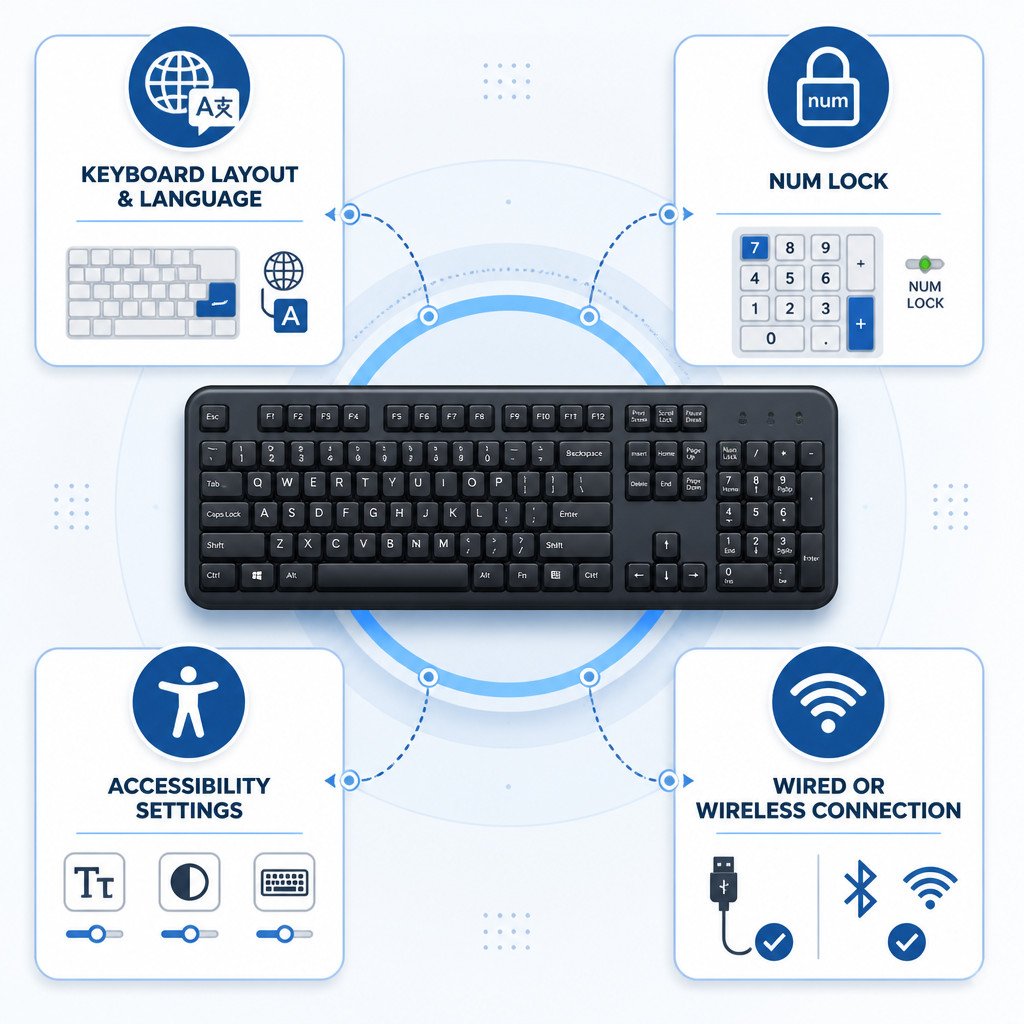
Why your keyboard types the wrong characters
Every physical key sends a key code to the operating system. The selected keyboard layout then translates that code into a character. US, UK, German, French, and other layouts can assign different symbols to the same keys, even when the keyboards look similar.
| Symptom | Likely cause | Typical fix |
|---|---|---|
| At sign and quotation mark are swapped | US and UK layout mismatch | Select the correct regional layout |
| Y and Z are swapped | QWERTY and QWERTZ layout mismatch | Change the input language or layout |
| Letters type numbers | Num Lock enabled on a laptop | Turn Num Lock off |
| One key always produces the wrong output | Debris, liquid damage, remapping software, or failed key switch | Clean, test, remove remapping, or replace the keyboard |
| Random or repeated characters | Low battery, interference, stuck key, or hardware fault | Reconnect, charge, clean, and test on another device |
Fix a keyboard typing wrong characters in Windows 11 and Windows 10
1. Choose the correct keyboard layout
Windows can switch between input layouts using a shortcut, sometimes by accident. Press Windows + Space repeatedly while watching the language indicator near the clock. Choose the layout that matches your physical keyboard, such as English (United States) US or English (United Kingdom) UK.
To remove layouts you don’t use:
- Open Settings.
- Go to Time & language, followed by Language & region.
- Select your preferred language, then choose Language options.
- Under Keyboards, remove any incorrect layouts and keep the one you need.
If you type in multiple languages, you can keep those layouts installed. Just learn the shortcut used to switch between them, so an accidental layout change doesn’t look like a failed keyboard.
2. Turn off Num Lock on a laptop
Some compact laptop keyboards use part of the letter section as an embedded numeric keypad. With Num Lock enabled, keys including J, K, L, U, I, and O may type numbers instead of letters.
Press the Num Lock key to turn it off. On many laptops, you’ll need to hold Fn while pressing a key labeled Num Lock, NumLk, or marked with a small keypad icon. If you can’t find the key, search Windows for On-Screen Keyboard, open it, and select NumLock.
3. Review accessibility keyboard features
Sticky Keys, Filter Keys, and Toggle Keys don’t usually turn one letter into another. They can, however, make typing feel delayed, inconsistent, or otherwise unusual.
- Open Settings.
- Go to Accessibility, then select Keyboard.
- Temporarily turn off Sticky Keys and Filter Keys.
- Test the keyboard again.
4. Reinstall the keyboard driver
Driver problems are less common than layout mismatches, but reinstalling the standard keyboard driver may help after an update or device issue.
- Right-click the Start button and choose Device Manager.
- Expand Keyboards.
- Right-click the affected keyboard and select Uninstall device.
- Restart Windows. The operating system will normally reinstall the driver automatically.
If you have a gaming or programmable keyboard, check the manufacturer’s software too. Look for macros, key remaps, profiles, or layout settings that could be changing the output.
Fix a keyboard typing wrong characters on a Mac
1. Check the input source
Open the Apple menu and select System Settings, then choose Keyboard. Find Text Input and click Edit. Confirm that the input source matches your physical keyboard, such as ABC, British, Australian, or another regional layout.
You can usually switch input sources through the menu bar or with the configured keyboard shortcut. Removing layouts you never use can prevent accidental switching.
2. Review modifier key mapping
If Command, Option, Control, or Caps Lock behaves unexpectedly on an external keyboard, open System Settings and select Keyboard. Review Keyboard Shortcuts or the modifier key settings. This check is particularly useful when a Windows-layout keyboard is connected to a Mac.
3. Test Safe Mode or another user account
When the issue only affects one Mac user account, a login item, keyboard utility, or custom remapping tool may be the cause. Temporarily disable any keyboard remapping utilities, then test using a standard input source before making changes to the hardware.
Fix a keyboard typing wrong characters on a Chromebook
Chromebooks use the selected input method to decide which character each key produces. Open the clock area and choose Settings, then go to Device and Keyboard. Check the keyboard language and input method, making sure the selected layout matches the physical keyboard.
If your Chromebook keyboard types numbers instead of letters, check the external keyboard for a Num Lock setting. You can also disconnect and reconnect it. For a Bluetooth keyboard, forget the device and pair it again after charging it or replacing the batteries.
How to identify a keyboard hardware problem
A settings problem usually affects a predictable set of keys based on the active layout. Hardware trouble is more likely if one key produces several characters, a key repeats without being pressed, the issue started after a spill, or the keyboard behaves the same way on multiple computers.
If possible, connect the keyboard to another device and test it there. When the same incorrect output follows the keyboard, the keyboard is probably at fault rather than the computer. With the keyboard disconnected, carefully clear loose debris using compressed air. Don’t spray liquid cleaner directly into the keys.
Common mistakes to avoid
- Don’t download random driver-updater tools. The operating system’s built-in driver is enough for most standard keyboards.
- Don’t assume every symbol mismatch means the keyboard is damaged. An incorrect regional layout is the most common cause.
- Don’t leave multiple unused layouts installed. Doing so makes accidental switching more likely.
- Don’t overlook the battery level on a wireless keyboard. Low power can lead to missed, repeated, or unreliable keystrokes.
- Don’t keep using a keyboard after a liquid spill without taking proper care. Disconnect it right away and let it dry fully, since corrosion can get worse over time.
FAQ
Why is my keyboard typing the wrong symbols?
The keyboard is usually set to the wrong layout. US and UK layouts, for instance, place some symbols on different keys. Switch the input language or keyboard layout so it matches the physical keyboard.
Why does my keyboard type numbers instead of letters?
Num Lock is probably enabled on a laptop keyboard with an embedded number pad. Press Num Lock to turn it off, or use the Fn key combination marked with Num Lock.
Why are Y and Z swapped on my keyboard?
The active keyboard layout is probably QWERTZ instead of QWERTY. This often happens after the system switches to a German or Central European layout. Select your usual keyboard layout to restore the expected key positions.
Can a damaged keyboard type the wrong characters?
Yes. Debris, moisture, worn switches, and internal damage can all cause incorrect or repeated input. If the problem continues with the correct layout selected and also occurs on another device, the keyboard may need to be repaired or replaced.
