
A high average frame rate doesn’t always mean smooth gameplay. A game may report 100 FPS while a few frames take far longer to render, causing visible hitches known as stuttering or micro-stuttering. Frame-time measurements and 1% low FPS reveal these interruptions much better than average FPS alone.
Quick answer
To fix PC game stuttering with high FPS, begin by limiting the frame rate to a level your computer can maintain consistently. If your monitor supports variable refresh rate, turn on FreeSync, G-SYNC, or Adaptive-Sync, then set the cap two or three FPS below the display’s maximum refresh rate. Close overlays and background recording tools, watch CPU and GPU temperatures, and update or roll back the graphics driver. Make one change at a time, then retest in the same location.
- Restart the PC and close background applications you don’t need.
- Use the game’s built-in frame-rate limiter.
- Turn on variable refresh rate if your display supports it.
- Monitor frame time, CPU and GPU usage, temperatures, and memory.
- Lower the setting associated with the component hitting its limit.
- Check drivers, game files, storage, and shader compilation.
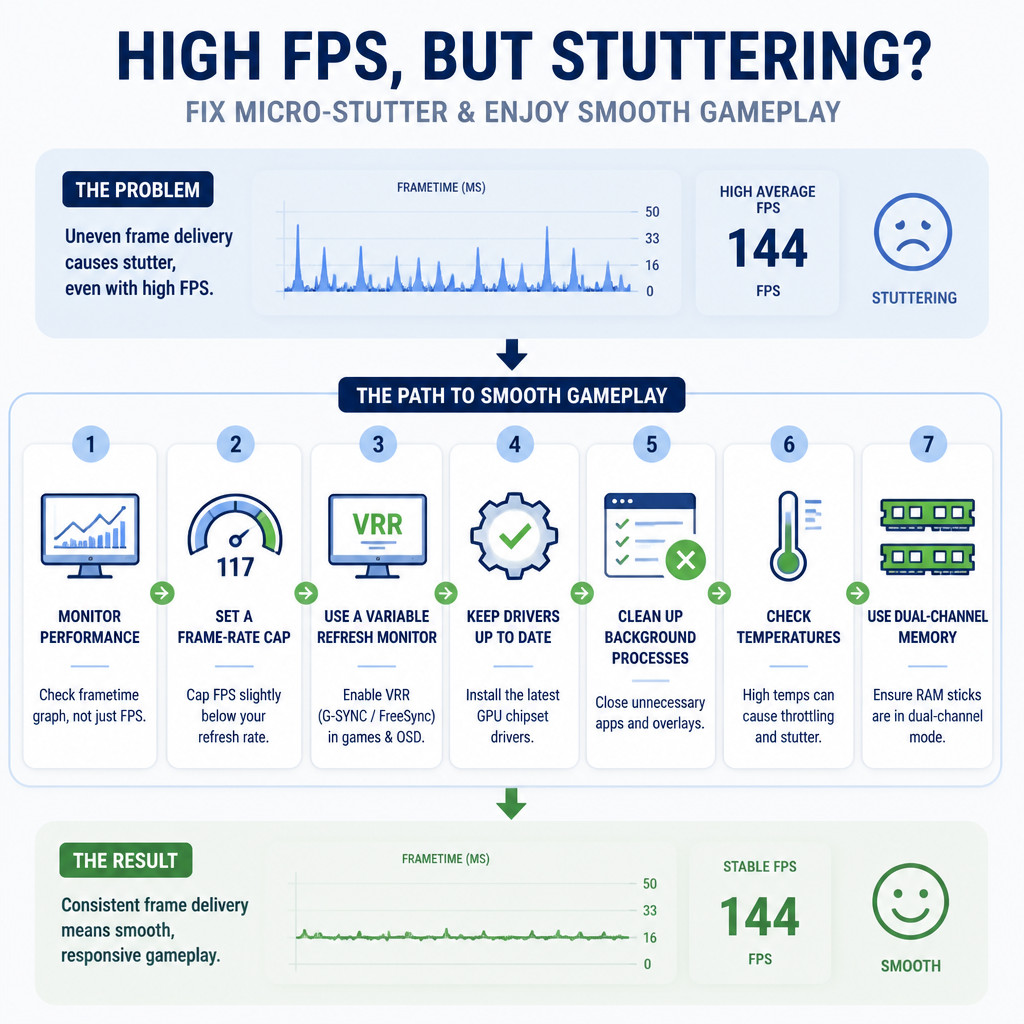
Make sure it’s frame stuttering
Start by separating rendering stutter from a network issue. With rendering stutter, the whole image pauses or jumps, including camera movement and interface animations. Network trouble tends to make other players teleport, delay actions, or cause your character to rubber-band while local animations continue smoothly.
Turn on the game’s frame-time graph if one is available. If not, use a trusted performance monitor that shows frame time, 1% low FPS, GPU utilization, CPU utilization, memory use, and temperatures. At a smooth 60 FPS, frames should arrive roughly 16.7 milliseconds apart. Sudden spikes point to inconsistent frame delivery.
1. Choose a frame-rate cap you can sustain
An uncapped game may keep the GPU at 99% utilization. As soon as a scene becomes slightly more demanding, there’s no performance headroom left, and frame times may spike. Use the in-game limiter when possible. It often delivers lower latency and more predictable frame pacing than an external limiter.
- VRR display: Enable Adaptive-Sync, FreeSync, or G-SYNC, then cap the game two or three FPS below the monitor’s maximum refresh rate. On a 144 Hz display, try 141 or 142 FPS.
- Fixed-refresh display: Test a stable cap such as 60, 90, or 120 FPS. V-Sync removes tearing, but it may add latency and can stutter if performance drops below the refresh rate.
- Unstable performance: A consistent 90 FPS will usually feel smoother than repeated swings between 90 and 160 FPS.
Don’t run several frame limiters at once. Pick the game limiter, the graphics-driver limiter, or a third-party limiter rather than enabling all three.
2. Find the real bottleneck
Watch the performance readings during a section of gameplay you can repeat. Total CPU usage can be deceptive because a single overloaded core may hold back the game even while overall usage stays below 50%.
- GPU near full utilization: Reduce resolution scale, ray tracing, shadows, volumetric effects, or other GPU-heavy settings. Setting a frame cap can also leave more headroom.
- One or more CPU cores saturated: Turn down crowd density, simulation quality, view distance, physics, or CPU-heavy ray-tracing options.
- System memory almost full: Close browsers and launchers, make sure the Windows page file is enabled, or add RAM if the game regularly uses more than the available capacity.
- Video memory full: Lower texture quality, texture streaming budgets, resolution, or high-resolution texture packs.
- Disk activity spikes during each hitch: Move the game to an SSD and check whether another program is scanning, downloading, or indexing files.
3. Temporarily turn off overlays and background capture
Overlays, hardware-monitoring hooks, RGB utilities, browser video, cloud synchronization, and gameplay recording can interfere with certain games. Close them temporarily before running another test. Common sources include launcher overlays, chat overlays, GPU performance overlays, and background capture features.
Don’t permanently disable security software as a general performance fix. If antivirus scans seem to line up with the stutters, confirm the pattern first. Use narrowly scoped exclusions only for trusted game files.
4. Inspect the graphics driver and shader cache
Install a stable graphics driver made for your GPU. If the stuttering started immediately after a driver update, returning to the previous stable version may work better than reinstalling the newest release. Restart the PC after changing drivers.
Some games compile shaders during the first gameplay session. That process can cause a short hitch when an effect, area, or enemy appears for the first time. Let any shader precompilation finish before playing. Avoid repeatedly clearing shader caches unless you’re investigating corrupted cache data, since rebuilding the cache can temporarily bring those stutters back.
5. Watch temperatures, power, and clock speeds
Thermal or power throttling may cause sudden changes in CPU and GPU clock speeds. Monitor temperatures and clocks while the stutter happens. If clock speeds fall as temperatures climb, clean out dust, check that the fans are working, improve airflow, and return unstable overclocks or undervolts to their default settings.
Gaming laptops should be connected to their intended power adapter and set to an appropriate Windows power mode. If the laptop has integrated and discrete graphics, confirm that the game is running on the high-performance discrete GPU.
6. Check the memory and storage setup
Games that stream large environments benefit from being installed on an SSD. Leave enough free space for updates, shader caches, temporary files, and the page file. Check the drive’s health if the stutters happen alongside freezes, read errors, or unusually long loading times.
On a desktop PC, make sure the memory modules are installed in the motherboard’s recommended dual-channel slots. If XMP or EXPO leads to crashes or memory errors, return the memory to default settings during troubleshooting. Faster memory won’t help if the configuration is unstable.
7. Compare display modes and game-specific fixes
Test both exclusive fullscreen and borderless windowed modes because presentation behavior differs between games and Windows versions. Verify the game files through its launcher as well, and install any official updates. If the stuttering began after many graphics-setting changes, resetting the graphics configuration may help. Back up custom bindings first.
Avoid random registry edits, timer tweaks, core-parking utilities, or process-priority tools unless there’s evidence that they address the exact problem. Such changes can introduce new instability while masking the original cause.
How to check whether the fix worked
- Pick a repeatable in-game route or benchmark.
- Record the average FPS, 1% low FPS, and frame-time behavior.
- Make one change.
- Run the same test again with identical settings and conditions.
- Keep the change only if the frame-time spikes become less frequent or less severe.
The highest FPS number isn’t necessarily the best result. What matters is a flatter frame-time graph, better 1% lows, and camera movement that stays consistent.
Frequently asked questions
Why does my game stutter when the FPS is high?
An FPS counter usually displays an average or a frequently updated estimate. A single unusually slow frame can create a visible hitch without lowering the displayed average by much. Shader compilation, CPU spikes, full video memory, storage activity, driver issues, and background software can all produce these frame-time spikes.
Can too much FPS cause stuttering?
An uncapped frame rate can keep the GPU fully occupied, leaving little headroom for more demanding scenes. It may also push performance in and out of the monitor’s variable-refresh range. A sustainable cap often improves frame pacing, even if it lowers the average FPS.
Should I enable V-Sync to stop stuttering?
V-Sync is mainly designed to prevent screen tearing. It can make motion look more consistent in some setups, but it may introduce input latency or cause obvious drops when FPS falls below the display’s refresh rate. Test it alongside your frame cap and VRR configuration instead of treating it as a fix for every system.
Is occasional stuttering normal when starting a new game?
Short first-run stutters can occur while a game compiles shaders or streams unfamiliar assets. If the stuttering continues during repeated visits to the same area, it’s more likely to point to a configuration, resource, driver, storage, or game-engine issue that needs further investigation.
