
On supported Windows editions, you can encrypt a USB drive with BitLocker To Go. On macOS, use Disk Utility. Linux users can use LUKS. Each method prevents other people from reading the drive without its password or recovery key.
Back up the USB drive before you begin. The macOS and Linux methods described below erase the drive’s current contents. BitLocker, however, can encrypt an existing Windows-compatible drive without formatting it. And never keep the only copy of important files on an encrypted USB drive.
Choose the right encryption method
| Platform | Recommended method | Important limitation |
|---|---|---|
| Windows | BitLocker To Go | Creating encrypted drives requires a supported Pro, Enterprise, or Education edition |
| macOS | APFS encryption in Disk Utility | APFS is not natively readable on Windows or most Linux systems |
| Linux | LUKS with cryptsetup | Windows and macOS do not natively open LUKS volumes |
| Multiple operating systems | VeraCrypt | The application must be installed on each computer |
No native encrypted USB format works easily across Windows, macOS, and Linux. If you regularly move a drive among all three operating systems, a VeraCrypt volume may be a better choice than a platform-specific method.
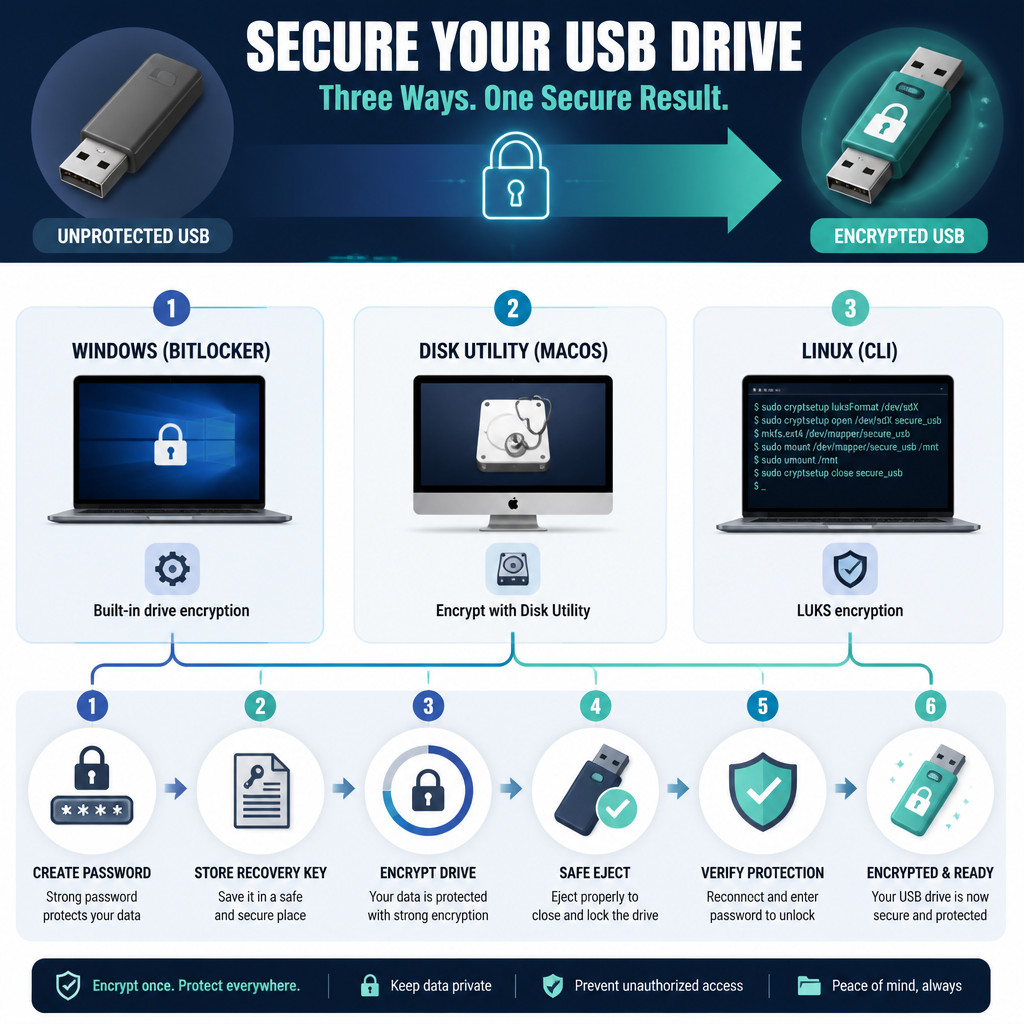
Before you encrypt the USB drive
- Copy every existing file to another storage device.
- Check the USB drive’s identity and capacity. Choosing the wrong disk could erase a different drive.
- Create a strong, unique passphrase. Four or more unrelated random words are safer than a short password and usually easier to type.
- Choose a separate place to keep the recovery key, such as a password manager or a securely stored printed copy.
Encrypt a USB drive on Windows
BitLocker To Go encrypts removable storage and can keep files that are already on the drive. Its management interface is available in the Pro, Enterprise, and Education editions of Windows 10 and Windows 11. Windows Home generally can’t create BitLocker To Go volumes through the standard interface.
- Connect the USB drive, then open Control Panel.
- Go to System and Security, then open BitLocker Drive Encryption.
- Locate the drive under Removable data drives and select Turn on BitLocker.
- Choose the password option and enter a strong password.
- Save the recovery key somewhere other than the USB drive. Depending on your account and device, Windows may let you save it to your Microsoft account, store it in a file, or print it.
- For a new, empty drive, choose Encrypt used disk space only. If the drive previously held sensitive files, select Encrypt entire drive.
- If Windows asks you to select an encryption mode, choose the compatible mode intended for removable drives.
- Start the encryption process. Leave the USB drive connected until Windows confirms that it’s finished.
To lock the drive again, eject it and disconnect it. The next time it’s connected, Windows will ask for the password.
Encrypt a USB drive on a Mac
This method creates an encrypted APFS volume and erases the entire USB drive. APFS is the best native option for current Macs, but it isn’t suitable if you need to open the drive natively on Windows.
- Connect the USB drive and open Disk Utility from Applications and Utilities.
- Select View, followed by Show All Devices.
- In the sidebar, select the physical USB device rather than the indented volume beneath it. Check the capacity carefully before continuing.
- Select Erase.
- Enter a name for the drive and choose APFS (Encrypted) as the format.
- For the scheme, select GUID Partition Map.
- Enter and verify a strong encryption password, then select Erase.
- Wait for Disk Utility to complete the process before selecting Done.
If you need compatibility with older Macs, Disk Utility may also provide the Mac OS Extended (Journaled, Encrypted) format. Always eject the volume through Finder before unplugging the drive.
Encrypt a USB drive on Linux with LUKS
LUKS is the standard full-volume encryption system used by many Linux distributions. The commands below erase the selected partition. Replace /dev/sdX1 with the actual USB partition shown by lsblk.
Connect the USB drive and identify it by checking its size and model:
lsblk -o NAME,SIZE,MODEL,FSTYPE,MOUNTPOINTSUnmount the USB partition:
sudo umount /dev/sdX1Create the LUKS container. Double-check the device name before entering the confirmation:
sudo cryptsetup luksFormat /dev/sdX1Open the encrypted container:
sudo cryptsetup open /dev/sdX1 encrypted_usbCreate an ext4 filesystem inside the container:
sudo mkfs.ext4 /dev/mapper/encrypted_usbCreate a mount point, then mount the volume:
sudo mkdir -p /mnt/encrypted-usb
sudo mount /dev/mapper/encrypted_usb /mnt/encrypted-usb
Once you’re finished, unmount the volume and close the encrypted mapping before removing the USB drive:
sudo umount /mnt/encrypted-usb
sudo cryptsetup close encrypted_usb
Many desktop Linux distributions also support LUKS through the Disks application. In its formatting dialog, the feature may be described as password-protected Linux storage. The exact label depends on the distribution.
Check that USB encryption is working
- Copy a non-sensitive test file to the encrypted drive.
- Eject or unmount the drive properly.
- Disconnect it, then connect it again.
- Make sure the system asks for the encryption password before showing any files.
- Enter the password and open the test file.
- Check that you can access the recovery key or password-manager entry from another trusted device.
If you can see files before entering a password, you may have encrypted only a folder or accidentally created an unencrypted partition.
Encryption and recovery best practices
- Keep backups: Encryption won’t protect your files from drive failure, accidental deletion, or corruption.
- Store recovery information separately: A recovery key kept only on the encrypted USB drive can’t help you while the drive is locked.
- Avoid automatic access: Don’t enable it on shared or portable computers.
- Eject the drive safely: Unplugging a USB drive during a write operation can damage its filesystem.
- Protect the computer as well: Malware can still read or copy files after you enter the password and open the drive.
- Don’t treat encryption as secure erasure: Before selling or disposing of storage hardware, use an appropriate sanitization process.
Frequently asked questions
Can I encrypt a USB drive without deleting its files?
BitLocker To Go can encrypt an existing compatible Windows volume without formatting it, though you should still make a backup first. The Disk Utility and LUKS methods covered here erase the selected drive or partition.
Can an encrypted USB drive work on Windows and Mac?
Native encryption doesn’t make this convenient. Windows can’t natively open APFS-encrypted drives, while macOS can’t natively open BitLocker volumes. A cross-platform application such as VeraCrypt is usually more practical, but you’ll need to install it on every computer where the drive is used.
What happens if I forget the USB encryption password?
You’ll need the recovery key or another configured method of access. Strong encryption is designed to prevent anyone from bypassing the password, so your data may be permanently inaccessible if you lose all recovery information.
Does formatting an encrypted USB drive remove the password?
Yes. Repartitioning or formatting the device can make it usable again, but doing so destroys access to the encrypted files. Formatting won’t recover the password.
Does USB encryption protect the drive from viruses?
No. Encryption protects the data only while the drive is locked. After you open it on an infected computer, malware may read, alter, encrypt, or copy its contents.
