
To find your computer’s maximum RAM capacity, start by identifying the exact laptop model or desktop motherboard model. Then check the official specifications. You’ll also need to confirm the supported RAM type, number of memory slots, maximum capacity per slot, and any CPU memory limits. Windows can tell you how much RAM is currently installed, but the manufacturer’s documentation is usually the most reliable source for the actual upgrade limit.
Don’t assume that having empty slots means the computer can support any amount of memory. A system may have two slots yet support only 16GB, 32GB, or 64GB in total, depending on the motherboard, BIOS, processor, and memory generation.
Quick ways to check maximum RAM capacity
| What to check | Why it matters | Where to find it |
|---|---|---|
| Computer or motherboard model | Determines the official memory limit | System Information, labels, support documentation |
| Installed RAM and slots used | Shows your current configuration and available slots | Task Manager or System Information |
| RAM generation | Prevents buying incompatible DDR3, DDR4, or DDR5 memory | Manufacturer specifications or a hardware utility |
| Maximum capacity per slot | Some older systems can’t use high-capacity modules | Motherboard or laptop manual |
| CPU memory support | Can limit supported memory speed and capacity | Processor manufacturer specifications |
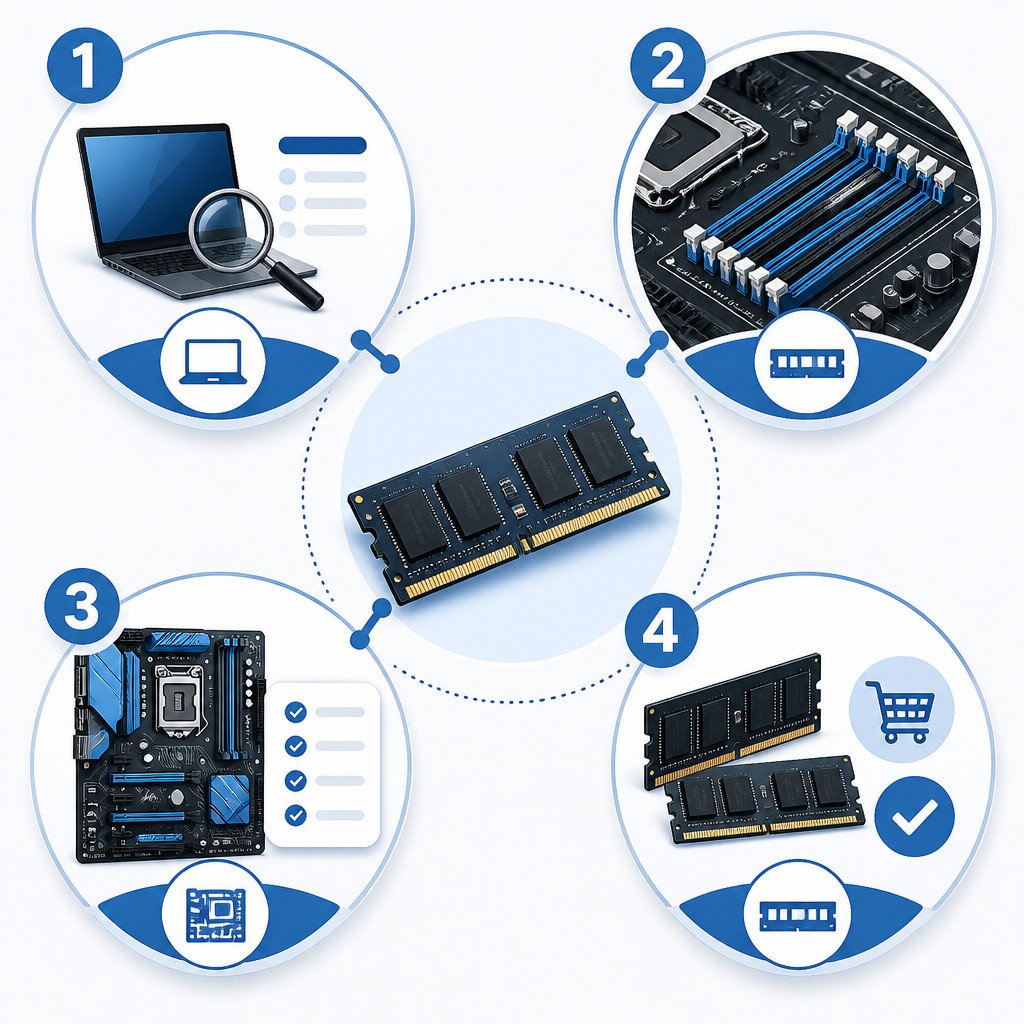
1. Check installed RAM and memory slots in Windows
Task Manager is a useful starting point. It doesn’t always report the maximum supported capacity, but it can show the amount of installed memory and how many slots are in use.
- Press Ctrl + Shift + Esc to open Task Manager.
- Select Performance.
- Choose Memory.
- Review Slots used, installed capacity, speed, and form factor.
For example, Task Manager might show 1 of 2 slots used with 8GB installed. That suggests you may be able to add another compatible module. It doesn’t confirm whether the laptop supports 16GB, 32GB, or more, though, so check the manufacturer’s specifications before buying RAM.
2. Identify your laptop or motherboard model
The exact model is what you need to find the system’s real maximum RAM capacity.
On a laptop
Press Windows + R, enter msinfo32, and press Enter. In System Information, find System Model and System Manufacturer.
You can also run the following command in Command Prompt:
wmic computersystem get manufacturer,modelSearch for that exact model on the manufacturer’s support site. Check the technical specifications, service manual, maintenance guide, or memory upgrade documentation.
On a desktop PC
Open System Information and look for BaseBoard Manufacturer and BaseBoard Product. These entries identify the motherboard. Another option is to run this command:
wmic baseboard get manufacturer,product,versionFind the motherboard’s product page on the manufacturer’s website, then open the specifications or support manual. Its memory section will usually list the number of DIMM slots, supported DDR generation, maximum capacity, supported speeds, and memory channel configuration.
3. Review the official memory specifications
On the product page or in the manual, look for a section labeled Memory, RAM, or System Memory. Record the following details before ordering an upgrade:
- Maximum total capacity: such as 32GB, 64GB, or 128GB.
- Slots: such as two laptop SO-DIMM slots or four desktop DIMM slots.
- Memory type: DDR4 or DDR5, for example.
- Maximum module size: such as 16GB, 32GB, or 48GB per slot.
- Supported speed: such as DDR4-3200 or DDR5-5600.
- ECC support: relevant to workstations and servers, but uncommon on consumer PCs.
If a specification says 2 x SO-DIMM, maximum 32GB DDR4, the laptop supports up to 32GB total, usually as two 16GB modules. Two 32GB modules may physically fit but still fail to work.
4. Confirm that the RAM is upgradeable
Many thin laptops have soldered memory. Manufacturers may describe it as onboard RAM, embedded memory, or LPDDR4X/LPDDR5. This type of RAM can’t be replaced or expanded through a standard memory upgrade.
Some laptops use a mix of soldered memory and one upgrade slot. A device might have 8GB soldered to the board plus one SO-DIMM slot, for instance. In that setup, the official documentation should state the largest supported module for the available slot.
Check the service manual before opening a laptop. It should show whether the base cover is removable, where the RAM is located, and whether you need to remove the battery or disconnect any internal cables.
5. Check the processor’s memory specifications
The motherboard or laptop manufacturer should remain your main source, but the CPU specification can help when the system documentation isn’t clear. Search for the exact processor model on the Intel or AMD product specifications page, then check its maximum memory capacity and supported memory types.
The CPU isn’t the only possible limitation. BIOS support and motherboard design may impose a lower practical maximum. If the processor and system documentation list different limits, follow the lower one.
Choose compatible RAM rather than capacity alone
Capacity is only one part of RAM compatibility. Any upgrade must also match the computer’s physical and electrical requirements.
| Device type | Typical RAM module | Important check |
|---|---|---|
| Desktop PC | DIMM | DDR generation, motherboard slots, height clearance |
| Laptop | SO-DIMM | Whether RAM is socketed or soldered |
| Ultrabook or tablet | Often soldered LPDDR | Usually not upgradeable |
| Server or workstation | DIMM or RDIMM | ECC, registered memory, platform support |
Never mix DDR generations. DDR4 and DDR5 modules have different slot designs and aren’t interchangeable. It’s also best to avoid combining arbitrary modules where possible. A matched kit with the same capacity, speed, timings, and voltage is generally the most reliable choice.
Common mistakes when checking maximum RAM
- Relying only on Task Manager: it shows current memory details, but not necessarily the motherboard’s maximum capacity.
- Following generic upgrade advice: a similar-looking laptop may have a different motherboard revision or use soldered memory.
- Confusing speed with capacity: DDR5-5600 describes memory speed, not the amount of RAM the system supports.
- Overlooking per-slot limits: a board may support 64GB total while allowing no more than 32GB in each slot.
- Buying RAM before reading the manual: a module may fit physically but fail to boot or run only at a reduced speed.
Verify that the RAM upgrade worked
Once the RAM is installed, start the computer and open Performance > Memory in Task Manager. Make sure Windows detects the expected total capacity. Then restart the system and check the memory page in the BIOS or UEFI.
If the computer doesn’t boot, turn it off, reseat the modules, and test one module at a time. Check that each one is fully inserted and locked into place. If the PC starts with one module but not another, confirm that the system supports the module’s type and capacity.
FAQ
Can I find the maximum RAM capacity in Windows?
Windows can display installed RAM and often shows how many slots are being used, but it may not report the system’s supported maximum accurately. For the reliable limit, check the official laptop or motherboard specifications.
How can I tell whether my laptop RAM is soldered?
Read the laptop’s technical specifications or service manual and look for terms such as onboard memory, embedded memory, LPDDR, or soldered RAM. If the manual lists SO-DIMM slots, the memory is usually upgradeable.
Can I install more RAM than the manufacturer lists?
In some cases, newer high-capacity memory modules may work after a BIOS update, but there’s no guarantee. For a dependable upgrade, stay within the manufacturer’s documented maximum capacity.
Does adding more RAM make a PC faster?
More RAM helps when the current memory is nearly full and the computer has started using its storage drive as virtual memory. It can improve multitasking, browser performance, creative applications, virtual machines, and some games. It won’t fix a slow CPU or a failing storage drive, however.
