Passkeys let you sign in to supported websites and apps without entering a password. Instead, your phone, computer, or password manager verifies your identity through Face ID, Touch ID, Windows Hello, a device PIN, or your Android screen lock. Since a passkey is linked to the genuine website and protected with cryptography, it’s much harder to steal through phishing than a reusable password.
To start using one, open the account security settings for a supported service and choose Add passkey or Create passkey. Approve the request on your device, then test the new sign-in method before removing your password or any recovery option.
What a passkey is
A passkey is a passwordless sign-in credential built on public-key cryptography. When you create one, your device generates two related keys:
- A public key that the website saves.
- A private key that remains protected on your device or in a secure password manager.
During sign-in, the website asks your device to prove that it holds the private key. You authorize access to that key locally with a biometric check or device PIN. Your fingerprint, face scan, and PIN never get sent to the website.
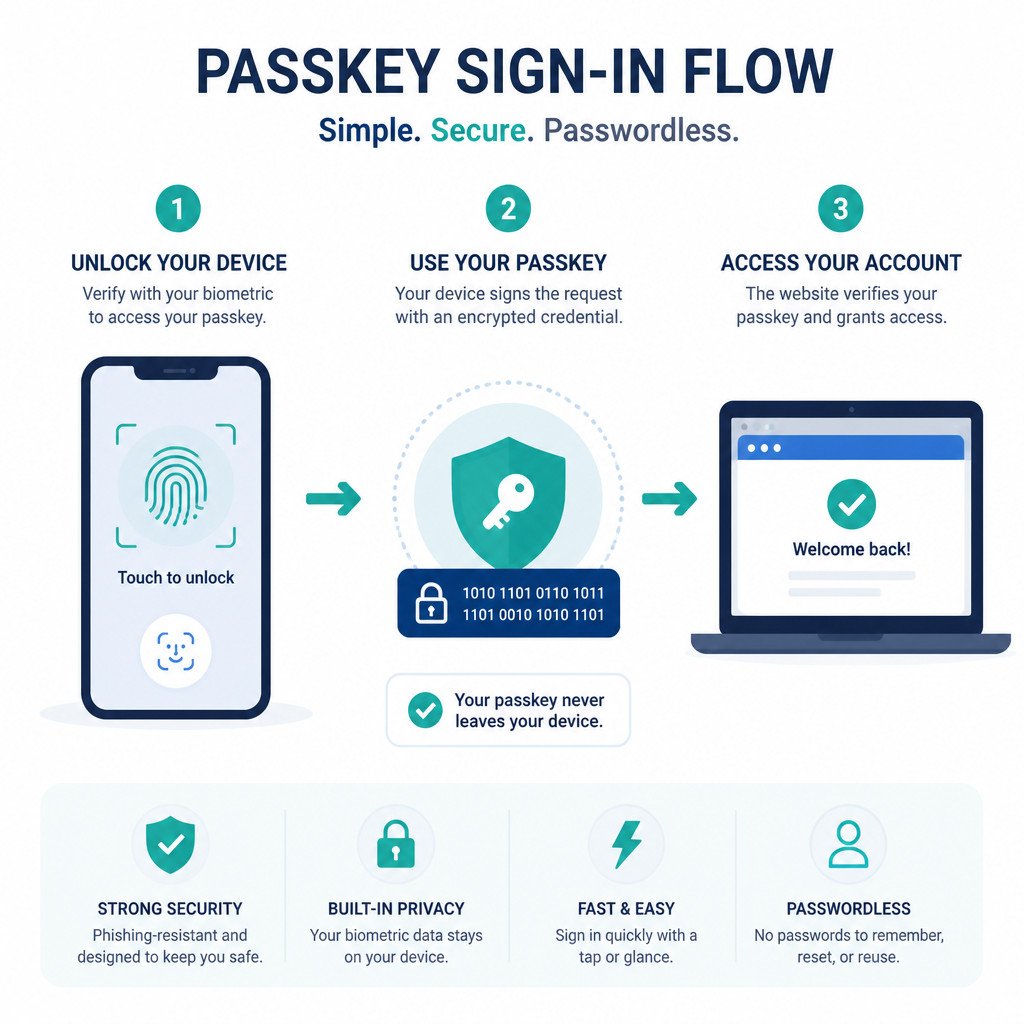
Unlike a password, a passkey can’t simply be copied from a breached website database and reused on another account. It’s also designed to work only with the website where it was created, helping protect you from convincing lookalike phishing pages.
Before creating a passkey
- Update your phone, browser, and operating system.
- Check that your device has a screen lock, PIN, or biometric sign-in turned on.
- Keep an account recovery method you control, such as a recovery email, recovery codes, or a second trusted device.
- Don’t remove your password until you’ve successfully tested the passkey.
- If you use a password manager, confirm that it can save and sync passkeys across your devices.
How to create a passkey on a website or app
- Sign in to your account with the current password and complete any required two-factor authentication.
- Open the account’s Security, Login, or Password settings.
- Find an option labeled Passkeys, Create a passkey, or Sign in without a password.
- Select the option to create a new passkey.
- If asked, choose where you want to save it. Options may include your device, iCloud Keychain, Google Password Manager, Windows, or a compatible third-party password manager.
- Approve the request with Face ID, Touch ID, Windows Hello, your device PIN, or your Android screen lock.
- Sign out of the account, then sign back in with the passkey to make sure it works.
Some services allow you to keep both a password and a passkey. That’s usually the safer approach until you’ve confirmed that passkey syncing and account recovery work as expected.
Using passkeys on different devices
iPhone and iPad
On Apple devices, passkeys are usually stored in iCloud Keychain. When a supported website offers passkey sign-in, select that option and confirm your identity with Face ID, Touch ID, or the device passcode.
You can review saved passkeys by opening Settings and selecting Passwords. Authenticate when prompted, then choose the relevant website or app. From there, you can view, remove, or update its saved credentials.
Android phones and tablets
Android devices can store passkeys in Google Password Manager or another compatible credential manager. After you choose the passkey sign-in option, Android shows a credential prompt. Confirm the account, then verify your identity with a fingerprint, supported face recognition, or the phone’s screen lock.
The available management settings depend on your Android version and password manager. In many cases, saved credentials are available through Google Password Manager in your Google Account settings or Chrome.
Windows PCs
Windows supports passkeys through Windows Hello. On a compatible website, select Sign in with a passkey, then approve the request with facial recognition, fingerprint recognition, or your Windows PIN.
If the passkey is stored on your phone instead of the PC, the website may display a QR code. Scan it with your phone and approve the sign-in on that device. Bluetooth should remain enabled on both devices during this process because proximity checks help guard against remote misuse.
Mac computers
On a Mac, you can use passkeys through Safari and iCloud Keychain, usually by confirming with Touch ID or your Mac login password. If the passkey is stored on an iPhone or Android phone, select the option to use a passkey from another device, then scan the QR code displayed by the website.
How cross-device passkey sign-in works
You don’t necessarily need to create a separate passkey for every device. When your passkey syncs through your chosen credential manager, it may become available on your other signed-in devices. A nearby phone can also approve a sign-in request on a computer.
For example, while signing in on a shared computer, choose Use a passkey from another device. Scan the QR code with your phone, check the website address, and approve the request there. Avoid this method on a computer you don’t trust, especially one that could contain malware or a hardware keylogger.
Managing and removing passkeys safely
Passkeys need to be managed in two places: the website connected to the account and the credential manager where the passkey is stored. Deleting one from only a single location may cause confusion, so check both places when retiring an old device.
- Open the website’s security settings and review the list of passkeys.
- Delete passkeys tied to devices that have been lost, sold, shared, or retired.
- Look for the matching entry in your device password manager or cloud credential manager.
- Make sure at least one trusted sign-in and recovery method is still available.
- Sign out and test your access before deleting any backup option.
If a device goes missing, use another trusted device to remove its passkeys from important accounts. If you don’t have access to another device, begin the service’s official account recovery process right away.
Common passkey mistakes
- Deleting your password too soon: Test the passkey on more than one device before depending on it by itself.
- Overlooking recovery options: Store recovery codes somewhere secure and keep your recovery email address current.
- Approving an unexpected prompt: Passkey requests still need your permission. Reject any prompt you didn’t initiate.
- Using a device without proper security: You still need a strong device PIN and automatic screen locking.
- Leaving old devices connected: Remove their passkeys from your accounts before selling, donating, or recycling a phone or computer.
- Scanning unfamiliar QR codes: Scan a code only after intentionally starting a sign-in on a website you recognize.
Are passkeys safer than passwords?
For most people, they are. Passkeys lower the risks associated with password reuse, credential stuffing, and many phishing attacks. They also mean you don’t have to remember long, unique passwords for accounts that support them.
Passkeys don’t replace the rest of your account security, though. Secure your email account, keep recovery details up to date, and install operating system updates. You should also use a reputable password manager or platform credential manager with account-level two-factor authentication where it’s available.
Frequently asked questions
Can I use a passkey without a fingerprint or face scan?
Yes. When biometric authentication isn’t available, most devices let you approve a passkey with the device PIN, passcode, or screen lock.
Do passkeys work on every website?
No. Websites and apps must add passkey support before you can create and use one. Many major services already support passkeys, but availability differs by service and region.
Can someone sign in if they steal my phone?
A thief will normally still need your PIN, passcode, or biometric authentication to access the phone. Use a strong device passcode and turn on remote tracking and wipe features. If the phone is lost, remove its passkeys through another trusted device.
Should I still use two-factor authentication with passkeys?
Keep your recovery codes and account recovery methods enabled. A passkey often provides strong, phishing-resistant authentication, but every service has its own security design and may still recommend other verification methods.
What happens when I switch phones?
If your passkeys sync through iCloud Keychain, Google Password Manager, or a compatible password manager, they may transfer after you securely sign in on the new device. Before erasing your old phone, confirm that you can access critical accounts from the new one.