
Quick answer
If your iPhone storage stays full after you delete photos, those files are probably still in the Recently Deleted album. They can keep using storage for up to 30 days unless you permanently remove them.
- Open Photos.
- Find Recently Deleted under Utilities. On older iOS versions, open Albums first.
- Authenticate with Face ID, Touch ID, or your passcode.
- Tap Select, then permanently delete all the items.
- Restart your iPhone and check Settings → General → iPhone Storage.
Important: If iCloud Photos is turned on, permanently deleting a photo also removes it from other devices using the same Apple Account. Back up anything you might want to keep before emptying Recently Deleted.
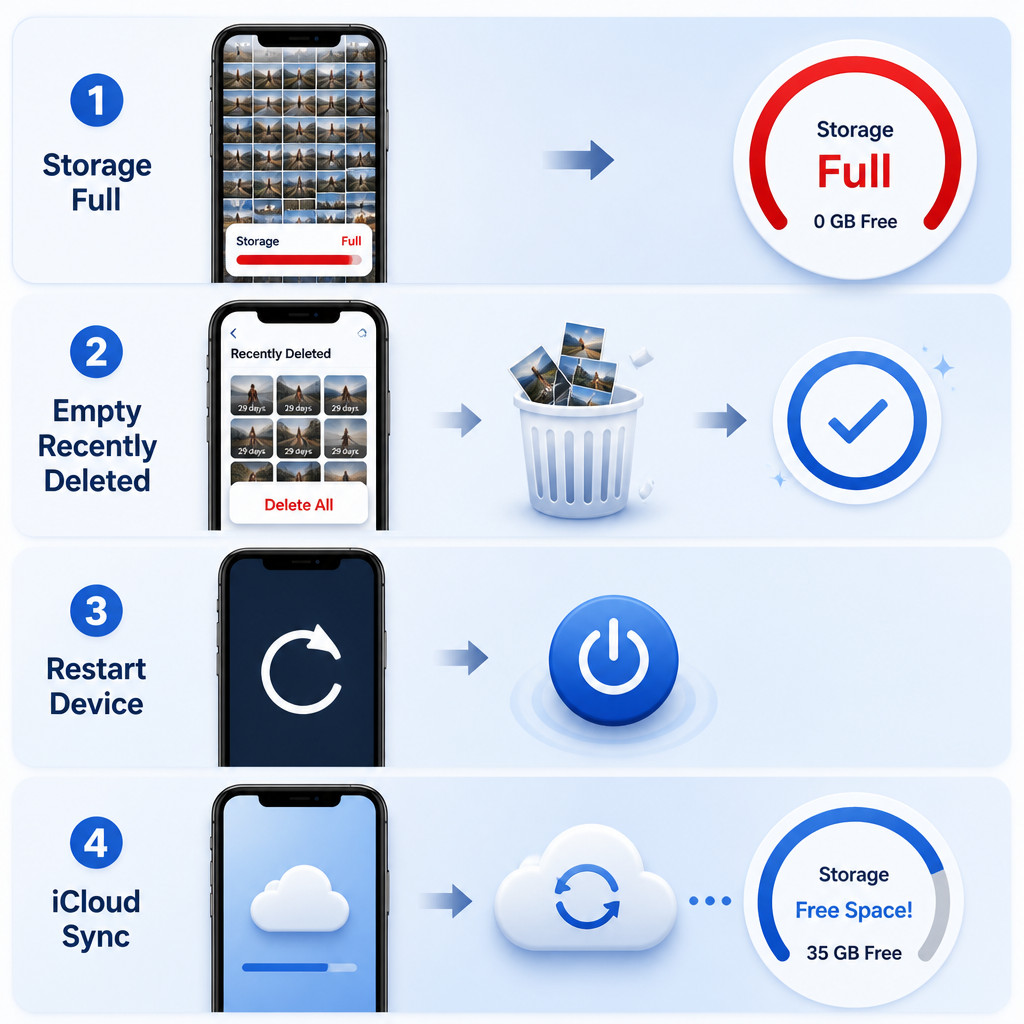
Why iPhone storage can stay full after deleting photos
Deleting a photo usually doesn’t erase it right away. Instead, the Photos app moves it to Recently Deleted, where it can be recovered during the retention period. Videos, ProRAW photos, Live Photos, and high-resolution images in that album can take up several gigabytes.
The storage chart may also need time to recalculate. In some cases, the missing space is being used elsewhere, such as by duplicate media, downloaded iCloud originals, photo attachments in Messages, or copies created by editing and social media apps.
1. Empty the Recently Deleted album
Open Photos and scroll down to the Utilities section. Choose Recently Deleted, authenticate, and look through its contents. Permanently remove only the items you’re sure you no longer need.
If you’ve just deleted a large video library, keep the iPhone connected to power for a few minutes after emptying the album. iOS may need a little time to remove the files and update its storage calculation.
2. Restart the iPhone and refresh the storage total
Once the media has been permanently deleted, restart the iPhone. Then go to Settings → General → iPhone Storage and wait for the category chart and app list to finish loading.
Restarting doesn’t delete any data. It can clear temporary state and prompt iOS to refresh an outdated storage estimate. If you removed thousands of items, the available space may not change immediately.
3. See how much storage Photos is actually using
Open Settings → General → iPhone Storage → Photos. Compare the Photos total with the free space displayed at the top of the screen.
If the Photos total has dropped but your iPhone is still full, another category is taking up the space. Check for large entries such as Messages, Files, downloaded media, podcast apps, video editors, or System Data. Removing more photos won’t fix storage being used by those categories.
4. Turn on Optimize iPhone Storage with iCloud Photos
If your photos sync with iCloud and you have enough iCloud storage, optimization can reduce the amount of space that local originals use.
- Open Settings.
- Open the Photos settings. Depending on your iOS version, Photos may appear directly in Settings or under Settings → Apps → Photos.
- Make sure iCloud Photos or Sync this iPhone is enabled.
- Select Optimize iPhone Storage.
Optimization doesn’t happen instantly. Leave the iPhone connected to Wi-Fi and power. As space is needed, iOS replaces some full-resolution local files with smaller versions for the device, while the originals stay in iCloud.
Don’t turn off iCloud Photos just to force a storage change. Check first that syncing has finished and that your original files are safely stored in iCloud or another backup.
5. Merge duplicate photos and videos
On supported iOS versions, the Photos app can find exact duplicates and visually similar copies. Open Photos, locate Duplicates under Utilities, and choose Merge for each group you’ve reviewed.
Merging preserves the highest-quality version and relevant metadata, then moves the extra copies to Recently Deleted. If you need the space right away, empty Recently Deleted afterward.
6. Delete photo copies stored outside Photos
The same picture may be saved in several places. Deleting it from Photos won’t remove a separate copy downloaded to Files, attached to a Messages conversation, exported by a video editor, or cached by another app.
- Go to Settings → General → iPhone Storage → Messages and check for large attachments.
- Open Files, then inspect Downloads and On My iPhone.
- Review offline downloads in cloud storage, streaming, and messaging apps.
- Look in editing apps for exported projects, drafts, and cached source media.
Use an app’s own storage controls whenever they’re available. Avoid deleting and reinstalling an app unless you know its unsynchronized documents and projects have been backed up.
7. Update iOS if the Photos total still looks wrong
If Recently Deleted is empty but Photos still shows an implausibly large size after a restart, install the latest compatible iOS update from Settings → General → Software Update. Charge the phone, connect it to Wi-Fi, and create a backup before updating.
Software updates can fix storage indexing and Photos synchronization problems. A delayed storage calculation shouldn’t require you to erase the iPhone.
Common mistakes to avoid
- Deleting synchronized photos without a backup: When iCloud Photos is enabled, deletions are applied across connected devices.
- Assuming iCloud increases your iPhone’s physical capacity: Local space is reduced only after optimized versions replace the original files stored on the phone.
- Forgetting about Recently Deleted: Deleted media and merged duplicates stay there until you remove them permanently or they’re erased automatically.
- Repeatedly switching iCloud Photos on and off: Doing this may trigger more downloading or synchronization, which makes the problem harder to diagnose.
- Confusing Photos storage with System Data: A large System Data category needs different troubleshooting.
How to confirm that storage was reclaimed
After restarting the phone, open Settings → General → iPhone Storage. Let the chart finish calculating, then review both the available capacity and the Photos entry. Following a large deletion, you may need to wait longer while the phone is locked, charging, and connected to Wi-Fi.
If the Photos total has gone down, the deletion worked, even if another storage category is still keeping the device nearly full.
Frequently asked questions
Why is my iPhone storage full after deleting photos?
The files may still be in Recently Deleted, the storage estimate might not have refreshed, or separate copies may be stored in Messages, Files, or other apps. Empty Recently Deleted and restart the iPhone before checking the storage chart again.
Does deleting photos from Recently Deleted free storage immediately?
It makes the files eligible for immediate removal, but after a large deletion, the displayed storage total may take several minutes or longer to update.
Will emptying Recently Deleted also remove photos from iCloud?
Yes, if iCloud Photos is enabled. The deletion syncs across devices signed in to the same Apple Account. Items that have been permanently deleted generally can’t be recovered through the Photos app.
Why does Photos still use space with Optimize iPhone Storage enabled?
Optimization reduces local storage rather than removing it completely. Your iPhone still keeps thumbnails, database information, edited versions, and some full-resolution media. The exact amount depends on available capacity and recent use.
Should I erase my iPhone if the storage total doesn’t update?
No. Start by emptying Recently Deleted, restarting the phone, waiting for storage to recalculate, checking other categories, and updating iOS. Erasing the device should be a last resort, and only after you’ve created and verified a backup.
