
Quick answer
Dual-channel RAM allows the processor to communicate with memory through two independent channels, increasing the available memory bandwidth. On a typical desktop motherboard with four slots, install two matching modules in A2 and B2. These are usually the second and fourth slots from the CPU. Always check the motherboard manual, though, because the recommended slots can vary.
You generally don’t need to enable dual channel in the BIOS. If the motherboard and processor support it, the system activates dual-channel mode automatically when the modules are installed in the correct slots. For the most reliable setup, use a matched memory kit with two modules that have the same capacity, speed, and timings.
Single-channel and dual-channel RAM
Single-channel memory
Single-channel mode uses one memory channel between the processor’s memory controller and the installed RAM. This often happens when a computer has only one memory module, or when two modules are installed in slots that belong to the same channel.
Dual-channel memory
Dual-channel mode uses two memory channels at the same time. It doesn’t merge two modules into one physical component, and it won’t automatically double the computer’s overall performance. What it does is increase the rate at which data can travel between the RAM and processor.
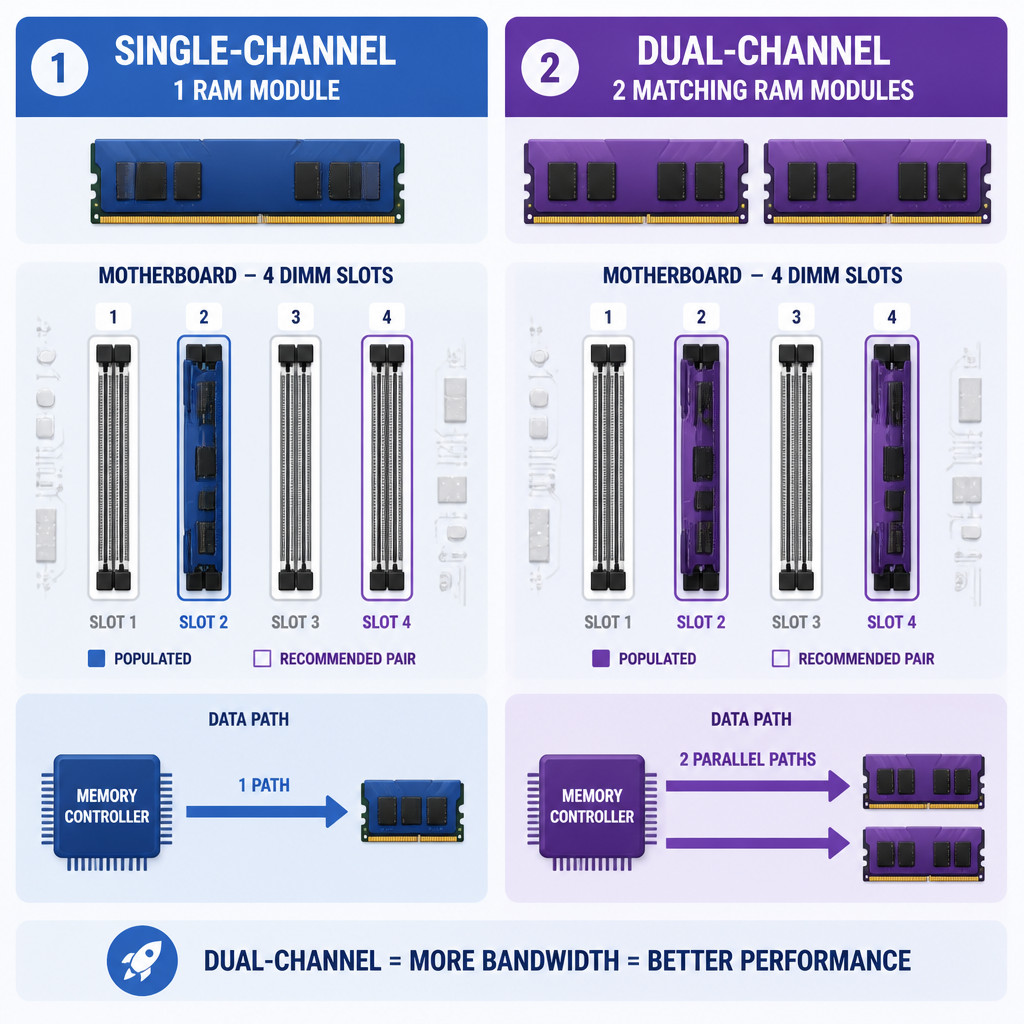
- Module requirement: Single-channel memory can work with one module. Dual-channel operation normally requires at least two compatible modules.
- Bandwidth: Dual channel offers substantially more theoretical memory bandwidth.
- Capacity: Channel mode doesn’t determine total memory capacity. One 16 GB module and two 8 GB modules both provide 16 GB, but the two-module setup can operate across two channels.
- Performance: The size of the improvement depends on the workload, processor, and graphics configuration.
- Upgrade flexibility: One large module leaves more slots free for later upgrades, while two modules provide dual-channel operation right away.
Does dual-channel RAM improve performance?
Dual channel helps most when a workload accesses system memory frequently. Integrated graphics can see a meaningful improvement because the GPU uses system RAM as video memory. Some games, compression tools, code compilation tasks, and content-creation applications can benefit as well.
Workloads limited by storage, network speed, or a dedicated graphics card may show a smaller difference. Dual channel doubles the number of available memory channels, but that doesn’t mean you’ll get twice the frame rate or twice the application speed.
Memory capacity matters more if the system is running out of RAM. For instance, 16 GB in single-channel mode is generally better than 8 GB in dual-channel mode when an application needs more than 8 GB and would otherwise depend heavily on the page file.
How to enable dual-channel RAM
- Check platform support. Make sure the processor and motherboard support dual-channel memory. Most mainstream desktop and laptop platforms do, although workstation and server platforms may support more channels.
- Read the motherboard manual. Find the DIMM population or memory installation section. It will show the preferred slots for a two-module setup.
- Shut down and disconnect the PC. Switch off the power supply, unplug the power cable, and briefly press the power button to discharge any residual power.
- Install the modules in the recommended slots. On many four-slot motherboards, that means A2 and B2, usually the second and fourth slots from the processor. Don’t assume that two adjacent slots make a dual-channel pair.
- Seat each module fully. Line up the notch in the RAM module with the slot, then press down evenly until the retention clips lock into place.
- Start the computer. The firmware should recognize both modules and configure dual-channel operation automatically.
- Confirm the capacity and channel mode. Check that the operating system detects the expected amount of memory. Then use a hardware-information utility to view the active channel configuration.
How to check if RAM is running in dual channel
Use CPU-Z on Windows
Open CPU-Z and choose the Memory tab. Check the channel field, which may show dual, 2 x 64-bit, or another description specific to the platform. Don’t confuse this with the SPD tab, which provides details about individual modules and memory slots.
Use HWiNFO
Open the system summary or memory information in HWiNFO, then look for the memory mode or channel count. You can also use HWiNFO to confirm the effective memory clock, timings, and detected modules.
Check the BIOS or UEFI
Some BIOS or UEFI interfaces show the channel mode on the main information or memory status page. Others display only the total capacity and the modules detected in each slot. If there’s no channel label, it doesn’t necessarily mean something is wrong.
Can different RAM modules run in dual channel?
Different RAM modules can sometimes work in dual-channel mode, but the outcome depends on the motherboard and memory controller. The system usually chooses settings supported by both modules. As a result, the faster module may run at the slower module’s speed, or the system may use looser timings.
When the capacities don’t match, many modern systems use a flexible configuration. Equal portions of the two modules may run in dual channel, while the remaining unmatched capacity operates in single channel. For example, with an 8 GB module and a 16 GB module, part of the total memory may work across two channels. The exact behavior varies by platform.
A matched kit is the safer choice because its modules are sold together for the intended configuration. Even two separately purchased products with the same advertised model can occasionally contain different memory chips or hardware revisions.
Why dual channel may not activate
- The modules are installed in the wrong DIMM slots.
- One module isn’t fully seated or isn’t being detected.
- The modules are incompatible with each other or with the motherboard.
- A DIMM slot, processor socket pin, or memory channel has a hardware fault.
- The BIOS is outdated or has unstable memory settings.
- A monitoring utility reports DDR5 subchannels differently from traditional memory channels.
If the computer detects only one module, turn it off and test each module separately in the motherboard’s recommended single-module slot. After that, test the relevant DIMM slots. Resetting the BIOS to its default settings and installing a stable firmware update may also help. However, avoid updating the firmware while the system is unstable.
DDR5 channel terminology
A desktop DDR5 DIMM is internally split into two narrower subchannels. That arrangement improves efficiency within each module, but it doesn’t make a desktop with one DIMM equivalent to a system with memory installed across both of the processor’s primary memory channels.
Because of this, monitoring tools may describe DDR5 using multiple 32-bit subchannels rather than the older 64-bit channel terminology. To judge the configuration, refer to the motherboard manual and check how many CPU memory channels are populated instead of relying on a label from one utility alone.
Frequently asked questions
Do I need to enable dual-channel RAM in the BIOS?
No. On most consumer computers, dual channel turns on automatically when compatible modules are installed in the correct slots. BIOS memory profiles such as XMP or EXPO manage the rated speed and timings. They’re separate from channel mode.
Should two RAM sticks be installed next to each other?
Usually not on a four-slot motherboard. The common two-module layout uses alternating slots, typically A2 and B2. Follow the installation diagram in the motherboard manual.
Will four RAM sticks still run in dual channel?
Yes, if the platform is dual channel. Two modules are assigned to each channel. Installing four sticks won’t turn a dual-channel processor into a quad-channel system, and it can place more electrical load on the memory controller.
Is one 32 GB module better than two 16 GB modules?
Two 16 GB modules usually offer higher memory bandwidth because they can operate in dual-channel mode. A single 32 GB module leaves more room for a future upgrade, but it will normally run in single-channel mode until you add a second compatible module.
