
Quick answer: Begin with nslookup example.com or dig example.com A. Next, query a known public resolver using a command such as dig @1.1.1.1 example.com A. Different answers may point to caching or a problem with your configured resolver. If every resolver gives the same incorrect result, query the domain’s authoritative name server and check the DNS record it publishes.
nslookup example.com
nslookup example.com 1.1.1.1

dig example.com A
dig @1.1.1.1 example.com A
dig example.com A +noall +answer
Replace example.com with the domain you want to test. Include the record type, such as A, AAAA, MX, TXT, CNAME, or NS. A domain may have one record type configured while another is missing.
Choosing between nslookup and dig
nslookup comes with Windows and works well for quick record checks or comparisons between resolvers. dig shows more detail, including response flags, status codes, answer sections, name servers, and remaining TTL values. For methodical DNS troubleshooting, dig usually gives you more useful information.
macOS commonly includes both commands. Windows includes nslookup, while dig is available through Windows Subsystem for Linux or as part of the BIND utilities. If dig is missing on Linux, install it with the appropriate package:
sudo apt install dnsutils
sudo dnf install bind-utils
sudo pacman -S bind
Troubleshooting DNS step by step
1. Query the record type you need
Test the record used by the failing service rather than checking only the domain name.
nslookup -type=A example.com
nslookup -type=MX example.com
nslookup -type=TXT example.com

dig example.com A
dig example.com AAAA
dig example.com MX
dig example.com TXT
A and AAAA records map names to IPv4 and IPv6 addresses. MX records identify mail servers. TXT records often contain email authentication or domain-verification data.
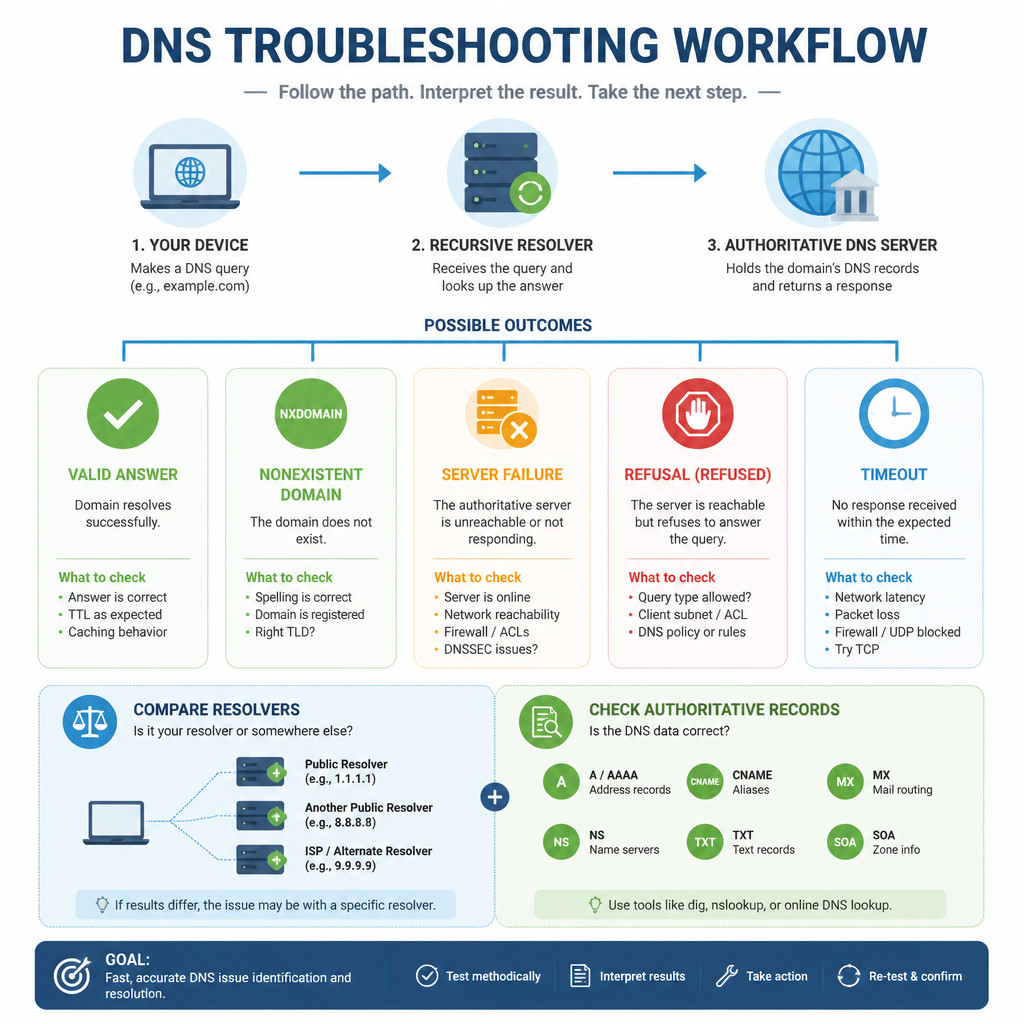
2. Compare several recursive resolvers
Your computer normally sends DNS queries to a resolver provided by your router, workplace, ISP, or VPN. Compare its response with results from public services to spot resolver-specific caching or filtering.
nslookup example.com 1.1.1.1
nslookup example.com 8.8.8.8

dig @1.1.1.1 example.com A
dig @8.8.8.8 example.com A
If one resolver returns an old address and another shows the new one, cached data is probably involved. Wait for the previous record’s TTL to expire. Clearing the DNS cache on your computer won’t remove a record stored by an ISP or public resolver.
3. Check the DNS response status
Near the top of dig output, look for status:. These are the common results:
- NOERROR: The query completed successfully. The answer can still be empty if the requested record type doesn’t exist.
- NXDOMAIN: The queried domain name doesn’t exist.
- SERVFAIL: The resolver couldn’t complete the lookup. Common causes include DNSSEC validation failures, broken delegation, or authoritative servers that can’t be reached.
- REFUSED: The server received the request but declined to answer it.
- Timeout: No response arrived. Check connectivity, VPN rules, firewalls, and possible blocking of UDP or TCP port 53.
4. Show only the answer
Concise output is easier to compare and works better when you’re using a command in a script.
dig example.com A +short
dig example.com MX +short
dig example.com A +noall +answer
In a standard answer line, the first number after the name is the TTL in seconds. When you query a recursive resolver, this number often represents the remaining cache lifetime rather than the record’s original configured TTL.
5. Ask an authoritative name server
Authoritative servers publish the DNS data supplied by the domain owner. Find those servers first, then send the record query directly to one of the returned hostnames.
dig example.com NS +short
dig @ns1.example.net example.com A
Replace ns1.example.net with an actual authoritative server returned by the first command. If its answer is correct but recursive resolvers still return old data, wait for their cached records to expire. When the authoritative answer itself is wrong, correct the record through the DNS hosting provider.
6. Inspect the delegation path
A trace follows DNS resolution through the root servers, the top-level domain, and finally the authoritative servers:
dig example.com A +traceThis may reveal incorrect name-server delegation or authoritative servers that can’t be reached. Some corporate networks, VPNs, and firewalls block the direct DNS traffic required by +trace. A failed trace, therefore, doesn’t automatically mean public DNS is broken.
7. Test reverse DNS
Reverse lookups map an IP address to a PTR record. They’re particularly useful when diagnosing mail-server identity and logging problems.
nslookup 203.0.113.10
dig -x 203.0.113.10 +short
Forward and reverse DNS are managed separately. Creating an A record doesn’t automatically create a PTR record. Reverse DNS is usually controlled by the owner of the IP address.
Investigating DNSSEC-related SERVFAIL responses
If a validating resolver returns SERVFAIL while a non-validating path works, the domain may have expired signatures, an incorrect DS record, or DNSSEC keys that don’t match. Request the DNSSEC records and compare results from validating resolvers:
dig @1.1.1.1 example.com A +dnssec
dig @8.8.8.8 example.com A +dnssec
dig example.com DS +dnssec
An ad flag means the resolver reports the answer as authenticated. Seeing an RRSIG record by itself doesn’t prove that validation succeeded. Fix DNSSEC configuration through the DNS host and registrar instead of bypassing it permanently.
Common DNS troubleshooting mistakes
- Checking an A record when the problem concerns MX, TXT, AAAA, or a different record type.
- Assuming an empty NOERROR response means the whole domain is unavailable.
- Describing every delayed update as DNS propagation without checking the old TTL.
- Changing a DNS record before confirming which provider hosts the authoritative zone.
- Treating ping as a DNS test. Ping can fail even when name resolution works correctly.
- Assuming a successful query to a public resolver proves that the local router, VPN, or corporate resolver is working.
FAQ
Which is better for DNS troubleshooting, nslookup or dig?
Use nslookup for quick, widely available checks, especially on Windows. Choose dig when you need response status, flags, TTLs, authoritative sections, DNSSEC details, or delegation tracing.
Why does nslookup show the correct IP while the application still fails?
The application might use its own DNS cache, an encrypted DNS provider, a proxy, a VPN, the hosts file, or an IPv6 record. DNS resolution may also be working correctly while the application fails later because of routing, TLS, firewall, or server problems.
What does a DNS request timeout mean?
A timeout means the queried server didn’t return a usable response before the command reached its limit. Try another resolver, then check network access, VPN settings, firewall rules, and connectivity over UDP or TCP port 53.
How can I tell whether a DNS change has propagated?
Query several recursive resolvers as well as the authoritative server. The authoritative server should return the new value first. Recursive resolvers may continue serving the old value until its cached TTL expires.
