
If one website will not open in Chrome, Edge, Firefox, or another browser on one Windows PC, while most other sites work, inspect the Windows Hosts file before resetting DNS settings. A local entry can send that domain to the wrong address or deliberately block it, regardless of which browser you use.
This is a narrow diagnostic path, not a universal fix. It fits a browser-independent failure affecting one domain on one PC. It is unlikely to solve a website outage, a sign-in problem, a certificate warning, router or ISP filtering, a VPN or proxy policy, or a problem that occurs in only one browser.
Why the Hosts file can affect every browser
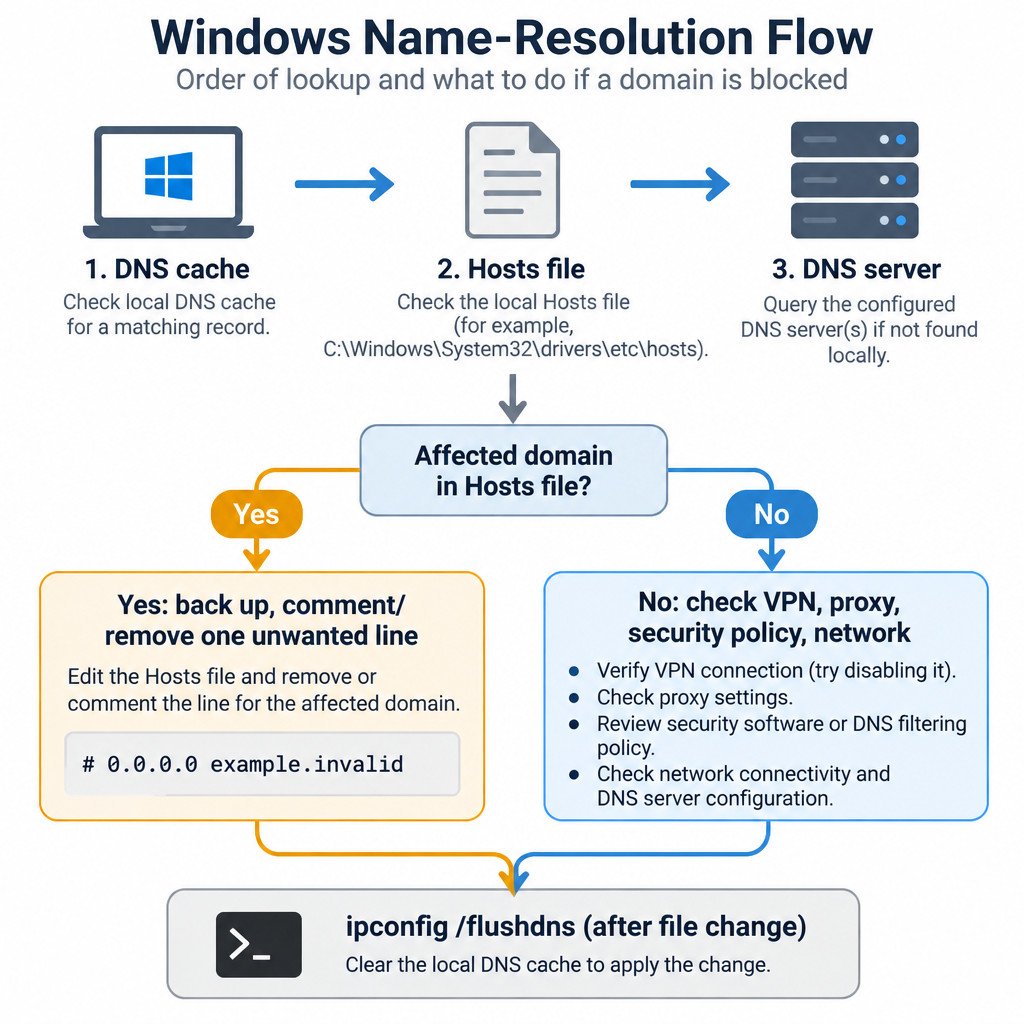
The Hosts file is a local text file that can associate a hostname, such as example.invalid, with an IP address. Windows DNS Client resolution checks its cache, then the Hosts file, and then a DNS server. That means an active local mapping can take precedence over a normal DNS lookup. Microsoft documents this resolution sequence and shows that a Hosts entry can resolve a name without sending a DNS query to a server.
For example, the illustrative line below directs example.invalid to the local computer. A site may then appear unavailable even though the configured DNS server has a valid public answer:
127.0.0.1 example.invalidA line beginning with # is a comment and has no effect. An uncommented line using 127.0.0.1 or 0.0.0.0 is commonly used to block a name, but do not assume every unfamiliar mapping is harmful. Development tools and organization-managed networks can rely on deliberate entries.
Do two quick checks first
- Try the same site on another device. If it also fails on that device, especially on a different network, the issue is less likely to be the Hosts file on this PC.
- Open Command Prompt and run
nslookup example.com, replacingexample.comwith the affected domain. This asks the configured DNS server for an address and is useful comparison evidence. - Do not treat a successful
nslookupresult as proof that the browser uses that same result.nslookupis a DNS diagnostic tool; it does not conclusively test the application’s local cache and Hosts-file path.
These checks help prevent needless editing. If DNS cannot resolve the name at all, investigate the network or DNS service first. If it resolves normally but the site fails only on this PC in every browser, a local mapping becomes more plausible. Microsoft describes nslookup as a tool for diagnosing DNS infrastructure and querying a name through the default or a specified DNS server.
Back up and inspect the Hosts file safely
The usual Hosts-file location is %WinDir%\System32\drivers\etc\hosts. The file has no extension. It is protected, so opening and saving it normally requires administrator permission.
- Close browsers that are using the affected site.
- Press Start, type
Notepad, then choose Run as administrator. Approve the Windows prompt if it appears. - In Notepad, choose File > Open and paste
%WinDir%\System32\drivers\etc\hostsinto the file-name field. - If no file appears, change the file-type filter from text documents to All Files.
- Before changing anything, save a copy with a dated name in a separate folder, such as
hosts-backup-2025-03-08. Keep the working file named exactlyhosts, with no.txtextension.
Now search the file for the affected domain and for any related subdomain, such as www.example.com. Read the entire line rather than looking only at the IP address. A mapping can use a public-looking address and still be wrong for your purpose.
Make the smallest reversible change
If you find an uncommented line for the affected domain and have reason to believe it is unwanted, either remove that line or add # at its beginning. Commenting is often easier to reverse. For this illustrative entry:
0.0.0.0 example.invalidthe reversible version is:
# 0.0.0.0 example.invalidSave the file, confirming that Notepad did not append .txt. Do not delete unrelated entries, replace the whole file, or change an organization-managed mapping merely to test a public website. On a work device, ask IT before altering a file whose purpose is unclear. If a development project depends on a local hostname, record the original line so you can restore it.
Clear the cached result after the file change
Editing the Hosts file is the corrective action. Flushing DNS only clears cached resolution information; it cannot override an active unwanted Hosts entry. After saving the targeted change, open Command Prompt as administrator and run:
ipconfig /flushdnsThen open a new browser window and retry the site. Windows documents that ipconfig /flushdns clears and resets the DNS resolver cache, while ipconfig /displaydns can display cached entries, including entries loaded from the local Hosts file.
If you want an additional check before and after the edit, run:
ipconfig /displaydnsThe output can be lengthy, and its absence or presence alone does not diagnose every failure. Use it to support the timeline: inspect the file, make one deliberate change, flush the cache, and retest.
When to restore the default Hosts file instead
Use a targeted edit when you can identify one suspicious line and understand why it should not be active. If the file has many unexplained changes, is substantially altered, or appears to have been modified by unwanted software, guessing at a series of edits is riskier. Microsoft provides a documented procedure to reset the Hosts file to its default.
A full reset removes all custom mappings, including legitimate internal or development entries. Keep the backup, and use this route only when you have confirmed that those mappings are not needed or have IT approval to remove them.
If the site still does not open
- Restore the backup promptly if an internal site, local development address, or work resource stops working after your change.
- Disconnect or reconnect a VPN only if that is permitted. Check whether a proxy, endpoint security product, parental-control tool, or organization policy is filtering the domain.
- Try the site on another network, such as an approved mobile hotspot, to distinguish a PC-specific issue from network filtering. Do not bypass workplace security controls.
- If every device on the same connection has the problem, investigate the router, DNS provider, or the site itself rather than repeatedly changing this PC.
- If the failure occurs in only one browser, undo any Hosts-file experiment and troubleshoot that browser’s site data, extensions, permissions, and privacy settings instead.
- Contact IT for a managed PC. They can determine whether an entry, proxy, VPN, or security control is intentional.
The practical rule is simple: a Hosts-file check is worthwhile when the failure is limited to one domain but spans all browsers on one Windows installation. Change only the matching entry, preserve a backup, flush the cache afterward, and stop there if the evidence points to a network or policy issue instead.
