
Buy a Matter device only after checking four things: the exact model is Matter-certified, your preferred smart-home platform supports its device type and controls, its Wi-Fi or Thread connection will work in your home, and any feature you consider essential is available outside the manufacturer’s app.
Matter is a smart-home interoperability standard. It is designed to let compatible accessories work with platforms such as Apple Home, Google Home, Alexa, and supported manufacturer apps. It does not replace those platforms, their hubs, or their individual feature decisions. A Matter logo is therefore a valuable starting signal, not a promise of identical controls everywhere. The Connectivity Standards Alliance states that certified products carry the Matter logo and that Matter supports sharing a device across compatible platforms through multi-admin. Matter FAQ, Connectivity Standards Alliance
Start with the ecosystem you actually use
Before comparing prices, write down where you want to control the accessory. This may be one platform, such as Google Home, or two, such as Apple Home and a manufacturer app. If voice control, automations, household sharing, or remote access matter to you, include those in the decision rather than treating them as later details.
- One platform: Confirm the exact accessory model can be added to that platform.
- Two platforms: Confirm the product supports Matter multi-admin and that both platforms support the device category you are buying.
- Manufacturer app required: Check whether the feature you need remains available after Matter setup, and whether it can also be exposed to your main platform.
- No hub planned: Prefer a device and platform combination whose documented requirements you already meet. Do not assume a nearby smart speaker is a Thread border router.
Check the product page, packaging, or setup documentation for the exact model number. A manufacturer may sell older Wi-Fi versions, Bluetooth-only versions, regional variants, and newer Matter versions under very similar product names. Brand-level compatibility claims are not enough for a purchase decision.
Match advertised features to the controls you will receive
A device appearing in an app does not mean the app exposes every capability. For example, a light may provide on/off, brightness, color temperature, color, effects, and energy information in its own app. Another platform may show only the controls covered by its current Matter support for that device type. The difference can be more important for locks, thermostats, sensors, and advanced lighting than for a basic plug.
Make a short must-have list before purchasing. For a thermostat, it might include mode changes, schedules, fan control, and room-sensor behavior. For a lock, it might include lock state, guest access, activity history, and keypad management. Then compare each item with the manufacturer’s documentation and the target ecosystem’s supported controls. Google’s Matter device documentation illustrates why this check matters: support and available controls are specified by device type rather than assumed to be universal. Google Home Matter supported device types
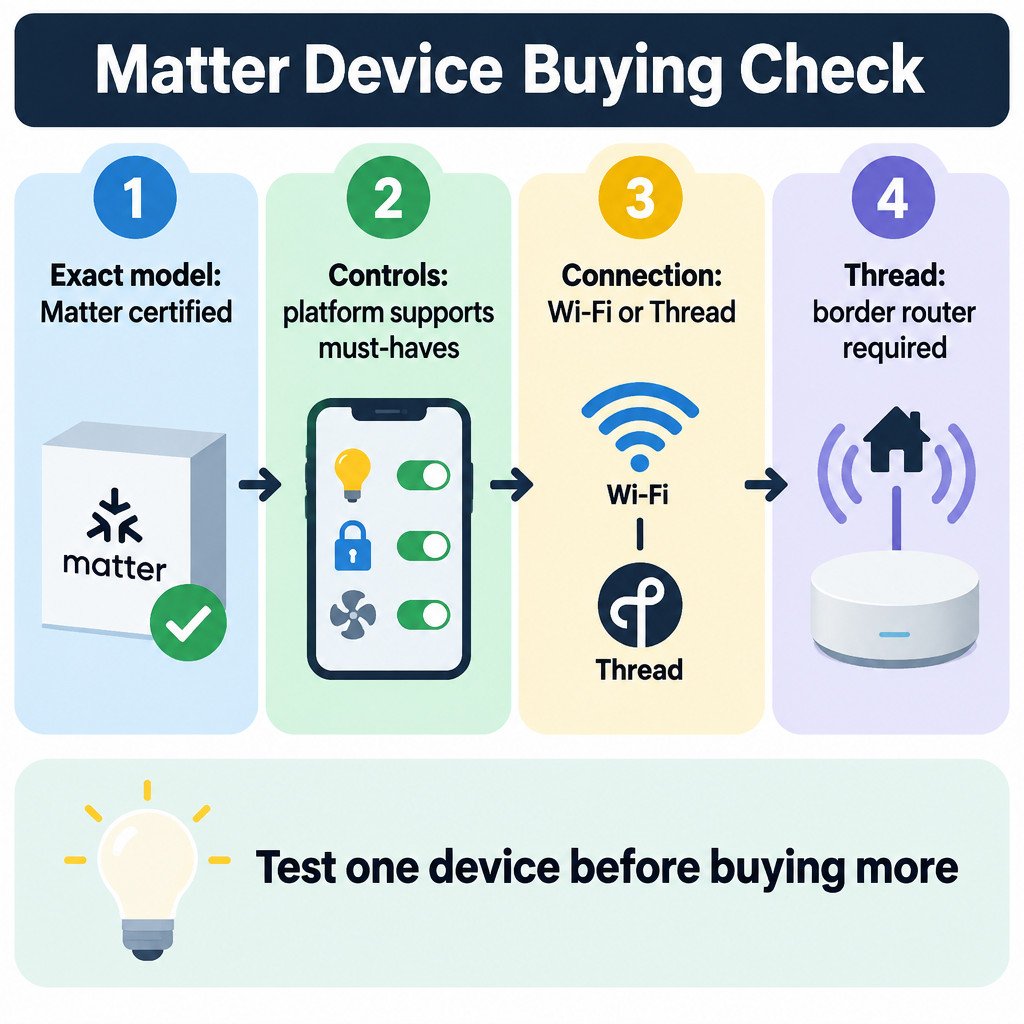
Choose Wi-Fi or Thread before you buy
Matter devices can use different network transports. For a buyer, the practical distinction is usually Wi-Fi versus Thread. Bluetooth Low Energy is commonly used during setup, while Matter connectivity can use Wi-Fi, Thread, or Ethernet. Matter FAQ, Connectivity Standards Alliance
| Connection type | What to verify before purchase | Common buying mistake |
|---|---|---|
| Wi-Fi Matter device | Your Wi-Fi reaches the installation location and the manufacturer’s phone, router, and band requirements are acceptable. | Assuming every device joins 5 GHz Wi-Fi. Many small accessories require 2.4 GHz Wi-Fi; follow the product’s own specifications. |
| Thread Matter device | You have a compatible Thread border router or home hub for the platform and location where the device will operate. | Assuming all smart speakers, displays, or Wi-Fi routers provide Thread connectivity. |
| Ethernet Matter device | A wired network port is available and the device can join the same home network used by your control platform. | Overlooking placement, cabling, or network-segmentation constraints. |
Thread is a low-power mesh network, which can suit battery-powered sensors and devices positioned beyond ideal Wi-Fi coverage. But a Thread accessory needs a path between its Thread network and your home network. That path is provided by a Thread border router. For example, Google distinguishes between Matter hubs that support Wi-Fi devices and hubs that also function as Thread border routers. Its setup guidance also documents IPv6 as necessary for Matter to work properly across its supported Wi-Fi and Thread scenarios. Google Home: Prepare your smart home for Matter
These requirements are platform-specific. If you use Apple Home, check Apple’s current list of compatible home hubs and supported accessory categories for your hardware and software version. Apple also documents that Thread accessories need a Thread-enabled home hub. Apple: Pair and manage Matter accessories
Plan multi-platform access as a second setup step
Multi-admin lets a Matter accessory be shared with another compatible ecosystem after it is initially added. It is useful when one person prefers Apple Home, another uses Google Home, or you want an accessory available in both a platform app and a vendor app. It is not the same as assuming every app will discover the device automatically.
Use the app that first set up the device to find its sharing, linked services, or Matter pairing-code option. Add the accessory to the second platform while it is working reliably in the first. Platform support can arrive at different times, and the controls can differ after sharing, so test the specific actions you need in both places.
Run a small first-device test
When you are building a new smart home, purchase one low-risk accessory first: a plug, bulb, or basic sensor is usually easier to evaluate than an entire set of locks or thermostats. This reduces the cost of discovering a network or feature mismatch after buying several devices.
- Update the phone, hub, control app, and accessory firmware if updates are offered.
- Add the device to the platform you intend to use most.
- Confirm local control from the app while you are at home.
- If remote control is important, test it away from the home network.
- Run the automation or voice command you expect to use.
- Share the device with a second compatible platform, if needed, and repeat the essential checks.
- Only then standardize on that model or setup for additional rooms.
Illustrative example: A household wants a Thread motion sensor in a garage, controlled in two apps. The buyer first verifies that the preferred platform has a compatible Thread border router, places one sensor in the garage, confirms it reports motion locally, then tests shared access in the second app. If the second app only shows motion status and not a desired battery detail, that is a limitation to accept or resolve before buying more sensors.
If Matter setup fails, check the simple dependencies first
- Bluetooth: Keep Bluetooth enabled on the phone during commissioning if the product instructions require it.
- Firmware: Update the accessory, hub, phone operating system, and control app where supported.
- Network band: For Wi-Fi products, follow the manufacturer’s documented 2.4 GHz or 5 GHz requirements. Do not change router settings blindly.
- Thread infrastructure: Confirm that a compatible Thread border router is present and online before troubleshooting the accessory itself.
- Same home and account: Verify that the phone, platform app, and hub are assigned to the intended home.
- Reset procedure: Use the manufacturer’s documented reset instructions only after recording any settings you will need to recreate.
- Vendor support: If a particular capability is missing, determine whether it is a platform-control limitation or a device configuration that is available only in the manufacturer app.
Network names, guest networks, VLANs, VPNs, and router security settings can affect discovery and setup. Matter does not remove those local network dependencies. If your home network is unusually segmented, consult the device and platform documentation before changing isolation or firewall rules; the correct configuration depends on the equipment and platform.
Matter buying checklist
- The exact model and regional variant carry Matter certification.
- Your intended smart-home platform supports the device category.
- The platform exposes the controls you consider essential.
- You know whether the device uses Wi-Fi, Thread, or Ethernet.
- For Thread, a compatible border router or home hub is already available.
- Your phone, hub, Wi-Fi, IPv6 configuration where applicable, and network layout meet the platform and manufacturer requirements.
- You understand which advanced functions may remain in the manufacturer app.
- You have a practical return option if the first-device test reveals a mismatch.
The reliable approach is to buy for the setup you have, not for a logo alone. Matter can reduce platform lock-in and simplify expansion, but the exact device type, transport, hub, app controls, and firmware state still determine the experience you get.
Sources
- Connectivity Standards Alliance, Matter FAQs
- Google Home, Prepare your smart home for Matter
- Google Home Developers, Supported device types
- Apple Support, Pair and manage your Matter accessories
