
PowerToys Text Extractor is a quick way to copy text that is visible on your Windows screen but cannot be selected. Press Win+Shift+T, drag over the text, and paste the recognized result from your clipboard. It is useful for error dialogs, screenshots, video frames, scanned snippets, and read-only app windows.
This is an OCR tool, not a replacement for a document scanner or a screenshot utility. Its best job is capturing a short piece of on-screen text so you can search it, reuse it, or enter it elsewhere. Treat the pasted result as a draft: OCR can misread characters, especially in small, blurry, stylized, angled, or low-contrast text.
Set up PowerToys Text Extractor
PowerToys supports Windows 11 and Windows 10 version 2004 (build 19041) or later on 64-bit x64 and ARM64 systems. Microsoft documents installation through the Microsoft Store, GitHub, or WinGet; the WinGet command is winget install Microsoft.PowerToys --source winget. See the official PowerToys installation guide for the current options.
After installing it, open PowerToys Settings, select Text Extractor in the sidebar, and turn on Enable Text Extractor. The default activation shortcut is Win+Shift+T, but the same settings page lets you choose another shortcut if it conflicts with another program.
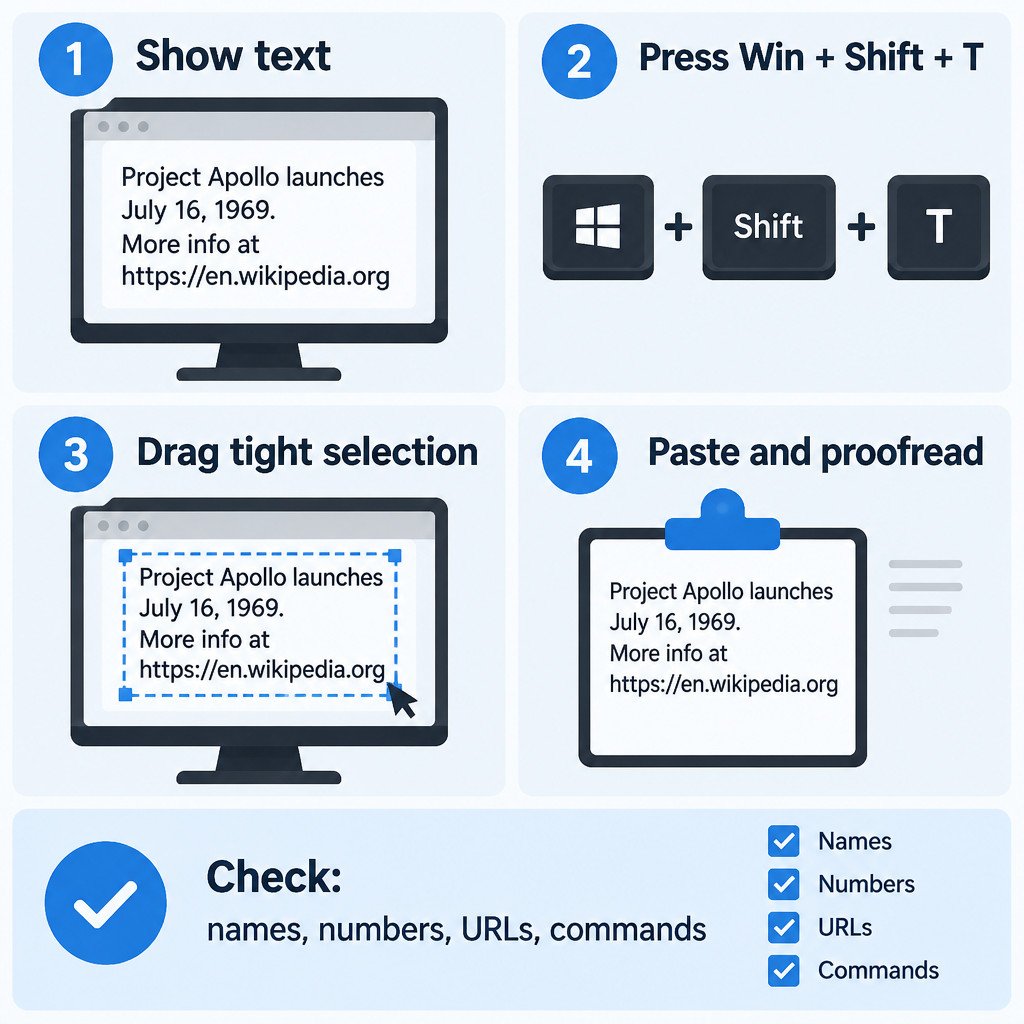
Copy visible text in four actions
- Bring the text into view. Pause the video, open the image, or leave the error dialog visible.
- Press Win+Shift+T. The screen enters selection mode.
- Click and drag a tight rectangle around one block of text.
- Open the destination and paste with Ctrl+V.
The selected text is copied to the clipboard when you release the mouse button. Press Esc to leave selection mode without copying. While choosing an area, hold Shift to reposition the selection rather than starting over. Microsoft documents these controls and the configurable shortcut in its Text Extractor reference.
Keep the selection focused. A single paragraph, label, or dialog message generally gives the recognizer a clearer task than a large screen full of icons, backgrounds, and unrelated text.
Use it for quick, visible text capture
Text Extractor is most helpful when the text is already displayed and you only need a usable copy. It does not need the underlying app to provide a Copy command.
| Situation | Practical workflow | Check before using the result |
|---|---|---|
| Error dialog with no selectable text | Extract the error code and the first sentence, then search or share both. | Confusable characters such as 0/O, 1/l/I, and punctuation. |
| Meeting ID on a shared screen | Extract the ID, paste it into the meeting app, and compare it with the screen. | Every digit and separator. |
| Text in a paused video | Pause on the sharpest frame, enlarge the player if possible, then select one line or caption block. | Names, timestamps, captions, and URL characters. |
Improve recognition before you extract
OCR works from pixels, so source quality matters more than the speed of your selection. If the first attempt is unreliable, improve what is on screen and try again rather than repeatedly extracting the same poor image.
- Enlarge the source window or zoom the image before selecting it.
- Pause a video on a frame without motion blur or overlays.
- Select one text block at a time rather than several columns or sections.
- Avoid including decorative backgrounds, icons, cursor highlights, and nearby UI labels.
- Use the clearest available view; very tiny, distorted, angled, or low-contrast lettering may remain difficult to recognize.
Choose the right OCR language
Text Extractor relies on Windows OCR language packs. In PowerToys Settings, choose the preferred language that matches the text you plan to capture. If you see a message that no OCR languages are installed, add the required Windows language feature first. On Windows 11, the general route is Settings > Time & language > Language & region, then add a language and select its available language features. The exact features available can vary by language and Windows configuration; Microsoft’s Windows language-pack instructions explain the Settings-based process.
A mismatched language can make recognition worse, particularly where character sets or accents differ. If the text is multilingual, extract the sections separately with the most suitable preferred language, then compare the results against the original.
Proofread before you act
Do not paste OCR output directly into a command prompt, password manager, payment form, security setting, or support ticket without checking it. Review names, account identifiers, error codes, file paths, URLs, commands, version numbers, and negative signs. A single wrong character can change a search result, open the wrong address, or make a command fail.
Illustrative example: if an extracted command reads del C:\temp\logs, compare every character with the visible source before running it. Text Extractor helps you avoid retyping; it does not validate what the text means or whether it is safe.
Fix common Text Extractor problems
- The shortcut does nothing: Confirm that Text Extractor is enabled in PowerToys Settings. Then assign a different activation shortcut in case another app has claimed Win+Shift+T.
- Nothing useful appears when you paste: Make a tighter selection around larger, clearer text. Test by pasting into a plain text editor so formatting in the destination app is not the issue.
- The result uses the wrong characters or language: Check the preferred OCR language and install the appropriate Windows OCR language pack if it is missing.
- It fails only in an administrator-level app: The target app may be elevated while PowerToys is not. Run PowerToys as administrator only when interaction with elevated applications is required. Microsoft explains this permission boundary in its PowerToys administrator-mode guidance.
- The output is inaccurate: Increase the text size, reduce visual clutter, and select a smaller region. If the original is too blurred or distorted, no setting can reliably recover missing detail.
Choose the tool that matches the task
Use Text Extractor when the goal is to turn visible text into editable clipboard text quickly. Use the Snipping Tool when you need to capture, annotate, save, or share the image itself. In many cases, the useful sequence is to take a screenshot for context and use Text Extractor separately for the error message, code, or label you need to paste elsewhere.
The fastest reliable habit is simple: enlarge the source, extract a small region, paste it, and compare the important characters with what is on screen. That gives you the convenience of OCR without treating OCR as an authority.
