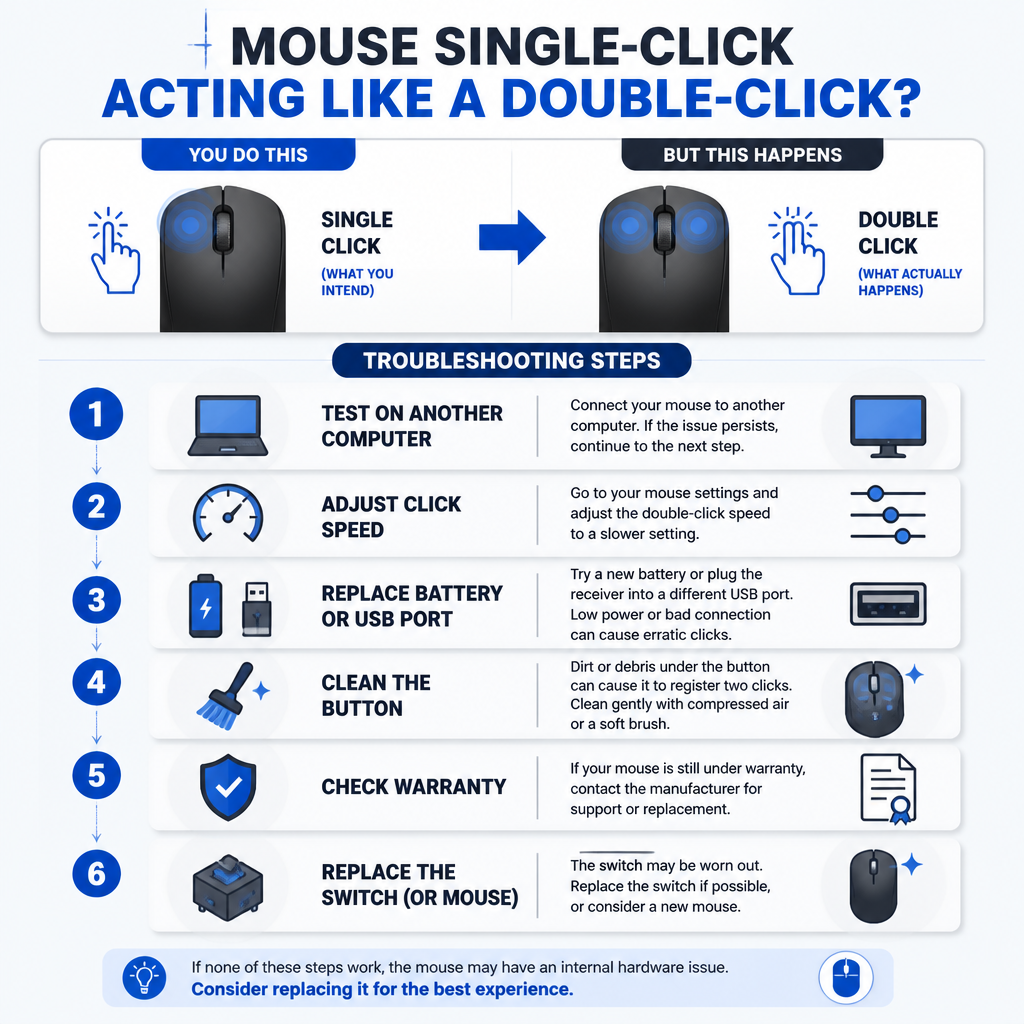
If your mouse double-clicks after a single press, test it on another computer or operating system first. When the problem follows the mouse, the likely cause is a weak wireless connection, debris around the button, or a worn internal switch. If it happens on only one computer, check the double-click speed, mouse software, accessibility settings, and drivers.
For a quick workaround, move the double-click speed slightly toward the faster setting. This makes it less likely that two unintended clicks will be treated as a double-click and may stop folders from opening accidentally. It won’t repair a failing physical switch, though.
Quick troubleshooting steps
- Disconnect the mouse, then reconnect it.
- Try another USB port or replace the wireless battery.
- Check whether the problem affects every button or only the primary button.
- Test the mouse on another computer.
- Adjust the operating system’s double-click speed.
- Disable macros and reset the vendor’s mouse software.
- Clean around the affected button.
- If the fault follows the mouse, use the warranty or replace the switch.
Check whether the mouse is sending extra clicks
Open a folder with several files and single-click them one at a time. If files open unexpectedly, Windows or macOS is detecting extra clicks. Another useful test is to press and hold the button while dragging a window or selecting text. If the drag stops while your finger is still holding the button, the internal switch may be bouncing or losing electrical contact.
Try a different mouse on the same computer. If possible, connect the troublesome mouse to another computer as well. Together, these tests help separate a computer configuration issue from a hardware fault:
- Only one mouse has the problem on multiple computers: The mouse hardware or its wireless receiver is probably at fault.
- Multiple mice have the problem on one computer: Check the operating system settings, vendor utilities, and drivers.
- The problem occurs in one application: Review that application’s click behavior, extensions, and accessibility options.
Change the double-click speed
The double-click speed setting controls how quickly two separate clicks must happen for the system to count them as a double-click. Moving the setting toward Fast can stop a short delay between unintended switch signals from being recognized as a double-click.
Windows 11 and Windows 10
- Open Settings.
- In Windows 11, choose Bluetooth and devices, then Mouse. In Windows 10, choose Devices, followed by Mouse.
- Open Additional mouse settings or Additional mouse options.
- On the Buttons tab, move the double-click speed slider slightly toward Fast.
- Try the test folder shown in the dialog, then select Apply.
macOS
- Open System Settings.
- Choose Accessibility, then Pointer Control.
- Move the Double-click speed slider toward Fast.
- Test ordinary single-clicks and intentional double-clicks before closing Settings.
Don’t move the slider so far that deliberate double-clicks become difficult. If the change helps only briefly, continue with the connection and hardware checks below.
Rule out wireless and USB connection issues
Low battery power, radio interference, or an unstable USB connection can cause input events to go missing or repeat.
- Replace disposable batteries or charge the mouse fully.
- For a Bluetooth mouse, remove it from the computer’s Bluetooth device list and pair it again.
- Connect a USB receiver directly to the computer rather than through an unpowered hub.
- Test another USB port, preferably one away from external drives and other wireless receivers.
- If the signal is obstructed, use a short USB extension cable to move the receiver closer to the mouse.
- During testing, keep the mouse and receiver away from crowded 2.4 GHz devices.
If the trouble started after you connected the receiver through a dock or KVM, bypass that device temporarily. A direct connection can show whether the intermediary hardware is dropping or duplicating input.
Review mouse software, macros, and assignments
Gaming and productivity mouse utilities may assign a double-click action or macro to one button. Open the manufacturer’s configuration utility and check the affected button. Restore it to a standard primary click, turn off active macros, and test again with application-specific profiles disabled.
If the utility supports onboard memory, reset the mouse profile or make a clean one. Temporarily close any third-party automation, remapping, or accessibility tools too. Don’t run two mouse-management utilities at once, since conflicting profiles can lead to unpredictable behavior.
Reinstall the Windows mouse driver
Most mice rely on Windows’ built-in Human Interface Device driver. Reinstalling that driver may clear a damaged device configuration, and it usually doesn’t require a separate download.
- Right-click Start and open Device Manager.
- Expand Mice and other pointing devices.
- Right-click the relevant HID-compliant mouse, then select Uninstall device.
- If the mouse is wired or uses a USB receiver, disconnect it.
- Restart Windows, reconnect the mouse, and allow Windows to install the driver automatically.
On a laptop, the touchpad and external mouse may appear under similar names. Keep another input method ready, and don’t uninstall devices at random. If extra buttons depend on the manufacturer’s software, install the current stable version from the manufacturer’s official support site after testing the basic driver.
Clean around the button safely
Disconnect the mouse or turn it off. Blow compressed air in short bursts around the affected button’s edges while pressing and releasing it several times. For grime on the outside, use a lint-free cloth lightly dampened with isopropyl alcohol. Keep all liquid out of the enclosure.
Don’t spray lubricant, household cleaner, or penetrating oil into the mouse. Such products may damage the plastic, attract dirt, or leave conductive residue. Opening the enclosure can also void the warranty, so read the warranty terms before removing screws or feet.
Signs that the internal switch has failed
Mechanical switches can wear out and develop contact bounce, meaning one physical press creates multiple electrical transitions. Common signs include double-clicking on several computers, dragging that stops unexpectedly, inconsistent click pressure, or a fault that affects only one button.
If the mouse is still under warranty, ask for a repair or replacement. With an inexpensive mouse, replacing the whole device is generally safer and more economical. Installing a new soldered microswitch calls for electronics repair experience, a switch with the correct dimensions and force rating, soldering equipment, and suitable ventilation. This isn’t a software repair, and you shouldn’t attempt it on a battery-powered device without disconnecting the battery.
Frequently asked questions
Why does my mouse double-click after one click?
The usual causes are a double-click speed that’s too permissive, a macro or button assignment, wireless instability, debris near the button, or contact bounce from a worn internal switch.
Can a driver make a mouse click twice?
Yes, although hardware faults and mouse utility settings are more common. Before spending time reinstalling drivers, test the mouse on another computer.
Will changing the double-click speed fix it permanently?
It can correct a bad setting and may reduce mild accidental double-clicking. But it can’t repair a damaged button switch. If the mouse keeps double-clicking across multiple computers, it will usually need warranty service or replacement.
How do I know if the mouse switch is failing?
Hold the button down while dragging a window or selecting text. If the drag releases unexpectedly, or the mouse double-clicks on more than one computer, the switch is probably worn or contaminated.