
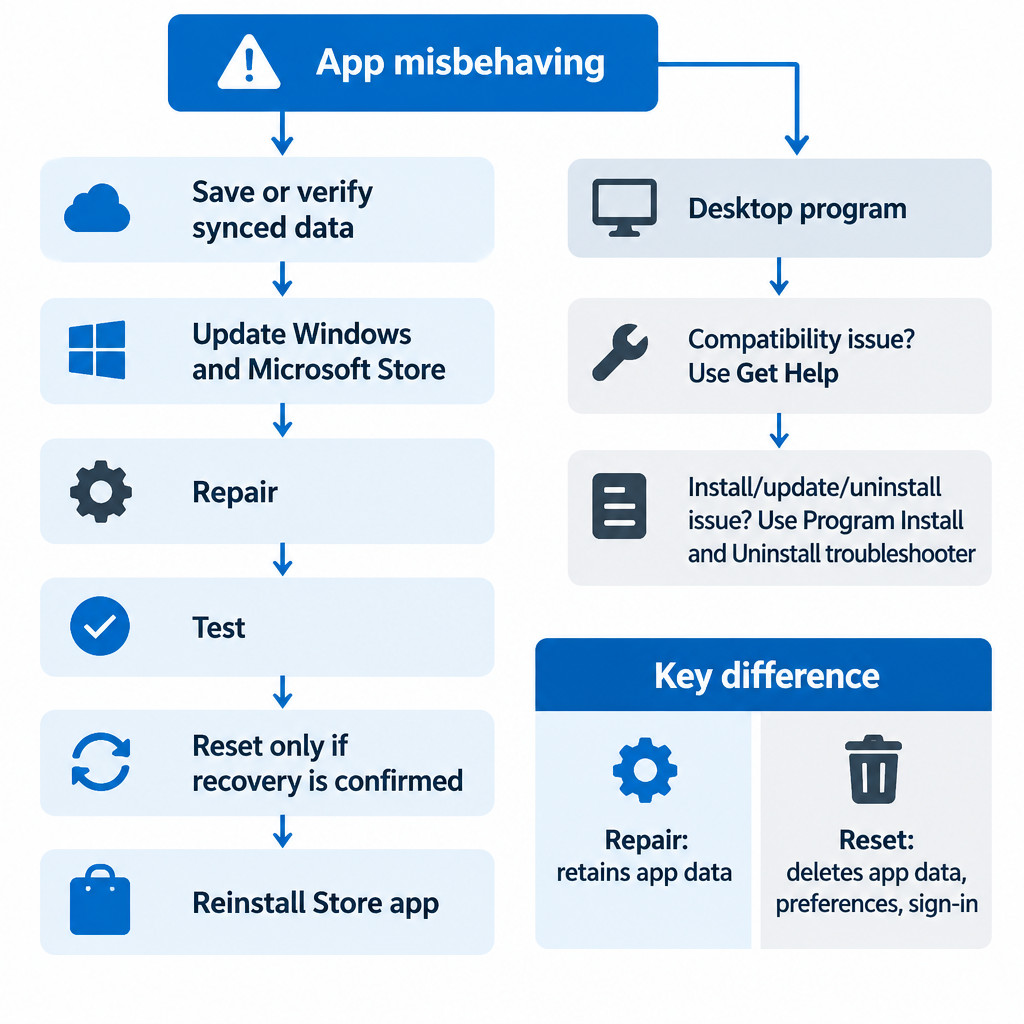
If one Windows 11 app will not open, crashes, or behaves incorrectly, use Repair before Reset. Repair attempts to restore the app installation while keeping its app data. Reset returns the app to its original state and can permanently remove local data, preferences, and sign-in details.
The important distinction is the app type. The Repair and Reset controls discussed here apply to packaged Microsoft Store/MSIX-style apps; they are not a universal cure for traditional desktop programs downloaded from a vendor website. A desktop program with an installer such as .exe or .msi may instead need a vendor update, compatibility help, or a conventional reinstall.
Decide what you can safely change
Before changing anything, identify what would be difficult to replace. Look for documents saved only inside the app, offline downloads, locally stored notes, saved projects, custom templates, and an account whose password or recovery method you do not have available.
- Likely recoverable: files saved in Documents, Pictures, or another normal folder; cloud files that have finished syncing; settings attached to an account you can sign back into.
- At risk during Reset: unsynced app-only data, offline content, local preferences, cached work, and sign-in state.
- Needs confirmation: data shown in an app does not necessarily mean it is stored in the cloud. Check the app’s sync status or export option first.
Also note the exact symptom and any error text. “Closes immediately after an update” points to a different next step than “cannot install” or “asks to sign in repeatedly.” This record is useful if the least-destructive steps do not work.
Start with low-risk checks
- Close the app completely, then reopen it. If it has a tray icon, close it there as well.
- Save or export any work the app still lets you access.
- Install pending Windows updates, then restart if Windows requests it.
- For an app obtained from Microsoft Store, open Microsoft Store, choose Library, and install available app updates.
- Test the original action again before moving to Repair.
Microsoft lists closing and reopening the app, Windows updates, and Store updates among its first troubleshooting steps for Store apps. Microsoft Store app troubleshooting guidance is the relevant reference for that sequence.
Use Repair first for a packaged app
For an affected app that offers these controls, open Settings > Apps > Installed apps. Find the app, select its menu, open Advanced options, and choose Repair. Wait for the action to finish, then launch the app and repeat the task that previously failed.
Repair is the appropriate first escalation because it reloads the app installation while retaining app data. It is still sensible to keep a copy of irreplaceable work: retained data is not the same as a backup, and the underlying problem may have affected the data itself. Microsoft documents the Repair and Reset behavior for MSIX/AppX-family apps in its Reset or Repair MSIX apps documentation.
Reset only when recovery is understood
If Repair does not resolve the problem, pause before selecting Reset. Reset restores the app’s installation to its original state and permanently deletes its app data. In practice, that may mean the app opens as though it were newly installed: you may need to sign in again, redo preferences, and restore or re-download local content.
A reset can be reasonable when an app’s work is entirely cloud-synced and you have confirmed that sync completed. It is a poor first choice when the app contains the only copy of a local project or offline notebook. If you are unsure, look for an export or backup command inside the app, or copy the files it created outside the app before proceeding.
| Situation | Safer next action | Why |
|---|---|---|
| Store app opens but behaves incorrectly | Repair, then test | It attempts to fix the installation without intentionally deleting app data. |
| Repair failed and cloud sync or export is confirmed | Reset, then sign in and verify data | Reset removes local app data and settings, so recovery must be planned first. |
| Store app remains broken after Reset | Reinstall it from Microsoft Store | This is a Store-app step, not a general prescription for all desktop software. |
| Older desktop program fails after a Windows change | Run compatibility diagnostics | The issue may be a version or compatibility problem rather than damaged Store app data. |
| Desktop program cannot install, update, or uninstall | Use the install/uninstall troubleshooter | That tool targets installation and removal problems, including relevant registry issues. |
After a reset or reinstall, do not assume the result is complete merely because the app launches. Sign in, check that expected files appear, open one or two important items, and confirm that syncing is active before deleting any old copies.
Choose a different path for traditional desktop programs
For an older desktop program that began failing after a Windows upgrade or appears to have a version-related problem, use Windows 11’s guided compatibility diagnostic rather than applying random compatibility settings. Open Get Help and search for Run the Windows Program Compatibility troubleshooter. It can guide diagnosis, but it cannot replace an update supplied by the software vendor. Microsoft describes this entry point in its Windows troubleshooters guidance.
If a conventional desktop program cannot install, update, or fully uninstall, the Program Install and Uninstall troubleshooter is more relevant. Its scope is installation, removal, update, and related registry problems; it is not intended as a general fix for an application that simply crashes after launching. See Microsoft’s Program Install and Uninstall troubleshooter guidance for its stated use.
Know when to stop escalating
Do not jump to copied PowerShell commands, registry edits, or broad system resets for a single failing app. Those actions can obscure the original problem and affect other software. Instead, record the app name and version, the exact error code or message, when it began, and which step changed the behavior.
- Contact your workplace IT team if the device is organization-managed, policy-restricted, or used for work data.
- Contact the app publisher when a specific app error persists after its supported repair or reinstall route.
- Investigate Windows more broadly when several unrelated Store apps fail, rather than resetting each app one by one.
The practical order is simple: protect data, update, Repair, test, then Reset only with a recovery plan. For traditional desktop programs, match the tool to the failure: compatibility diagnostics for version-related behavior and the install/uninstall troubleshooter for setup failures.
