
Quick answer
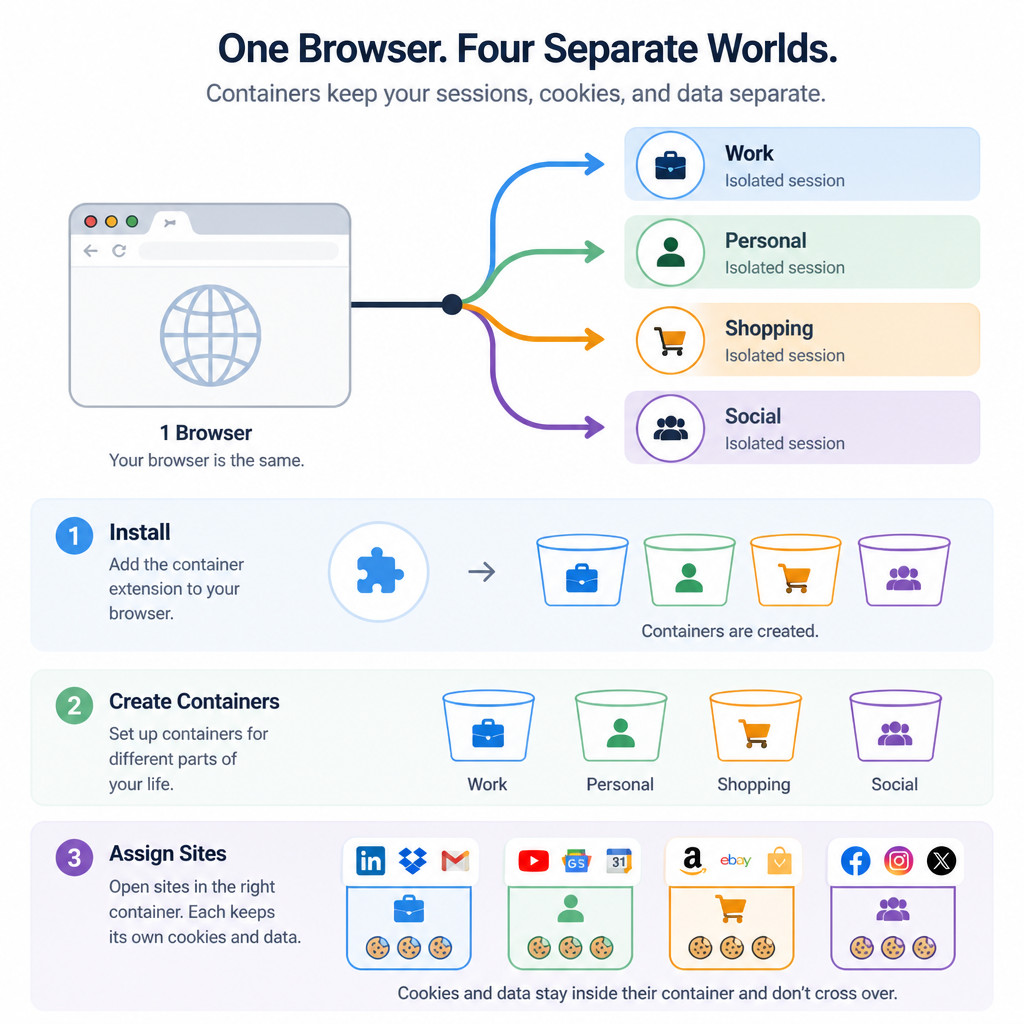
Firefox Multi-Account Containers lets you open websites in separate, color-coded environments. Each container keeps its own cookies and site storage, which means you can stay signed in to multiple accounts on the same website or keep work browsing apart from personal activity.
- Install Mozilla’s official Firefox Multi-Account Containers extension.
- Select the extension’s toolbar icon, then choose Manage Containers.
- Create or rename containers such as Work, Personal, Shopping, and Social.
- Open a new container tab and sign in to the appropriate account.
- If you want, assign frequently visited websites to always open in a specific container.
Containers improve account separation, but they aren’t a VPN or a complete anonymity tool. Websites can still see your IP address. Firefox history, bookmarks, downloads, and saved passwords also remain available across containers.
What Firefox Multi-Account Containers does
A standard browser profile stores website cookies together. Once you sign in to an account, every regular tab can access that session. Firefox containers split cookies, local storage, and other site data into separate storage contexts within the same browser profile.
This setup is useful if you need to:
- Use two email, cloud, or social media accounts at the same time.
- Keep employer-managed websites separate from personal accounts.
- Stop shopping or social sites from accessing cookies stored in other containers.
- Keep different client accounts isolated from each other.
- Organize your browsing without maintaining several Firefox profiles.
How to install Firefox Multi-Account Containers
- Open Firefox and go to the Firefox Browser Add-ons website.
- Search for Firefox Multi-Account Containers.
- Check that Mozilla is named as the extension developer.
- Select Add to Firefox, review the permissions it requests, and approve the installation.
- Pin the extension to the toolbar if the icon is hidden in the extensions menu.
To manage installed extensions, open the Firefox menu and select Add-ons and themes. You can also use Ctrl+Shift+A on Windows and Linux or Command+Shift+A on macOS.
How to create and use container tabs
1. Create containers for different activities
Select the Multi-Account Containers icon, open Manage Containers, and create a container. Choose a clear name, color, and icon. For example, you might use the following setup:
| Container | Suggested use |
|---|---|
| Work | Company email, project tools, and administrative portals |
| Personal | Personal email, storage, and subscriptions |
| Shopping | Retail accounts and purchase research |
| Social | Social networks and community accounts |
2. Open a website in a container
Select the extension icon and pick a container. Firefox will open a new tab marked with that container’s color. Enter the website address, then sign in as usual. Any cookies created in the tab remain inside the selected container.
Another option is to right-click the new-tab button and choose a container directly. If you already have the page open in a normal tab, use the extension panel to reopen it in a container.
3. Sign in to multiple accounts
Open the website in one container and sign in to the first account. Next, open the same site in a different container and sign in to the second account. Since each session has separate cookies, both accounts can stay active at once.
For instance, you could open a cloud service in the Work container for your company account, then open it in the Personal container for your private account. Before making changes, check the colored line or container name on the tab so you don’t use the wrong account.
4. Assign a website to a container
Open the website in the container where it belongs, select the extension icon, and turn on the option to always open that site in the current container. When Firefox encounters the assigned domain again, it should offer to open or redirect it into that container.
Be selective with permanent assignments. Sign-in systems often pass through several related domains, and assigning just one of them can cause a redirect loop or make the container confirmation page appear repeatedly.
What containers isolate and what they share
| Separated by container | Shared across the Firefox profile |
|---|---|
| Login cookies | Browsing history |
| Local site storage | Bookmarks |
| Many website session identifiers | Downloads |
| Site permissions in relevant contexts | Saved passwords and browser settings |
Containers don’t change your public IP address, conceal traffic from your network administrator, or block every kind of browser fingerprinting. If you need network-level IP separation, use a reputable VPN. When you need stronger separation of history, extensions, passwords, certificates, or browser configuration, use separate Firefox profiles instead.
Common problems and fixes
A website keeps opening in the wrong container
Go to the extension’s container management settings and remove the website assignment. Open the site again in the correct container, then reassign it. You should also check whether the parent domain and its sign-in subdomain have conflicting assignments.
Signing in causes a redirect loop
Temporarily turn off the site’s automatic container assignment. Clear the site’s data inside the affected container, reopen it, and complete the sign-in process. Some identity providers need several domains to remain in the same container.
A container disappeared
Open Manage Containers and check whether the container was hidden, renamed, or deleted. Deleting one also removes its isolated cookies and site data, so you’ll be signed out of websites stored there.
A link opens in a normal tab
Links don’t always inherit a container, especially when another application opens them or they’re redirected across assigned domains. Right-click the link and choose the option to open it in a new container tab. You can also assign the destination website to the container you want.
Best practices
- Name containers by purpose rather than by individual website.
- Pick clearly different colors for accounts that could be easy to confuse.
- Place sensitive administrative accounts in a dedicated container.
- Don’t install duplicate container extensions that might compete over website assignments.
- Use separate Firefox profiles if different users or security policies require fully independent browser environments.
- Review automatic site assignments whenever a service changes its login domains.
Frequently asked questions
Can Firefox Multi-Account Containers run two accounts on the same website?
Yes. Open the website in two different containers, then sign in to a separate account in each one. Firefox stores their login cookies separately.
Are Firefox containers the same as private browsing?
No. Private browsing limits the information Firefox keeps after all private windows are closed. Containers retain their cookies between sessions while keeping them isolated from other containers.
Do Firefox containers hide my IP address?
No. Container tabs normally share the same internet connection and public IP address. They separate browser storage, not network traffic.
Are containers better than separate Firefox profiles?
Containers are more convenient for separating website sessions within a single profile. Separate profiles offer stronger isolation because each one can have its own extensions, history, passwords, certificates, and settings.
Does deleting a container delete my online account?
No. Deleting a container removes the locally stored data associated with it and signs you out. Your account and any server-side data held by the website aren’t deleted.
