
Quick answer
The Wayback Machine is a free web archive run by the nonprofit Internet Archive. Go to web.archive.org, enter a page address, pick a year and one of the highlighted dates, then open an available snapshot. You’ll see how that page appeared at roughly that time.
It’s handy for recovering text from deleted pages, checking how a website changed, verifying old references, and viewing sites that have expired. Still, don’t mistake it for a full backup service. Some pages were never captured, while others are missing images, styles, videos, downloads, or interactive features.
What the Wayback Machine does
The Wayback Machine keeps historical snapshots gathered by Internet Archive crawlers and other sources. Each snapshot is a captured version of a particular URL at an approximate date and time. One address might have hundreds of captures. Another may have none.
Public, server-rendered pages tend to work best. Anything behind an account login, payment screen, private network, or crawler restriction probably won’t be available. And pages that rely heavily on JavaScript or outside services can look incomplete when opened in the archive.
Finding an archived web page
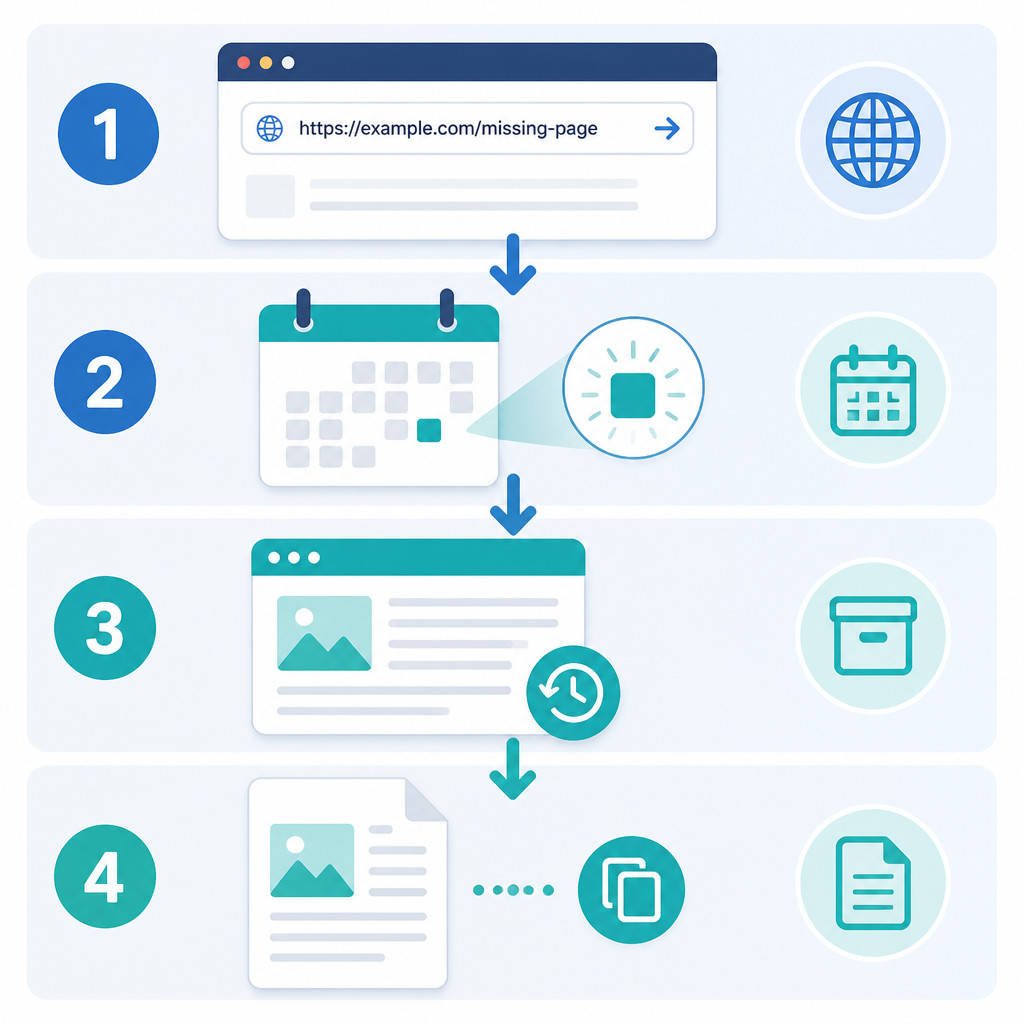
- Find the exact URL. If possible, use the full address of the missing page rather than entering only the domain name.
- Open the archive. Visit web.archive.org and locate the Wayback Machine search field.
- Enter the address. Paste in the page URL and run the search.
- Pick a year. The timeline shows the years in which captures may exist.
- Choose a marked date. Click a highlighted day on the calendar, then select one of the listed capture times.
- Inspect the snapshot. Check the date shown by the archive and make sure the page contains the version you were looking for.
The first capture isn’t always the best one. If it looks broken or incomplete, check nearby dates. Separate crawls may have saved different images and other page resources.
Recovering content from a deleted page
If the missing page belongs to your website, an archived copy may help you rebuild the visible content. It won’t replace hosting backups, database exports, or version control, though.
- Search for the deleted page using its original URL.
- Open several snapshots, then choose the latest complete version captured before the page was deleted.
- Copy the article text into a fresh draft in your content management system.
- Download only the images you own or have permission to use.
- Rebuild the headings, lists, metadata, and internal links by hand.
- Publish the restored page at its original URL whenever that’s practical.
- Test it on mobile and desktop. Then check that its links work.
Don’t copy archived HTML straight into a live website and assume it’s ready. Old HTML may include outdated tracking code, broken asset addresses, dead forms, or unsafe third-party scripts. Recover the page’s content and structure instead of treating the snapshot as deployment-ready source code.
Searching without the exact URL
Quite often, finding the original address is the difficult part. Before deciding that the page was never archived, try a few other places:
- Look through your browser history, analytics reports, XML sitemap, or content management system.
- Check old emails, social posts, bookmarks, and documents that might contain the link.
- Search the domain in a search engine along with distinctive wording from the missing page.
- Look for old internal links or backlinks that point to the deleted URL.
- Open an archived copy of the website’s home page and follow its historical links.
Small URL differences matter here. HTTP and HTTPS versions can have separate archive records, as can subdomains, trailing paths, and addresses containing query parameters.
Saving a page with Save Page Now
The Wayback Machine includes a Save Page Now feature for requesting a capture of a publicly accessible page. Paste the full address into the save field and submit it. If the capture works, the service will provide an archived URL after processing.
Usually, this saves the submitted page along with whatever resources the archive can retrieve. It doesn’t promise a full crawl of the whole website. For any site that matters, keep your own files and database backups, with copies stored off-site.
How accurate the archive is
The Wayback Machine is generally reliable for showing that particular public content appeared at a captured URL. A timestamp doesn’t prove every page element was saved at precisely that moment, however. Archived HTML may be displayed alongside resources captured on other dates, and some of those resources may be gone altogether.
What tends to work well
- Static articles, documentation, and public information pages
- Historical layouts, text, site menus, and published claims
- Old URLs from websites that were redesigned, migrated, or allowed to expire
- Basic research into changes made to a website over time
Where captures fall short
- A page can’t be viewed if it was never crawled.
- Private, login-protected, and paywalled content is usually unavailable.
- Forms, search boxes, shopping carts, and account tools generally won’t work.
- JavaScript applications may open as blank or partly loaded pages.
- Images, CSS files, videos, and downloadable files can be missing.
- Some captures may be restricted by site owners or archive policies.
Using the Wayback Machine safely
Browsing the archive itself is generally low risk. Even so, treat archived pages as historical records, not as live applications you can trust. Don’t type passwords, payment details, or personal information into an old form.
Be wary of archived software and unfamiliar downloads too. Unless you can verify where a file came from and scan it, leave it alone.
Copyright and other applicable rights still cover archived material. The fact that a snapshot is visible doesn’t automatically give you permission to republish its text, images, or files.
Wayback Machine review verdict
For historical web research and limited content recovery, the Wayback Machine is one of the most useful free websites available. Its calendar is fairly easy to use, and the size of the public archive can be invaluable after a page disappears.
The inconsistency is the catch. Captures aren’t guaranteed, and complicated pages often lose resources they need to display properly. Use the archive to investigate or reconstruct public pages. If dependable website recovery is the goal, keep proper backups.
Frequently asked questions
Can the Wayback Machine recover a whole deleted website?
Sometimes there are enough snapshots to rebuild parts of a small website. But the archive can’t restore databases, server configuration, private files, or pages that were never captured. Every URL and asset has to have been archived separately.
Why are images missing from an archived page?
The crawler may not have saved them. They might also have come from a blocked third-party server or been requested through JavaScript. Try a different capture date, since another crawl may have kept a more complete version.
Can I find a page that was never archived?
No. The Wayback Machine can show only material that was captured and is still accessible in its collection. Other possibilities include search caches, local backups, old emails, syndicated copies, and separate web archives.
Does Save Page Now archive an entire website?
Not by default. The feature mainly requests a capture of the page you submit and any resources it can retrieve. It isn’t a replacement for a full website backup or crawler.
Can an archived page be used as legal evidence?
Archived captures may support research or legal claims, but the rules for evidence depend on the jurisdiction and the individual case. If authenticity, admissibility, or preservation procedures are in dispute, consult a qualified legal professional.
