Docker volumes keep persistent data outside a container’s writable layer. Removing or replacing a container doesn’t necessarily remove its volume, but that doesn’t make the volume a backup. To protect databases, uploads, application settings, and other persistent files, create an archive and store it somewhere outside the Docker host.
Quick answer: Start a temporary container that mounts the source volume and a local backup folder, then create an archive with tar. To restore the data, mount the destination volume and extract the archive into it. If the data may be changing, stop the application container before you begin.
What a Docker volume backup contains
A Docker volume backup is a separate copy of the files held in a named Docker volume. A compressed .tar.gz archive is the usual portable format. Container images don’t include this application data, so copying an image isn’t a substitute for backing up the volume.
For example, a WordPress image contains the WordPress software. Its mounted volume may hold uploaded media, plugins, themes, and configuration files. In the same way, a database container stores its actual database files in a volume.
Before backing up Docker volumes
- Confirm the exact volume name with
docker volume ls. - Check that the host has enough free disk space for the archive.
- Choose a backup folder that isn’t inside the source Docker volume.
- For a consistent file-level backup, stop the application container, especially if the volume contains a database.
- For production databases, use a database-native backup such as
pg_dumpormysqldumpas well as volume backups.
To find the volumes used by a specific container, run:
docker inspect my-app --format '{{range .Mounts}}{{println .Name .Destination}}{{end}}'List every named volume with:
docker volume ls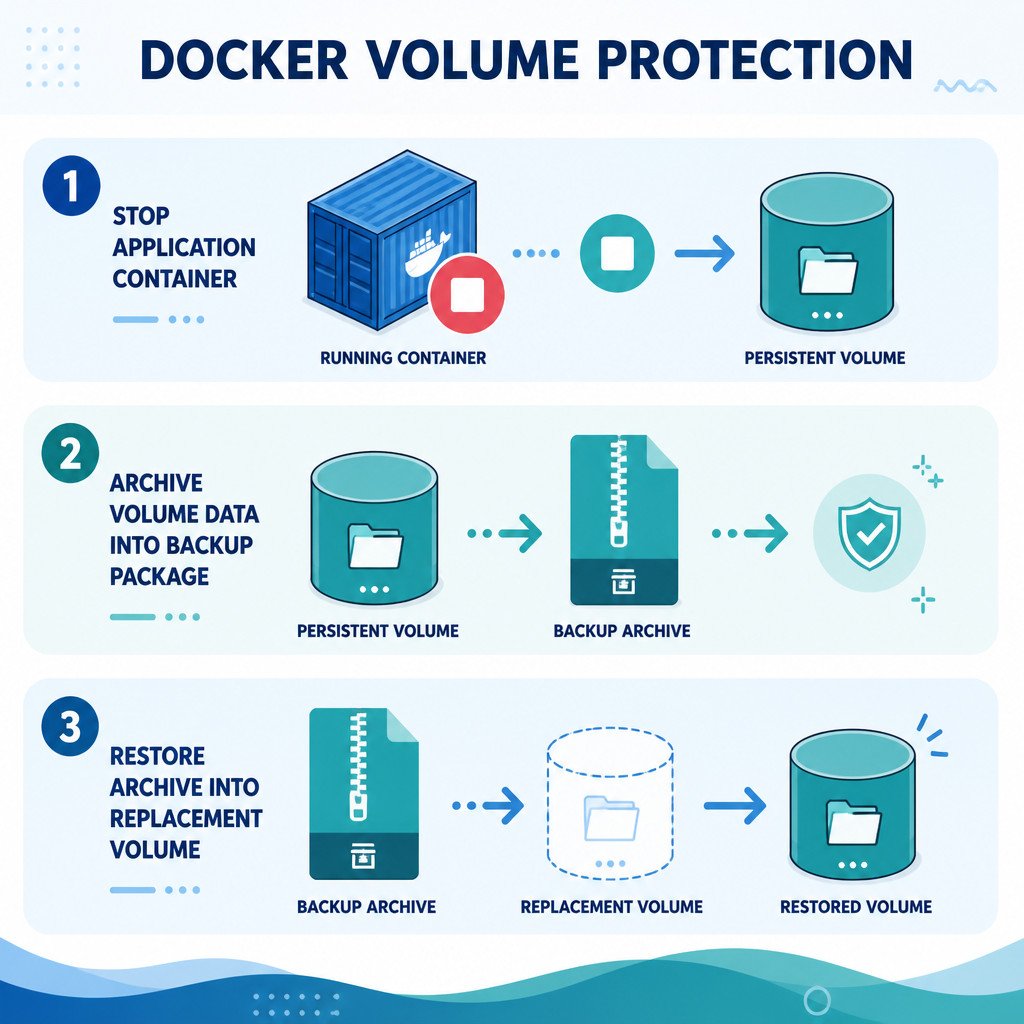
How to back up a Docker volume
This approach uses a small temporary Alpine container. Replace my_data with the name of your volume, and change the backup directory if needed.
- Create a host folder for the backup archives.
- Stop the container that uses the volume if data consistency matters.
- Run a temporary container with both the volume and backup folder mounted.
- Use it to create a compressed tar archive.
1. Create the backup directory
mkdir -p ~/docker-backups2. Stop the application container
docker stop my-appIf Docker Compose manages the container, use:
docker compose stop my-app3. Create the volume archive
docker run --rm \
  -v my_data:/data:ro \
  -v ~/docker-backups:/backup \
  alpine \
  tar czf /backup/my_data-$(date +%F).tar.gz -C /data .
The command mounts my_data at /data in read-only mode and makes the host backup directory available at /backup. It then archives everything in the volume. The -C /data . part matters because it saves the volume’s contents without including an unnecessary host-specific path.
Once the backup is complete, start the application again:
docker start my-appVerify the Docker volume backup
Don’t assume the archive is usable just because the command finished without an error. Confirm that the file exists, then inspect what it contains.
ls -lh ~/docker-backups/my_data-*.tar.gz

tar tzf ~/docker-backups/my_data-2025-01-01.tar.gz | head
Replace the sample date with the archive’s actual filename. The second command displays the first entries in the archive without extracting them.
For important data, test a complete restore into a non-production volume from time to time. A backup that has never been restored hasn’t been fully verified.
How to restore a Docker volume from a backup
You can restore the archive into an existing empty volume or create a new one. A new destination is safer because the original remains untouched while you confirm that the recovered application works.
1. Create a destination volume
docker volume create my_data_restored2. Extract the archive into the destination
docker run --rm \
  -v my_data_restored:/data \
  -v ~/docker-backups:/backup:ro \
  alpine \
  sh -c 'cd /data && tar xzf /backup/my_data-2025-01-01.tar.gz'
Here, the backup archive is mounted read-only and the destination volume remains writable. That lowers the risk of changing the archive by accident.
3. Check the restored files
docker run --rm \
  -v my_data_restored:/data:ro \
  alpine \
  sh -c 'find /data -maxdepth 2 -type f | head -20'
To start using the restored data, update the container or Compose configuration so it references my_data_restored. Then start the application and test it.
Restoring into an existing volume
If you have to restore over an existing volume, stop every container that uses it. Files already in the volume may remain when the archive doesn’t overwrite them, leaving the application in an inconsistent state.
Only clear the destination after double-checking that you selected the right volume:
docker run --rm \
  -v my_data:/data \
  alpine \
  sh -c 'rm -rf /data/* /data/.[!.]* /data/..?*'
Next, run the extraction command and replace my_data_restored with my_data. Take extreme care here. If you enter the wrong volume name, this command can permanently delete data.
Backing up a Docker Compose named volume
Docker Compose typically adds the project name as a prefix to named volumes. For instance, this Compose definition:
volumes:
  database_data:
may result in a Docker volume named myproject_database_data. Check the name Docker actually created:
docker volume lsUse that actual name in the backup command. Where appropriate, you can also assign a stable external name explicitly in the Compose file:
volumes:
  database_data:
    name: database_data
Common Docker volume backup mistakes
- Backing up a database volume while it’s running: Its files may change while the archive is being created. Stop the database first or use its native dump tool.
- Keeping archives on the same disk: Disk failure, ransomware, or the loss of the host could destroy both the original data and the backup.
- Accidentally using anonymous volumes: They’re harder to identify and manage. Named volumes are a better choice for important persistent data.
- Backing up images alone: Docker images don’t contain volume data.
- Never testing a restore: Inspect your archives and practice restoring them before an emergency happens.
Docker volume backup best practices
- Put dates in archive filenames and keep several generations of backups.
- Copy archives to off-host storage, such as an encrypted external drive, NAS, or object storage.
- After testing the command by hand, automate it with a scheduled task on the host.
- Keep a record of the volume name, application version, and required environment variables with each backup.
- Create application-native database exports, then protect those files through the same off-host backup process.
FAQ
Can I back up a Docker volume while the container is running?
You can create an archive while the container runs, but it may be inconsistent if files change during the backup. This may be acceptable for static uploads. Databases and transactional applications should be stopped or backed up with their native export tools.
Does docker commit back up volumes?
No. docker commit records changes in the container’s writable layer. It doesn’t save data held in mounted Docker volumes.
Where are Docker volumes stored on Linux?
With Docker’s default local volume driver, volumes are commonly stored under /var/lib/docker/volumes/. Don’t manually copy files from that location while Docker is running. A temporary container is more portable and less prone to errors.
Can I restore a Docker volume to another machine?
Yes. Copy the .tar.gz archive to the other host, create a destination volume there, and extract the archive with the restore command. The application image and any required configuration must also be available.