Quick answer: If WordPress won’t update the site administration email because the confirmation message never arrives, check the old inbox first and resend the request from Settings > General. If that isn’t an option, change the admin_email value with WP-CLI or edit it directly in the WordPress database. Back up the site before using either the command-line or database method.
WordPress protects the site administration email address by requiring confirmation. That safeguard is useful if someone gains unauthorized dashboard access, but it can become a problem when the old mailbox no longer exists or WordPress can’t send email properly.
The methods below change the site administration email used for WordPress notifications. This setting is separate from the email address in an individual administrator’s user profile.
Why WordPress requires email confirmation
After you enter a new address under Settings > General, WordPress leaves the existing address active and sends a confirmation link to the proposed new address. The change remains pending until someone opens that link.
A missing message is usually caused by a spam filter, a mistyped new address, unreliable server mail, or a hosting provider that blocks PHP mail. While WordPress waits for confirmation, the dashboard may display a There is a pending change of the admin email notice.
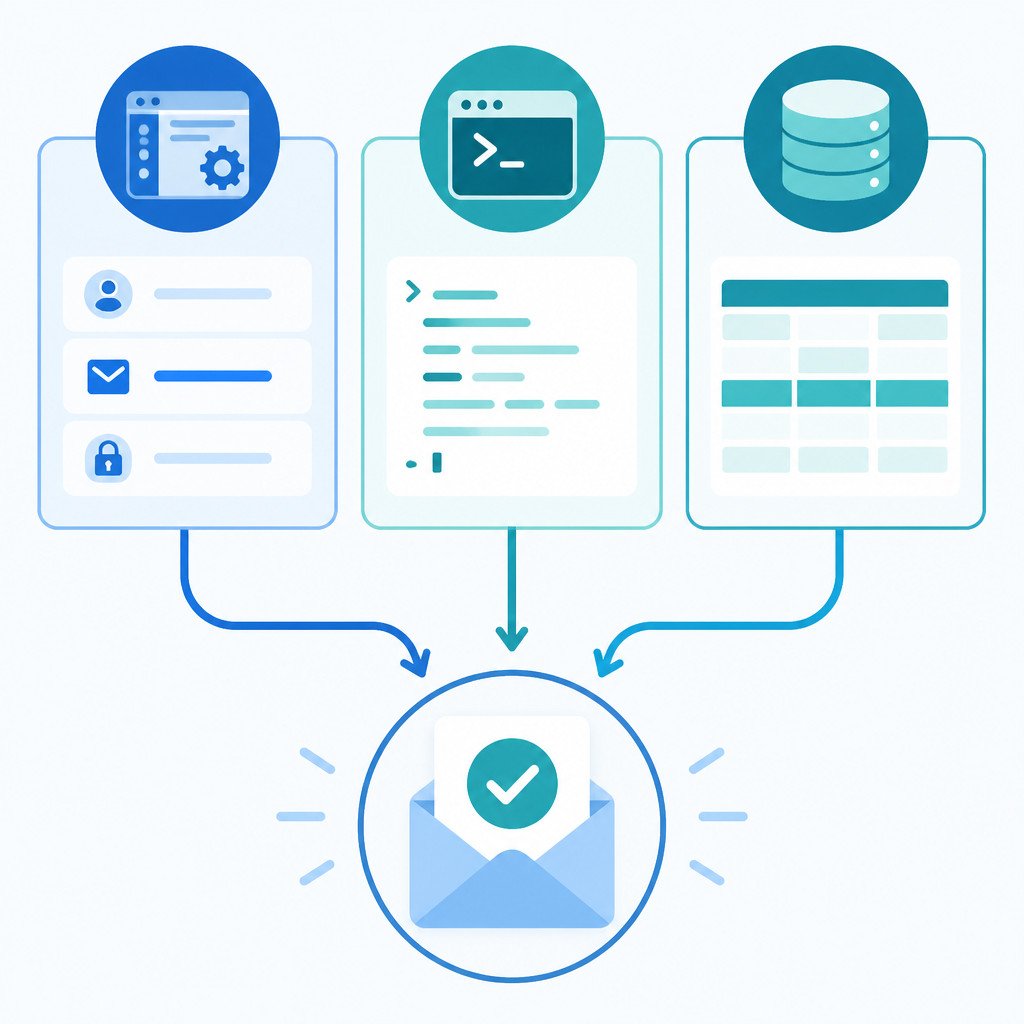
Method 1 Change the WordPress admin email from the dashboard
Choose this method if you can access the new mailbox and the problem appears to be a delivery delay.
- Sign in to the WordPress dashboard as an administrator.
- Go to Settings > General.
- Type the new address into the Administration Email Address field.
- Select Save Changes.
- Open the confirmation email sent to the new address, then select the confirmation link.
Before moving to another method, look in the spam, junk, promotions, and quarantine folders. Avoid submitting the form over and over, since several confirmation messages may arrive later and cause confusion.
Method 2 Change the WordPress admin email with WP-CLI
WP-CLI is the cleanest way to bypass confirmation when you have SSH access and your hosting provider supports it. The command updates the WordPress option directly, so you don’t need to receive a confirmation email.
Connect to the server through SSH, then move to the directory that contains wp-config.php. Run this command:
wp option update admin_email new-address@example.comReplace new-address@example.com with the email address you want to use. WP-CLI should respond with a success message.
To check the stored value, run:
wp option get admin_emailIf the WordPress installation uses a nonstandard location, include the path in the command:
wp --path=/path/to/wordpress option update admin_email new-address@example.comImportant: Run WP-CLI as the correct server user. Using it as root can cause file ownership problems with some hosting configurations.
Method 3 Update the admin_email option in phpMyAdmin
This method works when you can’t access either mailbox and don’t have WP-CLI. Make a database backup before starting. Even a small editing error in phpMyAdmin can affect the site.
- Open the hosting control panel and launch phpMyAdmin.
- Select the database used by the WordPress site. You can find its name in
wp-config.phpunderDB_NAME. - Open the WordPress options table. It’s commonly called
wp_options, although the prefix may be different, such asabc_options. - Locate the row where
option_nameis set toadmin_email. - Select Edit, replace the
option_valuewith the new email address, and save the row. - Sign in to WordPress and visit Settings > General to make sure the new address appears.
For a table with many rows, use phpMyAdmin’s search function to find admin_email. Don’t edit the siteurl or home options. They aren’t related to email, and changing them incorrectly can make the site inaccessible.
Site administration email and WordPress user email
| Setting | What it controls | Where to change it |
|---|---|---|
| Site administration email | Core site notifications, including update and recovery notices | Settings > General or the admin_email database option |
| Administrator user email | Email connected to one login account, including password resets | Users > Profile or Users > All Users |
Changing the site administration email won’t automatically update your account email. If both addresses need to change, update each one separately.
Fix email delivery after changing the address
If the confirmation message failed to arrive, other WordPress emails may be failing as well. Set up authenticated SMTP instead of depending on the server’s default PHP mail function. A reputable transactional email service or your domain mailbox provider can authenticate outgoing messages and improve delivery.
Check that the domain has valid SPF and DKIM records, too. Then send a test message through the SMTP plugin. This confirms that password-reset emails, form notifications, and WordPress security alerts can reach the correct inbox.
Common mistakes to avoid
- Editing the wrong database: Confirm the
DB_NAMEvalue inwp-config.phpbefore changing anything. - Assuming the table prefix is always wp_: Locate the actual options table or check the
$table_prefixsetting inwp-config.php. - Changing only a user profile email: Updating a profile doesn’t change the site administration address.
- Skipping the backup: Export the database or create a hosting backup before editing the database directly.
- Leaving email delivery broken: Once the immediate problem is fixed, update the SMTP settings.
Verify that the new email works
- Visit Settings > General and check that the administration email is correct.
- Make sure the dashboard no longer shows a pending email-change notice.
- Send a test message through the SMTP plugin or trigger a safe test notification.
- Confirm that the message reaches the new inbox and hasn’t been filtered as spam.
Frequently asked questions
Can I change the WordPress admin email without confirmation?
Yes. Changing the admin_email option through WP-CLI or phpMyAdmin bypasses the standard confirmation email. Only use these methods when you control the site and have created a backup.
Why haven’t I received the WordPress admin email confirmation?
The message may have gone to spam, been blocked by a mailbox filter, or been delayed. It may also have never left the server because its mail configuration is incomplete. Setting up authenticated SMTP is the most reliable long-term solution.
Does changing the admin email update my WordPress login email?
No. WordPress stores the site administration email separately from the email assigned to your user account. If necessary, update the profile email under Users.
Where does WordPress store the admin email in the database?
The address is stored in the options table, usually wp_options, in the row where option_name is admin_email. Sites with a custom table prefix will use a different table name.