If WordPress password resets, order notifications, or contact form messages aren’t arriving, set up the site to use an authenticated email provider rather than the web server’s default mail service. Install a reputable SMTP plugin, add the provider’s server or API details, choose a verified sender address, and send a test email. If the test works but messages still end up in spam, review SPF, DKIM, DMARC, and the address in the From field.
SMTP makes email delivery more reliable, but it can’t guarantee inbox placement. A successful submission only means the provider accepted the message. The recipient’s mail server may still filter, delay, or reject it.
Why WordPress emails fail
WordPress sends email through the wp_mail() function. On many installations, those messages are passed to the hosting server’s local mail system by default. Delivery can fail if local mail is disabled, the server has a poor sending reputation, or the message uses a sender address that the server isn’t authorized to use.
Typical signs include missing password-reset emails, contact form submissions that never arrive, undelivered WooCommerce notifications, or messages that consistently land in spam.
What you need before setting up SMTP
- An email service: Use a mailbox provider, transactional email service, or SMTP service that’s authorized to send mail for your domain.
- A domain-based sender: An address such as
notifications@example.comis preferable to a free personal address for website email. - SMTP or API credentials: Depending on the provider, this might be a username and password, an app password, an API key, or an OAuth connection.
- DNS access: You may need to add SPF, DKIM, or DMARC records through the company that manages your domain’s DNS.
- A backup: Back up the website before installing or changing plugins.
How to configure WordPress SMTP
- Choose a suitable provider. If the site sends only occasional messages, your current business email provider may be enough. Stores, membership sites, and other applications with higher sending volumes should generally use a transactional email service. Check the provider’s sending limits and confirm that automated website mail is permitted.
- Install one SMTP plugin. Open Plugins in the WordPress dashboard, select Add New, and install a well-maintained SMTP or transactional email plugin. Only one plugin should replace the WordPress mail transport. Running several mail plugins at once can cause conflicts.
- Select the mailer. When the plugin offers direct support for your provider, the API or OAuth option is often easier to maintain than a manually entered SMTP password. If direct support isn’t available, select the generic SMTP option.
- Add the connection details. Enter the SMTP hostname, port, encryption method, username, and credential provided by the email service. Don’t guess these settings. Check the provider’s current documentation instead.
- Set the sender identity. Use a From email address that the provider has verified, then add a recognizable From name, such as the website or business name. If another plugin keeps replacing the From address with an unauthorized one, enable the SMTP plugin’s force option.
- Save the settings and send a test. Use the plugin’s email test tool to send a message to an inbox you can inspect. Once it arrives, review the message headers or authentication details for the SPF, DKIM, and DMARC results.
- Test the real workflow. Submit the contact form, request a password reset, or place a test order. The plugin’s test email may work even if a form or commerce plugin has separate notification or recipient settings.
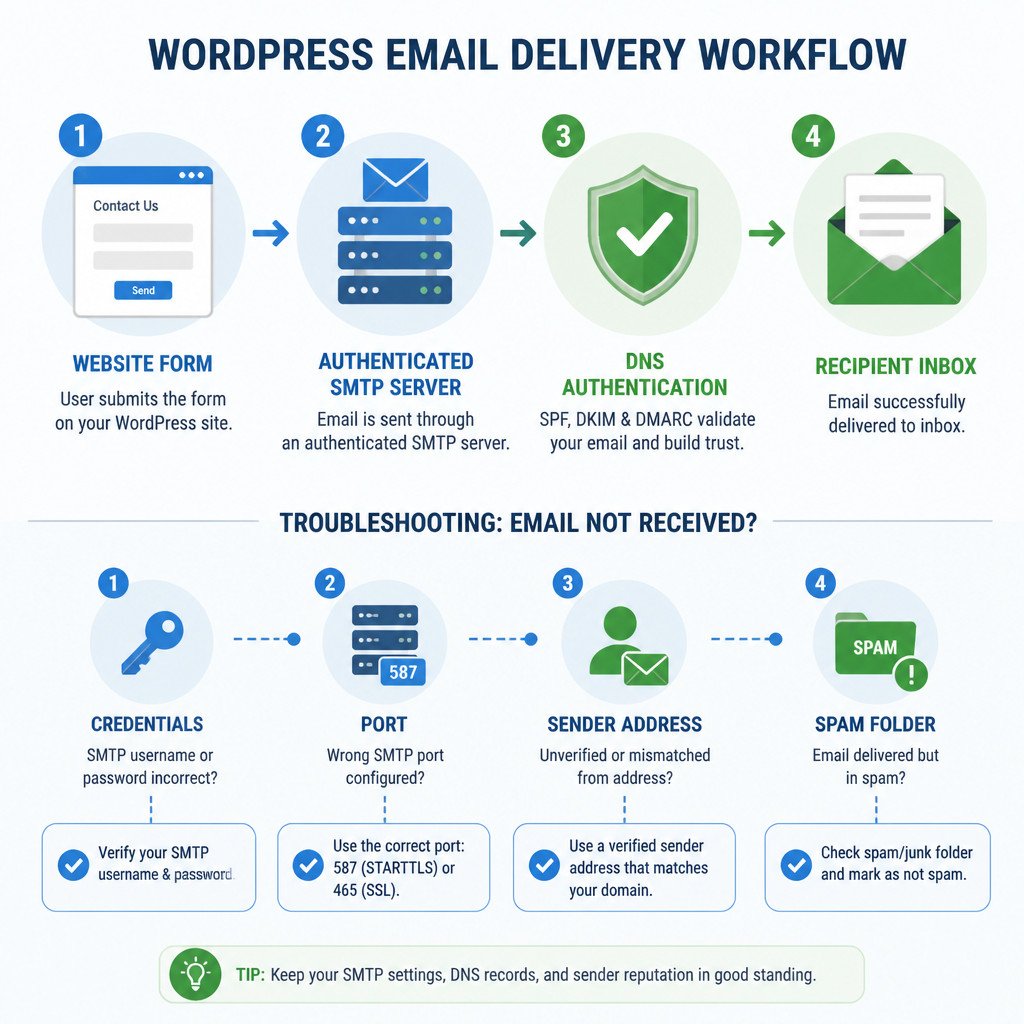
Typical SMTP settings
Exact values vary by provider, but authenticated SMTP usually requires the following settings:
- SMTP host: A hostname supplied by the email provider. It isn’t necessarily the same as the website’s domain.
- Port 587: Commonly used with STARTTLS.
- Port 465: Commonly used with implicit TLS.
- Authentication: Usually enabled.
- Username: Often the full email address, although some services issue a generated username.
- Password: An SMTP credential or app password instead of the standard account password when the provider requires one.
Don’t choose no encryption unless the provider specifically requires it on a trusted private network. Hosting companies and cloud platforms frequently block port 25, so it’s rarely the correct choice for authenticated website submission.
How to fix WordPress SMTP errors
Authentication failed
Enter the username and credential again, checking for spaces at the beginning or end. If two-factor authentication is enabled on the account, create an app password or connect through the provider’s OAuth option. Also confirm that SMTP access is enabled for the mailbox and that the account hasn’t been suspended.
Connection timed out or was refused
Check the hostname, port, and encryption combination. You may also need to ask the web host whether outbound connections on ports 465 or 587 are blocked. A timeout usually indicates a network, firewall, DNS, or incorrect-host problem rather than an issue with the WordPress password.
Sender address was rejected
Choose a From address or domain that’s verified in the sending account. The From address identifies the sender, while Reply-To tells the recipient’s email client where responses should go. For contact forms, keep the From address on your own domain and put the visitor’s address in Reply-To. Using a visitor’s address as From may cause SPF or DMARC checks to fail.
The test works but form messages don’t
Review the form’s notification settings and make sure notifications are enabled. Check that the recipient address is correct as well. If available, inspect conditional rules, spam protection, and form-entry logs. Try sending to a simple recipient on the same domain, then test another address hosted by an external provider.
The plugin reports success but no email arrives
Look in spam and quarantine folders, then review forwarding rules and the email provider’s delivery log. A successful wp_mail() result means only that WordPress handed the message to the configured mail system. It doesn’t confirm final delivery. Provider logs may reveal bounces, suppression-list entries, policy rejections, or an invalid recipient address.
Configure SPF, DKIM, and DMARC
SMTP authentication gives the site permission to submit email. Domain authentication helps receiving systems confirm that the message is legitimate.
- SPF lists the services allowed to send email for a domain. In most cases, a domain should have one SPF record containing every approved sending service.
- DKIM attaches a cryptographic signature that recipients verify against a DNS record supplied by the email provider.
- DMARC tells receiving servers how to handle messages that fail aligned SPF or DKIM checks. It can also provide reports.
Copy the provider’s DNS records exactly. If an SPF TXT record already exists, don’t create a second one. Merge the provider’s authorized mechanism into the existing record according to its instructions. Keep in mind that DNS changes may take time to appear.
Security and maintenance practices
- Use OAuth or restricted API credentials when the provider supports them.
- Don’t put SMTP passwords in public repositories, support tickets, or screenshots.
- Choose a dedicated sending identity rather than a personal administrator mailbox.
- Give the credential only the permissions it needs to send email.
- Rotate credentials after staff changes or if you suspect the account has been compromised.
- Turn on email logging only when needed, and don’t retain sensitive message content longer than necessary.
- Watch provider quotas, bounces, complaints, and suppression lists.
Frequently asked questions
Do I need SMTP for WordPress?
Not every WordPress installation needs it, but authenticated SMTP or a supported email API is generally more reliable than unauthenticated local server mail. It’s particularly useful for password resets, contact forms, online stores, and membership sites.
Why aren’t WordPress emails sending after SMTP setup?
Common causes include incorrect credentials, a port that doesn’t match the encryption setting, blocked outbound connections, or an unverified From address. Check the plugin error message, the provider’s delivery logs, and the hosting firewall rules.
Should contact forms use the visitor’s email address in the From field?
No. Set From to an address on your verified domain and place the visitor’s address in Reply-To. That lets you reply normally without making the message appear to come from the visitor’s email domain.
Is an SMTP plugin enough to prevent spam placement?
No. The plugin provides an authenticated route for sending email, but inbox placement also depends on SPF, DKIM, and DMARC alignment, along with message content, complaint rates, list quality, sending volume, and the provider’s reputation.
Can I use my normal mailbox password?
Only if your provider allows it. Many services require OAuth, a generated app password, or a dedicated SMTP credential. These methods are safer and will keep working when standard password authentication has been disabled.