If one website is broken in Microsoft Edge while everything else works normally, clear the stored data for that site rather than wiping your entire browser history. Removing a single site’s data deletes its cookies, cached files, and local storage. This often fixes sign-in loops, outdated pages, formatting issues, and loading errors.
Quick answer: In Edge, open Settings and go to Cookies and site permissions. Select Manage and delete cookies and site data, followed by See all cookies and site data. Search for the website, delete its stored data, and reload the page. You may need to sign in again.
What happens when you clear one website’s data
Websites save small amounts of information in your browser so they can remember sessions, preferences, shopping carts, and page resources you’ve already downloaded. That data is useful, but it can cause problems when it becomes outdated or corrupted.
Clearing site data for one domain may remove:
- Cookies: Sign-in sessions, preferences, and tracking identifiers.
- Cached files: Saved images, scripts, stylesheets, and older page resources.
- Local storage: Website settings and app data kept in Edge.
- Service worker data: Offline or cached content used by modern web apps.
You’ll usually be signed out of the affected website. Other websites and the rest of your browser data won’t be touched.
How to clear cache and cookies for one website in Microsoft Edge
- Open Microsoft Edge.
- Select the three-dot menu in the upper-right corner, then choose Settings.
- Choose Cookies and site permissions from the left sidebar.
- Select Manage and delete cookies and site data.
- Open See all cookies and site data.
- Enter the site name in the search box, such as example.com.
- Find the matching domain and select the trash or delete button beside it.
- Confirm the removal if Edge asks you to do so.
- Close the affected tab, open the website again, and refresh the page.
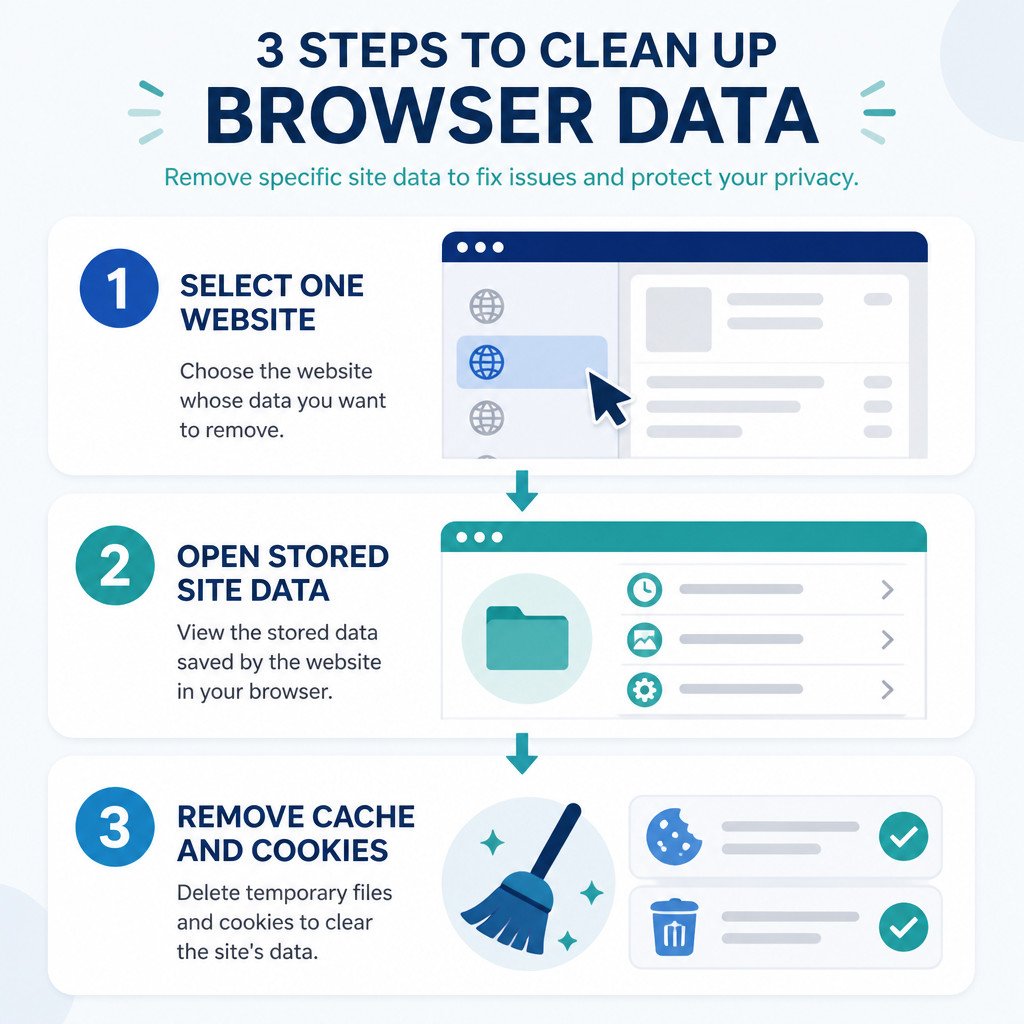
For a cleaner test, open the website in a new tab after deleting its data. If the site requires an account, sign in again.
A faster method using the address bar
On many websites, Edge offers a quicker route through the site information panel.
- Open the website that’s causing the problem.
- Select the icon immediately to the left of the address. Depending on your Edge version, this may appear as a sliders, lock, or site-controls icon.
- Open Cookies and site data or whichever site-data option is available.
- Review the stored cookies or data entries.
- Remove the entries linked to the site.
- Reload the page.
The wording and controls may differ based on the Edge version and the website’s security configuration. If the panel doesn’t include a site-data option, use the Settings method above.
When to clear cache for one website in Microsoft Edge
This targeted approach works best when only one website is having trouble. Common situations include:
- A website keeps sending you back to its sign-in page.
- You still see an old version of a page after the site has been updated.
- A checkout page, dashboard, or web app won’t load properly.
- The site displays blank sections, missing buttons, or broken formatting.
- A website says cookies are disabled even though Edge allows them.
- You changed account details or permissions, but the site continues to show old information.
If every website is slow or broken, deleting data for one site probably won’t fix the underlying issue. Instead, check your network connection, browser extensions, Edge updates, or the broader browser cache settings.
What to do after deleting the site data
Deleting stored data doesn’t always make Edge fetch every page resource again right away. Follow these steps to check whether the fix worked:
- Open the affected website in a new tab.
- Press Ctrl+Shift+R on Windows or Command+Shift+R on Mac to perform a hard refresh.
- Sign in again if you’re prompted.
- Repeat the action that failed before, such as opening a dashboard or submitting a form.
If the website works in an InPrivate window but still fails in a regular Edge window, stored site data or an extension is especially likely to be the cause.
Common mistakes to avoid
| Common mistake | Why it matters | Better approach |
|---|---|---|
| Deleting all browsing data | This signs you out of many websites and removes more information than necessary. | Search for the affected domain and remove only its data. |
| Deleting only one subdomain | Data stored on a related subdomain may be causing the problem. | Remove entries for the main domain and any relevant subdomains. |
| Not refreshing after removal | An existing tab may continue displaying content that was already loaded. | Close the tab, reopen the website, and perform a hard refresh. |
| Ignoring extensions | Ad blockers, privacy tools, and password extensions can change how a site behaves. | Temporarily disable extensions or test the website in InPrivate mode. |
Clearing data for related subdomains
A single service may rely on several domains. For instance, an account portal might use login.example.com, while the main application runs at app.example.com. If you remove data from only one entry, a sign-in problem may continue.
While searching Edge’s site-data list, look for entries that share the same root domain. Delete only those you recognize as belonging to the affected service, and be cautious with broad domains that are used by multiple services.
FAQ
Will clearing cookies for one site delete my passwords?
No. Deleting cookies and site data for one website doesn’t normally remove passwords saved in Edge. It will sign you out of the site, though, so you may need to use your saved password to log in again.
Can I clear cache for one website in Microsoft Edge without deleting cookies?
Edge’s standard site-data controls commonly delete cookies and related stored data together. If you want to keep your current login session, try a hard refresh first by pressing Ctrl+Shift+R on Windows or Command+Shift+R on Mac. If the issue continues, removing the site data is usually more effective.
Why does the website still not work after I clear its data?
The problem may come from an Edge extension, VPN, DNS filtering, network issue, account problem, or an outage affecting the website itself. Try the site in an InPrivate window, temporarily disable extensions, and test another network if possible.
Does clearing site data affect other browsers?
No. Data removed in Microsoft Edge is deleted only from Edge. Chrome, Firefox, Safari, and other browsers maintain their own separate cookies and caches.