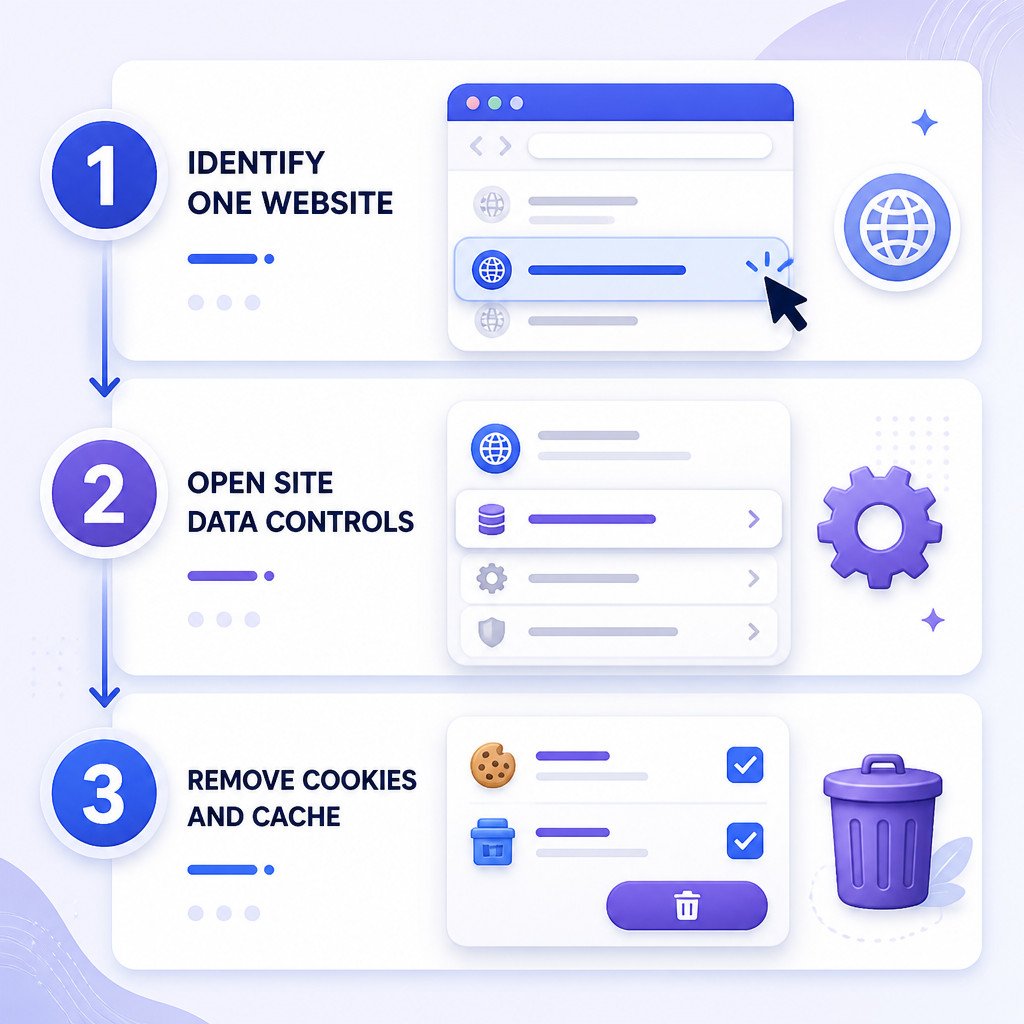
To clear cache and cookies for one website in Firefox, go to Settings > Privacy & Security > Cookies and Site Data > Manage Data. Search for the website, select it, and click Remove Selected. When you reopen the site, Firefox starts a fresh session without signing you out of every other website.
This can help when a site won’t load properly, displays an older version of a page, keeps rejecting your login, or has broken checkout and form behavior. Removing data for one site is usually safer and more convenient than clearing all cookies and cached files in Firefox.
What happens when you clear one website’s data
Firefox stores several kinds of website information on your device. Removing a site through Manage Data may delete its cookies, local storage, offline website data, and cached files. You could be signed out of that website, lose saved site preferences, or have to complete verification again.
Your bookmarks, saved passwords, browsing history, downloads, and information from other websites won’t be removed.
Clear cache and cookies for one website in Firefox
- Open Firefox, then click the menu button with three horizontal lines in the upper-right corner.
- Select Settings.
- Choose Privacy & Security in the left sidebar.
- Find Cookies and Site Data, then select Manage Data.
- Type the website name or domain into the search box. For instance, search for example.com instead of entering a full page address.
- Select the matching website entry or entries.
- Click Remove Selected, followed by Save Changes.
- Confirm the removal when prompted by Firefox.
- Close any tabs open for that website. Then open a new tab and visit the site again.
Some sites rely on several connected domains, so you may need to remove more than one entry. A service might use its main domain along with separate authentication, payment, or support domains.
Use the padlock icon for site-specific cookie controls
Firefox may also show website privacy controls directly in the address bar. This approach is handy if you’re already viewing the affected site. However, the Settings method is more reliable when you need to find and remove every stored entry.
- Open the website in Firefox.
- Click the padlock icon to the left of the address.
- Select Clear cookies and site data if the option appears.
- Confirm the action, then reload the page.
The wording may differ slightly between Firefox versions. Available options can also depend on the website’s permissions and your privacy settings.
When a hard refresh may be enough
If the page only looks outdated, try a hard refresh before deleting its cookies. Press Ctrl + Shift + R on Windows and Linux. On macOS, use Command + Shift + R.
A hard refresh asks the website for updated page resources while keeping your login and site settings intact. It can fix stale images, stylesheets, or scripts. It won’t solve issues caused by a corrupt cookie, expired session, or damaged local storage data.
Common problems after removing Firefox site data
You’re still signed in
The website might use another related domain to handle authentication. Your session could also be restored by a password manager or single sign-on provider. Go back to Manage Data and search for related domain names.
The website still doesn’t work
Open the site in a Firefox Private Window and test it there. If it works, the problem may involve an extension, a saved permission, or site data that remains in Firefox. Temporarily turn off extensions and test again, particularly ad blockers, privacy tools, VPN extensions, script blockers, and password managers.
You can’t find the website in Manage Data
Try searching with the root domain only. For example, a site you visited at app.example.com may be listed under example.com. If there’s no matching entry, the issue could be related to DNS, your network connection, an extension, or the website itself rather than stored browser data.
Before you clear site data
- Check that you’ll be able to sign in again, especially if the account uses two-factor authentication.
- Save unfinished forms, drafts, shopping carts, or uploads beforehand because the site may store them locally.
- Remove data for the affected domain only. Don’t choose Remove All unless you intend to clear data for every site.
- Close all tabs belonging to the website after removal. Otherwise, an older tab may continue using an outdated session.
- If the same problem keeps returning, check whether Firefox extensions or strict tracking protection are interfering with the website.
FAQ
Does clearing cache and cookies for one website in Firefox delete my passwords?
No. Removing a website’s data doesn’t erase passwords stored in Firefox Password Manager. You’ll usually be signed out of that particular site, though, and may need to log in again.
Can I clear only the cache for one website in Firefox?
Firefox doesn’t consistently offer a separate, straightforward cache-only removal option for each individual website. The practical built-in approach is to remove the site’s stored data, including its cookies and local storage. If you’d rather keep your sign-in data, try a hard refresh first.
Will clearing site data fix a website that isn’t loading?
It often helps with issues caused by corrupted cookies, expired sessions, outdated cached files, or broken local storage. It can’t fix a website outage, an internet connection problem, or a restriction placed on your account.
How do I stop Firefox from keeping cookies for a website?
You can limit stored data through Firefox privacy settings, Enhanced Tracking Protection, or a Private Window. Keep in mind that blocking cookies may stop some websites from keeping you signed in or functioning correctly.