Hardware acceleration allows Firefox to use your computer’s graphics processor (GPU) for page rendering, animations, video playback, and WebGL content. It usually improves performance. However, a buggy graphics driver, GPU conflict, remote-desktop session, or incompatible hardware may cause flickering, black screens, browser crashes, or distorted video.
To disable hardware acceleration in Firefox, open Settings and go to General. Scroll down to Performance, clear Use recommended performance settings, and then clear Use hardware acceleration when available. Restart Firefox for the change to take effect.
How to disable hardware acceleration in Firefox
- Open Firefox.
- Select the menu button in the top-right corner, then choose Settings.
- Stay on the General page.
- Scroll to the Performance section.
- Uncheck Use recommended performance settings.
- Uncheck Use hardware acceleration when available.
- Close Firefox and open it again.
Firefox will now render graphics mainly through software instead of relying on the GPU. After restarting, test the website, video, or task that was causing the problem.
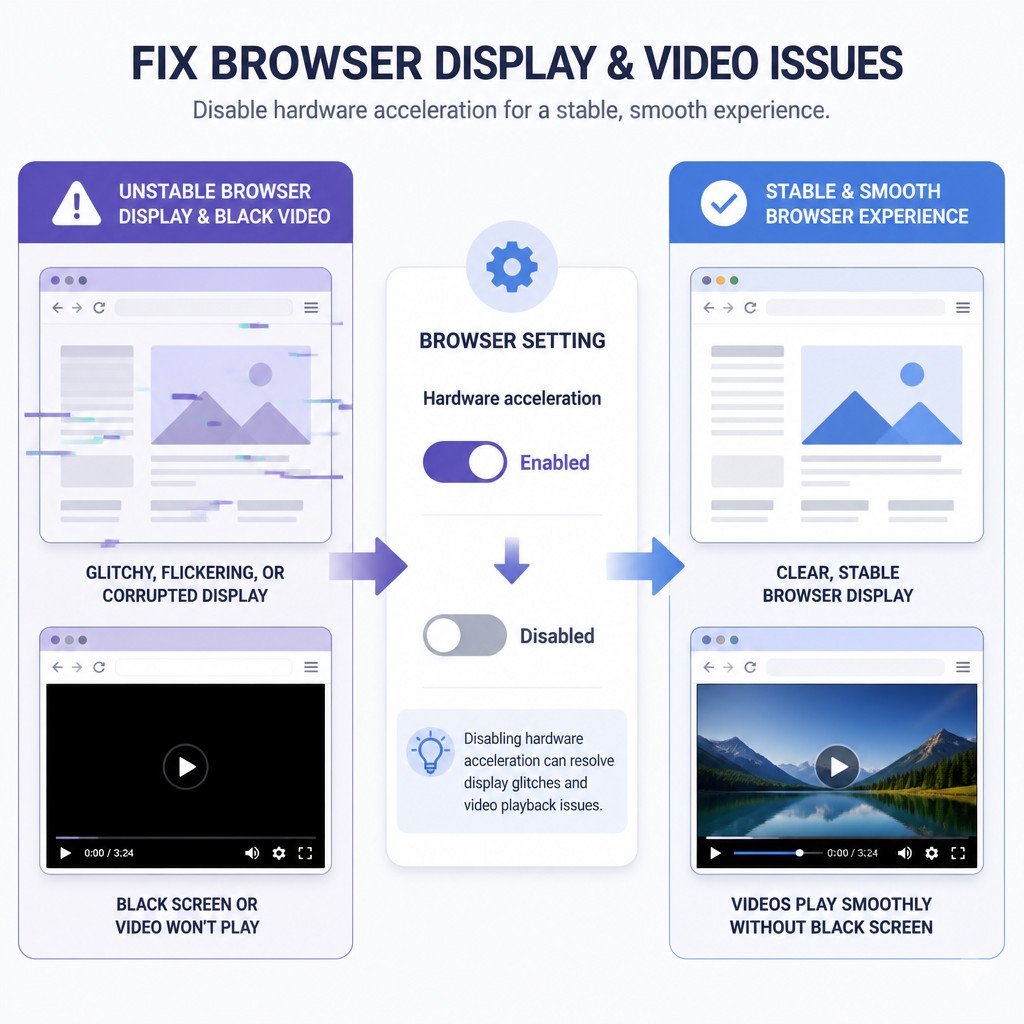
When turning off Firefox hardware acceleration can help
Consider testing this setting if the problem seems limited to Firefox or gets worse during video playback, while using multiple monitors, when scrolling through graphics-heavy pages, or after opening WebGL applications.
| Symptom | Why hardware acceleration may be involved |
|---|---|
| Firefox window flashes or flickers | The GPU driver may struggle to composite browser windows correctly. |
| Black, green, or corrupted video | Hardware video decoding can conflict with a driver or video card. |
| Firefox crashes while scrolling or opening tabs | GPU rendering or compositing may be unstable. |
| Text, icons, or page sections render incorrectly | Hardware-accelerated drawing may fail with outdated or incompatible drivers. |
| Problems occur in Remote Desktop or a virtual machine | The remote or virtual graphics adapter may provide limited acceleration support. |
Don’t assume hardware acceleration is responsible just because Firefox feels slow. Disabling it can reduce CPU- or GPU-related glitches, but high-resolution video, animations, and graphics-heavy websites may run less smoothly afterward.
Check whether Firefox is using your GPU
Firefox includes a built-in diagnostics page that shows whether graphics features are active and whether the browser has detected driver problems.
- Type about:support in the Firefox address bar and press Enter.
- Find the Graphics section.
- Review entries such as Compositing, WebGL, and Decision Log.
- Check for messages saying that a feature is blocked, disabled, or affected by a graphics-driver problem.
This page provides diagnostic information. It isn’t an instruction to change advanced settings. For most users, the standard Performance options described above are the safest way to turn off hardware acceleration.
What to do if the checkbox is missing or unavailable
If you can’t find the Performance options, confirm that you’re using the desktop version of Firefox. Firefox for Android and iPhone/iPad doesn’t provide the same hardware acceleration control.
On a work or school computer, browser policies may be enforced by the organization. Settings can then be locked or reset automatically. Open about:policies to check whether Firefox reports active enterprise policies. If a setting you need is locked, contact the device administrator.
Other fixes to try before leaving acceleration disabled
Turning off acceleration is a useful diagnostic step, but updating the graphics stack may fix the underlying problem without sacrificing performance.
- Update Firefox: Open the Firefox menu, choose Help, and then select About Firefox. Install any available update and restart the browser.
- Update the graphics driver: Download the driver through Windows Update, your computer manufacturer, or the GPU manufacturer. Don’t use untrusted driver-download utilities.
- Restart the computer: A complete restart can clear temporary driver and display-session problems.
- Test Firefox Troubleshoot Mode: Open the menu, select Help, choose Troubleshoot Mode, and restart. This mode temporarily disables extensions and some customizations, which can help separate extension problems from graphics problems.
- Test without extensions: Extensions that change video, themes, page appearance, or privacy behavior can sometimes create problems that look like graphics faults.
How to re-enable hardware acceleration
If Firefox becomes stable after a driver update, or disabling acceleration doesn’t make a difference, turn the feature back on:
- Go to Settings and open General.
- Scroll down to Performance.
- Clear Use recommended performance settings if necessary.
- Check Use hardware acceleration when available.
- Restart Firefox.
If the original problem continues unchanged, hardware acceleration probably wasn’t the cause, so re-enable it. On a stable, up-to-date system, leaving acceleration enabled is generally the better choice.
Common mistakes to avoid
- Changing several settings at once: Disable acceleration, restart Firefox, and test it before changing anything else. That way, the result is meaningful.
- Forgetting to restart: Firefox must restart before the new graphics configuration is fully applied.
- Using old GPU drivers indefinitely: Turning off acceleration may work as a temporary workaround, but a driver update could provide a permanent fix.
- Editing advanced about:config preferences without a reason: The controls in Settings are safer and easier to reverse.
- Confusing a single website problem with a Firefox problem: Try several websites and local videos before changing browser settings or system-wide drivers.
FAQ
Is it safe to disable hardware acceleration in Firefox?
Yes. Firefox will continue working with hardware acceleration disabled. Graphics-intensive websites, animations, games, and high-resolution video may use more CPU resources or feel less smooth, though.
Why does Firefox hardware acceleration cause black screens?
Black screens may appear when Firefox’s GPU rendering or hardware video decoding interacts poorly with a graphics driver, external display, virtual machine, or remote-desktop environment. Disabling acceleration helps confirm whether that interaction is causing the issue.
Does disabling hardware acceleration make Firefox faster?
Usually not. On a healthy system, hardware acceleration generally improves rendering and video playback. Firefox may feel faster with it disabled only when GPU acceleration is causing glitches, long driver delays, or crashes.
Why is the hardware acceleration option greyed out in Firefox?
The option may be unavailable because an organization manages Firefox through policy, the browser is running in an environment with restricted graphics support, or the system controls the relevant settings. Check about:policies for policies applied to a managed device.