
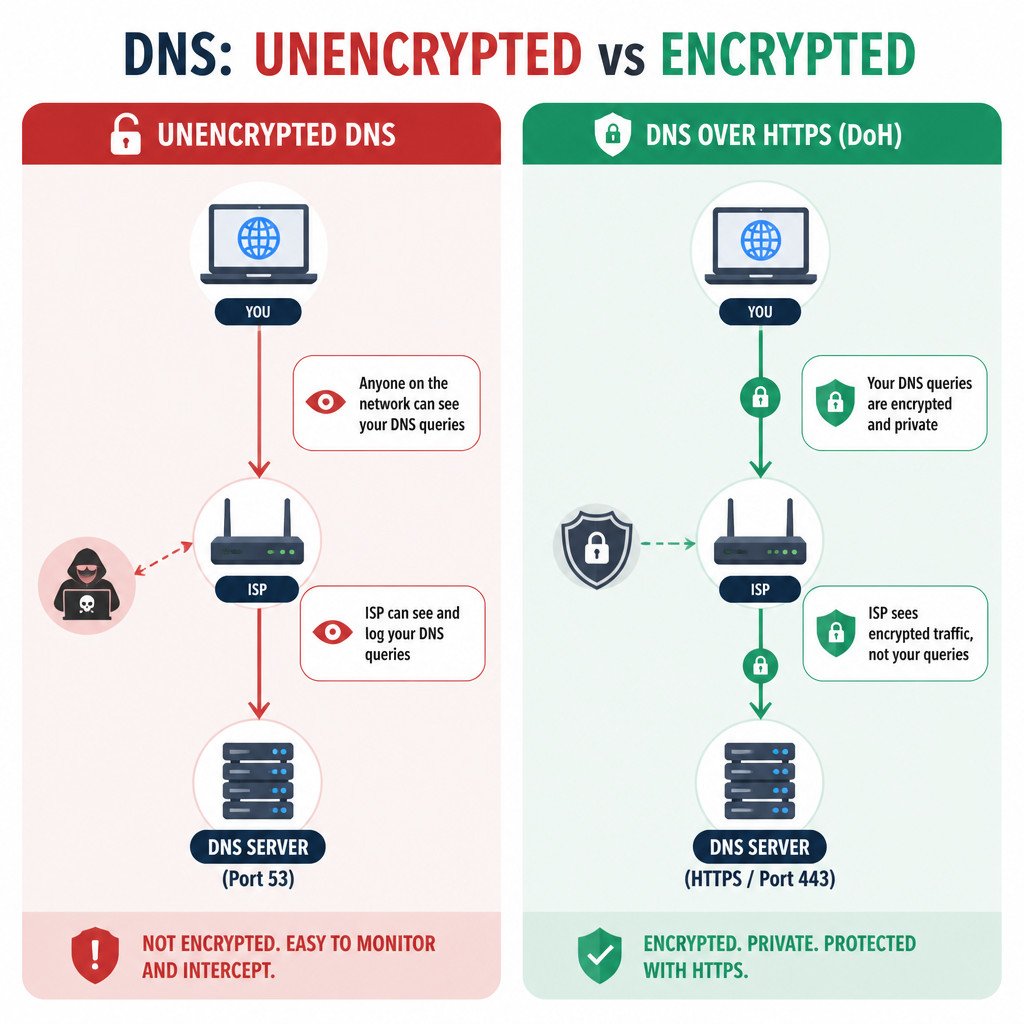
By default your DNS queries go out in plain text. Anyone on the network can see every domain you look up, whether that’s your ISP, the operator of a public Wi-Fi hotspot, or an attacker on the same connection. It doesn’t matter that the website itself uses HTTPS. DNS over HTTPS (DoH) wraps those lookups inside an HTTPS connection, so your browsing stays more private without needing a VPN.
This guide walks through how to turn on DNS over HTTPS system-wide in Windows 11 and directly inside Chrome, Firefox, and Edge. You’ll also see how to check that it’s actually working.
Quick Answer – How to Enable DNS over HTTPS
To enable DNS over HTTPS (DoH)
- Windows 11 (system-wide) Settings > Network & internet > Wi-Fi or Ethernet > DNS server assignment > Edit > Manual > Turn on IPv4 > Set Preferred DNS to 1.1.1.1 with DNS over HTTPS On (automatic template) and Alternate to 1.0.0.1.
- Chrome Settings > Privacy and security > Security > Use secure DNS > With Cloudflare (1.1.1.1) or Google (8.8.8.8).
- Firefox Settings > Privacy & Security > Enable DNS over HTTPS > Choose Increased or Max Protection > Select Cloudflare or NextDNS.
Once it’s on, go to https://1.1.1.1/help to verify. It should show Using DNS over HTTPS (DoH): Yes.
What DNS over HTTPS Is and Why You Should Use It
DNS translates domain names like example.com into IP addresses. Traditional DNS does that over UDP or TCP port 53 with no encryption at all.
DNS over HTTPS tucks the query inside an HTTPS request on port 443. That’s the same port your browser uses for secure web traffic. So it blocks eavesdropping and tampering, and it makes DNS responses much harder to block or spoof.
| Feature | Traditional DNS | DNS over HTTPS (DoH) |
|---|---|---|
| Encryption | None — plain text | Encrypted with HTTPS/TLS |
| Port | 53 | 443 |
| Visibility to ISP/Network | All queried domains visible | Only connection to DoH provider visible |
| Spoofing Protection | Vulnerable without DNSSEC | Strongly resistant to tampering |
DoH makes sense if you want more privacy at home, at work, or on public Wi-Fi, if you want to stop DNS hijacking, or if your ISP logs or redirects queries. It won’t hide your IP address from websites. For that you’ll still need a VPN.
Prerequisites
- Windows 11 version 21H2 or later for native system-wide DoH. If you’re on Windows 10, turn it on in the browser instead.
- Administrator access for the Windows system setting. You don’t need admin rights for a browser-only setup.
- A provider that supports DoH. Most popular ones do
| Provider | IPv4 Addresses | DoH Template |
|---|---|---|
| Cloudflare | 1.1.1.1, 1.0.0.1 | https://cloudflare-dns.com/dns-query |
| 8.8.8.8, 8.8.4.4 | https://dns.google/dns-query | |
| Quad9 | 9.9.9.9, 149.112.112.112 | https://dns.quad9.net/dns-query |
| NextDNS | 45.90.28.0, 45.90.30.0 | https://dns.nextdns.io |
How to Enable DNS over HTTPS
1. Enable DoH System-Wide on Windows 11
This covers every app and browser on your PC.
- Open Settings > Network & internet and pick Wi-Fi or Ethernet if you’re wired.
- Click your connected network, find DNS server assignment and click Edit.
- Change the dropdown from Automatic to Manual.
- Turn on IPv4.
- In Preferred DNS enter
1.1.1.1. In the DNS over HTTPS dropdown pick On (automatic template). You can leave the template field blank when you use automatic. - In Alternate DNS enter
1.0.0.1and set DNS over HTTPS to On (automatic template). - Click Save. If you use IPv6, do the same for 2606:4700:4700::1111 and 2606:4700:4700::1001.
If the DNS over HTTPS dropdown is greyed out, the address you entered doesn’t support DoH templates. Try one from the table above.
Optional PowerShell method (admin)
Set-DnsClientDohServerAddress -ServerAddress 1.1.1.1 -DohTemplate https://cloudflare-dns.com/dns-query -AutoUpgrade $true -AllowFallbackToUdp $false
Set-DnsClientDohServerAddress -ServerAddress 1.0.0.1 -DohTemplate https://cloudflare-dns.com/dns-query -AutoUpgrade $true -AllowFallbackToUdp $false
Set-DnsClientServerAddress -InterfaceAlias "Wi-Fi" -ServerAddresses 1.1.1.1,1.0.0.1
Replace Wi-Fi with Ethernet if needed. Run Get-DnsClientDohServerAddress to confirm.
2. Enable DoH in Google Chrome
- Open Chrome and go to
chrome://settings/security. - Scroll to Advanced > Use secure DNS and switch it on.
- Select With and pick Cloudflare (1.1.1.1) or Google (8.8.8.8) from the list. Or choose Custom and enter
https://cloudflare-dns.com/dns-query. - Restart Chrome.
Chrome will use DoH even when Windows DoH is off. Still, the system-wide setting covers more.
3. Enable DoH in Mozilla Firefox
- Open Firefox and go to
about:preferences#privacy. - Scroll down to DNS over HTTPS and click Settings or select Enable DNS over HTTPS.
- Pick Increased Protection which uses DoH when available and falls back otherwise, or Max Protection which uses DoH only and will stop browsing if DoH fails.
- Choose a provider, Cloudflare or NextDNS, or select Custom and paste your template URL.
- Click OK.
4. Enable DoH in Microsoft Edge
- Open Edge and go to
edge://settings/privacy. - Scroll to Security > Use secure DNS to specify how to lookup the network address for websites and turn it on.
- Select Choose a service provider and pick Cloudflare, Google, or Quad9. Or choose Enter custom provider with
https://dns.google/dns-query. - Restart Edge.
How to Verify That DNS over HTTPS Is Working
After setup, make sure encryption is active
- Visit
https://1.1.1.1/help. It works even if you use Google or Quad9. Look for Using DNS over HTTPS (DoH): Yes. - For Cloudflare, also check
https://www.cloudflare.com/ssl/encrypted-sni/and look at the Secure DNS result. - On Windows, run in PowerShell
Get-DnsClientDohServerAddress. You should see your servers listed with a DohTemplate andAutoUpgrade: True. - Run a leak test at
https://www.dnsleaktest.com> Standard test. It should show your DoH provider, like Cloudflare, not your ISP.
If it still shows No, double-check that secure DNS is turned on in your browser and that a VPN or third-party antivirus isn’t overriding DNS.
Common Mistakes to Avoid
- Mixing providers in two places. If Windows is set to Quad9 while Chrome is set to Google, tests will look inconsistent. Stick to one provider system-wide.
- Leaving fallback to UDP on. Some guides keep it enabled. You’ll get more privacy with fallback set to false, but browsing will fail if the DoH provider is unreachable.
- Forgetting IPv6. When your network uses IPv6, setting up only IPv4 leaves half your queries unencrypted. Set up both or turn off IPv6.
- Corporate or school networks. A few networks block third-party DNS. DoH might not work there, or it might break policy. Check first before switching to Max Protection.
- Thinking DoH hides everything. It encrypts DNS only. Your ISP can still see the IP addresses you connect to. For full privacy, combine DoH with HTTPS and a VPN.
Best Practices for DNS Privacy
- Pick a provider with a clear no-logging policy. Both Cloudflare and Quad9 say they don’t sell query data, and NextDNS lets you control logs yourself.
- Turn on DoH system-wide in Windows 11 instead of in just one browser. That way every app is covered.
- Use DNSSEC validation if your provider offers it. Cloudflare, Quad9, and Google all do.
- On public Wi-Fi DoH is a must, but you should still use a VPN to hide where your traffic is going.
- Check your setup after Windows updates now and then. Updates can reset DNS assignment back to Automatic.
FAQ
What is the difference between DNS over HTTPS (DoH) and DNS over TLS (DoT)?
Both encrypt DNS. DoH runs over HTTPS on port 443 and blends in with normal web traffic, so it’s harder to block. DoT uses TLS on port 853, which is easier for networks to spot and block. Windows 11 and browsers support DoH natively. DoT is more common on routers and for Android’s Private DNS.
Does DNS over HTTPS hide my browsing from my ISP?
Partly. It hides the domain names you look up from passive snooping, but your ISP can still guess sites from the IP addresses you connect to and from SNI if the site doesn’t use Encrypted Client Hello (ECH). For complete hiding, add a trustworthy VPN to DoH.
Should I enable DoH in both Windows and my browser?
You don’t have to. If system-wide DoH is on in Windows 11, the browser will just use that encrypted system DNS. Turning it on in both places is okay, but it’s redundant. On Windows 10, do it in the browser since the OS doesn’t support it natively.
Will DNS over HTTPS slow down browsing?
Usually not. The first lookup can be 5-15ms slower because of the TLS handshake, yet Cloudflare, Google, and Quad9 run global low-latency networks. A lot of people actually see faster lookups after moving away from ISP DNS.
How do I disable DNS over HTTPS?
Windows 11: Settings > Network & internet > DNS server assignment > Edit > Set to Automatic. Chrome and Edge: turn off Use secure DNS. Firefox: set DNS over HTTPS to Off.




 on Windows 11, Chrome, and Firefox)