The message “The Default Gateway Is Not Available” appears when Windows can’t communicate reliably with the router or other network device that provides access beyond your local network. It often leads to repeated Wi-Fi or Ethernet dropouts, even though the computer still appears to be connected.
Begin by restarting both the computer and router. If the error comes back, disable and re-enable the network adapter, reset the Windows network stack, and inspect the adapter driver. For networks using DHCP, make sure Windows is set to obtain its IP address and default gateway automatically.
Quick fix for “The Default Gateway Is Not Available”
- Switch off your modem or router for 30 seconds. Turn it back on and wait for the connection to return.
- Restart Windows, then reconnect to Wi-Fi or Ethernet.
- Open Windows Terminal (Admin) or Command Prompt (Admin).
- Run these commands in the order shown:
netsh winsock reset
netsh int ip reset
ipconfig /flushdns
ipconfig /release
ipconfig /renew- Restart the computer once the commands have finished.
- If the connection continues to drop, use Device Manager to update or roll back the network adapter driver.
The release and renew commands will briefly disconnect the computer. They’re meant for networks that assign addresses automatically through DHCP.
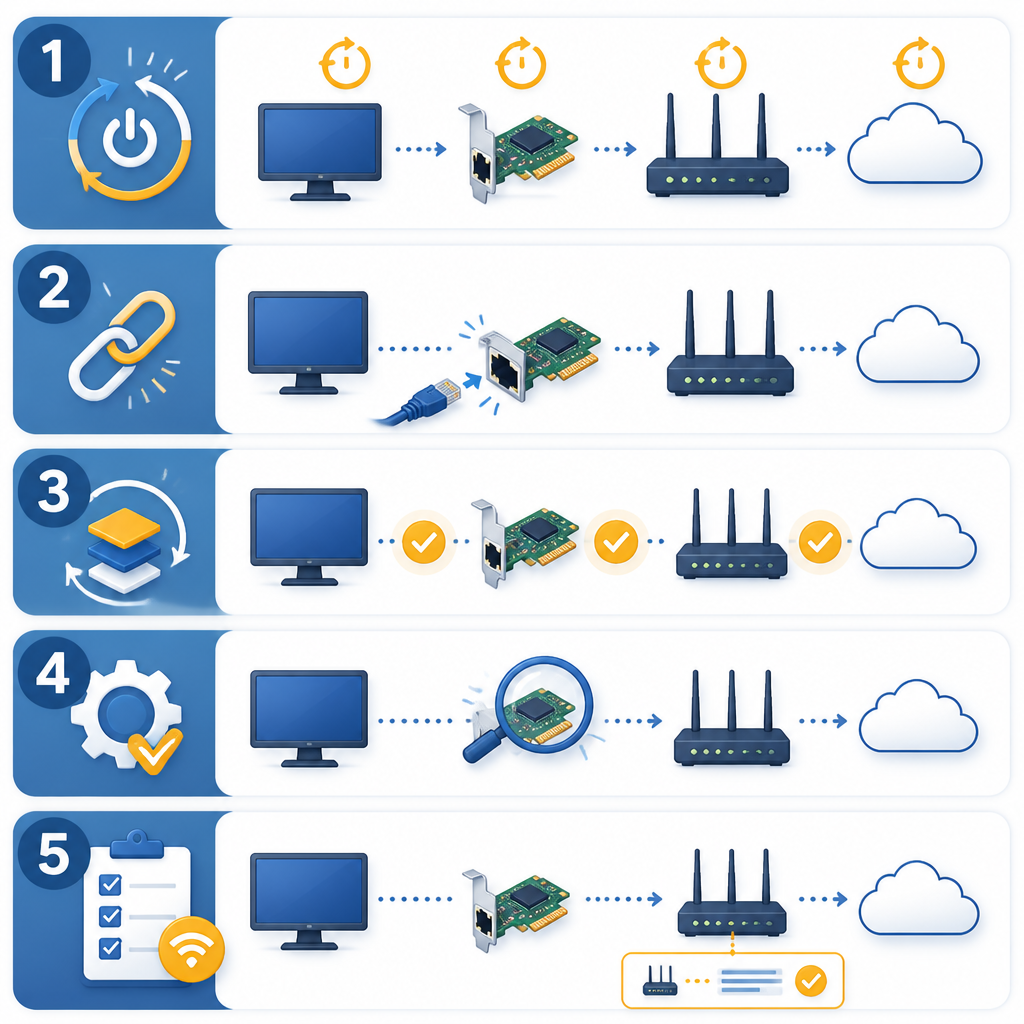
What a default gateway does
A default gateway is the device Windows uses to reach other networks, including the internet. On most home networks, that device is the Wi-Fi router. If the gateway address is wrong or Windows can’t reach the router, the local connection may still look active while internet access stops.
To check the current gateway, open Command Prompt and run:
ipconfigLocate the active Wi-Fi or Ethernet adapter, then find Default Gateway. Home router addresses often look like 192.168.1.1 or 192.168.0.1, though other address ranges are also valid.
How to fix the default gateway error
1. Restart the router and test other devices
Unplug the router or modem-router from power for about 30 seconds. Plug it back in and give it several minutes to restore internet service. Don’t press the reset button, since doing so may erase the router’s configuration.
Try another phone or computer on the same network. If every device is offline, the fault is probably with the router, modem, or internet service rather than Windows.
2. Disable and re-enable the network adapter
- Press Windows key + R.
- Type ncpa.cpl and press Enter.
- Right-click the active Wi-Fi or Ethernet adapter, then select Disable.
- Wait about 10 seconds. Right-click the adapter again and select Enable.
This makes Windows reinitialize the adapter without removing your saved wireless networks.
3. Reset Winsock and TCP/IP
Winsock and TCP/IP settings govern how Windows applications communicate over a network. When those settings become damaged, traffic may no longer reach the gateway.
Open Command Prompt or Terminal as an administrator and run:
netsh winsock reset
netsh int ip reset
ipconfig /flushdns
Restart Windows afterward. If the computer uses DHCP but is still offline, run ipconfig /release, followed by ipconfig /renew.
4. Update or roll back the network driver
- Right-click Start and choose Device Manager.
- Expand Network adapters.
- Right-click the active wireless or Ethernet adapter and choose Update driver.
- Use the automatic search option, or install the correct driver provided by the computer or adapter manufacturer.
If the trouble started immediately after a driver update, open the adapter’s Properties window and select the Driver tab. Choose Roll Back Driver if the option is available. Avoid installing drivers from unverified download sites.
5. Disable network adapter power saving
To reduce power use, Windows may switch off certain network adapters. That behavior can cause the gateway connection to fail repeatedly.
- Open the network adapter’s properties in Device Manager.
- Choose the Power Management tab.
- Clear Allow the computer to turn off this device to save power.
- Select OK, then restart the computer.
This tab doesn’t appear on every adapter or computer. If you can’t see it, move on to the next solution.
6. Restore automatic IP and gateway settings
Most home networks use DHCP. If an incorrect address has been entered manually, Windows may be trying to use a gateway that doesn’t exist.
- Press Windows key + R, type ncpa.cpl, and press Enter.
- Right-click the active adapter and select Properties.
- Open Internet Protocol Version 4 (TCP/IPv4).
- Choose Obtain an IP address automatically and Obtain DNS server address automatically.
- Save your changes and reconnect.
Don’t change these options on a business, school, server, or lab network that requires a static IP address. Ask the network administrator to provide the correct gateway instead.
7. Temporarily remove VPN or security software
VPN clients, third-party firewalls, and network filtering tools may add virtual adapters or change routing rules. Start by disconnecting the VPN. If the problem remains, temporarily turn off its network filtering feature or uninstall the client if it was added recently, then restart Windows.
Turn your security protection back on after testing. If removing the VPN restores the connection, install the latest supported version or contact the VPN provider.
8. Use Windows network reset as a last resort
Network reset removes and reinstalls network adapters, returning their settings to the defaults. It can also remove VPN adapters, virtual switches, custom DNS entries, and static IP settings.
In Windows 11, open Settings, select Network & internet, then go to Advanced network settings and Network reset. In Windows 10, open Settings, choose Network & Internet, then Status and Network reset. Select Reset now and let the computer restart.
How to check the gateway and internet connection
Run ipconfig and note the gateway address listed for the active adapter. Replace the example address in the first command below with that value:
ping 192.168.1.1
ping 1.1.1.1
nslookup example.com- If the gateway ping fails, check the Wi-Fi signal, Ethernet cable, network adapter, or router.
- If the gateway replies but 1.1.1.1 doesn’t, the router or internet service may be offline.
- If 1.1.1.1 replies but the lookup fails, the remaining issue is probably related to DNS.
Keep in mind that some routers block ping requests. A failed ping isn’t conclusive if websites and the router’s administration page still open normally.
Frequently asked questions
Why does “The Default Gateway Is Not Available” keep returning?
Recurring failures are often caused by an unstable router, weak Wi-Fi, a faulty adapter driver, power-saving behavior, VPN routing changes, or an invalid DHCP lease. When several devices disconnect at the same time, concentrate on the router or internet service.
Will resetting TCP/IP delete saved Wi-Fi passwords?
Command-line TCP/IP and Winsock resets don’t normally remove saved Wi-Fi profiles. The broader Windows network reset can erase adapter configuration and may require you to reinstall VPN or virtual networking software.
Should the default gateway and IP address be the same?
No. The computer and gateway must have different addresses on the same local subnet. For instance, a computer might use 192.168.1.25 while the router gateway uses 192.168.1.1.
Can a bad Ethernet cable cause this error?
Yes. A loose, damaged, or poorly terminated cable can cause intermittent connectivity. Before replacing the network adapter, test with another known-good cable and try a different port on the router or switch.