Choose the least disruptive Windows 11 recovery option that can plausibly fix the problem. Before using any of them, make a separate copy of irreplaceable files and save your BitLocker recovery key somewhere other than the affected PC. A recovery tool can repair Windows, but it cannot turn an incomplete sync or an unverified backup into a safe copy.
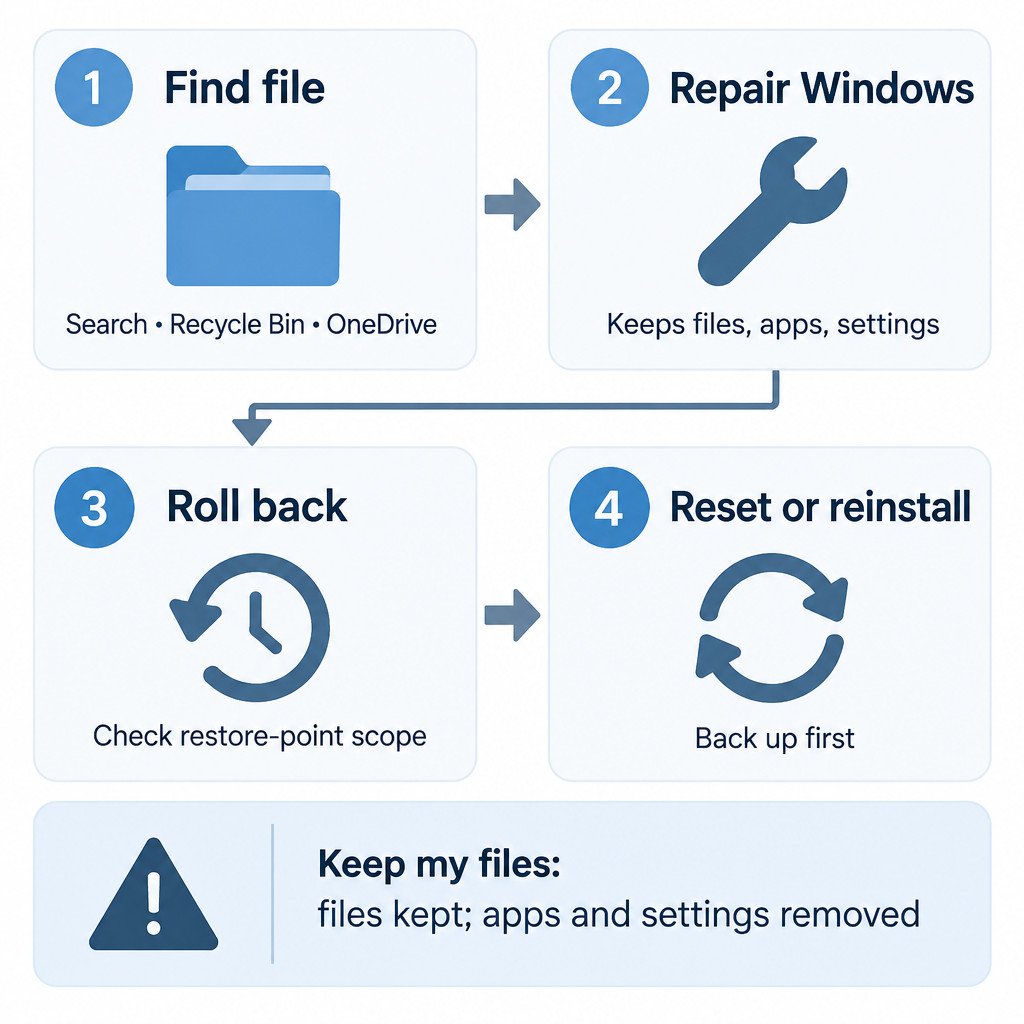
The most commonly misunderstood option is Reset this PC with Keep my files. It keeps personal files, but it removes installed apps and resets settings. It is not the same as restoring the computer to its prior working state.
Choose the recovery path by what must survive
| Option | Best use case | Personal files | Installed apps | Settings | Main trade-off |
|---|---|---|---|---|---|
| Find or restore a file | A file appears missing or was deleted | May be recovered | Kept | Kept | Does not repair Windows itself |
| Fix problems using Windows Update | Windows system components are damaged but Windows still starts | Kept | Kept | Kept | Requires an eligible installation, internet connection, and power |
| System Restore | A recent driver, update, or app change caused trouble | Not targeted or rolled back | Recent system/app changes can be reversed | Relevant system changes can be reversed | Requires a usable restore point |
| Point-in-time restore | A supported PC needs a recent whole-system rollback | System-drive files roll back | Roll back | Roll back | More disruptive; availability is limited |
| Reset this PC: Keep my files | Windows needs a fresh installation but user files are needed | Kept | Removed | Removed | Apps must be reinstalled |
| Reset this PC: Remove everything | Preparing to start over or hand over a PC | Removed | Removed | Removed | Data loss without a verified backup |
| Recovery media / clean reinstall | Windows cannot recover normally or a reset fails | Can be removed | Removed | Removed | Most manual setup afterward |
This comparison assumes a supported Windows 11 installation. Exact menus and choices can differ with the Windows version, device-maker recovery setup, BitLocker status, work or school management policies, and feature rollout. Microsoft’s overview of Windows recovery options is the useful reference when a choice is missing or named differently on your PC.
First, check whether the files are actually gone
Do not reset Windows to solve an apparent missing-file problem. Search for the filename in File Explorer, then check the Recycle Bin. If the folder was synced with OneDrive, also check the OneDrive Recycle Bin in the relevant account. Deleted cloud files may be recoverable, but retention and restore availability differ between personal and work or school accounts; permanently deleted items cannot be restored. Microsoft explains the applicable limits in its OneDrive file restoration guidance.
Also look for an existing File History copy or an older Backup and Restore backup before changing the PC. OneDrive sync is useful, but it is not an independent backup: an edit, move, or deletion can sync to the cloud as well. A separate copy on another storage device or backup service gives you a different recovery path.
Repair Windows while keeping apps and settings
If Windows starts and the problem looks like damaged system files or components, try Fix problems using Windows Update before a reset. On eligible Windows 11 PCs, open Settings > System > Recovery and select Reinstall now beside that option. It reinstalls the current version of Windows while preserving apps, documents, and settings. Keep the PC connected to power and the internet until the process finishes. See Microsoft’s instructions for reinstalling the current Windows version for eligibility details.
This is a repair installation, not a data-recovery method. Back up first anyway. It cannot recover a document that was deleted or overwritten before you began.
System Restore and point-in-time restore are not the same
System Restore rolls back system files, registry settings, drivers, and installed programs to a restore point. It is often appropriate after a bad driver, update, or application installation. It does not target personal documents, photos, or similar user files for rollback. Still, save open work and make a backup first: the process can remove an app or driver installed after the selected restore point.
Point-in-time restore has a broader scope. Where available, it rolls the system drive back to a recent automatic restore point, including files, apps, settings, credentials, and keys on that drive. That makes it potentially useful for a larger regression, but it also means newer work stored on the system drive can be lost. It is documented for Windows 11 version 24H2 or later and may not appear on every device.
For either option, ask a simple question: “Would I accept losing changes made after the restore point?” If the answer is no, copy current work elsewhere first. Files on an external drive are normally outside the Windows system-drive rollback, but disconnect unnecessary external storage before recovery to reduce the chance of selecting the wrong location or changing the wrong files.
What Reset this PC really does
Reset this PC reinstalls Windows. Choose Keep my files when Windows needs a fresh start and you have confirmed that the files in your user folders are present or separately backed up. Windows retains personal files, but removes desktop applications and settings. Plan to reinstall programs, reconnect printers and VPNs, sign in again, and restore any app-specific data that was not stored in your user profile or synced online.
Choose Remove everything only when you deliberately want to erase personal files as part of starting over, disposing of a device, or following a more drastic troubleshooting path. Treat it as destructive even if you believe a cloud copy exists.
During a reset, Cloud download obtains fresh Windows files from Microsoft, while Local reinstall uses files already on the PC. Cloud download can be useful if local recovery files may be damaged; local reinstall can suit a reliable local recovery image or a limited connection. Neither choice makes a backup unnecessary. Microsoft’s Reset your PC documentation confirms the file, app, and settings distinction and advises saving the BitLocker recovery key first.
Use recovery media only after protecting what you can
Bootable recovery or installation media is the last-resort path when Windows will not start, built-in recovery fails, or you need a clean installation. Depending on the choices made during setup, it can delete partitions and everything stored on them. Read each disk and partition screen carefully; do not assume that a familiar drive letter will appear in the recovery environment.
A clean reinstall also means reinstalling applications, recovering license information, restoring files, applying updates, and reconfiguring settings. It may be the right answer for a severely damaged installation, but it is not the quickest answer merely because a PC is slow or one app fails.
Pre-recovery checklist
- Copy irreplaceable files to separate storage and open a few copied files to confirm they are usable.
- Check that OneDrive has finished syncing, and identify files that were never stored in a synced folder.
- Save the BitLocker recovery key away from the PC before changing recovery settings or resetting Windows.
- List essential apps, browser extensions, license details, VPN settings, and any unusual hardware drivers.
- Connect a laptop to AC power and keep a desktop on stable power.
- Disconnect storage devices that are not needed for the task.
- Once a reset or restore has started, do not force-shut down the PC unless the recovery screen explicitly directs you to do so.
The safest order is usually: find or restore the specific file, try the least disruptive Windows repair, use a rollback only when its scope matches the problem, then reset or reinstall if necessary. The key decision is not which tool sounds strongest; it is whether you can clearly state what it will change and what separate copy will remain if it goes wrong.