Use a clean boot when Windows 11 reaches the desktop normally but a particular app, installer, game, or update fails during an ordinary startup. It is an isolation test: Windows starts without third-party services and startup apps, then you repeat one defined task. If the problem disappears, one of those background items is a credible suspect.
A clean boot is not a repair, and it does not prove that Windows itself, a driver, or hardware is healthy. If Windows cannot start normally, use Windows Recovery or Safe Mode instead. Safe Mode loads Windows with a limited set of files and drivers, which makes it a separate diagnostic option rather than the same test as a clean boot. Microsoft’s Windows startup settings guidance explains how to reach those startup options.
Prepare before you change startup settings
- Sign in with an administrator account.
- Save open work and close nonessential programs.
- Record which non-Microsoft services and startup apps are currently enabled. Screenshots are usually the simplest record.
- Choose one repeatable test, such as launching an app once, running one installer, or retrying one update.
- If device encryption is enabled, make sure you can access the BitLocker recovery key before undertaking broader recovery steps.
Do not treat this procedure as a way to permanently reduce background activity. In particular, do not disable Microsoft services, and do not leave security software or other tools disabled after the test. A work or school PC may also be managed in a way that restricts these settings; ask the organization’s IT team if that applies.
Start a clean boot
- Press Windows key + R, type
msconfig, and select OK. - In System Configuration, open the Services tab.
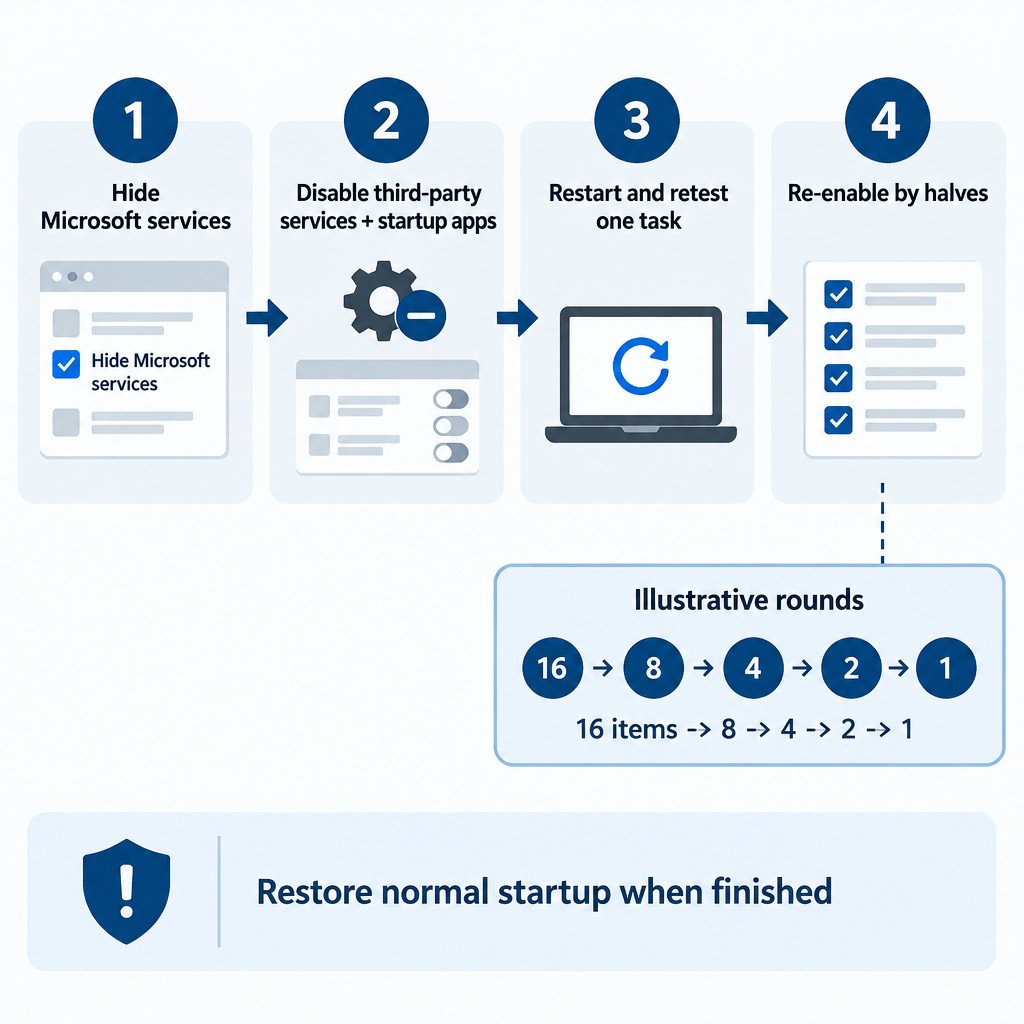
- Select Hide all Microsoft services. Pause here and confirm the checkbox is selected; this protects Windows services from the next action.
- Select Disable all. This disables the remaining visible, non-Microsoft services.
- Open the Startup tab and select Open Task Manager.
- In Task Manager’s startup-app list, select each currently enabled startup app and choose Disable. Use your record to distinguish items that were already disabled.
- Close Task Manager, select OK in System Configuration, and restart the PC.
This is the core clean-boot sequence documented by Microsoft: hide Microsoft services first, disable the remaining services, disable startup apps, and restart. Microsoft’s clean boot instructions also describe returning to normal startup and isolating an item afterward.
Retest one problem and interpret the result
After restart, repeat only the task you selected before changing anything. For example, launch the application that normally fails, run the same installer, or retry the same update. Record both the result and what you tested. Changing several settings at once makes the outcome difficult to interpret.
| Clean-boot result | What it suggests | Useful next step |
|---|---|---|
| The issue still occurs | A disabled third-party service or startup app is less likely to be the cause. | Restore normal startup and investigate the app, Windows components, drivers, network, or hardware according to the symptom. |
| The issue disappears | At least one disabled third-party background item may conflict with the task. | Re-enable items in groups and retest to identify the smallest group containing the conflict. |
| The result is inconsistent | The problem may depend on timing, network conditions, user settings, or another variable. | Repeat the same test before drawing a conclusion; keep the test conditions as similar as possible. |
Narrow the suspect list by halves
If the issue disappears in the clean boot, avoid turning items back on one by one from a long list. A divide-and-test approach normally takes fewer restarts. First work through non-Microsoft services in System Configuration, then use the same approach for startup apps in Task Manager.
- Re-enable roughly half of the disabled non-Microsoft services.
- Restart Windows and repeat the exact same problem test.
- If the issue returns, the conflicting item is likely in the half you just enabled. Disable that half again, then re-enable about half of that smaller group.
- If the issue does not return, leave that group enabled and test about half of the other disabled services.
- Continue until one service, or a very small group, consistently brings the issue back.
- Return the service settings to a known state, then repeat the process with the disabled startup apps in Task Manager.
Illustrative example: if 16 non-Microsoft services were disabled, testing groups of about 8, then 4, then 2, then 1 can locate a candidate in about four rounds when the result is consistent. The point is not exact arithmetic; some services may be related and should be tested together where separating them stops an app from functioning.
Confirm before blaming an item
A single successful or failed run is weak evidence for an intermittent problem. Once you have a candidate, repeat the test with that item enabled and disabled, while keeping other conditions stable. If the pattern holds, update the associated software, uninstall it if it is no longer needed, or contact its vendor with the observed behavior. Do not delete program files or edit the Registry simply because a service or startup entry appears suspicious.
Restore normal startup when you finish
Whether the clean boot changed the result or not, restore the configuration once the test is complete. Open msconfig, use the startup settings to return to Normal startup, and make sure the services and startup apps you recorded as enabled before testing are enabled again. Restart the PC, then confirm that ordinary Windows functions and the original task behave as expected.
If you identified a conflicting program, it can remain disabled temporarily while you obtain a vendor update or decide whether to remove it. That is different from leaving every non-Microsoft service and startup app disabled indefinitely, which can break expected features and make later troubleshooting harder.
Know the limits of a clean boot
- A clean boot cannot establish that a hardware component is working correctly.
- It does not rule out corrupted Windows components, a Microsoft service issue, or a faulty driver.
- It may not reproduce a problem caused by a program that you manually open after sign-in.
- It is not the right route for a PC that cannot reach the desktop or repeatedly becomes unbootable.
- On a managed device, recovery and startup changes may require IT support.
For a problem that persists in a clean boot, return to the symptom rather than continuing to disable unrelated software. Check the affected app’s error message and logs, retry the relevant network or update task, and use less disruptive Windows troubleshooting options before considering recovery actions. Microsoft’s Windows recovery options are fallbacks for problems that need more than startup isolation.
The useful outcome is a narrower diagnosis, not a permanently stripped-down PC. A clean boot is most valuable when it gives a repeatable answer to one question: does third-party background software change this specific failure?
Sources
- Microsoft Support: Clean boot procedure and conflict isolation
- Microsoft Support: Windows startup settings and Safe Mode
- Microsoft Support: Recovery options in Windows