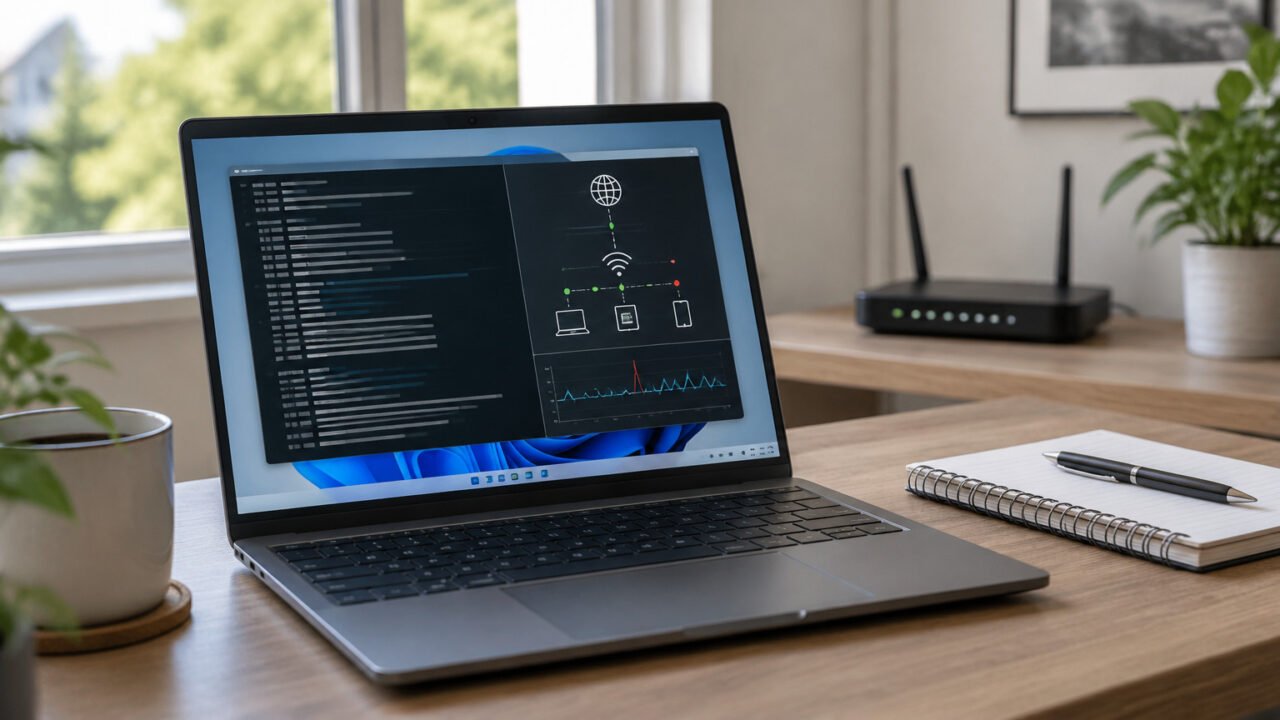
If Windows 11 shows that you are connected to Wi-Fi but websites and internet-dependent apps cannot load, do not begin with a network reset. First establish whether the fault affects one device or every device, then test the path in order: PC to router, router to internet, and DNS name resolution.
This symptom means Wi-Fi association succeeded: your PC joined the wireless network. It does not prove that the PC received a usable IP address, can reach the router, has working DNS, or that the router itself can reach the internet. If only one website or one application fails, treat that as a site, application, firewall, or service-specific problem instead.
Start with two low-risk checks
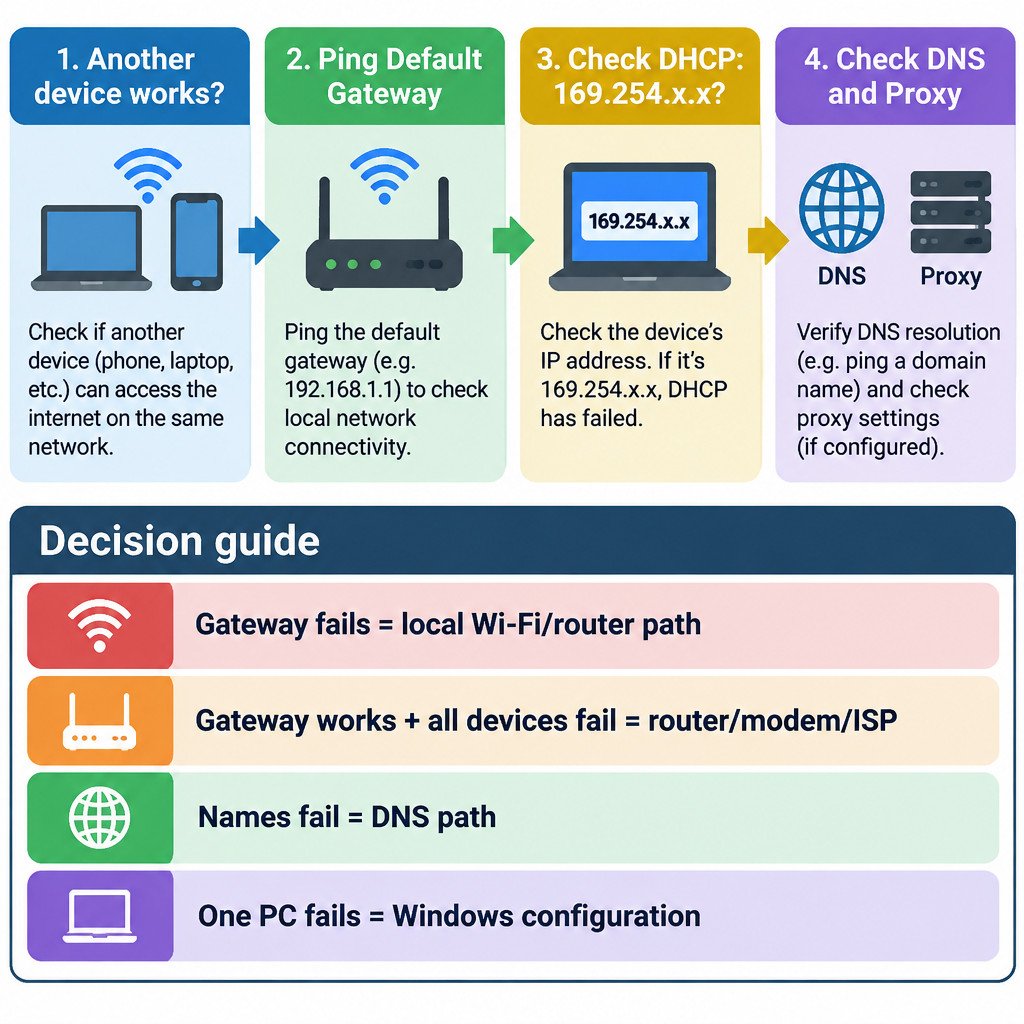
- Try another device on the same Wi-Fi. If it also has no internet access, focus on the router, modem, ISP service, or a network-wide login page. If it works, focus on the affected Windows PC.
- Disconnect any VPN temporarily. A VPN can intentionally route traffic through a tunnel that is unavailable or misconfigured. Reconnect it after the test if it is required for work.
- Run Windows diagnostics. Open Get Help and search for network or Wi-Fi troubleshooting. Microsoft recommends this as an initial diagnostic path for Wi-Fi connection problems.
Also check whether the Wi-Fi requires a sign-in page, as at a hotel, airport, or guest network. Open a browser and attempt to visit an ordinary non-sensitive page; a captive portal may redirect you to its terms or login screen. Do not enter credentials into a page with an unexpected address or certificate warning.
For the remaining checks, open Command Prompt. The commands are read-only unless stated otherwise. Microsoft documents the Windows Wi-Fi workflow, including gateway tests and address renewal, in its Wi-Fi connection troubleshooting guidance.
Test the PC-to-router link
Run ipconfig and find the active Wi-Fi adapter. Note its IPv4 Address and Default Gateway. The default gateway is normally your router’s local address. Then test it with the value shown on your PC:
ipconfig
ping <default-gateway>
For example, if ipconfig lists Default Gateway . . . : 192.168.1.1, run ping 192.168.1.1. Replies show that the PC can reach the local Wi-Fi router. They do not prove that the router has internet access. Timeouts or an unreachable-host message point instead to the local wireless path, router, or the PC’s address configuration.
Check whether DHCP gave the PC an address
Run ipconfig /all and inspect the Wi-Fi adapter. Look for an IPv4 address, Default Gateway, DHCP Enabled status, and DNS Servers. An address beginning with 169.254. usually indicates that Windows did not obtain an address from DHCP. In a typical home network, that makes the router’s DHCP service, the Wi-Fi connection, or the adapter configuration more likely suspects.
If the adapter is set to obtain its address automatically, you can request a fresh lease:
ipconfig /release
ipconfig /renew
These commands briefly remove and renew addresses on applicable DHCP-enabled adapters. They are not appropriate as a blind fix for a manually configured static address. If your workplace supplied fixed IP, gateway, or DNS values, record them and contact IT rather than replacing them.
The Microsoft ipconfig command reference documents these options as well as the DNS cache commands below.
Separate DNS failure from wider connectivity failure
DNS converts names such as example.com into IP addresses. A DNS problem can make browsing look broken even when the PC and router can otherwise exchange traffic. In ipconfig /all, note the DNS Servers assigned to the Wi-Fi adapter.
If the gateway responds but domain names fail across several browsers or apps, flush locally cached DNS records and try again:
ipconfig /flushdnsFlushing the cache removes stored name-resolution entries; it does not repair an unreachable DNS server, router outage, or ISP problem. Avoid treating a public DNS service as a universal cure. First identify whether the configured DNS server is reachable and whether other devices on the same network show the same name-resolution failure.
A simple interpretation sequence
| What you observe | Most useful next focus |
|---|---|
| Gateway ping fails | Wi-Fi signal, adapter, router, or DHCP/address configuration |
| Gateway ping succeeds, but multiple devices have no internet | Router, modem, ISP service, or captive portal |
| Local connection appears healthy, but several domain names fail | DNS configuration or DNS service path |
| Other devices work, but this PC does not | Windows proxy, VPN, adapter driver, or local configuration |
| Only one site or application fails | That service, browser, app, account, or security software |
Check proxy settings before changing the network stack
Open Settings > Network & internet > Proxy. A manual proxy sends browser and sometimes system traffic through a specified server. If that server is unavailable, browsing can fail even though Wi-Fi is connected. At home, a manual proxy you did not intentionally configure is worth investigating.
Do not turn off a proxy on an organization-managed PC without guidance. It may be necessary for work access, security controls, or internal services. The same caution applies to device-management profiles, corporate VPNs, and custom DNS settings.
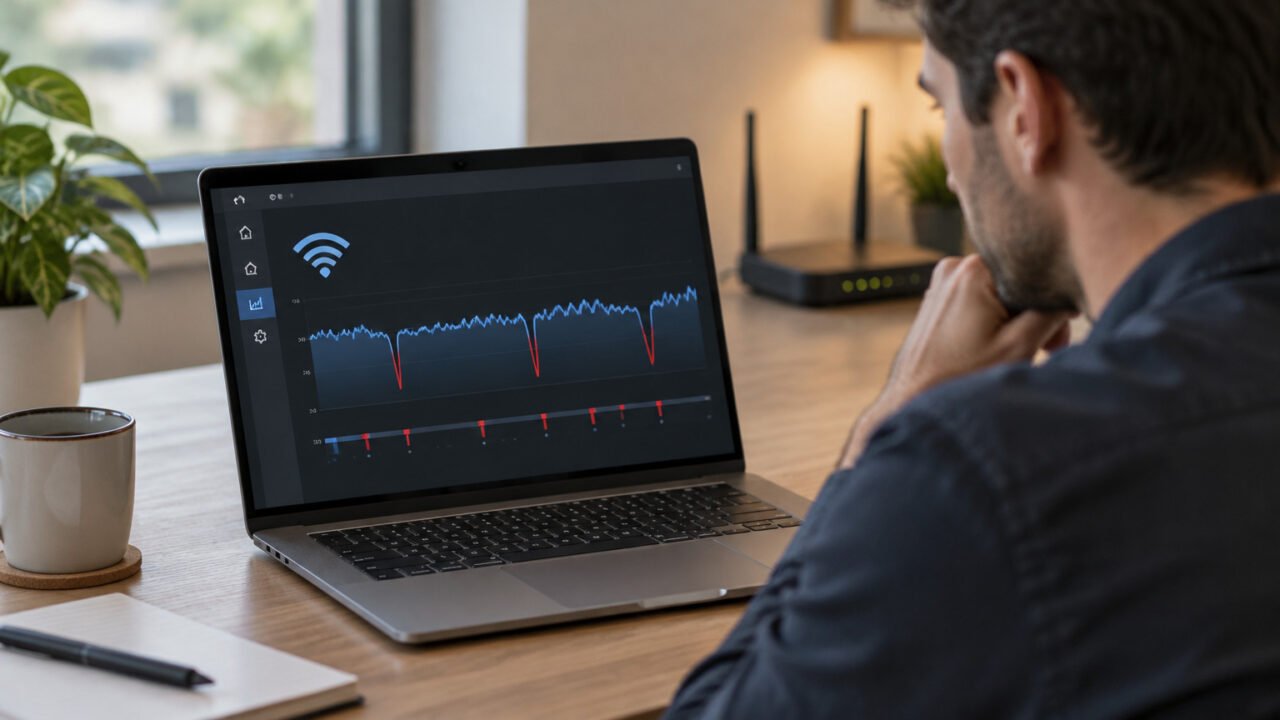
Gather evidence for intermittent Wi-Fi dropouts
When the issue comes and goes, capture information while it is happening rather than relying on the Wi-Fi icon. These commands help describe the current connection and nearby networks:
netsh wlan show interfaces
netsh wlan show networks mode=bssid
netsh wlan show wlanreport
The first command shows the connected wireless interface. The second lists visible access points and their BSSIDs. The last creates a wireless report with recent sessions, disconnect reasons, adapter details, and related events. Microsoft describes these commands and the report contents in its wireless connectivity troubleshooting documentation. This evidence is especially useful when a particular room, access point, or time of day correlates with the failure.
Escalate carefully
- Restart the PC, then restart the router or modem only if other devices indicate a network-wide issue.
- Install Windows updates and the Wi-Fi adapter driver supplied by the PC or adapter manufacturer.
- Document custom settings first: VPN clients, Hyper-V or other virtual switches, static IP addresses, custom DNS, and proxy settings.
- Use Settings > Network & internet > Advanced network settings > Network reset only after the earlier checks have not identified the problem.
Network reset removes and reinstalls network adapters after a restart. It can also affect VPN clients, virtual switches, and known network profiles, which may return as Public. That makes it a recovery step, not a diagnostic shortcut. If the gateway works but every device loses internet access, reset the Windows PC only after checking the router, modem, and provider status; the evidence already points beyond the PC.
The practical goal is not to run every command. Stop when the results identify the failing boundary: PC to router, router to internet, DNS, or a Windows-specific configuration. That preserves useful settings and gives IT support or an ISP a clear description of what has already been tested.