If Windows 11 can still start and you can sign in with an administrator account, do not reset it as your first response. For recurring built-in feature errors, Windows Update failures, or signs that Windows components are damaged, start with the update troubleshooter, then run DISM and SFC, and finally consider a repair reinstall. This sequence aims to preserve your files, installed apps, and settings.
This workflow is for Windows-level symptoms: Settings pages that crash, built-in tools that fail, repeated system-file errors, or updates that will not install. It is less likely to help when only one third-party app is failing, when the PC has a hardware fault, when malware is involved, or when the problem affects only one Windows user account.
Before you repair anything
- Save open work and back up files that matter. These steps are designed to be non-destructive, but a backup is still the fallback if an unrelated problem occurs.
- Write down the exact error message, the app or feature involved, and what changed shortly before the problem began.
- Restart the PC once. A pending restart can prevent an update or repair from completing.
- Install pending Windows updates if Windows Update is working.
- For an update-specific failure, run the Windows Update troubleshooter first. It is a lower-impact check than repairing the operating system.
Use an elevated command window for the next steps: search for Command Prompt, select Run as administrator, and approve the prompt. Keep the device connected to the internet where possible; DISM may use Windows Update to obtain repair files.
DISM and SFC serve different purposes. DISM repairs the Windows component store, which is the source used to service and restore Windows components. SFC then checks protected system files and replaces incorrect versions using that source. That is why DISM comes first when component corruption is suspected.
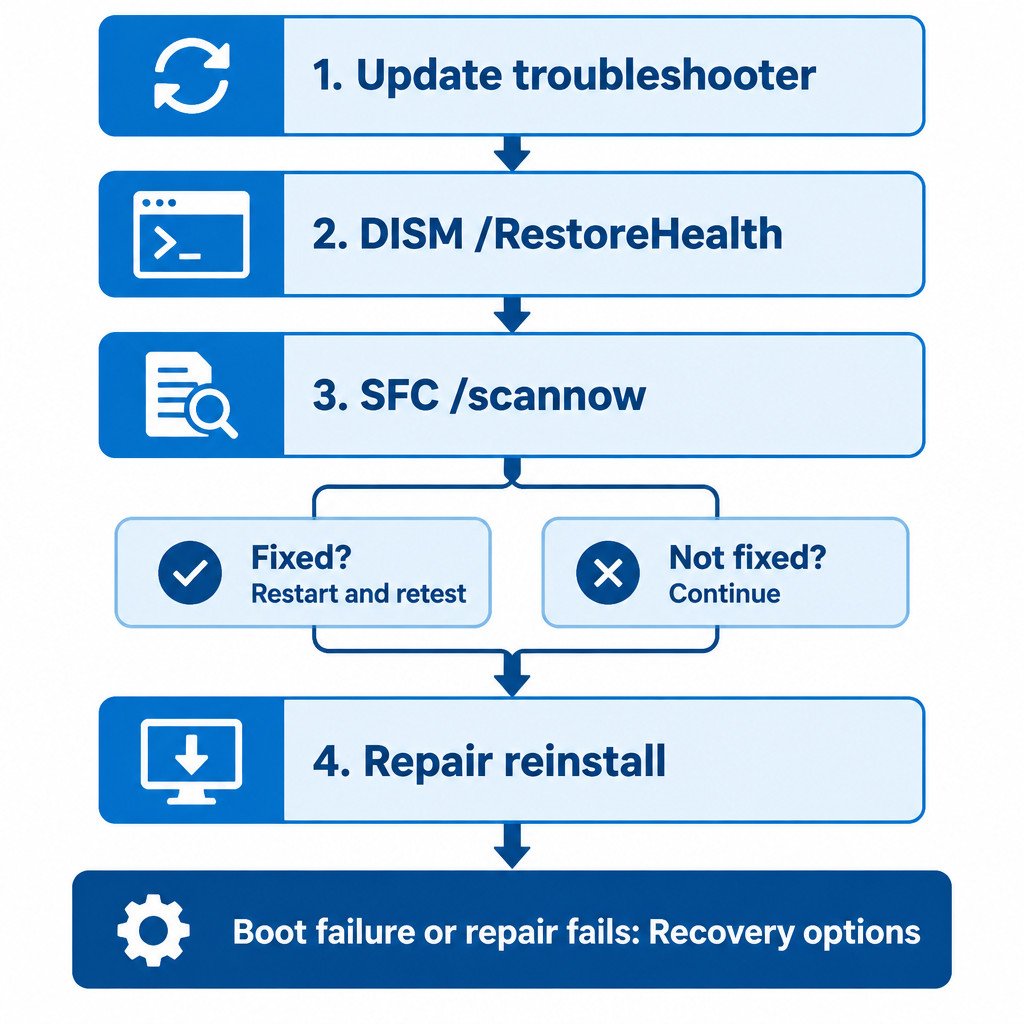
1. Repair the Windows component store with DISM
In the administrator Command Prompt, run:
DISM.exe /Online /Cleanup-Image /RestoreHealth/Online targets the Windows installation currently running on the PC. /Cleanup-Image selects servicing operations, and /RestoreHealth checks for component-store corruption and attempts repair. Microsoft documents this operation for an online Windows image; let it finish and do not close the window mid-process. Microsoft’s DISM repair guidance also describes separate check and scan operations, but RestoreHealth is the practical repair command for this situation.
A pause at a particular percentage does not necessarily mean the process has failed. Wait for a completion message. If DISM reports that it cannot obtain source files, do not guess at download sources or change the registry. Record the message and move to the repair-reinstall option below, or seek support appropriate to the device.
2. Scan and repair protected system files with SFC
After DISM finishes, use the same elevated window:
sfc /scannowDo not close the command window until verification reaches 100%. The result tells you what to do next. Microsoft lists the possible System File Checker result messages and advises using DISM when SFC cannot complete or cannot repair all files. See Microsoft’s System File Checker instructions.
| SFC result | Practical next step |
|---|---|
| No integrity violations | Protected system files appear intact. Investigate the specific app, driver, account, or update error instead. |
| Corrupt files were found and repaired | Restart Windows, then retest the feature or update that was failing. |
| Could not perform the requested operation | Restart and try again. If it persists, use recovery options rather than repeatedly forcing repairs. |
| Corrupt files were found but some could not be fixed | Run DISM again, then rerun SFC once. If the issue remains, use a repair reinstall. |
A clean SFC result does not prove that Windows has no problem. It only indicates that SFC did not find an integrity violation in the protected files it checks. For example, it will not correct a broken third-party application installation or a failing SSD.
3. Reinstall the current Windows version without resetting the PC
If Windows components still misbehave after DISM and SFC, Windows 11 may offer a repair reinstall through Windows Update. Go to Settings > System > Recovery > Fix problems using Windows Update, then select Reinstall now.
This reinstalls the current Windows version and repairs Windows system files and components while preserving personal files, installed apps, and settings. It is materially different from Reset this PC, which is a more disruptive recovery route. Keep the PC online and connected to power for the process. Microsoft’s repair-reinstall instructions describe the eligibility requirements and what the option preserves.
The option may not appear on an older or insufficiently updated Windows 11 installation. It can also be unavailable on work or school devices where an organization manages Windows Update. Do not apply registry workarounds to expose it; that can conflict with the policies or servicing setup on a managed PC.
Choose the least disruptive next step
| Situation | Best first response |
|---|---|
| A Windows update repeatedly fails | Restart, install other pending updates, then run the Windows Update troubleshooter. |
| Built-in Windows features crash or report missing or damaged files | Run DISM RestoreHealth, then run sfc /scannow. |
| Problems persist after DISM and SFC, but Windows starts normally | Use the Windows Update repair reinstall if it is available. |
| The fault started immediately after a recent update | Consider uninstalling the latest update from Windows recovery options. |
| Windows cannot boot, or the repair reinstall fails | Move to Advanced Startup, Reset this PC, or manufacturer recovery media only after verifying the backup. |
If the issue began right after a Windows update, uninstalling the latest update may be more targeted than repairing the whole installation. If Windows will not start, or storage and hardware diagnostics point to a physical issue, command-line system-file repair is not enough. Microsoft distinguishes these recovery paths, including reset and installation-media reinstallation, in its Windows recovery options guide.
After any successful repair, restart once and repeat the exact task that previously failed. If it now works, stop there. Avoid stacking resets, driver cleaners, registry changes, and multiple repair tools on top of one another, because that makes the original cause harder to identify and can create new problems.
Limitations to keep in mind
This sequence assumes you can sign in to Windows and use an administrator account. It does not remove malware, repair failing hardware, recover deleted files, or solve every profile-specific setting problem. A repair reinstall is preservation-focused, not a substitute for a verified backup. When data is already inaccessible or the drive appears unreliable, prioritize data recovery and hardware assessment before further write-heavy repair attempts.