If a game launches but feels choppy on Windows 11, first separate the symptom: consistently low FPS usually points to a settings or hardware limit; intermittent stutter is more often a short-lived interruption; and brief freezes can involve storage, memory pressure, background activity, or the game itself. Start by observing the problem, then make one reversible change at a time.
This checklist is for a PC that can open the game. It does not assume that a particular tweak will raise frame rate. Its purpose is to identify whether Windows, another app, laptop power behavior, or one game mode is contributing to the issue.
Record the conditions before changing anything
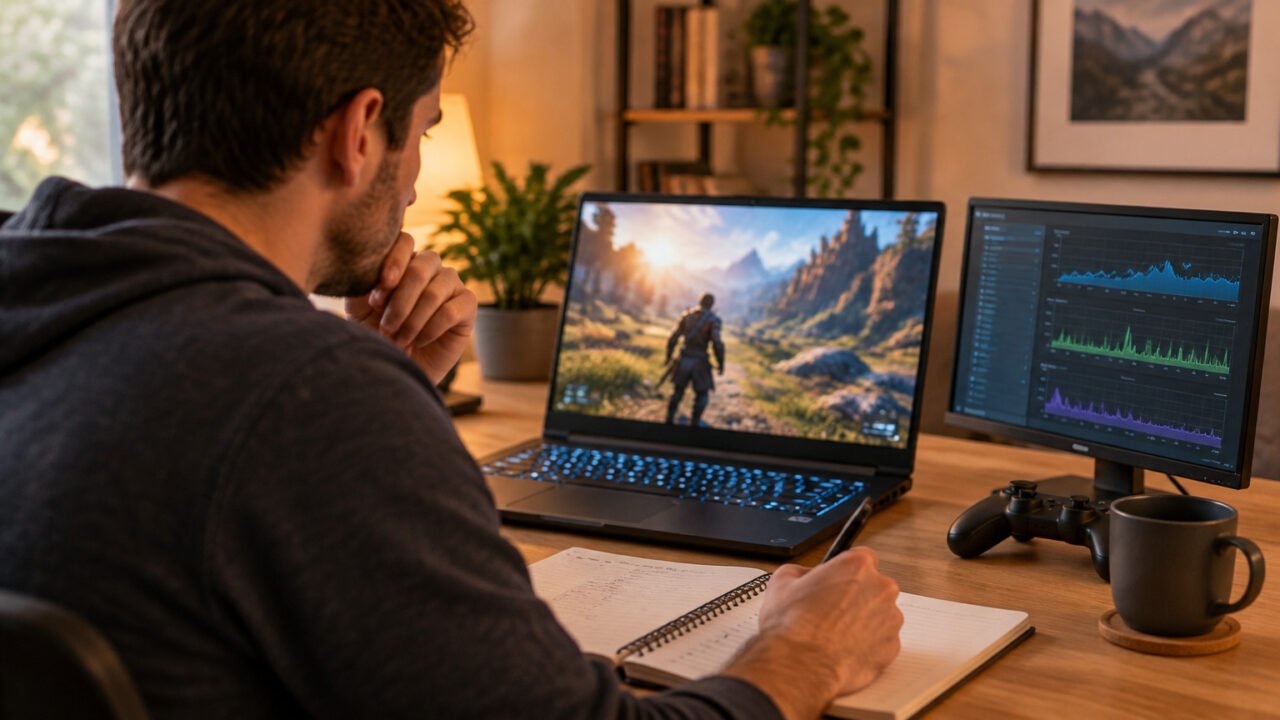
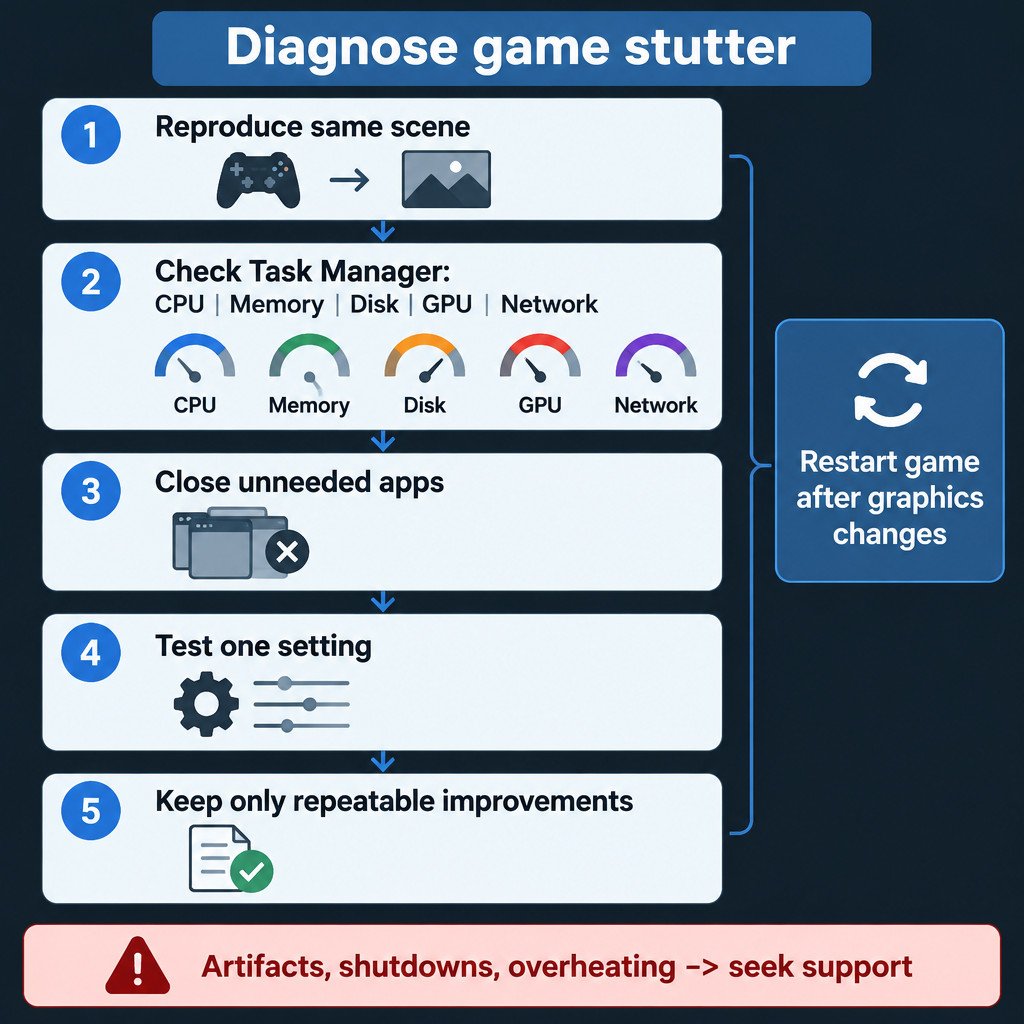
Restart the PC, open the same game, and return to the same area or match where the problem is easy to notice. Keep the test conditions as similar as possible. Note whether the stutter happens only on battery power, while streaming or recording, during downloads, after alt-tabbing, or only when using borderless or windowed mode.
This small baseline prevents a common mistake: changing several settings, seeing normal variation in a game scene, and attributing it to the last change. If possible, test one setting for several minutes in the same demanding location.
Watch for the bottleneck in Task Manager
Press Ctrl+Shift+Esc to open Task Manager. With the game running, look at CPU, Memory, Disk, GPU, and Network activity. You are not looking for a single magic percentage; you are looking for a resource that spikes when the hitch occurs, or another program competing for it.
- CPU: A busy processor can leave less time for the game, especially if a browser, recording tool, or background update is active.
- Memory: High memory use can force Windows and applications to rely more on storage, which may coincide with pauses.
- Disk: Sustained or repeated disk activity may matter when a game is loading assets or another program is syncing, updating, or scanning files.
- GPU: A heavily used GPU may simply mean the game’s graphics settings are demanding. On a laptop with more than one GPU, it can also be useful to verify which graphics processor the game uses.
- Network: Network activity does not normally lower local rendering FPS by itself, but it can cause lag, rubber-banding, or delayed actions that feel similar to stutter in online games.
Microsoft recommends using Task Manager to inspect resource use and reducing unnecessary startup or background activity when improving PC performance. Microsoft: Tips to improve PC performance in Windows Do not end unfamiliar Windows processes just because they use resources once; close applications you recognize instead.
Reduce background demand safely
For one diagnostic run, close unused browser tabs, extra game launchers, cloud-sync clients, screen recording software, overlays, and active downloads that you do not need. Then retest the same section of the game. This does not prove that background apps are inherently bad. It tells you whether contention is part of this specific problem.
If the game becomes stable, add items back gradually. For example, a browser may be fine while a browser video stream plus a recording application is not. The useful outcome is a repeatable combination to avoid while playing, not an indiscriminate cleanup of Windows.
Choose the graphics processor for the game
On a dual-GPU laptop, Windows can let you choose a graphics preference for an individual game. Go to Settings > System > Display > Graphics, select or add the game’s app entry, choose Options, and test High performance if that choice is available. Close and reopen the game afterward.
The names of the available GPUs differ by device. High performance is a test, not an instruction to use it for every task: it can increase power use and heat. If the game already uses the expected GPU or the change makes no measurable difference in your repeat test, revert it or leave it alone.
A/B test Optimizations for windowed games
Windows 11 includes Optimizations for windowed games for compatible DirectX 10 and DirectX 11 titles running in windowed or borderless-windowed modes. You can enable the feature in the Graphics settings or adjust it for an individual game. Restart the game after changing the setting. Microsoft: Optimizations for windowed games in Windows 11
Test it as an A/B comparison: play the same scene with the option on, then off, with the same resolution, graphics preset, power condition, and background apps. Keep the version that produces steadier behavior on your PC. The feature is not a promised improvement for every game, and it is not aimed at every rendering mode.
Check laptop power mode and physical conditions
For a laptop, test while connected to its appropriate charger when that is safe and practical. In Windows power settings, you can also test Best performance. Microsoft notes that this mode can use more battery power and generate more heat, so it is a trade-off rather than a permanent default. Microsoft: power and performance guidance
Keep vents clear and use the laptop on a firm surface. If stutter begins only after the machine has been running for a while, or performance changes sharply with heat, stop treating it as a Windows setting problem alone. Revert the power change if it does not help or if the extra warmth is unacceptable.
Use dxdiag to collect useful support information
Press Windows+R, type dxdiag, and press Enter. The DirectX Diagnostic Tool shows the DirectX version and display-device details. Its Save All Information option can create a report for a game publisher, PC maker, or support request. Microsoft: Which version of DirectX is on your PC?
A DirectX version is diagnostic information, not a verdict. It cannot by itself confirm that a GPU driver, game installation, graphics setting, or physical hardware is healthy. Avoid downloading random “DirectX fix” packages in response to ordinary stutter.
Use compatibility help only for an older game
If the problem is limited to an older title, or it began after a Windows change, try the Windows Program Compatibility troubleshooter through the Get Help app. This is a targeted compatibility step, not a general FPS optimizer for current games. Microsoft: Windows troubleshooters
Escalate in a low-risk order
- Install available updates for Windows, the game, and the GPU driver using their official channels.
- Check the game’s own support guidance for known performance issues, required hardware, and file-repair options.
- Back up local saves or confirm cloud-save status before uninstalling or reinstalling a game.
- Share the dxdiag report and a short description of the repeatable trigger with the game publisher or device maker if the issue remains game-specific.
Stop troubleshooting and seek device or game support sooner if you see graphical artifacts, repeated crashes, unexpected shutdowns, clear overheating, or the same problem across many games. Those signs may involve drivers, hardware stability, cooling, or power delivery rather than one in-game setting.
A practical decision rule
Change one variable, restart the game when required, and test the same workload. Keep a change only when the improvement is repeatable and the trade-off is acceptable. That approach is slower than applying a long list of tweaks, but it leaves you with a stable configuration and a clearer explanation of what actually helped.