Create a restore point before you install an unfamiliar driver, use a system-cleaning utility, edit the Registry, or change several Windows settings at once. A restore point gives classic System Restore a known-good configuration to return to if that change causes crashes, boot trouble, or unexpected behavior.
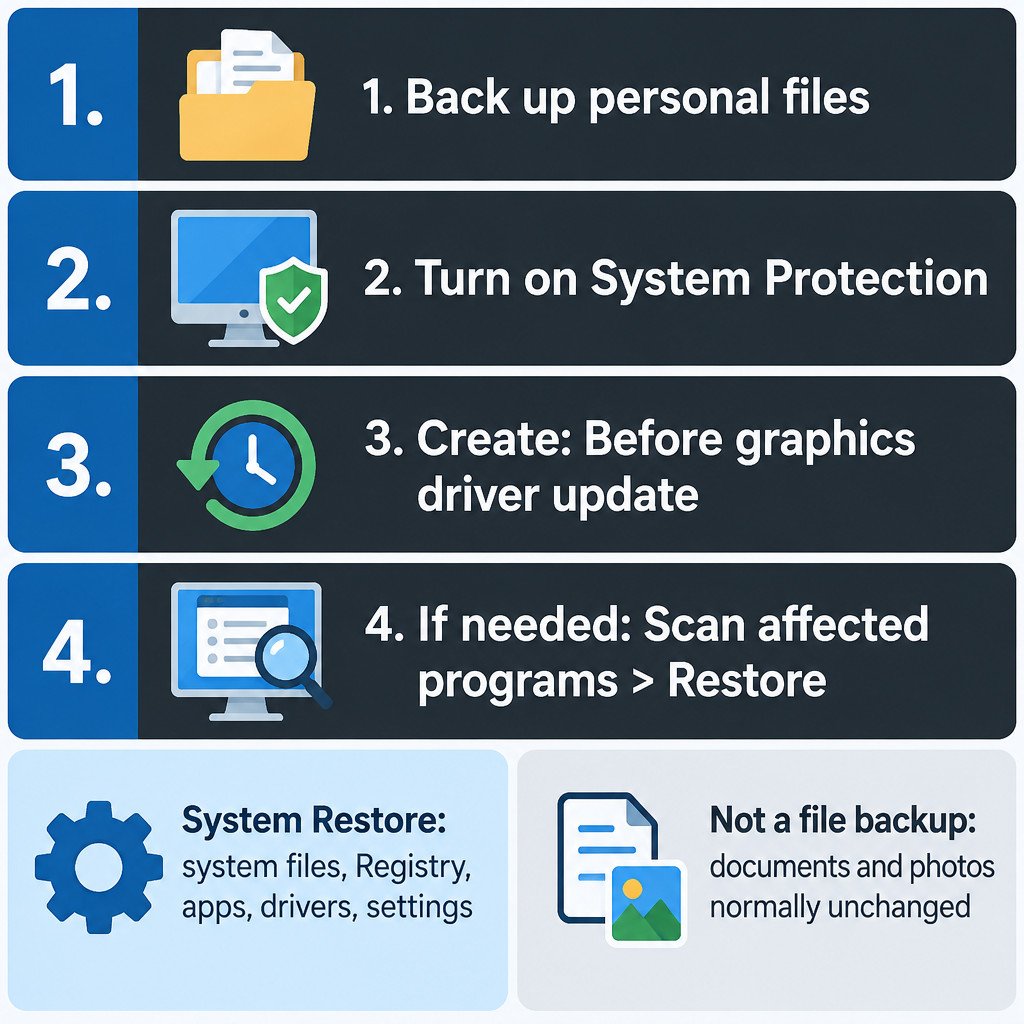
Classic System Restore rolls back system files, Registry settings, installed applications, drivers, and system settings. It normally leaves personal files such as documents, photos, and email untouched. That distinction matters: a restore point is a safety net for Windows configuration, not a backup of your work. Microsoft describes the feature and its storage controls in its System Protection guidance.
Before creating a restore point
- Save open files and close work that could be interrupted.
- Back up important personal files separately, especially files created or changed today.
- Make sure the Windows system drive has free space.
- Plan one meaningful change at a time. A restore point is more useful when you know what happened after it was created.
Turn on System Protection
- Open Start and search for Create a restore point.
- Open the matching result. The System Properties window opens on the System Protection tab.
- Under Protection Settings, select the drive that contains Windows, usually (C:).
- Select Configure.
- Choose Turn on system protection.
- Use the Max Usage control to reserve an amount of drive space you can afford for restore points, then select Apply and OK.
The maximum-usage setting is a storage limit, not a promise that a particular restore point will remain indefinitely. As the reserved space fills, Windows can remove older points to make room for newer ones. If you need a particular rollback option, create the point immediately before the change rather than relying on one made weeks earlier.
Create the manual restore point
- Return to the System Protection tab and confirm that protection for the system drive is on.
- Select Create.
- Enter a specific description, such as Before graphics driver update – 2025-03-08 or Before VPN client install.
- Select Create and wait for Windows to confirm that the restore point was created.
A descriptive name is useful because Windows may show several points during recovery. “Before update” is less helpful than a name that identifies the driver, app, or change you made.
How to use a restore point after a problem
If Windows still starts normally, search for Recovery, open it, and choose Open System Restore. Select a restore point from before the problem began. Before confirming, select Scan for affected programs.
The scan is the decision step, not a formality. It lists programs and drivers that will be removed because they were installed after the selected point, along with items that may be restored because they were removed after that point. Review the list and save any related work before continuing. Windows then restarts to perform the restoration.
For example, suppose a display driver installed this morning causes a black screen after sign-in. Choosing a restore point from yesterday may remove that new driver and return relevant system settings to their earlier state. It may also remove another application installed after yesterday’s point. The affected-program scan helps you see that tradeoff before the restart.
If Windows will not start
Start Windows Recovery Environment, then go to Troubleshoot > Advanced options > System Restore. Choose the account, enter its password if requested, select the restore point, and follow the prompts. On an encrypted device, keep the BitLocker recovery key available: Windows Recovery Environment may ask for it before it can proceed. Microsoft documents both the in-Windows and recovery-environment paths in its System Restore instructions.
What System Restore does and does not protect
| Item | What to expect from classic System Restore |
|---|---|
| Windows system files and Registry | Rolled back to the selected restore point. |
| Drivers, installed apps, and some updates | Changes made after the selected point can be removed. Check the affected-program scan. |
| Documents, photos, and other personal files | Normally not rolled back or restored. |
| A missing or deleted personal file | Not a System Restore use case; recover it from a separate backup or version-history service. |
That last row is the main limitation. A restore point can get Windows working again while still leaving you without a document that was deleted or overwritten. Use a separate backup plan for personal data. For eligible personal Microsoft accounts, Windows Backup can back up selected user folders to OneDrive; its suitability depends on your account, storage, and whether cloud backup fits your needs.
Verify the safety net without restoring
The creation confirmation is the first check. If you want to inspect available points later, open System Restore and proceed only as far as the list of restore points; cancel instead of selecting a point to restore. Do this before a risky change if you want to confirm that the expected description is available.
System Restore cannot help if protection was off, the relevant point was deleted as storage filled, or the fault lies outside what the restore can reverse. It is still a low-effort precaution when you are about to alter Windows itself.
Do not confuse System Restore with point-in-time restore
Windows 11 also has a newer feature called point-in-time restore. It is different from classic System Restore: it can revert files on the system drive as well as apps and settings. Microsoft says its availability and defaults are version-dependent, with default enablement beginning with Windows 11 version 26H2, and points are retained for up to 72 hours. It is therefore not a universal replacement for the classic restore-point workflow described here.
Use the feature names carefully when following instructions or choosing recovery options. After a point-in-time restore, check Windows Update, because updates may need attention again. See Microsoft’s point-in-time restore documentation for the current requirements and behavior.
A practical pre-change checklist
- Back up files that matter; do not treat a restore point as file backup.
- Confirm System Protection is enabled for the Windows drive.
- Create a new restore point immediately before the change.
- Use a name that states exactly what you are about to install or modify.
- Change one driver, utility, or system setting group at a time.
- Record the app version, driver version, or setting you changed.
- If a problem appears, run the affected-program scan before restoring.
A restore point is most valuable when it is recent, clearly named, and paired with a separate file backup. Those three habits make a driver experiment or Windows tweak easier to undo without turning routine maintenance into a full reset.