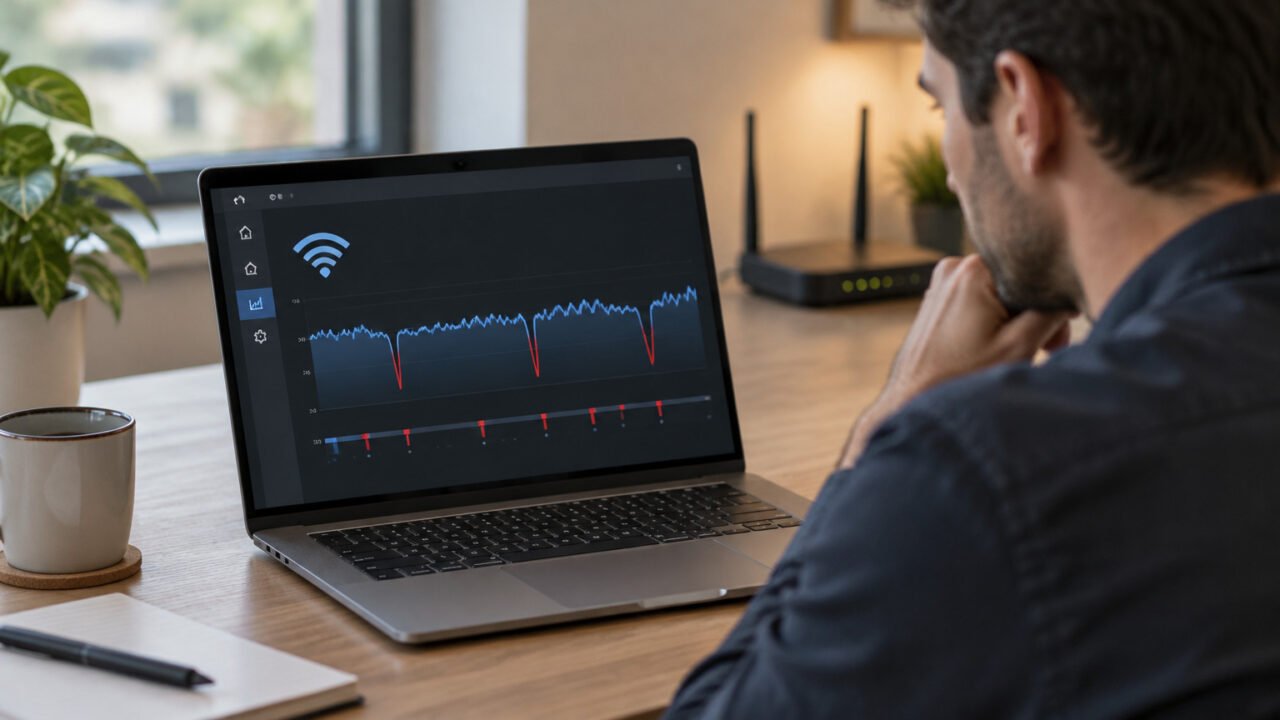
If your Windows 11 PC appears connected but particular browsers or apps cannot reach the internet, start with netsh winsock reset, restart, and retest. Use netsh int ip reset resetlog.txt only if the problem remains. These commands repair Windows networking components; they do not fix a router outage, an ISP outage, a disabled adapter, or a missing Wi-Fi toggle.
This is a deliberately narrower alternative to Network Reset. Network Reset removes and reinstalls network adapters and restores their settings, which can mean setting up VPN or Hyper-V-related software again. Microsoft positions it as a later troubleshooting step rather than the first one. Microsoft’s Wi-Fi troubleshooting guidance also notes that known networks may be changed to Public afterward.
Confirm that this is a PC-level connection problem
These resets are reasonable when the network adapter is present and enabled, but connectivity remains unreliable or applications cannot communicate normally. They are not the right starting point when every device on the same home network has failed, when the router has no internet service, or when Windows cannot see the Wi-Fi hardware at all.
- Try another phone or computer on the same network. If it also fails, investigate the router, network owner, or ISP first.
- Restart the PC. A restart is required after either reset anyway and can resolve a temporary fault without changing configuration.
- Disconnect a VPN temporarily, if permitted. A VPN can intentionally change routes, DNS, and filtering behavior.
- Run the Windows Network and Internet troubleshooter before making configuration changes.
- Try one known website and the affected app. A single broken site or service is not evidence that Windows networking is damaged.
On a work-managed device, stop and contact the IT team if the connection depends on a required corporate VPN, endpoint-security network filter, or organization-managed proxy. A reset may remove a component or setting that the organization expects.
What Winsock and TCP/IP resets actually change
Winsock is the Windows interface used by applications to communicate with network services. Resetting it returns the Winsock catalog to a clean state and removes custom Layered Service Providers. That is why it can help after a damaged networking component, but it can also affect software that installed one. Microsoft’s netsh winsock reference describes this scope.
TCP/IP is the core protocol configuration that carries network traffic. The TCP/IP reset is broader: it overwrites TCP/IP and DHCP-related registry settings. It is a sensible second step when Winsock did not help, not a universal cure for every internet problem.
Record the few settings that matter first
Before resetting anything, make a short note or screenshot of settings that may need to be restored. This takes little time and makes recovery less guesswork-driven.
- Whether a VPN, virtual machine platform, security suite, or network-filtering tool is installed.
- Whether the connection uses a manual IP address, subnet mask, gateway, or DNS server instead of automatic settings.
- Whether Windows is configured to use a proxy: go to Settings, then Network & internet, then Proxy.
- Your current adapter details, if useful for comparison. In Command Prompt,
ipconfig /alldisplays IP, gateway, and DNS information.
Do not assume a reset preserves custom networking. In particular, record static settings exactly. If you do not know whether they are intentional, ask the person or team that manages the network before changing them.
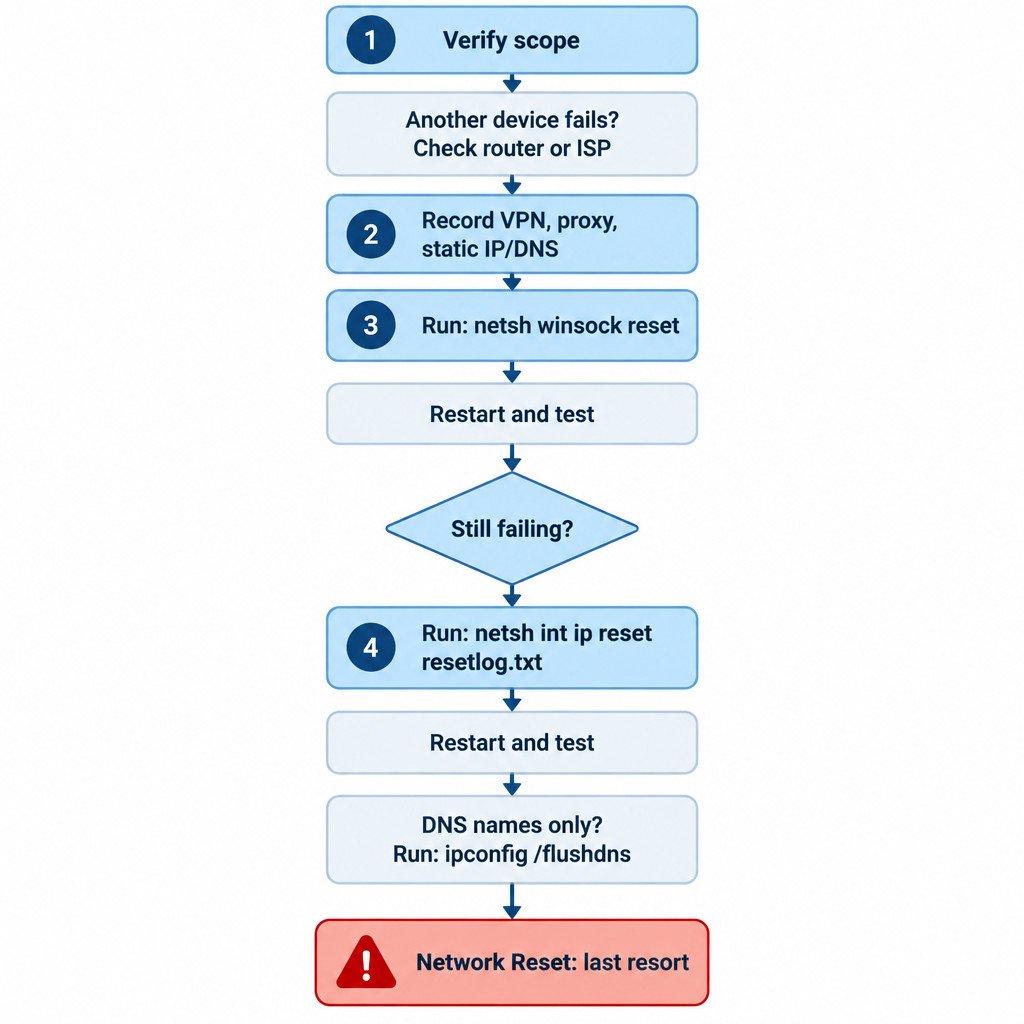
Step 1: Reset Winsock
- Save any work, then open Windows Terminal, Command Prompt, or PowerShell as administrator.
- Enter
netsh winsock reset. - Wait for the confirmation message.
- Restart Windows.
- Reconnect to the network if necessary, then test one website and the previously affected app.
If the issue is gone, stop there. There is no benefit in running a broader reset merely because the command is available.
Step 2: Reset TCP/IP only if Winsock did not solve it
Open an elevated command window again and run:
netsh int ip reset resetlog.txtThe final argument names the log file created in the current folder. The command requires an administrator-level window and a restart. Microsoft documents that it resets TCP/IP and DHCP-related registry configuration and writes the operation to the specified log. See the Microsoft NetShell TCP/IP reset documentation for the command’s documented behavior.
After the restart, check that Windows has received the expected IP address, gateway, and DNS configuration. Re-enter any documented static values only when they are required for that network.
Treat DNS cache clearing as a separate, limited fix
If connections work by IP address but names fail to resolve, or a site continues to point to an outdated address, clear the local DNS cache instead of escalating immediately to a TCP/IP reset:
ipconfig /flushdnsThis clears cached DNS entries. It does not reset Winsock, change router settings, repair a VPN, or restore ISP service. Microsoft documents Clear-DnsClientCache as equivalent to ipconfig /flushdns. Read the DNS client cache command reference.
Retest in a controlled order
- Connect to the usual Wi-Fi or Ethernet network.
- Open one reliable website in a browser.
- Reconnect the VPN, if your normal work setup requires it.
- Test the application that originally failed.
- Compare the result with another device on the same network if the problem persists.
This order helps separate a general connection failure from a VPN-specific or app-specific issue. For example, if websites work until the VPN reconnects, repeating Winsock resets is unlikely to be the useful next step; the VPN configuration, account, or service may need attention instead.
When not to run these commands
Avoid treating either command as routine maintenance. Pause if you use a static IP or DNS configuration, a corporate VPN, Hyper-V virtual switches, specialist network adapters, or software that relies on custom network filtering. The commands may still be appropriate, but the tradeoff is higher because those components may need configuration afterward.
Also skip PC-focused resets when all devices on the network fail. That pattern points away from a single Windows installation and toward the access point, router, upstream connection, or service provider.
Escalate without making the problem harder to diagnose
- Install an appropriate network-adapter driver update from Windows Update or the PC maker’s support resources.
- If the adapter is unstable or missing, investigate the driver and hardware rather than repeatedly resetting protocol settings.
- Ask a network administrator about managed proxies, certificates, VPN requirements, and policy-controlled settings.
- Ask the router owner or ISP for help when other devices on the same network show the same failure.
- Use Network Reset only after these lower-impact checks. Be prepared to reconnect networks and restore VPN, virtual networking, or other adapter-related settings.
The practical sequence is simple: verify the scope, save custom settings, reset Winsock, restart and test, then reset TCP/IP only when the narrower repair did not help. That preserves more configuration and produces clearer evidence for the next troubleshooting step.
Sources
Microsoft Learn command references for netsh Winsock, TCP/IP reset, and DNS client cache clearing; Microsoft Support guidance for Wi-Fi connection troubleshooting and Network Reset.