For Wi-Fi that drops, will not join a network, or works inconsistently, start with Windows’ wireless network report rather than resetting everything. The report records recent Wi-Fi activity and can help you connect a failed attempt to a session, an adapter detail, or a disconnect reason. It is useful for the Wi-Fi link itself; it cannot by itself prove that an ISP, router, captive portal, or individual website caused a problem.
Record the symptom first
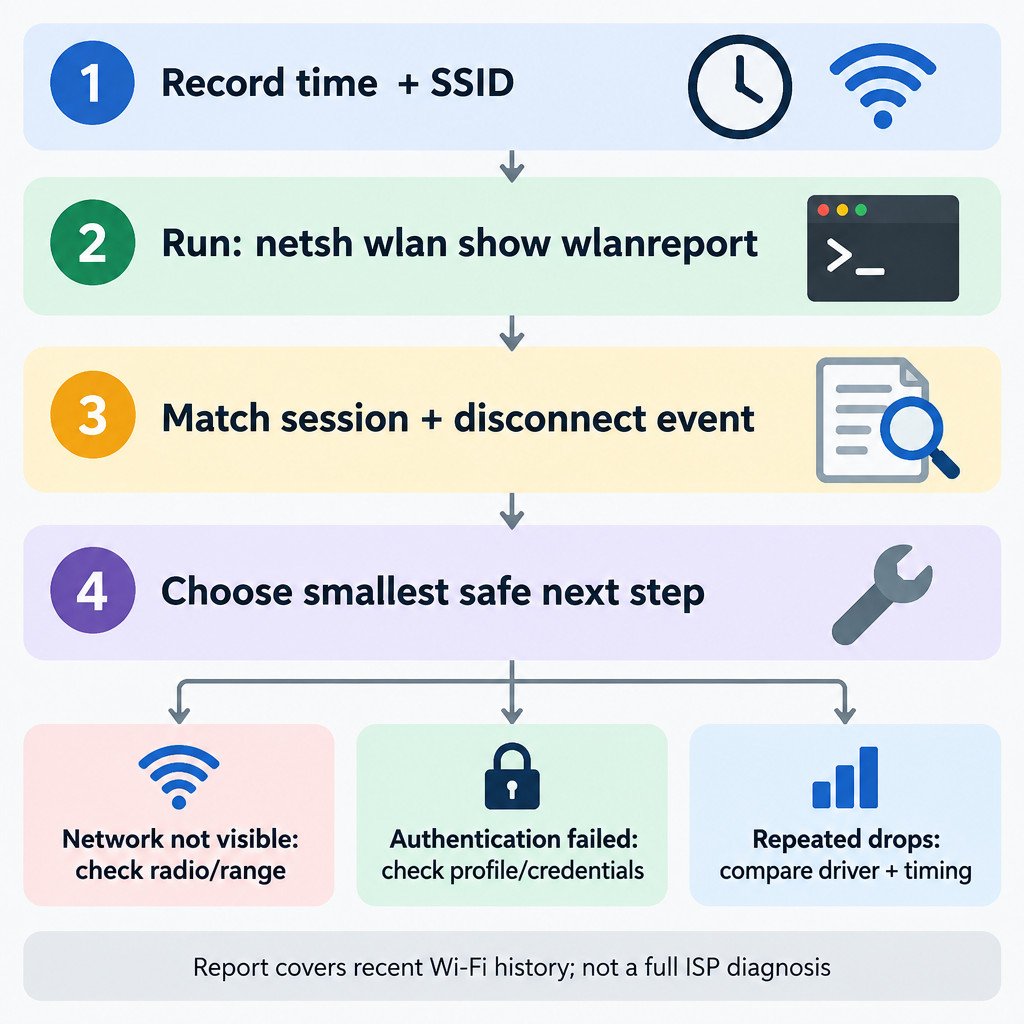
Before collecting anything, write down the approximate time of the failure, the network name (SSID), and what happened. For example: “HomeWiFi disconnected at about 9:15 a.m. after waking the laptop,” or “Office-Guest rejected the password at 2:40 p.m.” Also note recent changes, such as a Windows update, driver update, sleep/resume, travel, or a new router.
Do not post the full report publicly. It can include network names, adapter identifiers, IP configuration, and saved-profile information. Review or redact those details before sharing it with an IT department or support person.
Generate the WLAN report
- Open Start, type Command Prompt, then choose Run as administrator.
- Enter
netsh wlan show wlanreportand press Enter. - Windows displays the location of the generated HTML file. Open that file in a browser.
The command produces a summary of recent wireless sessions and activity. Microsoft describes the report as covering the last three days, so generate it soon after the issue occurs when possible. Its layout groups activity into sessions and includes a summary chart, connection events, adapter information, IP configuration, saved profiles, and visible networks. Microsoft’s report guide explains the sections Windows collects.
The report is evidence, not a verdict. A disconnect reason tells you what Windows recorded at that point in the connection, but it does not automatically identify the one component that needs replacing or reconfiguring.
Find the session that matches the failure
Begin with the Wi-Fi summary chart. Look for red error markers and align them with the time you noted. Then open the nearby wireless session rather than trying to interpret every event in the report. One bad session, matched to a real-world symptom, is more useful than a long list of routine reconnects.
In the relevant session, compare these fields with your notes:
| Report clue | What to check | What it can narrow down |
|---|---|---|
| SSID and connection mode | Is this the intended network and connection attempt? | Whether you are examining the right event, rather than a neighboring network or an automatic reconnect. |
| Session start, end, and duration | Does the time match the dropout, failed join, sleep, or resume? | Whether a system change or a repeating pattern is worth investigating. |
| Disconnect reason and colored events | What happened immediately before the session ended? | Whether the next check should focus on authentication, radio visibility, or the adapter. |
| Adapter name, driver version, driver date, and problem number | Did these coincide with a recent update or resume issue? | Whether driver or device state deserves attention before broader resets. |
A short session is not inherently an error. A laptop may disconnect normally when it sleeps, changes networks, or has Wi-Fi turned off. The important question is whether the event sequence and timestamp explain the symptom you are trying to fix.
Use the adapter and script sections carefully
The report includes output similar to diagnostic commands such as IPConfig /all, plus WLAN adapter, visible-network, and saved-profile details. These sections can confirm that Windows sees an adapter, show whether the target network was visible at collection time, and identify the profile Windows tried to use. They do not reveal saved Wi-Fi passwords, but the surrounding network and device details are still sensitive.
If you need a fresh, read-only snapshot after reproducing the problem, Windows also documents netsh wlan show interfaces, netsh wlan show drivers, netsh wlan show networks, and netsh wlan show profiles. These commands help separate interface state, driver capability, network visibility, and stored-profile questions without changing configuration. The netsh wlan command reference lists their syntax.
Turn the clue into a narrow next step
- No Wi-Fi control or no adapter in the report: Check whether the wireless adapter is enabled and whether the WLAN AutoConfig service is running. Record any adapter problem number. A driver, device, or managed-device policy may be involved.
- The network is not visible: Check that airplane mode is off, move closer to the access point, and see whether another device can see the same SSID. Consider whether the router’s band or range is relevant before changing Windows settings.
- A join attempt fails at authentication: Re-enter the credentials carefully. If the network profile may be stale, remove only that profile and join again. On work or school networks, stop if credentials, certificates, or policy are involved and contact the administrator.
- Repeated drops around the same time: Preserve the report and note the adapter driver version and event timing. If the pattern began after a driver or Windows change, investigate a compatible driver update or rollback through the device maker or IT team rather than applying unrelated fixes.
Illustrative example: a report shows that a laptop joined the correct SSID at 09:12, disconnected shortly after 09:15, and has a driver date that changed the same week. That does not prove the driver caused the drop. It does, however, make “check the driver change and reproduce after sleep” a more defensible next step than immediately resetting all network settings.
Use resets late, not first
First isolate the problem. Test another device on the same Wi-Fi network. If it also fails, the router or connection is more suspect than one Windows PC. If the PC fails on several known-good networks, the adapter, driver, or local configuration becomes more relevant. Windows’ built-in Get Help network troubleshooter is a reasonable next step when the report does not point to a clear branch.
Reserve Network reset for later. Microsoft notes that it removes and reinstalls network adapters and returns their settings to defaults; VPN or virtual-network software may need to be configured again afterward. Save the report and any important VPN settings before taking that step. Microsoft’s Wi-Fi troubleshooting guidance places reset after less disruptive checks.
What the report cannot establish
A WLAN report is a recent history of Windows Wi-Fi activity, not a complete Internet diagnosis. It cannot confirm an ISP outage, a router hardware fault, a captive-portal issue, DNS trouble after Wi-Fi connects, or a failure limited to one app or website. A connection can also appear healthy in the report while a work VPN, proxy, firewall, or organization policy blocks access beyond the local network.
For managed devices, avoid deleting profiles, changing security settings, or installing unapproved drivers. Provide IT with the exact failure time, SSID, whether other devices worked, and the relevant report excerpt instead. Microsoft’s Windows Client troubleshooting workflow likewise emphasizes collecting timestamps, interface details, visible networks, profiles, and change history before drawing conclusions. Read the Windows wireless connectivity troubleshooting guidance.
The practical goal is modest: use one failed Wi-Fi session to choose the smallest safe next action. That preserves useful evidence and avoids turning a connection problem into a larger configuration cleanup.