Clipboard History is a local productivity feature in Windows 11 that keeps recent copied items available through Win+V. It is useful for repeatedly pasting links, commands, email sign-offs, and short templates. You can use it without turning on cross-device clipboard sync.
For a privacy-conscious setup, enable Clipboard History, keep “Sync across your devices” off, pin only harmless reusable text, and clear unpinned history after handling confidential material. Clipboard History is convenient, but it is not a safe place for passwords, recovery codes, client records, or private credentials.
Turn on Clipboard History
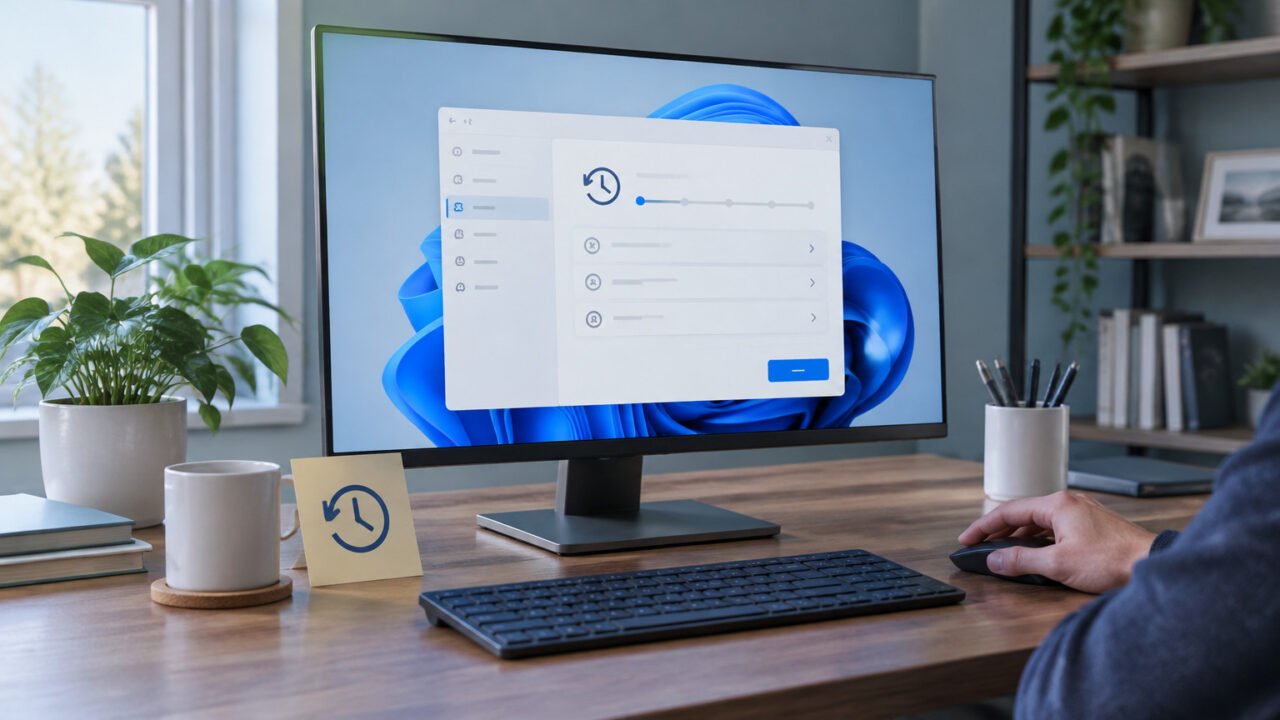
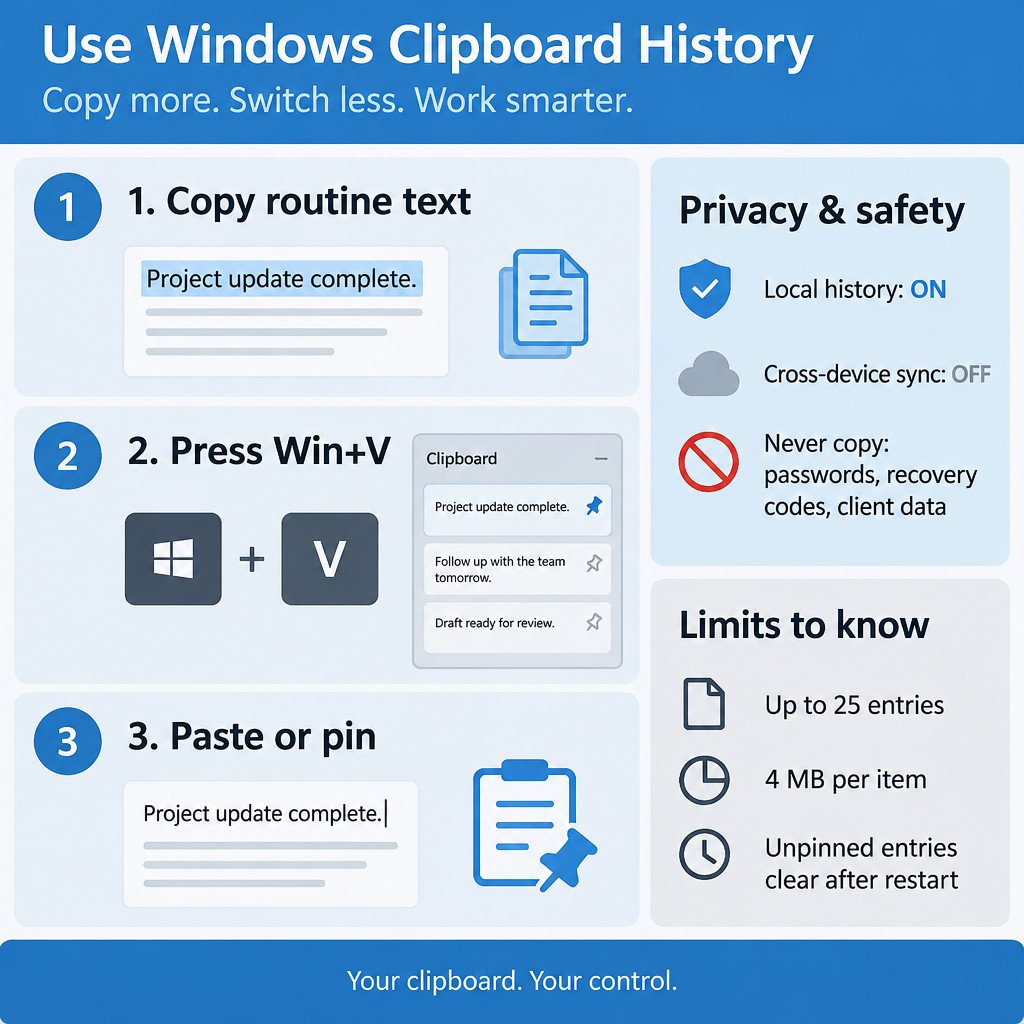
Press Win+V. If the feature is off, select Turn on. Alternatively, open Settings > System > Clipboard and switch on Clipboard history. Microsoft documents both methods, along with the management controls described below, in its Clipboard guide.
Once enabled, copy as usual with Ctrl+C. Windows records eligible copied content in the history panel, so you can retrieve it later rather than returning to the original page or document.
Paste an earlier item with Win+V
Place the cursor in the app where you want the content to appear, then press Win+V. Select an item in the panel to paste it. This works well when drafting an email while reusing a URL, a case reference, and a standard closing sentence.
The panel is not a long-term archive. It can retain up to 25 entries and supports text, HTML, and bitmap content. Each individual item can be up to 4 MB. If an item does not appear, it may be too large or in a format Clipboard History does not retain.
Pin reusable snippets, not sensitive ones
Pinning keeps a useful item available when ordinary clipboard history is cleared at restart. Open Win+V, find the item, open its More menu, and choose Pin. Pinned items are best reserved for content that is both frequently reused and safe to retain on that PC.
- Good candidates: an email sign-off, a meeting-link template, a support response, a non-secret command, or a public project URL.
- Do not pin: passwords, one-time codes, API keys, recovery keys, banking details, client data, medical information, or private messages.
For example, an illustrative support template such as “Thanks for the report. Please include the app version, Windows version, and the exact error message.” is a reasonable pinned item. A customer’s actual error log is not.
Delete one item or clear the unpinned history
To remove a single entry, open Win+V, use the item’s More menu, and select Delete. This is the practical choice when you accidentally copy one confidential line but want to keep other recent items.
To remove general clutter, go to Settings > System > Clipboard and select Clear under Clear clipboard data. Clear all removes unpinned history; pinned items remain until you unpin or delete them. Unpinned Clipboard History entries are also cleared when Windows restarts.
Keep cross-device sync off by default
Clipboard History and cross-device sync are separate choices. In Settings > System > Clipboard, leave Sync across your devices turned off if you only need history on the current PC. This avoids sending copied content to other signed-in devices through the connected clipboard experience.
If you deliberately enable sync, Windows requires the same Microsoft account or work account on the participating devices. You can choose automatic syncing or a manual option that lets you select individual history items to sync. Manual selection reduces accidental sharing, but it does not make secrets suitable for clipboard use. Microsoft describes Cloud Clipboard as a connected experience for copying text and images across signed-in Windows devices in its connected experiences overview.
| Need | Recommended setting | Reason |
|---|---|---|
| Reuse snippets on one PC | Clipboard History on; sync off | Provides Win+V convenience without cross-device transfer. |
| Move ordinary text between personal Windows devices | Sync on; choose manual sync where available | Gives you a chance to choose what leaves the current device. |
| Work with confidential or regulated information | Do not use Clipboard History for that content; keep sync off | Limits unnecessary retention and sharing of copied data. |
Optional: copy and paste with an Android phone
Phone Link on Windows and Link to Windows on Android can provide a separate phone-to-PC copy-and-paste workflow. Treat it as a current shared clipboard, not as an extension of the 25-item Windows history. Content copied on either device replaces the shared clipboard content on both devices, and formatting may not survive when moving between apps. Microsoft’s Phone Link transfer instructions cover the setup requirements and behavior.
If Win+V or syncing does not work
- Win+V shows an empty panel: Copy a short piece of plain text, then check that Clipboard History is on in Settings > System > Clipboard.
- An expected item disappeared: It may have been unpinned and Windows restarted, or newer entries may have displaced it after the history limit was reached.
- Sync is unavailable or fails: Confirm that sync is enabled, that the intended devices use the same eligible account, and that your workplace has not restricted the setting.
- Formatting changed after pasting: Paste into a plain-text field first, or expect formatting differences when copying between different apps and devices.
A short privacy checklist
- Use Win+V for routine snippets, not secrets.
- Pin only content you would be comfortable leaving on the PC.
- Delete an accidental sensitive copy promptly, then clear unpinned history when appropriate.
- Keep cross-device sync off on shared, managed, or public-access computers.
- When sync is necessary, prefer manual selection and review the item before sharing it.
Used this way, Clipboard History reduces repetitive copying without turning every copied item into something that travels between devices. The useful default is simple: local history on, cross-device sync off, and no sensitive text in the clipboard.
Sources
Microsoft Support documentation is linked in the relevant sections above. Feature labels and availability can vary with Windows version and workplace device policies.