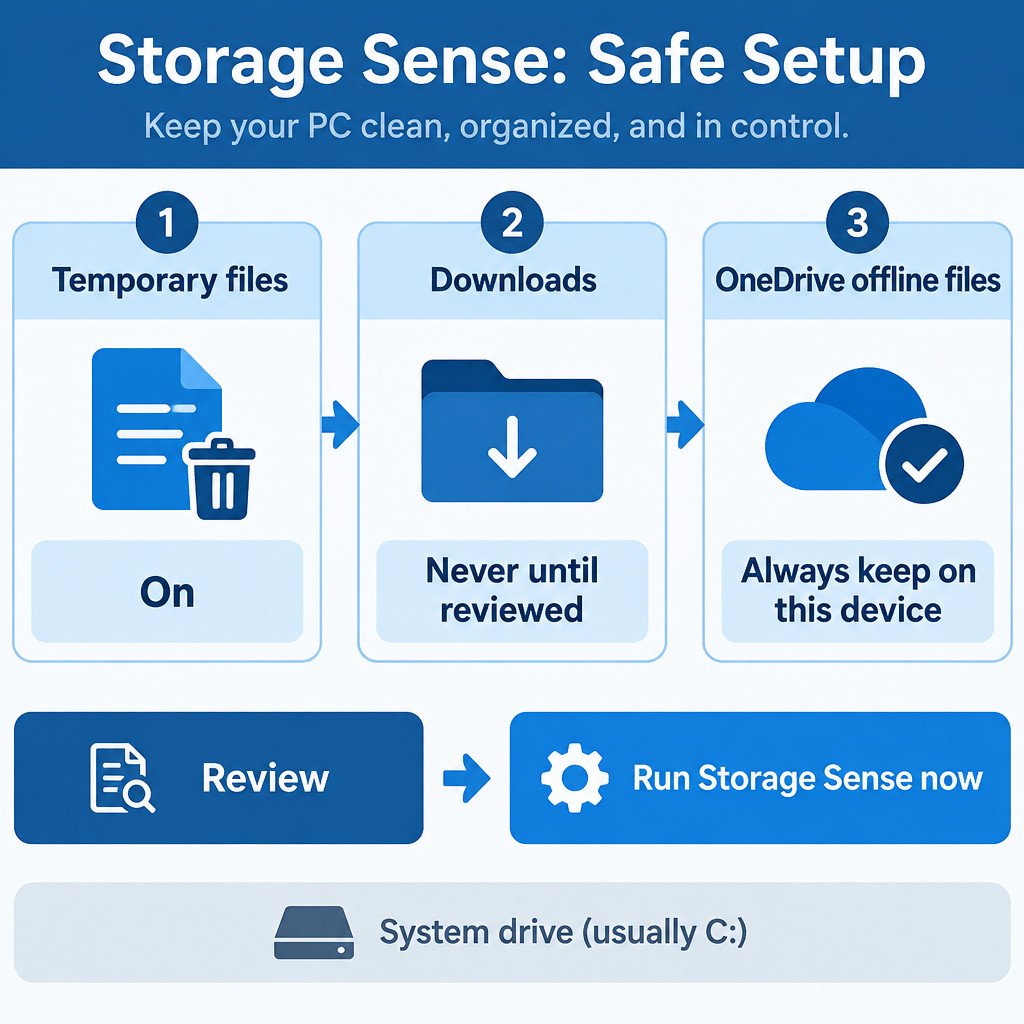
Storage Sense is a Windows 11 housekeeping tool for the system drive, usually C:. It can remove unnecessary temporary files automatically and, if you opt in, clear older items from the Recycle Bin, clean Downloads, or turn inactive OneDrive files into online-only files. The safe approach is simple: turn it on for temporary files, leave Downloads alone until you have inspected it, and choose the OneDrive setting only if you understand Files On-Demand.
Free space matters because Windows checks whether sufficient storage is available before installing updates. That does not mean a cleanup will solve every update failure, but a nearly full drive is worth addressing first. Microsoft’s update guidance lists Storage Sense and Cleanup recommendations among the ways to free space.
Check what is using space before enabling automation
Open Settings > System > Storage. The category display is a useful first pass: it separates areas such as installed apps, temporary files, documents, pictures, and other storage. Select a category when you need to identify the actual files or apps behind it.
Also open Cleanup recommendations. Windows may offer temporary files, previous Windows installations, large or unused files, and rarely used apps. These are recommendations, not a command to remove everything. Read the category and file description, especially for a previous Windows installation or a large personal file, before selecting it. The results are specific to the PC. Microsoft’s Storage settings documentation describes these categories and recommendations.
Enable Storage Sense with a conservative baseline
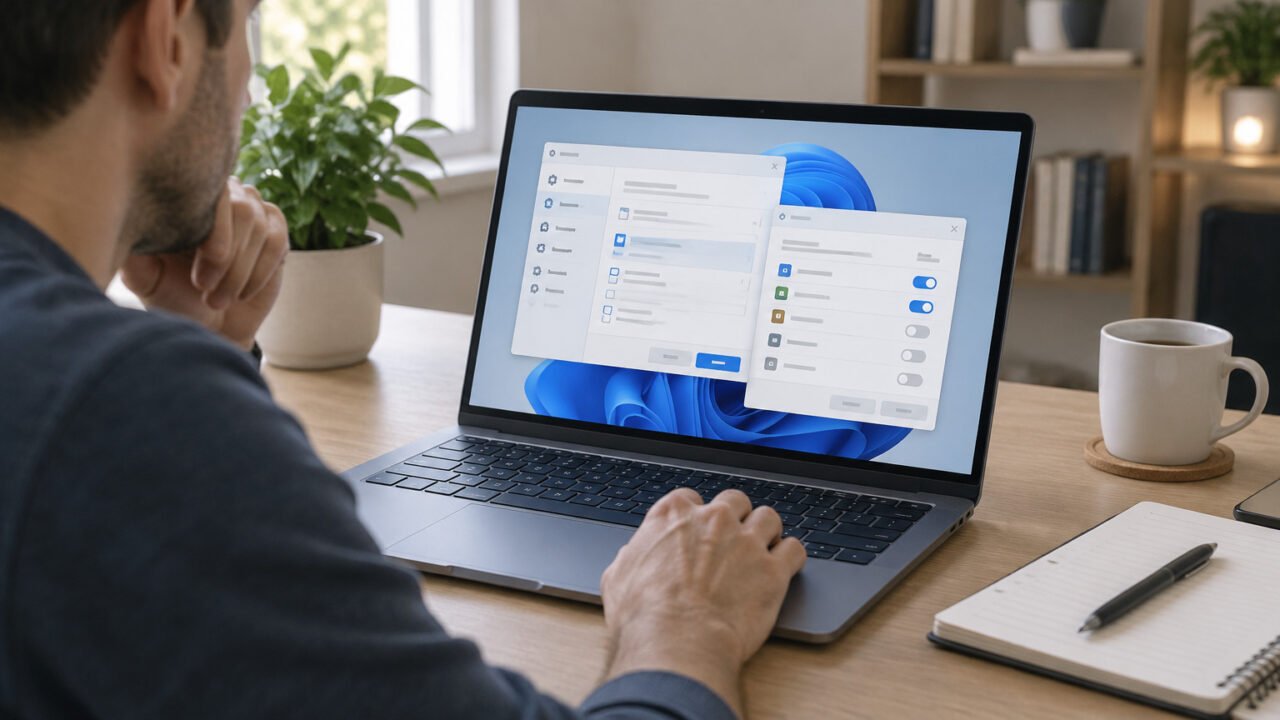
From Settings > System > Storage, select Storage Sense and switch it on. Storage Sense can run when disk space is low and remove unnecessary temporary files. Its scheduling and cleanup choices are on the same page, so treat the page as a policy you should read rather than a one-time switch.
For a cautious setup, retain the temporary-file cleanup option, then make two deliberate decisions. First, set Downloads cleanup to Never, or leave it unconfigured, unless you routinely treat Downloads as a temporary inbox. Second, choose a Recycle Bin interval that fits your recovery habit. A shorter interval recovers space sooner; a longer one leaves more time to restore something deleted by mistake.
- Downloads: use Never if installers, receipts, work files, or other material may remain there.
- Recycle Bin: choose a period only after considering how often you need to recover deleted files.
- Temporary files: generally the lowest-risk automatic cleanup category, but close apps and save work before manual cleanup.
Understand the OneDrive option before using it
The cloud-content setting does not permanently delete an inactive OneDrive file from your OneDrive account. Instead, Storage Sense can make an eligible local file online-only after the inactivity period you select. Its local copy is removed, freeing disk space, while the file remains visible in File Explorer. Opening it later normally requires an internet connection so OneDrive can download it again.
This is useful on a space-constrained laptop, but it is the setting most likely to surprise people who travel or work offline. Files marked Always keep on this device are exempt from this Storage Sense behavior. In File Explorer, right-click an important OneDrive folder or file and select that option before enabling an automatic cloud-content interval. Conversely, use Free up space deliberately on files you are comfortable keeping online-only.
The cloud-content control appears only when the relevant cloud account is signed in, so its wording and availability may differ between PCs. Microsoft notes that Storage Sense applies to the system drive and that it needs the user to be signed in and online for more than 10 minutes to run. Its official Storage Sense guide also confirms that Downloads and cloud content are not managed unless you configure those options.
Run it once manually before relying on its schedule
After reviewing the settings, use the Storage Sense page’s Run Storage Sense now action. A manual run is a sensible way to apply the choices you just made without waiting for the schedule or for low-space conditions. It is not a full audit of every folder and it will not automatically clean other internal, external, or network drives as though they were the Windows system drive.
Use a different tool when you want category-by-category control. Return to Settings > System > Storage and choose Temporary files or Cleanup recommendations. These screens let you review selections before removing them, which is often preferable after a major update or when space suddenly disappears.
A practical example of the tradeoff
Illustrative example: A laptop has a small C: drive and OneDrive is syncing several project folders. The owner needs local access to the current project while travelling, but old reference material can be fetched when connected. They can mark the current project folder as Always keep on this device, leave Downloads set to Never, and select a cloud-content inactivity period for the older material. That recovers local capacity without making the active project unexpectedly unavailable offline.
The reverse setup is appropriate for someone who keeps important files in Downloads or works without reliable internet: keep both Downloads cleanup and cloud-content off, then reclaim space manually from clearly identified temporary files and unused apps.
Avoid the common Storage Sense surprises
| What you expect | What to check instead |
|---|---|
| Downloads will always stay put | Confirm that the Downloads cleanup interval is set to Never or has not been enabled. |
| OneDrive files will stay available offline | Mark essential files or folders as Always keep on this device before using the cloud-content option. |
| Every drive will be cleaned | Storage Sense focuses on the Windows system drive. Review other drives separately. |
| A scheduled task will run immediately | Storage Sense needs the appropriate sign-in and online conditions; use Run Storage Sense now when you want a reviewed cleanup now. |
| Cleanup recommendations are automatically safe | Read each proposed category and selection. Recommendations vary by device and may include files or apps you still need. |
Use a small maintenance routine
- When free space is low, inspect Storage categories and Cleanup recommendations first.
- Review Downloads and the Recycle Bin before any automated retention period can affect them.
- After a major Windows update, inspect Temporary files and Cleanup recommendations rather than assuming Storage Sense found every removable item.
- Keep a separate backup of files that matter before deleting large categories or changing cloud-file availability.
- Revisit the Storage Sense settings if your work pattern changes, such as more travel, less reliable connectivity, or a new OneDrive folder layout.
Storage Sense is best viewed as routine maintenance, not backup, archival storage, or a replacement for reviewing your files. Its safest role is automatic temporary-file cleanup combined with intentional choices for Downloads, the Recycle Bin, and offline OneDrive access.