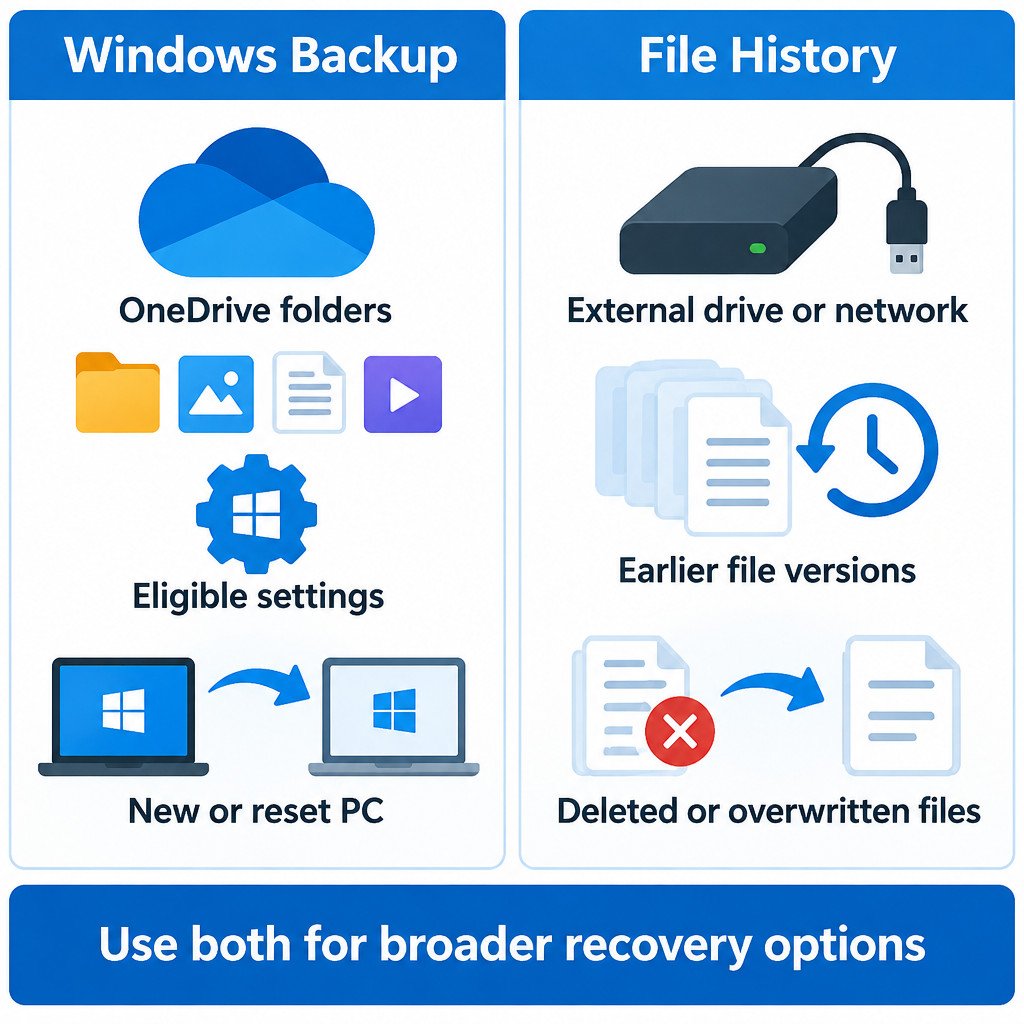
Windows Backup and File History are complementary tools, not alternatives. Windows Backup uses OneDrive to protect selected user folders and preserve eligible Windows settings for a new or reset PC. File History keeps repeated versions of files on an external drive or network location, which is particularly useful when you need an earlier copy of a document that was changed or deleted.
A practical approach is to enable both: use Windows Backup for cloud-synced folders and PC preferences, then use File History for local version history on a separate device. Neither feature is a full system-image backup, and neither can recover a file that was never included or never copied successfully.
The short decision guide
| Need | Best first option | Why |
|---|---|---|
| Move selected files and preferences to a new PC | Windows Backup | It backs up selected folders through OneDrive and can retain eligible settings and app preferences. |
| Recover an earlier draft after unwanted edits | File History | It stores successive versions of included files. |
| Recover a locally deleted included file | File History | You can browse and restore a prior copy from the backup location. |
| Access cloud-synced Desktop, Documents, or Pictures after losing a PC | OneDrive through Windows Backup | The files are stored in the signed-in OneDrive account, subject to successful sync and available storage. |
What Windows Backup protects
Windows Backup is designed around a personal Microsoft account and OneDrive. In Windows 11, it can back up selected Desktop, Documents, Pictures, Videos, and Music folders to OneDrive. It can also remember eligible settings, including personalization, language and accessibility preferences, Wi-Fi information, and an app list and preferences. Microsoft describes the available options and restoration flow in its Windows Backup documentation.
The important limitation is that folder protection is cloud sync, not an independent offline archive. If OneDrive is not signed in, has insufficient storage, or is not finishing sync, the files are not fully protected there. Windows Backup is also primarily intended for consumer devices using a personal Microsoft account.
What File History protects
File History periodically saves versions of personal files to an external drive or a network location. Its strength is versioning: instead of only keeping the current file, it can retain older copies made before an accidental overwrite or deletion.
Its scope matters. File History covers files in Windows libraries. A working folder stored elsewhere is not protected merely because it is on the PC; add that folder to a library first if you want File History to include it. Microsoft’s File History guide documents this library-based behavior and the restore options.
Set up Windows Backup first
- Open Settings, then go to Accounts and Windows backup. You can also open the Windows Backup app from Start.
- Sign in with the personal Microsoft account you intend to use for recovery.
- Review which folders are selected for OneDrive folder backup. Do not assume every folder on the PC is included.
- Review the settings backup choices, such as preferences and Wi-Fi information.
- Confirm OneDrive has enough storage and allow syncing to finish. Check the OneDrive status rather than treating setup as proof that every file has uploaded.
This setup is most valuable before replacing a PC. During setup on a compatible new or reset Windows device, sign in with the same Microsoft account and choose the offered backup when appropriate. Treat this as a way to bring back supported folders and preferences, not a promise that every installed desktop program, local configuration file, or device driver will return exactly as before.
Add File History on a separate drive
- Connect an external drive with sufficient free space, or make a network location available.
- Open Control Panel.
- Go to System and Security and select Save backup copies of your files with File History.
- Select the drive or network location, then turn File History on.
- Review the included libraries. If a needed folder sits outside the libraries, add it to an appropriate library before relying on File History.
- Leave the drive connected regularly so File History can make new versions.
Choose a destination that is separate from the PC’s internal drive. An external drive will not help if it is never connected, and a permanently connected drive may still be exposed to hardware failure, theft, or malware affecting the PC. For irreplaceable records, keep an additional copy that is offline or otherwise separate.
Restore the right way for the problem
Start by identifying whether you need the latest cloud-synced copy or an older local version. For example, if a laptop is lost, signing in to OneDrive on another device may be the direct route to Windows Backup-protected folders. If a report was edited badly yesterday, File History is usually the better place to look because it may hold an earlier revision.
| Situation | Recovery path | Caution |
|---|---|---|
| A PC is replaced or reset | Use the same Microsoft account and select the available Windows Backup during setup. | Expect supported folders and eligible preferences, not a complete clone of the old PC. |
| A file was overwritten | Open File History, browse to the file, and select a version from before the change. | Preview it where possible before restoring. |
| A file was deleted locally | Browse File History for the containing folder and select a version that includes the file. | It must have been in File History’s scope before deletion. |
| The current file must be preserved | Use Restore to and choose a different folder. | This avoids immediately replacing the current item. |
For cautious File History recovery, restore to a separate location first. Open the recovered item and confirm it is the right version. Only then replace the current file if that is truly what you want. A standard Restore can replace the current item, and that replacement cannot be undone through File History.
Illustrative recovery example
Suppose a spreadsheet in Documents was correct on Monday, then saved with incorrect formulas on Tuesday. If OneDrive has synchronized the Tuesday copy, its current cloud version may be the incorrect one. If File History ran after Monday and included Documents, browsing File History may reveal the Monday version. Restore that version to a folder such as Recovered Files, check the formulas, then decide whether to replace the damaged workbook.
Maintenance checklist
- Check that the folders containing active work are actually covered by OneDrive folder backup, File History, or both.
- Keep the File History drive connected often enough for the amount of change in your files.
- Watch OneDrive sync and storage status, especially before retiring or resetting a PC.
- After setup, test one non-critical File History restore to a separate folder.
- Keep another independent copy of irreplaceable files. A backup stored in only one place still has a single point of failure.
- Before deleting an old device, confirm important files open from the backup destination or the replacement PC.
Common mistakes to avoid
Do not confuse synchronization with versioned backup. Sync is excellent for making the current files available across devices, but a bad change can also sync. File History provides a separate history only for included files and only after it has had a chance to run.
Do not assume File History captures every folder on a drive. Its library scope is deliberate, so add project folders outside those libraries before a problem occurs. Also, do not use either feature as a substitute for a complete system-image strategy if your goal is to recreate an entire Windows installation, applications, drivers, and all disk contents.
The useful distinction is simple: Windows Backup helps restore supported cloud-backed folders and preferences when you change or recover a PC; File History helps retrieve earlier copies of personal files from a separate location. Set up the first for continuity, the second for version recovery, and verify both before you need them.