If one application repeatedly closes, freezes, or fails when it starts, do not begin by deleting DLL files, changing the registry, or resetting Windows. First, collect a small, time-matched record of the failure. Reliability Monitor can help you spot the pattern, while Event Viewer can provide the executable name, faulting module, exception code, and report details associated with that particular crash.
This approach is for a single misbehaving app on an otherwise usable Windows 11 PC. A whole-PC freeze, unexpected restart, blue screen, boot failure, or suspected hardware fault needs a different diagnostic path.
Start with a short incident note
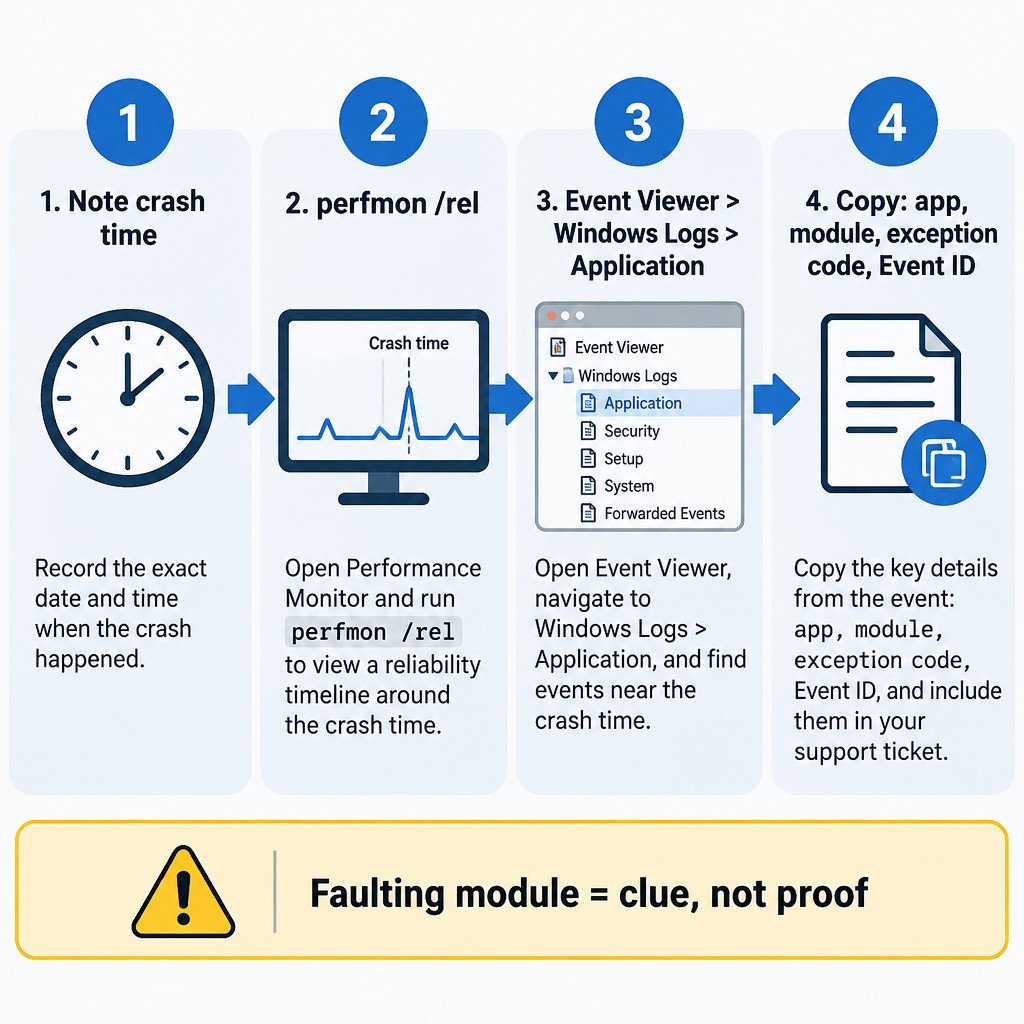
Before opening any diagnostic tool, reproduce the issue only if doing so is safe and will not risk unsaved work. Then write down the exact or approximate time. A timestamp is the link between a visible crash and a log entry.
- Application name and, if known, its version
- What happened: closed, froze, failed at launch, or stopped responding
- What you did immediately before it failed
- The date and time of the failure
- Whether it happens every time or only with a particular file, account, device, add-in, or task
- Recent changes since it last worked, such as an app update, Windows update, new plug-in, overlay, or security software change
For example, an illustrative note might read: “Contoso Editor 4.2 closed at about 10:14 AM when exporting one project. It opened normally yesterday. A new export plug-in was enabled this morning.” That is much more actionable than “the app keeps crashing.”
Use Reliability Monitor to find the right moment
Press Windows+R, type perfmon /rel, and press Enter. Microsoft documents this command as a way to start Reliability Monitor on Windows 11. See the perfmon command reference.
Select the day containing the failure, then inspect entries around the time in your incident note. Reliability records are built from Windows Event Log information, including an event identifier, message, log file, and generation time. That makes the monitor useful for correlating events, rather than proving why an app failed. Microsoft’s reliability-record documentation describes the underlying record fields.
Look for an entry that names the affected application or indicates an application failure. Open its details if available, but treat this as your pointer to the event time. Record the time shown and move on to Event Viewer for the fuller error record.
Confirm the crash in Event Viewer
Press Windows+R, type eventvwr.msc, and press Enter. In the left pane, open Windows Logs and select Application. Sort by date and time if needed, then inspect events close to the Reliability Monitor timestamp.
A repeating application crash commonly produces an Application Error event with Event ID 1000. A nearby Windows Error Reporting event with Event ID 1001 may also be present. Microsoft identifies Event ID 1000 as the application-crash event and documents the associated faulting-app, faulting-module, exception-code, path, and report information. Microsoft’s application-crash troubleshooting guidance.
Do not assume every red error at the same minute belongs to your issue. Match the application name and the time first. If an event is several hours away from the observed failure, it is usually poor evidence for this investigation.
Fields worth recording
Open the relevant event and copy the following details into a text file or support ticket. The General tab is often sufficient.
| Field | Why it is useful |
|---|---|
| Faulting application name and path | Confirms the executable that crashed and distinguishes similarly named apps or helper processes. |
| Faulting module name and path | Shows where Windows reported the failure. It can help a vendor investigate, but it does not prove that module caused the underlying problem. |
| Exception code | Classifies the reported exception and gives support staff a precise value to compare across incidents. |
| Event ID and source | Lets another person locate the same kind of event quickly. |
| Report ID, if present | Useful when a vendor or IT team asks for the Windows Error Reporting record. |
| Timestamp | Connects the event to your reproduction steps and any concurrent change. |
Keep the raw wording. A support request is stronger with “Event ID 1000 at 10:14:32; faulting application: ContosoEditor.exe; exception code: [value shown]” than with a screenshot of a red X alone.
Interpret the evidence carefully
The faulting module is a clue, not a verdict. If the event names a Windows component such as kernelbase.dll, that can mean Windows recorded the exception there; it does not establish that the file is damaged or should be replaced. Likewise, a third-party DLL may be involved without being the original trigger.
Look for repeatability instead. Three crashes of the same executable, during the same action, with the same exception code and module are more meaningful than one isolated event. Conversely, changing module names and exception codes can suggest that the incidents are not one simple problem.
Choose the least disruptive next step
Use the incident note and matched event to choose a narrow action. Avoid making several major changes at once, because that removes your ability to tell what helped.
- Update Windows and the affected app. Install the app update from its official publisher and restart if either updater requests it. This is a sensible first step when the crash began after an older app build met a newer environment.
- Remove the likely trigger. If the crash occurs only when a particular add-in, plug-in, overlay, template, file, or hardware accessory is active, disable it temporarily and test again.
- Use the app’s repair option. If the program offers Repair in its own installer or Windows app settings, use that before a full removal when practical.
- Reinstall the affected app. Back up its local data, settings, project files, or license information first. Reinstall only the problem application, not Windows.
- Test for a third-party conflict. If the failure disappears when overlays, extensions, endpoint tools, or background utilities are absent, a clean boot can isolate the conflict. Follow the site’s existing clean-boot tutorial rather than disabling services at random.
Escalate with evidence, not guesses
If the app is business-critical, keeps crashing after an update or repair, or fails on a managed work device, send the evidence to the software vendor or your IT team. Include the app version, Windows version, exact time of the crash, what triggers it, whether it is reproducible, and the copied Event ID 1000 or 1001 details. Remove passwords, document contents, customer data, and other sensitive material before sharing logs or screenshots.
Advanced traces and crash dumps can be appropriate when a vendor or IT administrator requests them. Microsoft also uses event-log inspection before deeper tracing in its guidance for application start failures. Read Microsoft’s Process Monitor escalation example. For most users, however, collecting a dump without instructions adds complexity and can capture sensitive information.
What this workflow cannot tell you
Reliability Monitor and Event Viewer report symptoms and timing. They do not automatically identify the root cause, and they do not make a named DLL safe to delete, replace, or unregister. Do not change registry keys, download replacement system files, or use registry cleaners solely because a crash record names a module.
If several unrelated apps crash, Windows itself is unstable, the PC blue-screens, or the system restarts unexpectedly, broaden the investigation beyond one application. In the narrower case of one repeating app crash, a matched timeline and Application log event give you a reliable starting point for a proportionate fix or a useful escalation.
Sources
- Microsoft Learn: perfmon command reference
- Microsoft Learn: Windows reliability records documentation
- Microsoft Learn: application and service crashing behavior troubleshooting
- Microsoft Learn: troubleshooting app start failures with Process Monitor