If one Steam game will not launch, begin with reversible checks: restart Windows, close any stuck game process, verify the installed files, and compare the game’s requirements with your PC. Do not reinstall Windows, disable security software, or change advanced settings until you know whether the failure affects one game, Steam generally, or the whole PC.
Identify the launch symptom and its scope
The symptom narrows the likely cause. A game that remains on “Preparing to Launch” has a different starting point from one that opens briefly and closes. Before changing anything, try one other installed Steam game. That single comparison is useful evidence rather than a fix.
| What you see | What it can suggest | Start here |
|---|---|---|
| The game never opens or stays on “Preparing to Launch” | A hung previous process, damaged files, or an interfering background program | Restart, check Task Manager, then verify files |
| A window appears and immediately closes | Files, driver issues, unsupported configuration, or a software conflict | Verify files, check requirements, update Windows and graphics drivers |
| A missing executable or content error appears | Missing, quarantined, or incomplete game content | Verify files and review security-software history |
| Several Steam games fail | A Steam-wide, Windows, driver, storage, or hardware issue | Focus on Windows, drivers, storage space, and common background tools |
Make a safe baseline before troubleshooting
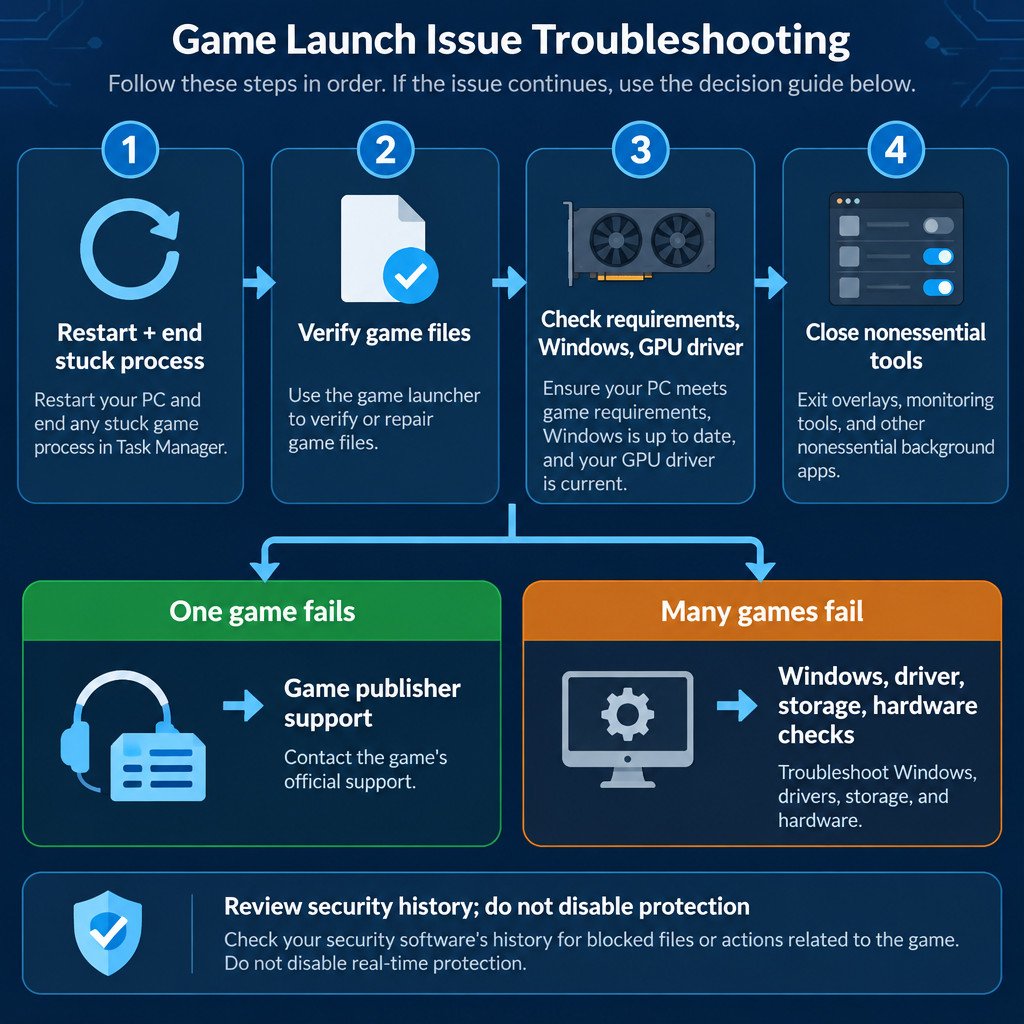
- Restart Windows rather than only closing the game window.
- Open Steam again and wait for any pending client update to finish.
- Press Ctrl + Shift + Esc to open Task Manager. If the game or its launcher is still listed after a failed attempt, select it and choose End task.
- Launch the game once more with no other changes.
This clears a process that may still hold game files or resources after a crash. If the game launches after this step, do not assume the underlying cause is solved; note what happened and watch for a repeat.
Verify the installed game files
In Steam, open Library, right-click the affected game, select Properties, choose Installed Files, then select Verify integrity of game files. Steam compares local content with the expected files and downloads replacements where needed. The check may take several minutes; Steam notes that a small number of files can fail verification normally because local configuration files are retained. Steam’s verification guidance also makes clear that this step can help with missing content and crashes, but it cannot repair every kind of launch problem.
Test the game immediately afterward. If it still fails in exactly the same way, avoid repeatedly verifying it. Move on to the checks that verification cannot address.
Check compatibility, free space, Windows, and graphics drivers
Open the game’s Steam store page and compare its minimum requirements with the PC you are using. Check the operating system, processor, memory, graphics hardware, graphics API requirements if listed, and available storage. A valid game installation is not proof that the PC meets those requirements. File verification cannot make unsupported hardware or an unsupported operating system compatible.
Next, install pending Windows updates and restart when prompted. Then update the graphics driver through Windows Update or the GPU manufacturer’s official support site. Microsoft recommends Windows Update as the normal source for driver updates and advises using the hardware manufacturer’s official site when manually obtaining a driver. Microsoft’s driver update instructions also cover updating or reinstalling a device driver through Device Manager.
Driver rollback is a narrow troubleshooting step, not routine maintenance. Consider it only when the game worked before and the failure began directly after a graphics-driver update. In Device Manager, open the display adapter’s properties and look for Roll Back Driver. If that option is unavailable, do not force the issue by downloading drivers from unofficial archives.
Temporarily remove common sources of interference
Some games start a launcher, anti-cheat service, or overlay alongside the main executable. Other software can conflict with that chain. Fully exit nonessential tools, then test again. Closing a window is not always enough; use the app’s exit command or Task Manager if necessary.
- Game overlays, screen recorders, performance monitors, and RGB or peripheral utilities
- VPN clients and network-routing tools
- Bandwidth-heavy downloads, peer-to-peer tools, or cloud sync jobs competing for disk or network access
- Mods, injectors, or unofficial launch options added for the affected game
For antivirus or endpoint security software, review its quarantine and protection history first. If it has blocked a file, verify the game files again and confirm that the installation came from the legitimate Steam library before considering a narrowly scoped exclusion. Do not leave antivirus or firewall protection turned off as a troubleshooting method.
Steam’s own Windows guidance lists Windows and driver updates, file verification, nonessential software, and system requirements among the areas to check after a game fails to run after “Preparing to Launch.” It also notes that launch failures can have multiple causes. Read the Steam Support checklist when the basic sequence does not resolve the issue.
Use a clean boot only to isolate a suspected conflict
A clean boot starts Windows with a reduced set of startup apps and services. It is appropriate when the game has passed the basic checks and a background conflict is plausible, particularly if it launches only after you close certain utilities. It is not a first-line fix, and it does not prove that any particular application is at fault.
Follow Microsoft’s clean boot procedure with an administrator account. If the game works in the clean-boot state, re-enable startup items and services in groups, testing between changes. When the failure returns, narrow the last group down one item at a time. Restore normal startup when testing is finished; a clean boot can temporarily remove useful functionality.
Avoid broad fixes that erase useful evidence
Reinstalling the game can be reasonable after file verification fails to resolve a suspected installation problem, but it is rarely the best first move. It consumes time and bandwidth and may preserve the same driver, compatibility, account, or background-software issue. Back up local saves first if the game does not use reliable cloud synchronization.
Similarly, avoid changing many variables at once. If you update Windows, update a driver, disable overlays, and reinstall the game in one session, you will not know which action mattered. Change one category, test, and record the result.
Know where to escalate
A persistent failure limited to one title is usually best escalated to that game’s publisher or developer support, especially when the title uses a separate launcher, account link, anti-cheat component, or known platform-specific requirement. Failures across several Steam games point more strongly to a shared layer such as Steam, Windows, graphics drivers, storage, hardware, or a resident background tool.
Prepare a useful support report
- The exact game title and the exact error message, if any
- Whether the game never opens, closes immediately, or remains on “Preparing to Launch”
- When the problem started and what changed shortly beforehand
- Your Windows version, graphics card model, and graphics-driver version
- Whether other Steam games launch successfully
- The steps already attempted and the result of each one
- A screenshot of the error or relevant launcher message, with account details obscured
This evidence helps support distinguish a single-game issue from a system-wide one. It also prevents the common loop of repeating the same basic steps without learning anything new from the result.