
A Windows battery report is a useful starting point when a laptop runs down sooner than it used to, shuts down unexpectedly, or shows implausible time remaining. Its most useful health signal is the relationship between Full charge capacity and Design capacity. It cannot, by itself, prove that the battery needs replacement: workload, brightness, background activity, sleep behavior, firmware, and Windows power settings can all shorten a charge.
This guide applies to Windows laptops and tablets with a detectable battery. A desktop PC normally has no meaningful battery data to report. Save open work first, then open Command Prompt as administrator. Microsoft documents the built-in powercfg /batteryreport command and the HTML report it creates: https://support.microsoft.com/en-us/windows/experience/power-battery/caring-for-your-battery-in-windows.
Create the battery report
Enter this command, then press Enter:
powercfg /batteryreport /output "%USERPROFILE%\Desktop\battery-report.html"
Windows should confirm the saved path. Open battery-report.html from your desktop in any browser. The /output option simply chooses where the report is written; Microsoft lists it in the Powercfg command reference: https://learn.microsoft.com/en-us/windows-hardware/design/device-experiences/powercfg-command-line-options.
Start with the Installed batteries section. It gives the nominal Design capacity, the currently reported Full charge capacity, and sometimes Cycle count. A missing cycle count does not automatically indicate a fault; not every device exposes that value to Windows.
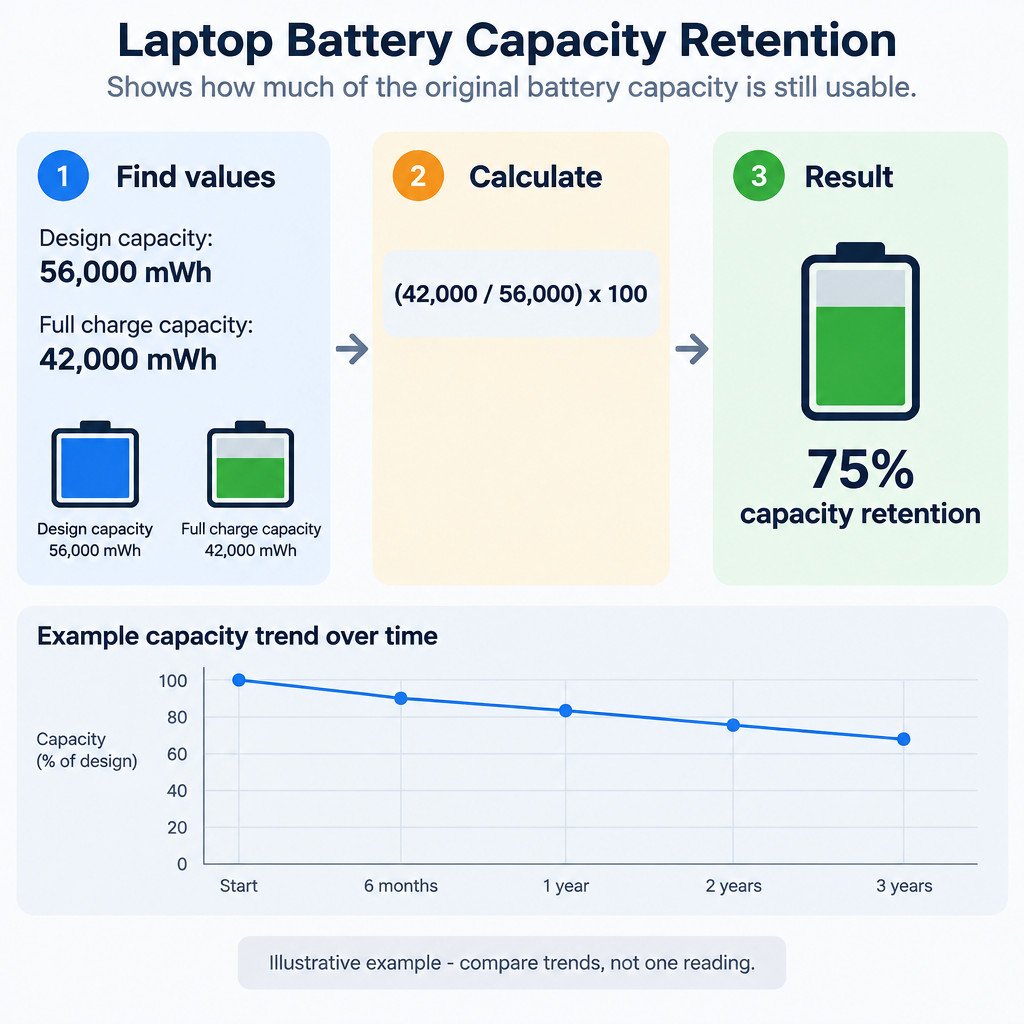
Calculate capacity retention, then look for a trend
Use this calculation to express the reported full-charge capacity as a percentage of the original design figure:
Capacity retention (%) = (Full charge capacity / Design capacity) x 100
Both capacity values should use the same unit, usually mWh. For an illustrative example, a report showing 42,000 mWh full-charge capacity and 56,000 mWh design capacity gives (42,000 / 56,000) x 100 = 75% capacity retention.
That percentage is a comparison tool, not a universal pass-or-fail rule. A battery at 75% may still be adequate for a short commute, while the same result may be disruptive for a person who needs a full day away from power. Compare new reports with older ones under broadly similar conditions. A steady decline over months is more meaningful than a single surprising result.
Read the sections that explain real-world drain
| Report section | What it can tell you | What it cannot prove |
|---|---|---|
| Recent usage | Whether the battery fell quickly during particular sessions and whether the device was active or suspended. | Which app, component, or setting caused the drain. |
| Battery usage | How much charge was used across recent intervals. | Whether that use was abnormal without knowing the workload. |
| Usage history | Patterns in time on battery versus time on AC power. | The battery’s physical condition on its own. |
| Battery capacity history | How Windows-reported full-charge capacity has changed over time. | That a one-day change represents permanent wear. |
| Battery life estimates | Windows’ estimate based on observed usage history. | A guaranteed runtime for your next session. |
Recent usage and Battery usage are good places to investigate a sudden drop. For example, a steep fall during an active video call may be expected, while repeated loss during an apparently idle overnight period deserves a closer look. Treat these entries as symptoms. They point to when to investigate, not necessarily why the battery drained.
Battery capacity history is usually the better wear indicator because it provides multiple measurements. Do not overinterpret a sudden one-day shift. Battery-state reporting, firmware changes, calibration behavior, and changing conditions can affect a reported value. Microsoft also notes, in its Modern Standby documentation, that capacity ratios can occasionally exceed 100% as battery chemistry and reporting change: https://learn.microsoft.com/en-us/windows-hardware/design/device-experiences/modern-standby-sleepstudy.
Finally, read Battery life estimates as historical estimates, not forecasts. A lighter task, lower screen brightness, different power mode, or a different sleep pattern can materially change runtime. Test your own runtime by using a similar workload and brightness level on several charges, then compare the results rather than relying on one estimate.
Choose the next troubleshooting step
- Capacity is fairly stable, but runtime recently worsened: Check power mode, screen brightness, startup and background apps, Windows updates, and manufacturer driver or firmware updates.
- Battery loss happens mostly while the laptop is asleep: On supported Modern Standby systems, run
powercfg /sleepstudyto create a separate HTML sleep report. SleepStudy is a focused sleep diagnostic, not a replacement for the battery report. - Capacity history declines steadily and the device no longer meets your needs: Use the trend and repeatable runtime tests to decide whether battery service is worthwhile.
- Charging fails, the computer shuts down abruptly, or the battery is swollen: Stop treating this as a settings problem. Do not puncture, bend, or compress a swollen battery; contact the device maker or a qualified repair provider.
For a sleep-related complaint, use SleepStudy only when it applies to your hardware. Microsoft describes it as a Modern Standby report and documents its output and options in the Powercfg reference: https://learn.microsoft.com/en-us/windows-hardware/design/device-experiences/powercfg-command-line-options.
A practical decision checklist
- Generate and save the report.
- Calculate capacity retention from the two Installed batteries values.
- Compare Battery capacity history rather than judging one reading.
- Reproduce runtime under similar brightness, workload, and power-mode conditions.
- Investigate sleep separately if the drain occurs while the lid is closed.
- Arrange service promptly for swelling, charging faults, or repeated abrupt shutdowns.
The report is most valuable when it turns a vague feeling that the battery is “bad” into a specific question: is capacity declining over time, is a particular use pattern draining power, or is the issue concentrated during sleep? That distinction helps avoid replacing a battery when a settings issue is responsible, while also avoiding prolonged troubleshooting when a failing battery needs attention.