Nearby Sharing is a quick way to send a file, photo, or web link from one nearby Windows 11 PC to another. It is useful for a one-off transfer when both computers are in the same place. It is not a replacement for a shared network folder, cloud collaboration, or sending files to someone who is elsewhere.
The feature uses Bluetooth for discovery and can use Wi-Fi for the transfer. Both PCs need Windows 11, Bluetooth 4.0 or later with Low Energy support, and Bluetooth and Wi-Fi turned on. An organization can also disable the feature through its device-management policies.
Set up Nearby Sharing on both PCs
Do these steps on the sending PC and the receiving PC before attempting the transfer:
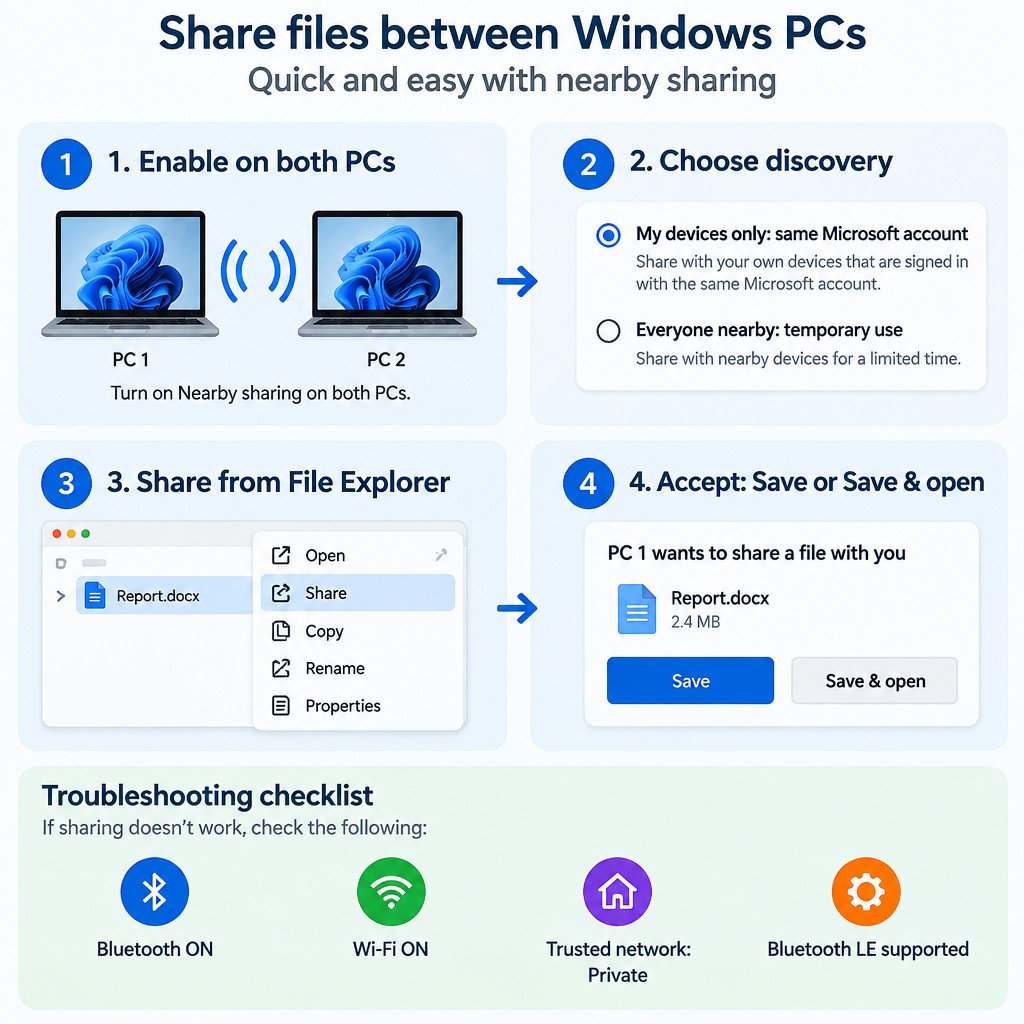
- Open Settings > System > Nearby sharing.
- Choose My devices only if both PCs are signed in with the same Microsoft account.
- Choose Everyone nearby only when you need to send to a different person’s PC nearby.
- On the receiving PC, optionally use the received-files setting to choose where accepted files will be saved.
For an ordinary personal transfer between your own machines, My devices only is the narrower choice. If you select Everyone nearby, Nearby Sharing makes your PC name and Bluetooth MAC address available to nearby devices for discovery. Turn it back off when the ad-hoc transfer is complete, especially in a busy or unfamiliar location. Microsoft documents the setup, sharing choices, and received-files location in its Nearby Sharing guide.
Send a file and accept it
On the sending PC, open File Explorer, select the file, then choose Share. Select the recipient PC from the Nearby Sharing list. A notification appears on the receiving PC; choose Save or Save & open.
The same idea works for a web page: use the browser’s Share command and choose the nearby PC when Windows offers that option. The receiving computer gets a prompt to open the link.
If the other PC does not appear, check these items in order
Do not start by reinstalling software or resetting networking. A missing device is usually a discovery, account-selection, network-profile, or Bluetooth-compatibility issue. Work through the checks below, then try the share again after each meaningful change.
- Confirm Nearby Sharing is on at both ends. Go to Settings > System > Nearby sharing on each PC. A sender using My devices only will not find a PC signed in with a different Microsoft account; use Everyone nearby temporarily if that is the intended recipient.
- Turn on Bluetooth and Wi-Fi on both PCs. Bluetooth is needed for discovery, so an Ethernet-connected PC still needs working Bluetooth for this feature. Airplane mode must be off.
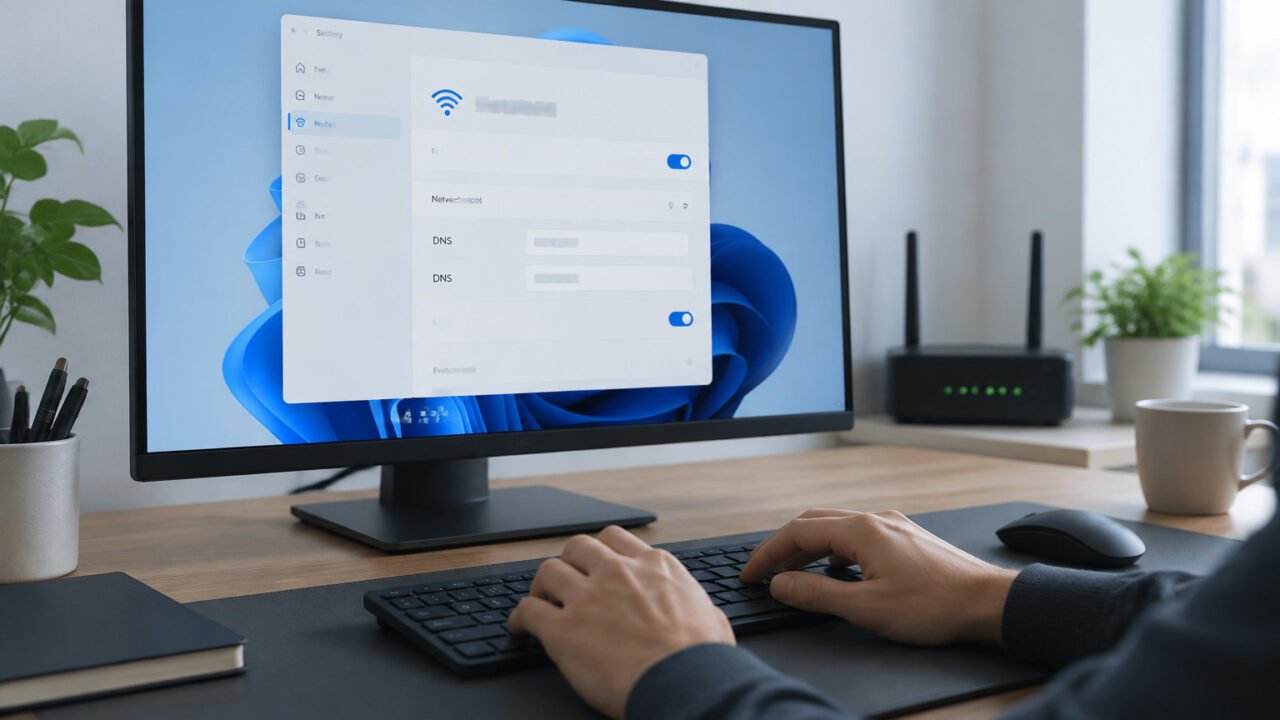
- Check the network profile. Microsoft’s current Nearby Sharing troubleshooting guidance says the connected network should use the Private profile. Go to Settings > Network & internet, select the active Wi-Fi or Ethernet connection, then select Private only if it is a network you trust.
- Verify Bluetooth Low Energy support. Open Device Manager, expand Bluetooth, open the Bluetooth adapter’s properties, and look on the Details tab for the Bluetooth radio information described in Microsoft’s troubleshooting instructions. The relevant capability is Bluetooth LE Central Role support.
- Restart the Bluetooth layer. Toggle Bluetooth off and on, then restart both PCs. This can clear a stalled discovery state without changing files or settings.
- Update the Bluetooth driver and Windows. Use Windows Update first. If the PC maker supplies a current Bluetooth driver for that exact model, use that rather than a driver intended for different hardware.
- Use the Windows Bluetooth troubleshooter. In Windows 11, open Get Help and run the Bluetooth troubleshooter if Bluetooth itself is unreliable or the adapter is not behaving normally.
The Private-profile step is a diagnostic requirement, not a reason to trust a hotel, airport, or other public hotspot. Windows uses Public and Private profiles to control discoverability; a Public network keeps the PC hidden from other devices. Microsoft explains those profile differences and the setting path in its network settings documentation.
Check Bluetooth LE support before spending more time
Nearby Sharing requires Bluetooth 4.0 or later with Low Energy support. This is a hardware capability, so changing sharing settings cannot make an incompatible adapter work. In Device Manager, inspect the Bluetooth adapter rather than assuming that the presence of a Bluetooth on/off switch proves compatibility.
If the adapter is compatible but the recipient still does not appear, treat this as a Bluetooth-layer problem: restart the PCs, apply Windows and driver updates, and run the Bluetooth troubleshooter. You do not need to manually pair the two PCs as standard Bluetooth accessories for Nearby Sharing to work. Microsoft’s Nearby Sharing troubleshooting guidance covers the Windows version, Bluetooth LE, Wi-Fi, network-profile, and driver checks.
Choose the tool that matches the task
| Need | Better fit |
|---|---|
| Send one file to a nearby Windows PC | Nearby Sharing |
| Give another person ongoing access to a folder | A properly configured network share or collaboration service |
| Send files to a person in another location | Cloud storage, email, or an approved transfer service |
| Move a large collection of files between your own PCs | A network share, external storage, or a planned migration method |
Nearby Sharing is intentionally narrow: it reduces the setup needed for a nearby exchange, but it does not create persistent folder access or provide a remote transfer channel.
A quick pre-send checklist
- Both computers are running Windows 11.
- Nearby Sharing is enabled on both PCs.
- The discovery choice matches the accounts involved: My devices only for the same Microsoft account, or Everyone nearby for a different nearby recipient.
- Bluetooth and Wi-Fi are turned on at both ends.
- The active network is set to Private only when it is a network you trust.
- The Bluetooth adapter supports Bluetooth Low Energy.
- The receiving PC is awake and someone can accept the prompt.
If those conditions are met, select the file in File Explorer, choose Share, select the nearby PC, and wait for the recipient to accept. Once the transfer is finished, consider returning discovery to No one or My devices only if you had temporarily enabled Everyone nearby.