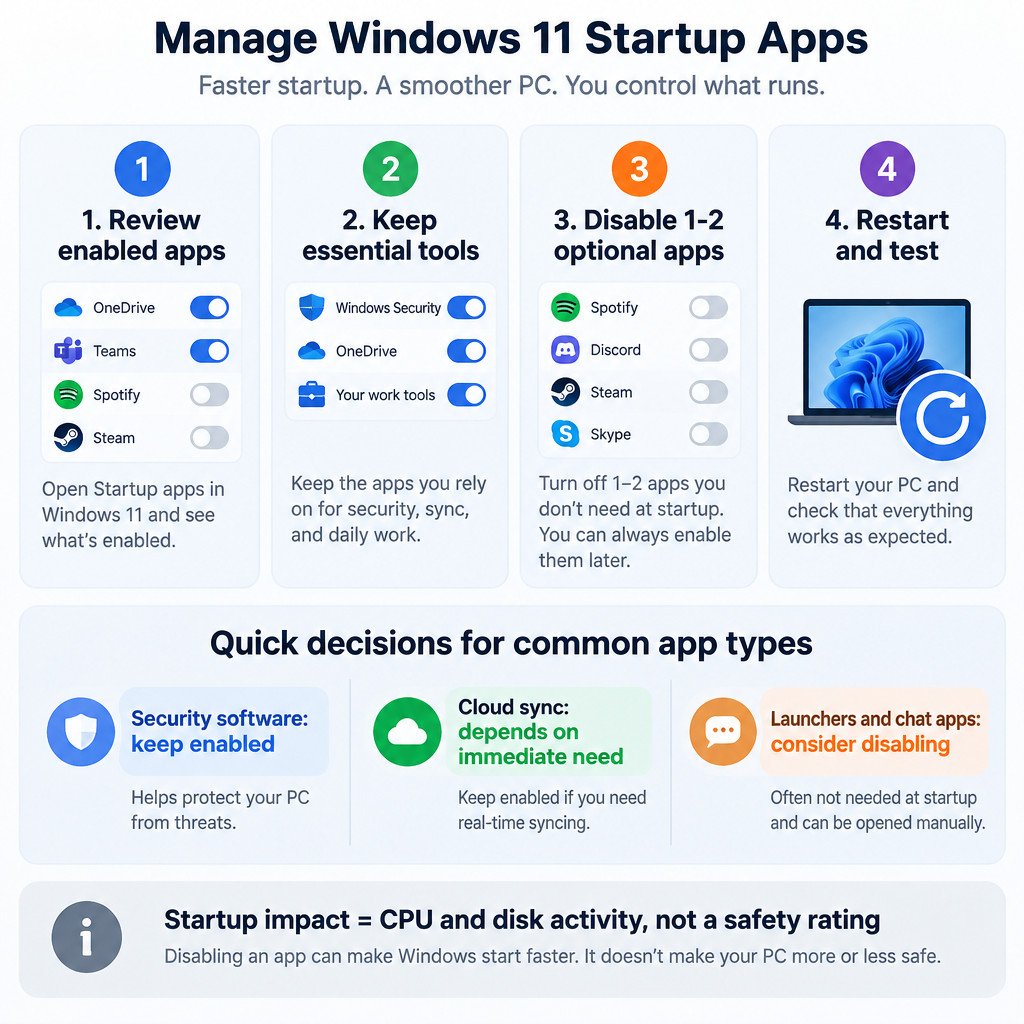
If Windows feels sluggish just after you sign in, reducing unnecessary startup apps is a sensible first step. Disable only apps you do not need immediately, change one or two at a time, then restart and assess the result. Disabling a startup entry does not uninstall the app or stop you opening it later.
Startup apps are programs configured to launch after you sign in. They can consume processor time, storage activity, memory, and network bandwidth while you are trying to begin work. They are only one possible cause of poor performance, however. A slow PC can also be affected by limited free storage, outdated software, malware, or aging hardware.
Make a short inventory before changing anything
Save open work first. Then take a screenshot or write down the enabled entries and their publishers. That gives you an easy way to reverse a change and prevents guesswork later.
Treat the list as a set of application launch preferences, not a cleanup list. A familiar name can still support a service you rely on, while an unfamiliar name may be a device utility or part of installed security software. Do not disable an entry simply because its name is unclear.
This guide applies to apps that start after sign-in. It is not a fix for a PC that cannot reach the sign-in screen, repeatedly restarts, or is stuck in a boot loop. Those symptoms require Windows recovery troubleshooting instead.
Method 1: Turn off startup apps in Settings
- Open Settings.
- Select Apps, then Startup.
- Find an app you do not need immediately after sign-in.
- Switch its toggle to Off.
- Where Windows shows expanded details for an entry, use them to confirm the app and publisher before changing it.
Windows documents this Settings page as one of the standard ways to manage registered startup apps. Some programs use other startup mechanisms and may need to be configured in File Explorer or in the app’s own preferences instead. Microsoft’s startup-app guidance covers both the Settings and Task Manager routes.
Method 2: Use Task Manager for more context
- Right-click the Start button and select Task Manager.
- Choose Startup apps in the left navigation.
- Select an entry to review its status, publisher, and startup-impact label.
- Choose Disable, or right-click the entry and choose Disable.
Task Manager’s startup-impact label is useful for prioritizing a review, but it is not a safety rating. Windows bases the label on an app’s CPU and disk activity during startup. A high-impact app may still be important, and a low-impact app may still be something you would rather not launch automatically. The underlying Windows documentation explains that these categories measure startup resource use rather than an app’s value to you. Read Microsoft’s startup-impact description.
How to decide what to leave on
Start with programs that are optional at the beginning of your day. The right choice depends on how you use the PC, so use the following as a decision guide rather than a universal safe-to-disable list.
| Type of entry | Practical default | Reason to reconsider |
|---|---|---|
| Security software | Leave enabled unless you understand the product’s protection model. | Protection or status components may be expected to run in the background. |
| Cloud storage sync app | Leave enabled if you need files to sync as soon as you sign in. | Disable if delayed syncing is acceptable; open the app when needed. |
| Password manager component | Leave enabled if you depend on it at sign-in or immediately in the browser. | Its startup component may support prompts, updates, or quick access. |
| Device-specific utility | Leave it alone when its purpose is unclear. | It may control touchpad, audio, display, keyboard, docking, or other hardware features. |
| Chat app, game client, media utility, launcher, or update helper | Consider disabling if you do not need it right away. | You can usually start the application manually later. |
For example, an illustrative setup might disable a game launcher and a chat app while retaining a cloud-sync service needed for work files. The aim is not to have the shortest possible list; it is to remove avoidable competition for resources immediately after sign-in.
Test small changes, not a wholesale shutdown
- Disable one or two optional entries.
- Restart Windows and sign in normally.
- Check whether the desktop, taskbar, and the apps you need become responsive sooner.
- Use the PC normally long enough to notice missing sync, prompts, or hardware features.
- Keep the change only when the tradeoff is acceptable.
How to undo a startup change
Return to Settings > Apps > Startup and turn the app back on, or open Task Manager > Startup apps, select the entry, and choose Enable. Restart once more to confirm it launches as expected. You do not need to reinstall the app merely because its startup status was disabled.
If an app is not listed, look for a “start with Windows” or similar option in that app’s settings. Avoid registry edits for this routine task. They add risk without being necessary for most people managing ordinary post-sign-in apps.
When startup changes will not solve the problem
Re-enable any app that turns out to be needed, then investigate broader performance causes. Windows recommends checking for updates, scanning for malware, and freeing storage as appropriate next steps; these are checks to consider, not proof of the cause of any one PC’s slowdown. Microsoft’s PC performance guide outlines these categories.
If Windows will not start normally, do not repeatedly disable random startup entries in an attempt to force a boot. Use the Windows Recovery Environment instead. Its Startup Settings include Safe Mode, which starts Windows with a limited set of files and drivers to help isolate a boot-related problem. See Microsoft’s Windows Startup Settings guidance.
Sources
- Microsoft Support: Configure Startup applications in Windows
- Microsoft Learn: Startup apps – Win32 apps
- Microsoft Support: Tips to improve PC performance in Windows
- Microsoft Support: Windows startup settings