Use DNS over HTTPS (DoH) when your PC is connected to Wi-Fi or Ethernet but website names fail to open, resolve inconsistently, or appear to point to an outdated destination. DoH encrypts DNS queries between your device and its configured DNS resolver. It does not encrypt all of your web traffic, fix a broken Wi-Fi signal, repair a router, or bypass a network that blocks a site.
Test DNS before changing it. If a site name resolves to an address but the site still will not load, DNS is probably not the next thing to fix. If the lookup times out or cannot find the name while the network otherwise works, DNS configuration is a more plausible cause.
What DoH changes
DNS translates a name such as example.com into an IP address. Traditional DNS commonly sends those requests using unencrypted UDP or TCP. DoH instead carries DNS messages in HTTPS, protected by TLS while they travel to the resolver. The protocol is defined in RFC 8484.
That protection has a clear boundary: the resolver you choose still receives the query, and DoH does not change how a website handles its own connection, cookies, account data, or HTTPS certificate. It is a DNS privacy and integrity setting, not a general-purpose internet repair tool.
Record and test the current setup first
On a personal PC, note your current DNS configuration before editing it. On a work, school, or VPN-managed device, stop before substituting public DNS addresses. Internal names and security controls can rely on organization-provided DNS.
nslookup example.com
Resolve-DnsName example.com
Run either command in Command Prompt or PowerShell, replacing example.com with a public domain that is failing for you. The second command is a PowerShell command documented in Microsoft’s DNS client troubleshooting guidance. A returned address means the name lookup received an answer; it does not prove that the website itself is reachable. A timeout or a message that the server cannot be reached suggests checking the configured DNS server and the network path to it.
For a useful before-and-after comparison, run the same command after each change. Do not compare unrelated sites: they may have different availability or caching behavior.
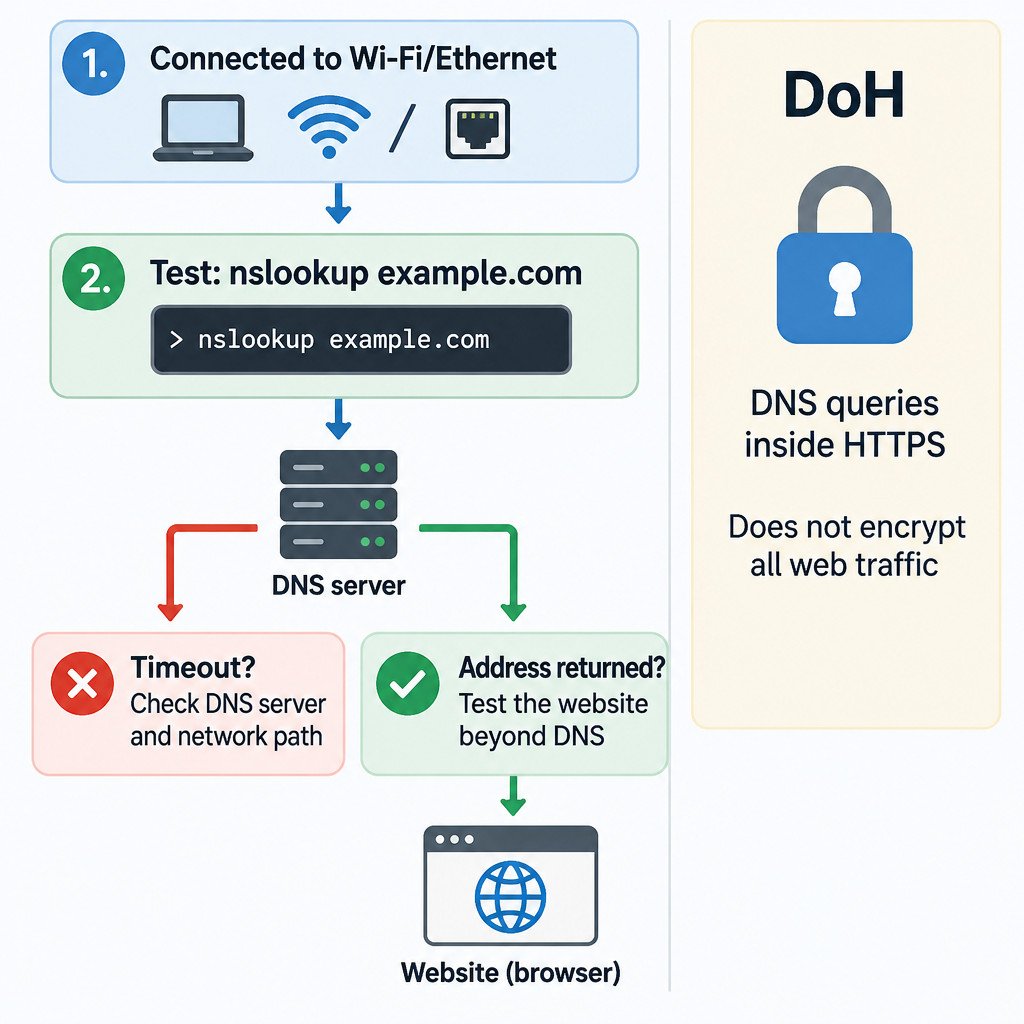
Configure DNS over HTTPS in Windows 11
You need DNS server addresses from a resolver that supports DoH and, if required, its DoH template information. This guide intentionally does not recommend a particular provider: privacy terms, filtering behavior, geographic availability, and compatibility are separate decisions.
- Open Settings, then select Network & internet.
- Select the active connection: Wi-Fi or Ethernet.
- Find DNS server assignment and select Edit.
- Choose Manual.
- Enable IPv4 if you have appropriate IPv4 resolver addresses. Enable IPv6 only if you have appropriate IPv6 addresses. Enter the corresponding addresses in their fields.
- For each enabled protocol, select the matching DNS-over-HTTPS option offered by Windows: Off, On (automatic template), or On (manual template).
- Select Save, then repeat the lookup and browser test.
Microsoft documents these DNS settings and DoH modes in its Windows network settings guidance. The labels can vary slightly with Windows updates, but the important distinction is whether Windows can use a known template automatically or needs the resolver’s specific template entered manually.
Choose the mode deliberately
| Setting | What it means | Practical use |
|---|---|---|
| Off | DNS is not sent with DoH for that entry. | Use when encryption is unsupported or when restoring the prior setup. |
| On (automatic template) | Windows uses a recognized DoH template for the entered resolver. | Use only when Windows offers this option for your resolver. |
| On (manual template) | You supply the resolver’s DoH template. | Use only with exact provider documentation; a wrong template prevents DoH resolution. |
Windows may also offer a plaintext fallback control. Allowing fallback prioritizes availability: if DoH cannot be used, the lookup may proceed without DoH. Disabling fallback prioritizes encrypted-only DNS, but names can fail to resolve when the DoH service or its network path is unavailable. Neither setting is universally right; choose based on whether continuity or encrypted-only lookups matters more in that situation.
Retest without mistaking cache behavior for a fix
After saving, run the same nslookup or Resolve-DnsName command used before. Then open the previously failing site. If you suspect Windows retained an old positive or negative result, clear only the local DNS resolver cache and test again:
ipconfig /flushdnsThis does not change your DNS server settings. It removes locally cached DNS entries, so the next lookup asks the configured resolver again. It cannot correct an incorrect resolver address, a blocked request, or a website outage.
Interpret the result before making another change
- The name resolves, but the site still fails: investigate beyond DNS. Test another browser, check the site URL, consider a proxy or VPN, and look for a certificate or connection error.
- The lookup still times out: recheck the DNS addresses and DoH mode. A VPN, proxy, security product, captive portal, router rule, or network restriction may be interfering with DNS traffic.
- Only company or internal names fail: restore the organization-provided DNS configuration and contact IT. Public resolvers generally cannot answer private internal names.
- The change made browsing worse: return DNS server assignment to Automatic (DHCP), or restore the addresses and DoH choices you recorded before starting.
Multiple configured DNS servers can also produce confusing results when they do not contain the same records. Microsoft’s DNS client resolution troubleshooting reference describes client, DNS-server, and intermediate-network layers that can each contribute to name-resolution failures.
A safe rollback checklist
- Disconnect and reconnect the VPN if one is required for your network.
- Return DNS server assignment to Automatic (DHCP) when that was the original setting.
- If the original setup was manual, re-enter the recorded IPv4 and IPv6 addresses and restore its DoH setting.
- Run
ipconfig /flushdns, then retry the same lookup. - For a managed device or persistent internal-name problem, leave the organization’s configuration in place and contact its support team.
DoH is worth configuring when you understand which resolver you are using and why. For diagnosis, its greatest value is narrower: a controlled DNS change followed by the same lookup test helps separate a name-resolution issue from the many other reasons an internet connection can fail.