On a Windows 11 PC with both integrated and dedicated graphics, set the game’s actual executable to High performance in Windows Graphics settings, restart the game, and then check Task Manager while it is running. This is a sensible first fix for unexpectedly low frame rates or missing graphics options, but those symptoms alone do not prove the game chose the integrated GPU.
This applies mainly to switchable-graphics laptops: an integrated GPU built into the processor handles low-power tasks, while a separate NVIDIA or AMD GPU is intended for heavier graphics work. A desktop with only one GPU has no second processor for Windows to select. The higher-performance choice can also use more battery power and produce more heat.
Set the preference for the game executable, not just its launcher
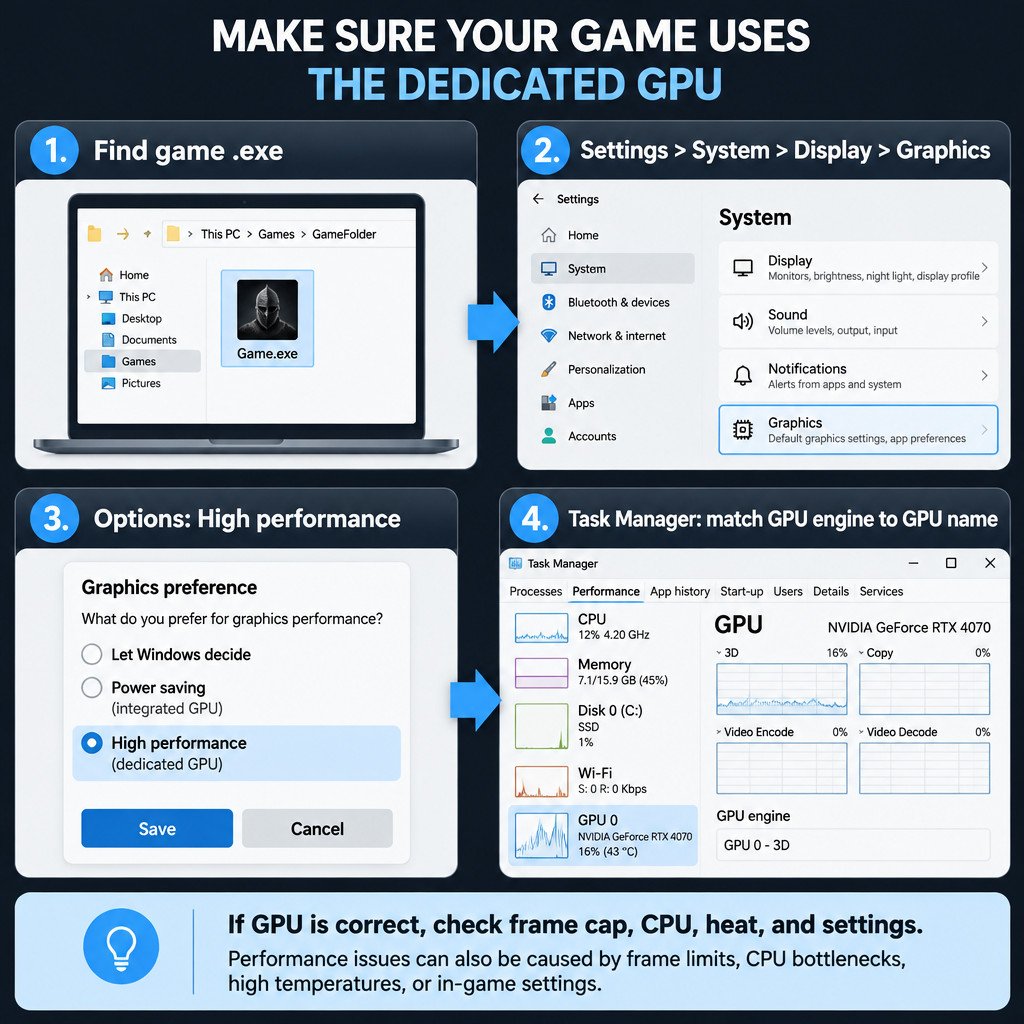
Launchers such as Steam, Epic Games Launcher, or a publisher’s updater are separate programs. Assigning High performance to a launcher may have no effect on the game it starts. Find the game’s .exe file instead. A practical route is to start the game, open Task Manager, right-click its process, and use Open file location if that option is available.
- Fully close the game.
- Open Settings > System > Display > Graphics.
- Find the game in the app list. If it is absent, use Browse to select its
.exefile. - Select the game, choose Options, then select High performance.
- Read the GPU name Windows displays beside that option. Do not assume the label always refers to the GPU you expect.
- Select Save, then launch the game again.
Windows offers Let Windows decide, Power saving, and High performance for apps on systems with multiple GPUs. Microsoft documents this Graphics settings path and notes that the game should be restarted after a change. Microsoft: Graphics settings and windowed-game optimizations
In many laptops, Power saving maps to integrated graphics and High performance maps to the dedicated GPU. “Many” matters: hardware wiring and manufacturer software can affect the result. Treat the visible GPU name and the check below as more useful evidence than the label alone.
Confirm the GPU in Task Manager
A saved preference is not proof that a game rendered on that GPU. Verify it during actual gameplay or a repeatable in-game benchmark, rather than while the game sits at a menu.
- Start the game and load an area that normally causes the problem.
- Press Ctrl+Shift+Esc to open Task Manager.
- On the Processes page, look for the game and the GPU and GPU engine columns. If they are hidden, right-click a column heading and enable them.
- Note the GPU engine reported for the game, such as GPU 0 or GPU 1.
- Open Performance and select each GPU. Match the numbered GPU to its displayed name and watch for meaningful activity while the game is rendering.
The important comparison is the game’s GPU-engine entry against the GPU names in Performance. For example, if Performance identifies GPU 0 as integrated graphics and GPU 1 as a discrete GPU, a game listed on GPU 1 is using the discrete processor for that work. Background activity on both GPUs can be normal on a hybrid laptop, so do not interpret a small nonzero reading as a failure by itself.
AMD likewise describes switchable graphics as a balance between battery life and performance, notes that both GPUs need compatible drivers, and points to Task Manager as a way to monitor GPU use. AMD: Configure laptop switchable graphics
Test under sensible laptop power conditions
For a comparison test, connect the laptop’s supported charger and use the same game scene and settings each time. If your PC exposes the option, choose Settings > System > Power & battery > Power mode > Best performance for the test. This changes the system’s power behavior; it does not directly choose the dedicated GPU. Microsoft cautions that the mode increases power use and may make a laptop run warmer. Microsoft: Change the Windows power mode
Keep the test short if the laptop becomes uncomfortably hot or noisy. A lower-power mode may be the better everyday choice when portability matters more than frame rate.
If High performance does not appear to stick
First confirm that you added the correct executable and fully restarted the game. Then update graphics drivers through the laptop manufacturer’s supported driver downloads before turning to generic driver packages. On switchable-graphics hardware, the integrated and discrete drivers work as a pair; updating only one can leave graphics switching unreliable.
Do not rely on an NVIDIA Control Panel preferred-processor setting as a higher-priority override. NVIDIA states that, on modern Windows versions, Windows assigns the graphics processor for applications and can override that Control Panel setting. NVIDIA: Preferred graphics processor setting
When the GPU selection is not the real problem
If Task Manager shows the game using the intended GPU, changing the preference again is unlikely to help. Look instead for a constraint that fits the symptom.
| Observed pattern | Likely next check |
|---|---|
| Frame rate stays at one fixed value | Check V-Sync, an in-game frame limiter, and any display refresh-rate limit. |
| GPU use is low but one or more CPU cores are busy | Lower CPU-heavy settings such as view distance, crowds, or simulation detail; close unnecessary background work. |
| Performance falls after several minutes | Check temperatures, fan operation, airflow, and whether power is being limited. |
| GPU use is high and frame rate is still low | Lower resolution, render scale, ray tracing, or other demanding graphics settings. |
| Only one game performs poorly | Check that game’s renderer, updates, mods, integrity checks, and known settings conflicts. |
Do not disable the integrated GPU in Device Manager, change firmware settings, edit the registry, or use driver-cleaner utilities merely to force this outcome. Those changes can create display, battery, sleep, or external-monitor problems and are unnecessary for a normal per-app test.
Roll back the preference safely
If High performance causes instability, excessive battery drain, heat, or unusual behavior with an external display, return to Settings > System > Display > Graphics, select the game, choose Options, and set it back to Let Windows decide. Restart the game once more.
The useful outcome is not simply seeing a higher GPU number. It is establishing which executable is running, which GPU is active during the slow scene, and whether a controlled change improves the result. That keeps a straightforward graphics-selection issue separate from driver, thermal, CPU, and game-setting problems.